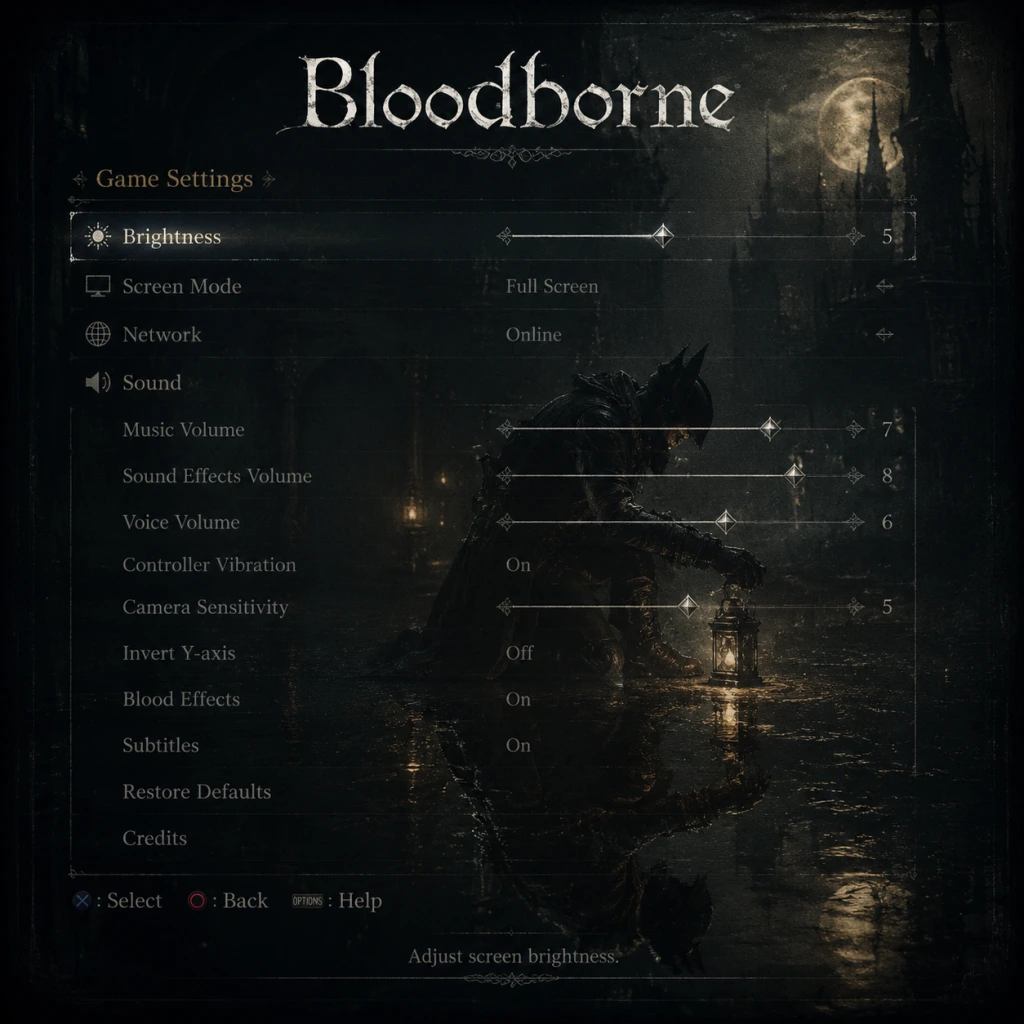
Game Settings
Bloodborne Game Settings – Comprehensive Guide
Bloodborne is a PlayStation 4 exclusive, with backward compatibility on PlayStation 5. Unlike many modern titles, it offers a minimal in-game settings menu. Most graphical adjustments are handled at the system level (PS4/PS5 display and audio settings). This guide covers every setting you can configure, including system-level tweaks that directly impact the experience, and provides optimal recommendations for performance and visual quality across different hardware.
---
Overview of Available Settings
Bloodborne’s in-game options are accessed from the Settings menu on the title screen. You cannot change settings mid-game; any modifications require returning to the main menu. The menu includes:
- Display (Brightness, HDR calibration)
- Audio (Master Volume, SFX Volume, BGM Volume, Voice Volume, Subtitle toggle, Subtitle Background toggle)
- Controls (Camera Horizontal/Vertical Speed, Invert Camera, R1/R2 Swap – a preset swap that exchanges light attack and heavy attack buttons)
- Network (Password Matching, Region, Language Filter)
- Language (Game Text, Voice – only selectable before starting a new game; subsequent changes require system language switch)
Additionally, the PS4/PS5 system settings (Sound/Display, Accessibility) affect Bloodborne. These are critical for optimal experience.
---
1. Display Settings & Graphics
Bloodborne runs at a fixed 30 frames per second on all PlayStation 4 models (including PS4 Pro) and on PS5 via backward compatibility. The frame rate is capped and cannot be changed. However, resolution and HDR vary by hardware:
| Hardware | Native Resolution | HDR Support | Notes |
|---|---|---|---|
| PS4 (Slim/Original) | 1080p | No | Standard experience; loading times ~15-20 seconds. |
| PS4 Pro | 1440p (checkerboard upscaled to 2160p) | Yes (if TV supports) | Slightly sharper image; still 30 fps. |
| PS5 | 1440p (checkerboard upscaled to 2160p) | Yes (if TV supports) | Same resolution as PS4 Pro but dramatically faster loading (under 5 seconds). The game runs at 30 fps, but is more stable. |
- Brightness: Adjust until the image of the Hunter is barely visible against the background (the optimal calibration screen). Setting it too high washes out dark areas, making ambushes harder to spot. Too low loses detail in shadows.
- HDR Calibration (PS4 Pro and PS5 only): Accessible from the title screen Settings -> Display -> HDR Calibration. You must have an HDR-capable TV and have HDR enabled in PS4/PS5 system settings. The calibration provides a slider for peak brightness (nits).
- Resolution: Set to 1080p (PS4 base) or 2160p (PS4 Pro/PS5 if you have a 4K TV). For PS4 Pro, you can force 1080p output through system settings to reduce upscaling artifacts, but image will be sharper natively. No performance gain – both modes are 30 fps.
- RGB Range: Set to “Full” if your TV supports it, or “Limited” for older TVs. Wrong setting crushes blacks or washes out colors.
- HDR (PS4 Pro/PS5): Enable “HDR” in system settings and use the system’s calibration tool. Then launch Bloodborne and adjust its internal slider.
- Game Mode: Enable your TV’s Game mode to reduce input lag (critical for parrying and dodging).
- PS4/Slim: Keep system resolution at 1080p. Brightness: calibrate as described. No HDR.
- PS4 Pro with 1080p TV: Set system resolution to 1080p (output) – you still get supersampling from the internal 1440p, resulting in a cleaner image. Keep HDR off if TV doesn’t support it.
- PS4 Pro/PS5 with 4K HDR TV: Enable 2160p output, HDR on, calibrate both system and game HDR. Use Game Mode. Brightness calibration is less important after HDR setup.
- PS5 with 1080p TV: Set system resolution to 1080p. The game still runs at the Pro’s 1440p internal resolution, supersampled to 1080p. Loading times are the biggest benefit.
- Master Volume: Overall volume. Recommended 70-80% initially; adjust to taste. Too high may cause distortion on some headsets.
- SFX Volume: Sound effects (weapons, enemies, environment). Keep at 100% or slightly lower if you play with headphones – some attacks can be loud.
- BGM Volume: Background music. Many bosses have iconic tracks. 80-100% recommended for atmosphere. Lowering it can help you hear gameplay cues during intense fights.
- Voice Volume: Character voices and NPC dialogue. Keep at 100% to catch lore hints and quest triggers.
- Subtitle: On or Off. Highly recommended to set to ON – NPCs often speak softly or with accents, and subtitles help follow the story.
- Subtitle Background: Enables a dark box behind subtitles for readability. Recommended ON.
- Audio Output: Choose HDMI or Optical. For best quality, use HDMI to your TV (or receiver) with Linear PCM. If using a gaming headset, ensure chat/game audio balance is set to prioritize game sound.
- Headphones: On PS5, use Tempest 3D AudioTech – it works with Bloodborne for spatial audio, making enemy directions clearer. Enable “3D Audio” in system settings. For PS4, virtual surround sound (e.g., via Gold Wireless headset) can help.
- Volume: Set system volume appropriately; avoid max to prevent distortion.
- Camera Horizontal/Vertical Speed: Affects how quickly the camera turns when you move the right analog stick. Default is 5. Increase if you feel sluggish, especially against fast enemies. Recommended: 7-10 for better situational awareness. Too high may cause dizziness – adjust gradually.
- Invert Camera: If you prefer inverted Y-axis (pushing up looks down), set to ON. Default is OFF.
- Swap R1/R2: This exchange light attack (normally R1) with heavy attack (normally R2). Only useful if you have a specific comfort preference. Do not enable accidentally – it radically changes combat flow. Default: OFF.
- Button Assignments (PS4/PS5 Accessibility settings): You can completely remap buttons at the system level. This is useful if you have disabilities or want to change dodge (normally Circle) to L1 or another button. Warning: Remapping affects all games. Create a profile for Bloodborne only (PS5 supports per-game profiles via “Custom Button Assignments” that can be toggled on/off).
- Vibration: In-game, there is no separate toggle; vibration is controlled by the game. You can disable it system-wide in PS4/PS5 settings under “Controller Vibration”. Vibration provides feedback for taking damage and visceral attacks – disabling it may reduce immersion but can help conserve battery.
- Trigger Effect Intensity (PS5 DualSense): Bloodborne does not use adaptive triggers, so this setting has no effect.
- Camera speed: 7 (horizontal) and 6 (vertical) as a starting point. Increase to 10 for maximum awareness.
- Keep R1/R2 swap OFF unless you have a specific reason.
- If you use system-level remapping, create a separate profile and toggle it only for Bloodborne (PS5) or remember to switch back when playing other games.
- Subtitle On/Off: Already covered – enable for hearing-impaired or for better story comprehension.
- Subtitle Background: Makes text readable on bright backgrounds. Recommended ON.
- Closed Captions: Not supported in Bloodborne; only subtitles for spoken words are available.
- Zoom/Magnification: PS4/PS5 system zoom can enlarge the screen. Useful if you struggle to read item descriptions or UI elements.
- High Contrast: Not built into the game. Use system-level color correction with care.
- Controller Remapping: As mentioned, allows you to assign dodge, attack, or interact buttons to more accessible positions. For example, map Circle (dodge) to L1 so you can dodge without taking your thumb off the right stick.
- Audio Cues: Relying on sound is crucial. Turn on subtitles, but also keep SFX volume high to hear enemy movements. Consider using a headset for precise audio.
- Difficulty: Bloodborne has no difficulty slider. The game’s challenge is static. Accessibility is largely about control modifications and persistence.
- Initial Selection: When you first start a new game, you choose language for text and voice. This choice is permanent for that save file. You cannot change it later except by starting a new game or switching the entire console’s system language (which also affects all other games).
- Misconfiguration trap: If you accidentally select a language you don’t understand, you will need to either play through with subtitles (if you keep voice in English) or restart the entire game. Be very careful at the language selection screen.
- Subsequent changes: To change text language after starting, you must change your PS4/PS5 system language to the desired one. The game will follow. Voice language remains as originally chosen for that save file.
- Password Matching: Set a password to connect specifically with friends. Both summoning and being summoned require matching passwords. Leave blank for random connections.
- Region: Choose “Worldwide” for maximum player pool (faster matchmaking), or “Local” to connect only within your geographic region (lower latency). Default: Worldwide.
- Language Filter: Filters matchmaking by the language set in the game. Keep at default unless you want to restrict to players with the same language.
- PlayStation Plus: Required for all online features (co-op, invasions, covenants). Ensure your subscription is active.
- Load Times: Online mode loads slower than offline because it constantly checks for connections. If you are farming or exploring, consider setting the game to Offline Mode (from title screen → Game Options → Online → Offline). This dramatically speeds up loading and avoids unintended invasions.
- Connection Type: Wired Ethernet is strongly recommended for stable co-op and PvP. Wi-Fi can introduce lag spikes.
- Camera Auto-Adjust: Not directly togglable. The camera tries to auto-center behind the player when moving. This can be disorienting during lock-on. You can partially mitigate by increasing camera speed.
- Lock-On Behavior: The lock-on system cycles through enemies. You cannot change its behavior (e.g., toggle to lock onto nearest). Practice switching between locked and unlocked situations.
- HUD: No HUD opacity or size options. The HUD displays health, stamina, blood echoes, and equipped items. It cannot be customized.
- Save Data: Bloodborne auto-saves constantly. You cannot manually save or create multiple saves without using PS4/PS5 system backup. Be careful not to overwrite your only save.
- In-Game Pause: Bloodborne does not support pausing in any context (even offline). The only way to pause is to use the PS4/PS5 system “Rest Mode” or the “Home” button. Note: If you are online, leaving the game may result in invasions if you are in an area where bell ringing is active.
- Accidental Overwrites: Since there is only one save slot per user profile, never start a new game if you want to keep your progress. Instead, create a backup to USB or cloud storage (PS Plus required for cloud).
- Recommendation: Follow the in-game calibration exactly. On PS5/HDR, the HDR calibration (next) takes priority.
- Misconfiguration trap: If your TV’s HDR implementation is poor, or if you set the slider too high, the image may look washed out (gray blacks, blown-out whites). Start with the default (usually 800 nits) and adjust downwards if blacks appear milky.
- Optimal setup: Use your TV’s HDR Game Mode. Also, in PS5 system settings, set HDR to “On When Supported” and calibrate using the PS5’s own HDR setup (first time setup). Then fine-tune in Bloodborne’s HDR calibration.
#### PS4/PS5 System Display Settings to Check
Recommendations by Hardware:
---
2. Audio Settings
Bloodborne’s audio settings are straightforward but important for immersion and awareness (e.g., enemy footsteps, boss roars).
#### In-Game Audio Options
#### PS4/PS5 System Audio Settings
Recommendation: Enable subtitles, keep SFX and BGM balanced (both at 100%), voice at 100%, and Master around 80%. PS5 users should enable Tempest 3D Audio.
---
3. Controls & Input
Bloodborne’s control scheme is optimized for the DualShock 4 / DualSense. You cannot fully remap buttons within the game, but you can swap light and heavy attacks (R1 ↔ R2) and adjust camera behavior.
#### In-Game Control Options
#### System-Level Control Settings
Recommendation:
---
4. Accessibility Settings
Bloodborne has minimal built-in accessibility features, but PS4/PS5 system-level options can help.
#### In-Game Accessibility
#### System-Level Accessibility (PS4/PS5)
Recommendation: Enable subtitles with background, adjust camera speed to your comfort, and explore system-level remapping if standard controls are uncomfortable.
---
5. Language Settings
Language in Bloodborne is split into two parts: Game Text (menus, item descriptions) and Voice (character speech).
Recommendation: Select your native language for both text and voice. If you prefer original Japanese voice with English text, choose English text and Japanese voice at the start. This is the only way to get that combination.
---
6. Network & Online Settings
Bloodborne’s online features allow cooperative play (beckoning) and player versus player (invading). These settings are critical for multiplayer success.
#### In-Game Network Options
- Misconfiguration: If you forget to remove a password, you will not be matched with random players. Always clear the password after co-op sessions.
- Recommendation: Use Worldwide for quick co-op, especially for boss fights. If you experience lag, switch to Local.
#### Additional Online Considerations
Recommendation: For first playthrough, play Offline to avoid invasions and reduce loading times. Once comfortable, switch to Online with Worldwide region and no password. Use a password only for specific co-op partners.
---
7. Gameplay Settings (Miscellaneous)
Bloodborne has no dedicated “gameplay” settings menu, but several system and in-game options affect the feel:
Special Attention Point:
---
8. Optimal Settings Summary Table
| Setting Category | PS4 (Base/Slim) | PS4 Pro | PS5 |
|---|---|---|---|
| Display - Resolution | 1080p | 2160p (or 1080p supersampled) | 2160p (or 1080p) |
| Display - HDR | Off | On (if TV supports; calibrate) | On (calibrate) |
| Brightness | Calibrate per in-game screen | After HDR, brightness is less critical | Same as PS4 Pro |
| Audio - SFX/BGM/Voice | All 100% or adjust preference | Same | Same; enable Tempest 3D Audio |
| Subtitles | ON with background | ON with background | ON with background |
| Camera Speed | 7-10 | 7-10 | 7-10 |
| Invert Camera | As preferred | As preferred | As preferred |
| R1/R2 Swap | OFF | OFF | OFF |
| Network Mode | Offline for first playthrough; Online later | Same | Same |
| Region | Worldwide | Worldwide | Worldwide |
| Password (co-op) | Blank for random, set for friends | Same | Same |
| Language | Native language text + voice | Same | Same |
| System Game Mode ON TV | ON | ON | ON |
| Ethernet Connection | Recommended | Recommended | Recommended |
| PS Plus | Required for online | Required | Required |
9. Final Recommendations & Pitfalls
- Most common misconfiguration: Leaving a password active when you want random co-op. Always clear the password field after playing with friends.
- Washed out HDR: Bloodborne’s HDR calibration is finicky. If colors look gray, reduce the peak brightness slider until blacks return to deep inky levels. Also check your TV’s HDR settings (set to “Game” mode and disable dynamic contrast).
- Camera sickness: If you feel motion sickness, lower the camera speed to 5-6 and increase the field of view (not adjustable). Try playing on a larger screen and sitting further away.
- Control remapping addiction: Once you remap at the system level, you may find it hard to revert. Use PS5’s profile feature or keep a note of your default settings.
- Language lock: Double-check your language selection at the start. A mistake means starting over or changing the entire console language.
- Save backup is essential: Bloodborne’s single autosave can be corrupted. Back up your save to USB regularly or to the cloud (PS Plus).
By carefully adjusting these settings, you’ll achieve the most comfortable and visually optimal experience on your PlayStation hardware. Remember that Bloodborne’s challenge is intentional – settings will not make the game easier, but they will let you focus on the gameplay without frustration from controls, audio, or display issues.