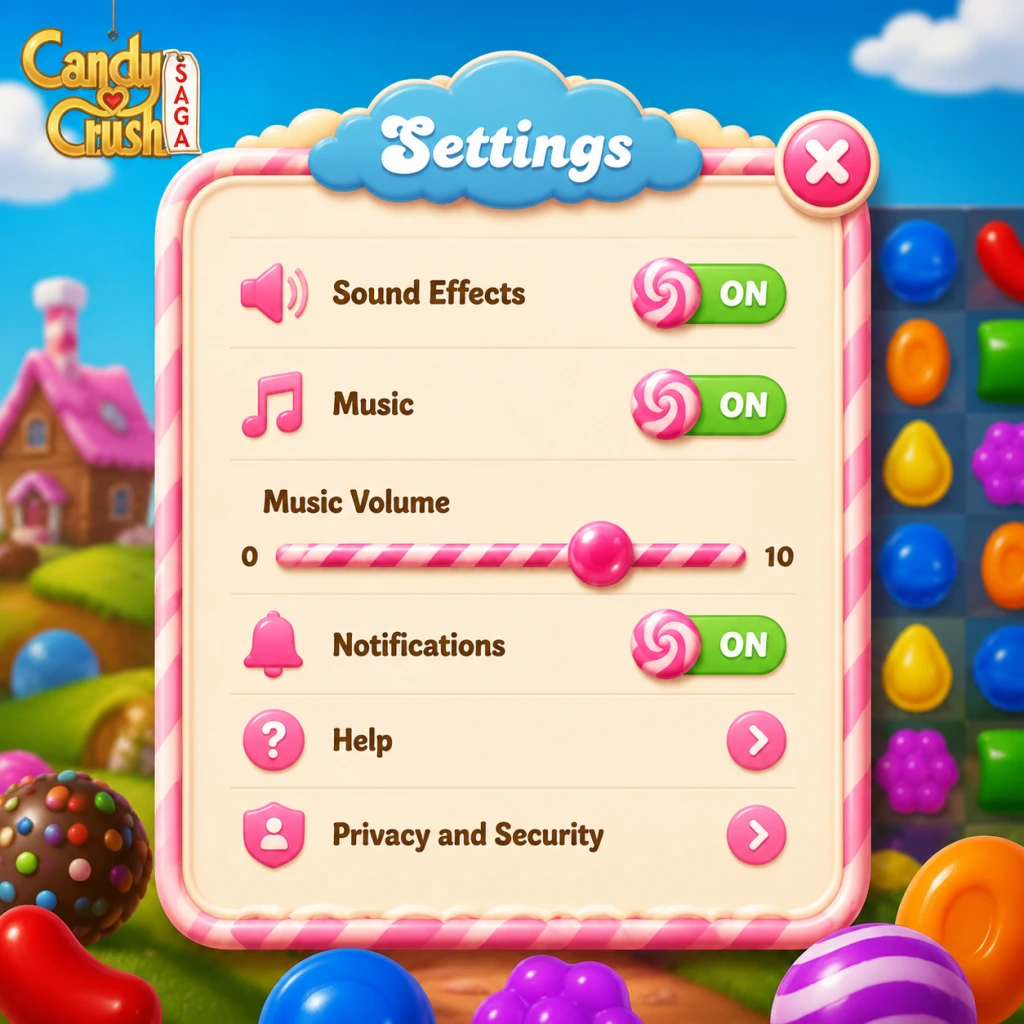
Game Settings
Candy Crush Saga Game Settings Guide
Candy Crush Saga offers a straightforward settings menu, but tweaking a few options can significantly improve your experience—whether on a low-end phone, a high-end tablet, or a PC. This guide covers every settings category and provides recommendations for different hardware levels.
General Tips Before You Start
- Access settings from the main menu (gear icon) or during gameplay via the pause menu.
- Settings sync with your King account (if logged in), so changes carry across devices.
- The game uses very little system resources, so performance tweaks mainly affect battery life and smoothness on older devices.
- Quality: Low / Medium / High (may be labeled “Performance” vs. “Quality” on some devices)
- Resolution: (PC only) Window size and full-screen toggle; mobile uses native screen resolution automatically.
- Effects: Particle effects, candy animations, and board shine. Not separately adjustable on most platforms; tied to overall quality.
Graphics Settings
Available Options (Mobile & PC):
Recommendations by Hardware:
| Device Type | Recommended Setting | Reason |
|---|---|---|
| Low-end Android/iOS (RAM ≤ 2GB, old CPU) | Low Quality | Reduces lag during cascades and saves battery. Animations remain smooth enough for gameplay. |
| Mid-range (2019–2022 phones, tablets) | Medium Quality | Balance between visual polish and battery life. |
| High-end (flagship phones, gaming tablets, PC) | High Quality | Full candy sparkle and fluid transitions. Battery impact is minimal on powerful devices. |
| PC with integrated graphics | Medium or Low | High may cause minor stutter on very old laptops. |
| PC with dedicated GPU | High | No performance concern; use windowed or full-screen as preferred. |
- On some Android phones, setting Quality to “High” may force the game to run at higher frame rate (60 FPS) by default, draining battery faster. If you notice rapid battery drain, switch to Medium or Low.
- Full-screen mode (PC) – If the game appears stretched or blurry, ensure your display resolution matches your monitor’s native resolution. Toggle full-screen to reset scaling.
- Music Volume: Slider (0–10)
- Sound Effects (SFX) Volume: Slider (0–10)
- Voice Volume: (Present only in tutorial or level‑win jingles – rarely used)
- For battery saving: Mute both music and SFX. Audio processing adds slight battery drain on mobile.
- For focus: Set Music to 0 or low, keep SFX moderate to hear match indicators.
- For immersive play: Keep both at 5–7. The soundtrack is cheerful but can become repetitive.
- If you play in public or at work, mute all sounds to avoid accidental audio spoilers.
- Turning off SFX may delay your reaction to special candy creation sounds (e.g., the “whoosh” of a color bomb). It’s a minor trade‑off.
- Swipe Sensitivity: Not adjustable (iOS/Android use system touch handling).
- Drag vs. Tap: Candy Crush uses drag to swap. Some phones allow tapping two adjacent candies, but this is device‑specific, not a setting.
- Mouse: Click and hold a candy, then drag to adjacent candy. Release to swap. No sensitivity settings.
- Keyboard Shortcuts: No keyboard shortcuts exist for gameplay. However, you can press Esc to pause, Enter to skip cutscenes on some versions.
- Gamepad: Not supported.
- None – controls are fixed. But note that on PC, if you accidentally drag outside the game window, the swap may not register. Keep the game window active.
- Colorblind Mode: Available in Settings → Accessibility. It adds unique symbols (e.g., stripes, dots) to each candy color so you can distinguish them without relying on color alone.
- Text Size: Not adjustable generically, but the game’s UI scales with device font size settings on Android/iOS.
- Vibration: On mobile, you can enable/disable vibration on match success (under Settings → General or Accessibility).
- Reduced Motion: On iOS, you can enable “Reduce Motion” system-wide, which also affects the game’s animations. Not unique to Candy Crush.
- Colorblind Mode: Turn ON if you have any form of color vision deficiency (deuteranopia, protanopia, tritanopia). It eliminates guessing and frustration.
- Vibration: Turn OFF to save battery and reduce distraction.
- Text Size: If playing on a small phone, increase system font size to make level objectives and boost descriptions easier to read.
- Colorblind Mode is buried in the Settings gear → Accessibility. Many players miss it. Always enable it if you struggle to tell red from green or blue from purple.
- Vibration can be mistakenly left on, draining battery and causing unnecessary noise during meetings.
- Option: Choose from dozens of languages (English, Spanish, French, German, Japanese, etc.).
- How to change: In Settings → Language. The game will restart to apply the change.
- Note: Language affects all text (missions, pop‑ups, tutorial narrations). It does not affect server region or events.
- If you accidentally select a language you don’t understand, the settings menu remains in that language. Navigate by icon (gear for Settings, then look for a globe or text “Language”). Use a translation app if necessary.
- Wi‑Fi Only: A toggle in Settings (mobile) to prevent the game from using cellular data. Useful for saving data or avoiding high roaming charges.
- Data Usage: Candy Crush uses very little data – roughly 1–2 MB per hour of play (mostly for ads and level loading). Syncing progress uses negligible amounts.
- Offline Play: You can play without an internet connection, but progress will not sync to the cloud. Upon reconnecting, the game will attempt to upload your local progress. Note: Event levels, boosters, and leaderboards require an active connection.
- Mobile: Turn on “Wi‑Fi Only” if you have a limited data plan. The game runs fine offline for standard levels.
- PC: Always connected; no data concerns.
- If you switch devices frequently, make sure you are logged into the same King account (or Facebook/Apple/Google) and that you have a stable connection when closing the game. Otherwise, you may lose progress or face a sync conflict.
- Confirm Moves: (Not present in Candy Crush – swaps are instant. No undo.)
- Swipe Direction Lock: Some match‑three games offer this; Candy Crush does not.
- Level Start Animation: (Cannot be skipped entirely on some versions; you can tap to speed it up.)
- Notifications: You can enable/disable push notifications for lives, event reminders, and special offers. Found in Settings → Notifications (mobile) or system notification settings.
- Purchase Confirmation: The game asks for confirmation before every purchase (e.g., buying extra moves or boosters). This cannot be disabled – a safety feature.
- Parental Controls: Set a PIN via your app store (Google Play, Apple App Store) to restrict in‑app purchases. Not within the game itself.
- Notifications: Turn off all non‑essential notifications to avoid annoyance. Keep “Free Lives Are Full” if you want to know when you can play again.
- Purchase Confirmation: Leave as is – it’s a critical guardrail against accidental spending.
- For children: Enable parental controls at the OS level. Candy Crush has many temptations for boosters and extra moves.
- None – gameplay settings are minimal. However, be aware that turning off all notifications may cause you to miss limited‑time events that require a log‑in during a specific window.
Audio Settings
Options:
Recommendations:
Special Attention:
Controls Settings
Mobile (Touch):
PC (Mouse & Keyboard):
Easy to Misconfigure:
Accessibility Settings
Candy Crush Saga includes important features for players with different needs:
Recommendations:
Easy to Misconfigure:
Language Settings
Easy to Misconfigure:
Network Settings
Recommendations:
Special Attention:
Gameplay Settings
Available Options:
Recommendations:
Easy to Misconfigure:
Recap: Checklist for First-Time Setup
1. ✅ Set Graphics Quality based on your device (Low for old, High for new).
2. ✅ Audio: Mute or lower to desired level.
3. ✅ Accessibility: Enable Colorblind Mode if needed; turn off Vibration.
4. ✅ Language: Confirm it’s your preferred language.
5. ✅ Network: Turn on Wi‑Fi Only on mobile to save data.
6. ✅ Notifications: Customize to only important alerts.
7. ✅ Parental Controls: Set if sharing device with minors.
Adjust these settings as you play – Candy Crush is forgiving and changes take effect immediately. Enjoy matching!