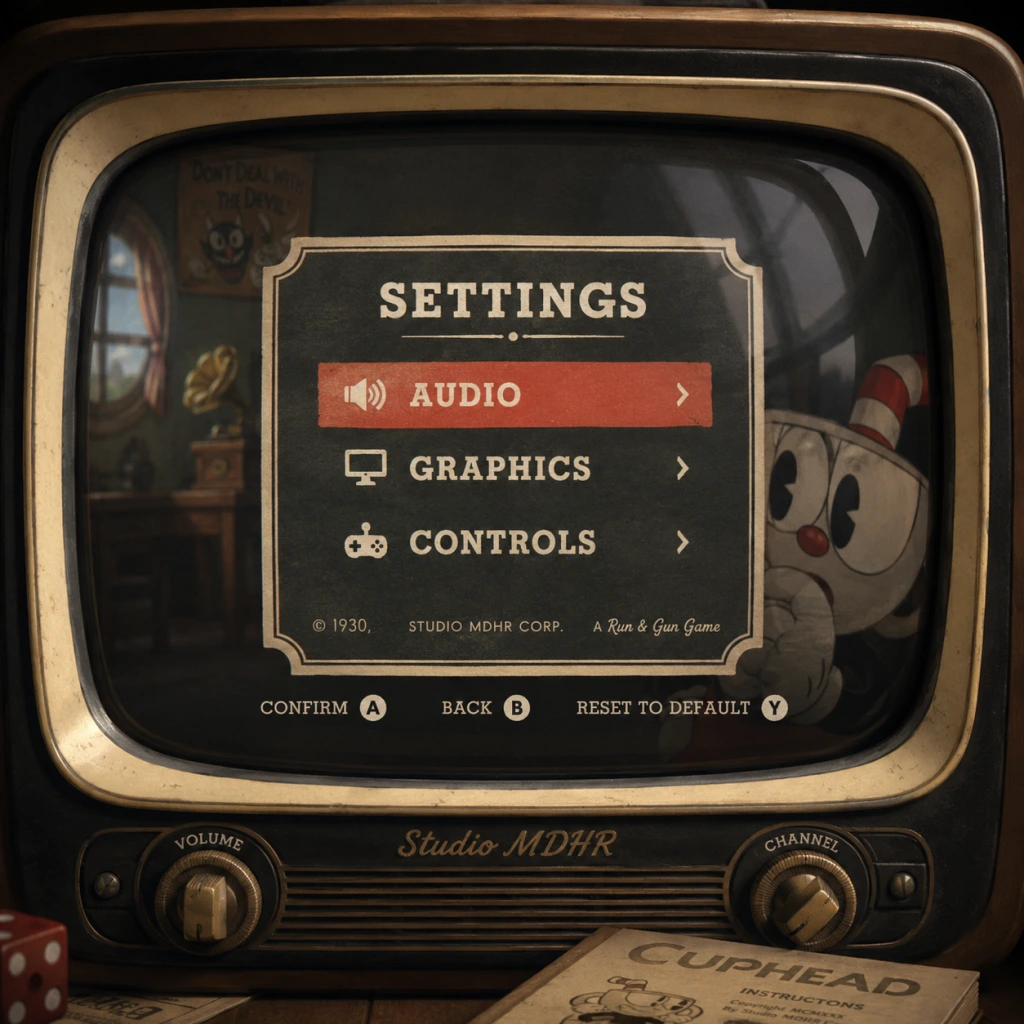
Game Settings
Overview
Cuphead offers a focused but well-implemented settings menu. While the game is not graphically demanding, optimizing settings can ensure smooth 60 FPS gameplay—essential for precise timing in boss fights. This section covers every settings category: Graphics, Audio, Controls, Accessibility, Language, Network (for online play), and Gameplay. We also provide recommended presets for low-end, mid-range, and high-end systems, and highlight commonly misconfigured options that can cause input lag or visual frustration.
---
Graphics Settings
Cuphead runs on a custom 2D engine that prioritizes hand-drawn animation. The graphics options are minimal but impactful.
Display Mode
- Fullscreen – Recommended for dedicated gaming. Minimizes input lag and background distractions.
- Windowed – Useful for multitasking or streaming but may introduce slight input delay.
- Borderless Windowed – Good for seamless alt-tabbing. Slightly higher latency than true fullscreen.
- Automatically detects your monitor's maximum. You can lower to increase performance, but you rarely need to unless on very weak hardware.
- Recommended: Native resolution (1920x1080 or higher). Cuphead's hand-drawn art looks best at native res.
- On – Prevents screen tearing, but can cause slight input lag. Strongly recommended for competitive play to avoid visual stutter.
- Off – Lower input lag but screen tearing. Use only if you have a G-Sync/Freesync monitor and a framerate cap.
- Options: Off, FXAA, SMAA. SMAA provides sharper edges with minimal performance hit.
- Recommended: SMAA. The game's thick outlines and cel shading benefit from anti-aliasing.
- Calibrate using the in-game test image (in the Display adjustment screen at title menu). Set so that the darkest grey box is barely visible.
- Caution: Too high brightness washes out the art style; too low makes dark platforming sections (e.g., some run-and-gun stages) hard to read.
- Cuphead internally targets 60 FPS. There is no in-game uncap option on most platforms. On PC, you can force a cap via GPU control panel (e.g., NVIDIA/AMD) for consistency.
- Special Point: Cuphead's physics and animation are tied to 60 FPS. Running at higher framerates via third-party tools can cause unintended behavior (e.g., double-speed movement). Do not attempt to uncap FPS.
Special Attention: On Windows, ensure your monitor's refresh rate matches your OS display settings (e.g., 60Hz or 144Hz). Cuphead does not have a specific refresh rate option; it uses the system's default.
Resolution
V-Sync
Misconfiguration Warning: Turning V-Sync off without a high-refresh-rate adaptive sync monitor will cause distracting tearing during fast scrolling (e.g., run-and-gun levels).
Anti-Aliasing
Brightness
FPS Cap
Performance Recommendations
| Hardware Level | Suggested Settings | Notes |
|---|---|---|
| Low-end (Intel HD 4000, 4GB RAM) | 720p or 900p, V-Sync On, Anti-Aliasing Off, Fullscreen | Lower resolution prevents framedrops in crowded boss phases. |
| Mid-range (GTX 1050, Ryzen 3, 8GB) | 1080p, V-Sync On, SMAA, Fullscreen | Solid 60 FPS. If using mods or multiple monitors, prefer Borderless Windowed. |
| High-end (RTX 2060+, recent i5/R5) | 1440p or 4K, V-Sync On, SMAA, Fullscreen | Overkill for the engine, but 4K makes the hand-drawn art look incredible. No performance concerns. |
---
Audio Settings
Master Volume
- Controls all ingame sounds. Default 100%.
- Recommendation: Keep at 70-80% to avoid ear fatigue during intense bosses.
- Cuphead's jazz soundtrack is integral to the atmosphere. Keep at 80-100%.
- Sound effects for attacks, parries, and enemy cues. Keep at 70-100% so you hear parry bells and boss attack sounds clearly.
- Very minimal (only character grunts and NPC lines). Adjust to taste.
- Default: Stereo. Supports 5.1/7.1 if available. Cuphead does not have a specific headphone mode; the mix is fine with any setup.
- Key binding customization for movement (WASD), jump (Space), shoot (Left Click or Z), dash (Shift or X), parry (Right Click or C), super art (Q), and lock-on (A or R).
- Recommendation: Use the default PC layout, but many players prefer binding Super Art to a thumb mouse button for quicker access. Ensure Jump is on a low-latency key (Space or Up Arrow).
- Full controller support with Xbox/PlayStation/Switch button icons.
- Deadzone: Not adjustable in-game. If your analog stick drifts, clean your controller or use third-party calibration software. Cuphead uses a moderate default deadzone that works for most.
- Vibration: On/Off. Turn off to reduce distraction or save battery.
- Cuphead allows full remapping on all platforms. Important actions: Shoot (most used), Jump, Dash, Parry, Super Art, Lock-On (for missiles).
- Optimal Layout (Xbox controller recommended): A (Jump), B (Dash), X (Shoot), Y (Parry), LB/LT (Lock-On/Rotate weapon), RB/RT (Super Art). This keeps your thumb on A/B for movement and face buttons for combat.
- Not adjustable in-game. Mouse DPI should be set to a moderate level (800-1600 DPI) for precise aiming in run-and-gun levels. Too high causes overshooting.
- On/Off for all dialogue and boss introductions. Recommended On for narrative context, especially during the Casino boss.
- On/Off. Turning off can reduce visual distraction for players sensitive to motion. Does not affect gameplay difficulty.
- None officially. The game uses color-coded warnings (e.g., pink for parry, red for danger). Third-party mods or overlays can help; no in-game support.
- Supports: English, French, Italian, German, Spanish (EU), Japanese, Korean, Russian, Portuguese (Brazil), Simplified Chinese, Traditional Chinese. Set via launcher or platform settings (Steam, GOG, etc.).
- Only English voice/sound effects. No dubbed options. Music is instrumental.
- None. The game does not have a dedicated network settings menu.
- Ensure both players have stable internet (5 Mbps up/down minimum).
- Host should set Steam to prioritize game traffic (no downloads during play).
- Disable vsync on the host only if using adaptive sync, otherwise keep vsync on to reduce network stutter.
- Cuphead has no traditional difficulty slider. The only choice is Regular (standard experience) vs. Simple (available only for select bosses, but you cannot complete the game on Simple).
- Advice: Always pick Regular for full boss patterns and unlocking achievements. Simple mode avoids some attack phases but locks progression.
- Not a setting, but note: many bosses have audio cues (e.g., "Persistence is key" before a dash attack). Keep SFX up to hear them.
- Player 2 can drop in/out at any time at the overworld map. No special settings needed. The game automatically splits health (each player has their own HP) and shares the screen (no split-screen).
Music Volume
SFX Volume
Voice Volume
Misconfiguration Warning: If you cannot hear the parry bell (ping sound on pink obstacles), you will miss a core mechanic. Ensure SFX is not muted or too low (<30%).
Audio Output
Special Attention: On Windows, check your system's audio enhancements (e.g., loudness equalization). Disable them; they can muffle important cues like enemy grunts or the parry ping.
---
Controls Settings
Keyboard & Mouse (PC Only)
Controller (All Platforms)
Common Misconfiguration: On PC, if you use a controller, make sure the controller is recognized before launching the game. Cuphead prioritizes the last connected device; if you plug in after launching, you may need to restart. Also, avoid using DS4Windows with native Steam Input enabled; either disable one to prevent double inputs.
Button Mapping
Sensitivity / DPI
---
Accessibility Settings
Cuphead has limited baked-in accessibility, but some options help.
Subtitles
Screen Shake
Colorblind Modes
Special Attention: There is no difficulty slider. Accessibility relies on the player's ability to read patterns. If you struggle with reaction time, consider playing co-op (NPC can revive you).
---
Language Settings
Text Language
Audio Language
---
Network Settings (Online Co-op)
Cuphead supports local co-op only (couch co-op). There is no online multiplayer in the base game. However, on PC, you can use Steam Remote Play Together or Parsec to play online with friends.
In-Game Network Options
Recommendation for Remote Play:
---
Gameplay Settings
Difficulty
Subtitles for Boss Cues
Co-op Settings
---
Settings to Double-Check Before Playing
1. V-Sync: Ensure it is On to prevent tearing; if you have a 60Hz monitor, this is mandatory.
2. Resolution: Must match native monitor resolution for crisp art. Do not upscale artificially.
3. SFX Volume: Must be audible (>50%) to hear parry bells and boss telegraphs.
4. Screen Shake: Disable if you experience motion sickness or distraction.
5. Controller Input Mode: On PC, if using a controller, verify that the game recognizes it in the controls menu before starting.
6. FPS Cap: Never attempt to unlock framerate; the game is designed for 60 FPS.
---
Summary Table of Recommended Settings
| Category | Setting | Recommendation |
|---|---|---|
| Graphics | Display Mode | Fullscreen |
| Resolution | Native (e.g., 1920x1080) | |
| V-Sync | On | |
| Anti-Aliasing | SMAA | |
| Brightness | Calibrated to test image | |
| Audio | Master Volume | 70-80% |
| SFX Volume | 70-100% (hear parry cues) | |
| Controls | Jump | A (controller) / Space (keyboard) |
| Shoot | X (controller) / Left Click (keyboard) | |
| Accessibility | Subtitles | On |
| Screen Shake | Off (if sensitive) | |
| Network | Remote Play | Ensure stable connection, disable downloads |
| Gameplay | Difficulty | Regular |