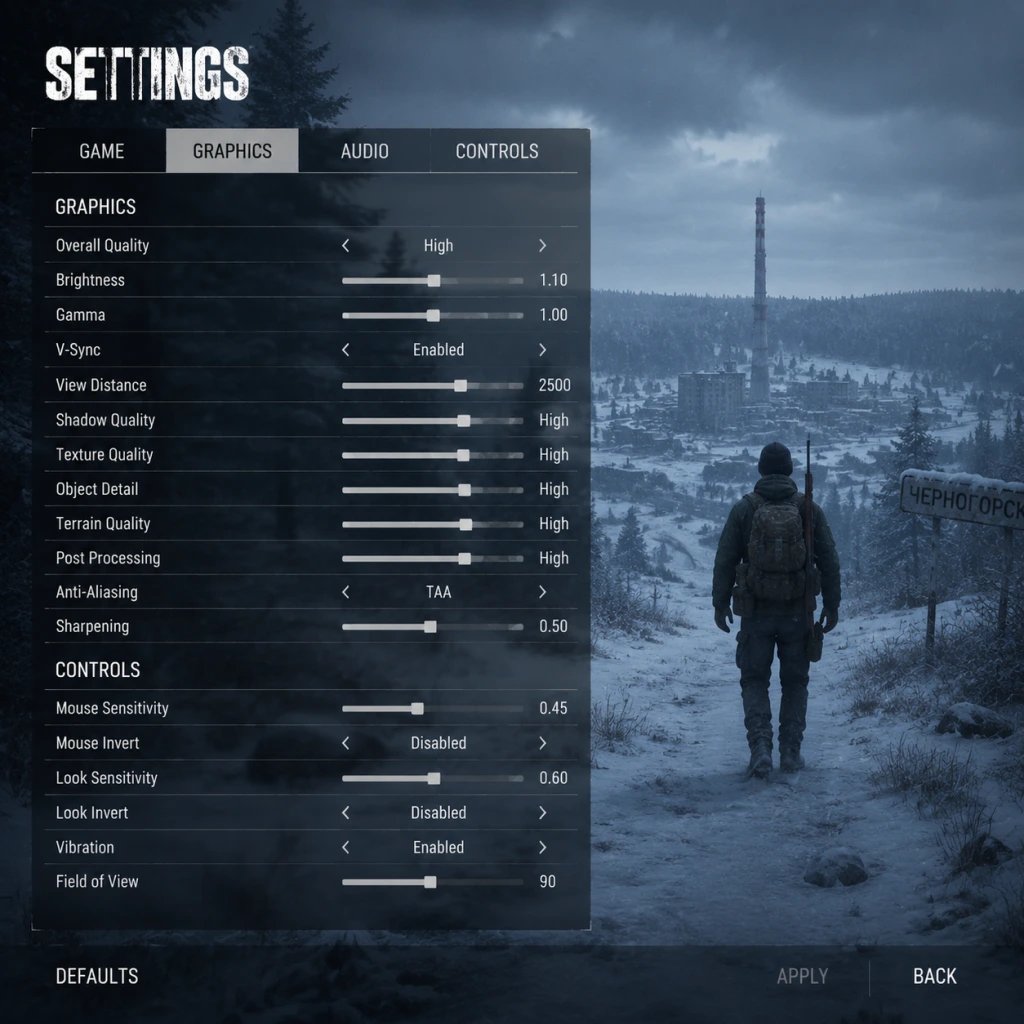
Game Settings
Game Settings Guide for DayZ
Navigating DayZ’s settings menu is crucial for both survival and enjoyment. This guide covers every category—graphics, audio, controls, accessibility, language, network, and gameplay—with optimal recommendations for low-end, mid-range, and high-end hardware, plus special attention points for settings that are easy to misconfigure.
1. Graphics Settings
Graphics are the largest performance factor. DayZ uses the Enfusion engine, which scales well but can be punishing on older hardware.
#### Key Settings and Recommendations
| Setting | Low-End (e.g., Intel HD, RX 560) | Mid-Range (GTX 1060, RX 580) | High-End (RTX 3070+) | Notes |
|---|---|---|---|---|
| Resolution | 1920×1080 | 1920×1080 or 2560×1440 | 2560×1440 or 3840×2160 | Keep native for sharpness; lower resolution improves FPS drastically. |
| Display Mode | Fullscreen | Fullscreen | Fullscreen | Windowed adds input lag; exclusive fullscreen is best. |
| Vertical Sync | Off | Off | Off | On causes input lag; use if screen tearing is severe, but prefer RTSS or GPU driver limit. |
| Field of View (FOV) | 90–100 | 100–110 | 100–120 | Higher FOV gives better situational awareness but reduces FPS (especially on low-end). Test in a safe area. |
| Quality Preset | Custom (all low) | Custom (medium-high mix) | High/Ultra | Use custom to fine-tune. |
| Texture Quality | Low | Medium/High | High/Ultra | High textures impact VRAM; low-end with <2GB VRAM should stay Low. |
| Texture Filtering | Low | Low/Medium | High/Ultra | Very cheap performance-wise; set to High on mid/high-end. |
| Shadow Quality | Disabled or Very Low | Medium | High | Shadows are heavy. Disable for competitive visibility (players easier to spot without dynamic shadows). |
| Shadow Distance | 50 | 100 | 200 | Shadows far away barely matter; keep low for speed. |
| Terrain Quality | Low | Medium/High | High/Ultra | Affects grass density and draw distance. Low helps spot prone players but reduces immersion. |
| Object Quality | Low | Medium/High | High/Ultra | Controls building and item detail. Low can cause pop-in; medium is a good balance. |
| Surface Quality | Low | Medium/High | High/Ultra | Road/ground detail; low helps performance in cities. |
| Cloud Quality | Disabled | Low/Medium | High | Minimal visual difference in gameplay; disable on low-end. |
| Bloom | Off | Off | Off | Artificially brightens; can mask enemies. Off is pure competitive advantage. |
| Ambient Occlusion | Off | SSAO | HBAO (if available) | Adds depth but costs FPS. Off for low-end. |
| Anti-Aliasing | Off (or FXAA) | TAA (low sharpness) | TAA + sharpening | FXAA is cheap but blurry; TAA is better but heavier. SMAA is a good middle ground. |
| Post-Process Quality | Low | Medium/High | High/Ultra | Includes motion blur (disable!), grain, and lens flare. All should be Off or Low. |
| Terrain Detail | Low | Medium/High | High/Ultra | Grass again; low helps visibility. |
| Gamma / Brightness | Default (50%) | Default (50%) | Default (50%) | DayZ gamma cannot be cheesed as easily as some games; adjusting too high will wash out night without giving advantage. Keep default. |
| HDR | Off | Off (unless game offers) | Off (unless monitor supports) | HDR can cause performance issues; enable only for visual preference if stable. |
- FOV: A high FOV (e.g., 110) can cause noticeable performance drops on low-end PCs. Start at 90 and increase by 5 until you find a playable balance. On consoles, FOV is capped at 90 (PS4/Xbox One) or 100 (PS5/XSX).
- Shadows Disabled: Disabling shadows makes players and zombies stand out more against the ground. Many competitive players turn them off entirely, but it ruins atmosphere.
- Terrain Quality & Object Quality: Setting both to Low greatly reduces grass and distant clutter, making enemies easier to spot—but also makes the world look barren. This is a common trick in PvP servers.
- V-Sync: Always OFF. The input lag is lethal in PvP. If you have screen tearing, cap your FPS with RTSS or drivers instead.
- Low-End (e.g., i5-2400 + GT 1030): Set everything to Low/Disabled, resolution scale to 75% if needed, FOV 90, Shadows Off, Terrain Low. Expect 30-45 FPS in towns.
- Mid-Range (e.g., Ryzen 5 + GTX 1660): Medium to High textures, Medium shadows (distance 100), Terrain High, FOV 100. Lock FPS to 60 for stability.
- High-End (e.g., i7-12700 + RTX 3080): All Ultra except shadows (High) and bloom (Off). FOV 120, 1440p or 4K. Expect 100+ FPS.
#### Hardware-Specific Configurations
2. Audio Settings
Audio is critical for survival—footsteps, gunshots, weather, and zombie growls.
| Setting | Recommendation | Notes |
|---|---|---|
| Master Volume | 100% | Base level for all sounds. |
| SFX Volume | 100% | Essential for footsteps and gunshots. |
| Voice Volume | 100% | Hear other players’ voice chat clearly. |
| Music Volume | 0% | Music is not helpful and can mask important sounds. |
| Ambient Volume | 80–100% | Weather and environment sounds (rain, wind) are immersive but can be distracting; reduce slightly if needed. |
| Voice Chat Output | Headphones (Default) | Speakers can cause echo; use headphones. |
| Voice Chat Input | Push-to-Talk (PTT) or Voice Activation | PTT is safer to avoid background noise. |
| Audio Quality | Max (e.g., 48000 Hz) | Higher quality gives clearer positional audio. |
| Headphone Equalizer | None (or flat) | Do not use extra bass—footsteps are subtle. |
| Spatial Audio | Enable if available | Windows Sonic or Dolby Atmos can improve vertical directional cues. DayZ does not have native HRTF, but you can try external software. |
- Voice Chat: DayZ uses direct communication. Enable Direct Communication (radio). If you use Voice Activation, test thresholds in a safe zone to avoid broadcasting unintended sounds.
- Audio Cues: In PvP, the loudness of footsteps varies by surface. Practice distinguishing grass, gravel, and concrete.
- Headphones Required: Even a cheap headset beats any speaker setup for surround awareness.
3. Controls
DayZ’s controls are complex, with many keybinds (actions, gestures, inventory). Customize for comfort.
#### Keyboard & Mouse
| Setting | Recommendation |
|---|---|
| Mouse Sensitivity | 0.5–1.0 (start at 0.6) |
| ADS Sensitivity | 0.5–0.7 (lower for precision) |
| Mouse Smoothing | Off |
| Mouse Acceleration | Off (Windows must also have Enhance Pointer Precision off) |
| Invert Mouse Y | Off (unless used to flight sims) |
- Inventory (Tab) – Keep default.
- Gesture Wheel (G) – Remap to something reachable (e.g., Middle Mouse).
- Raise Weapon (Right Mouse) – By default, hold RMB to ready weapon; single tap to ADS. Not ideal. Many players bind Raise Weapon to a thumb mouse button or toggle ADS.
- Sprint (Shift) – Keep.
- Crouch (Z) / Prone (X) – Default; consider moving to side mouse buttons for faster stance changes.
- Actions (F) – Interact; keep.
#### Controller (Console & PC)
| Setting | Recommendation |
|---|---|
| Look Sensitivity | 60–80 (adjust to taste) |
| ADS Sensitivity | 40–50 |
| Vibration | Off (improves aim control) |
| Dead Zone | 0.10–0.20 (reduce stick drift) |
| Aim Assist | Console only: On (slight help, but can fight you) |
| Button Layout | Default (Bumper Jumper can be better for jump-shooting) |
- Mouse Smoothing / Acceleration: ALWAYS off. These cause input lag and inconsistent aim. Disable them in Windows Mouse Settings > Additional mouse options > Pointer Options > uncheck “Enhance pointer precision”.
- Raise Weapon vs ADS: Many new players hold right mouse and accidentally enter ADS when they meant to raise only. Change to: Hold RMB = Raise Weapon, Double-tap RMB = ADS, or use a separate key for ADS (e.g., Right Shift).
- Camera Controls: In vehicles, look around with scroll wheel (PC) or right stick (controller). Sensitivity independent of aim sensitivity is not adjustable—be aware.
4. Accessibility Settings
DayZ has basic accessibility options.
| Setting | Recommendation |
|---|---|
| Colorblind Mode | Choose None, Protanopia, Deuteranopia, Tritanopia (changes UI color hues; experiment) |
| HUD Opacity | 100% (or lower for immersion) |
| Crosshair Toggle | On (shows dot when weapon is raised; essential for hip-fire) |
| Subtitles | Off (not implemented for in‑game audio, only cutscenes?) |
| Text Size | Console only: Small/Normal/Large (affects inventory and chat) |
| Controller UI Scale | Adjust for readability on TV |
5. Language Settings
DayZ supports multiple languages (menu text, subtitles, voice).
- Language: Choose your preferred language from the dropdown. Note: In‑game voice chat and server messages remain in players’ chosen language, not affected by this setting.
- Server Browser Language Filter: You can filter servers by language tag, but enforcement is community‑based.
6. Network Settings
These are critical for connection stability and competitive play.
| Setting | Recommendation |
|---|---|
| Server Browser | Use official launcher or in‑game; sort by ping, lock to low latency (<100ms) |
| Max Ping (in browser) | Set to 150ms to avoid high‑lag servers |
| Enable/Disable VAC | Only on official servers; modded servers use BattlEye or nothing |
| Steam Networking | Usually automatic; ensure Steam is running for voice and friend list |
| Voice Chat Channel | “Local” (proximity) or in a vehicle group or radio channel |
| NAT Type | Open (required for hosting multiplayer? Not applicable; you connect to servers) |
| Packet Rate / Interpolation | Not exposed in GUI. In Arma games, users adjust network parameters via config files; DayZ does not allow this in menus. Ensure a stable Ethernet connection. |
- Ping Matters: High ping (>100ms) desynchronizes your position and makes interactions (looting, shooting) unreliable. Always pick a server with low ping.
- Wi-Fi vs Wired: DayZ is sensitive to packet loss. Use Ethernet if possible.
- Region Lock: Servers can be region‑locked. Connecting to far‑away servers will have high latency and rubber‑banding. Stick to your continent.
7. Gameplay Settings
These affect UI, HUD, and gameplay mechanics.
| Setting | Recommendation | Notes |
|---|---|---|
| Crosshair | On (always visible) | Essential for hip‑fire accuracy. |
| Hitmarker | Enable (shows X when you hit) | Gives feedback even if you cannot see the opponent. |
| Damage Numeric | Off (default) | Shows damage numbers on hit. Some find it useful; others think it clutters. |
| Status Indicators | Always visible (hunger, thirst, temperature, blood, etc.) | You need these to monitor vitals. Keep them on. |
| Compass Overlay | Toggle to show a small compass near crosshair (default off). | Enable for navigation without taking out the compass item. |
| Third Person | Varies per server (official: first‑person only on certain servers). | On first‑person servers, this setting is forced. On third‑person, you can toggle with Left Alt (hold to look around). |
| Auto‑Run | Bound to a key (default maybe unbound) | Useful for long treks. Set to = (equal) or a mouse button. |
| Inventory Drag & Drop | Enabled | Allows quick item moves with mouse. |
| Toggle / Hold Crouch | Toggle is easier on hands. | Choose based on preference. |
- Third Person Peeking: In third‑person servers, you can see around corners without exposing yourself. This is controversial but legal. Use it to your advantage (look over walls with free‑look, Left Alt).
- Hitmarker: Some players turn it off for immersion, but it’s a huge advantage—keep it on.
- Crosshair: Some servers disable crosshair for hardcore roleplay. If so, learn to estimate hip‑fire spread or rely on weapon sights.
Summary: Quick Optimization Checklist
1. Graphics: Shadows Off, Terrain Low, FOV 90–100, V‑Sync Off.
2. Audio: Music 0%, rest 100%, use headphones.
3. Controls: Disable mouse acceleration, remap ADS, raise sensitivity gradually.
4. Network: Join low‑ping servers, use wired connection.
5. Gameplay: Enable crosshair, hitmarker, status icons.
Adjust step by step and test in a peaceful area before hitting PvP zones. DayZ’s settings can mean the difference between spotting an enemy first or dying from a shot you never heard.