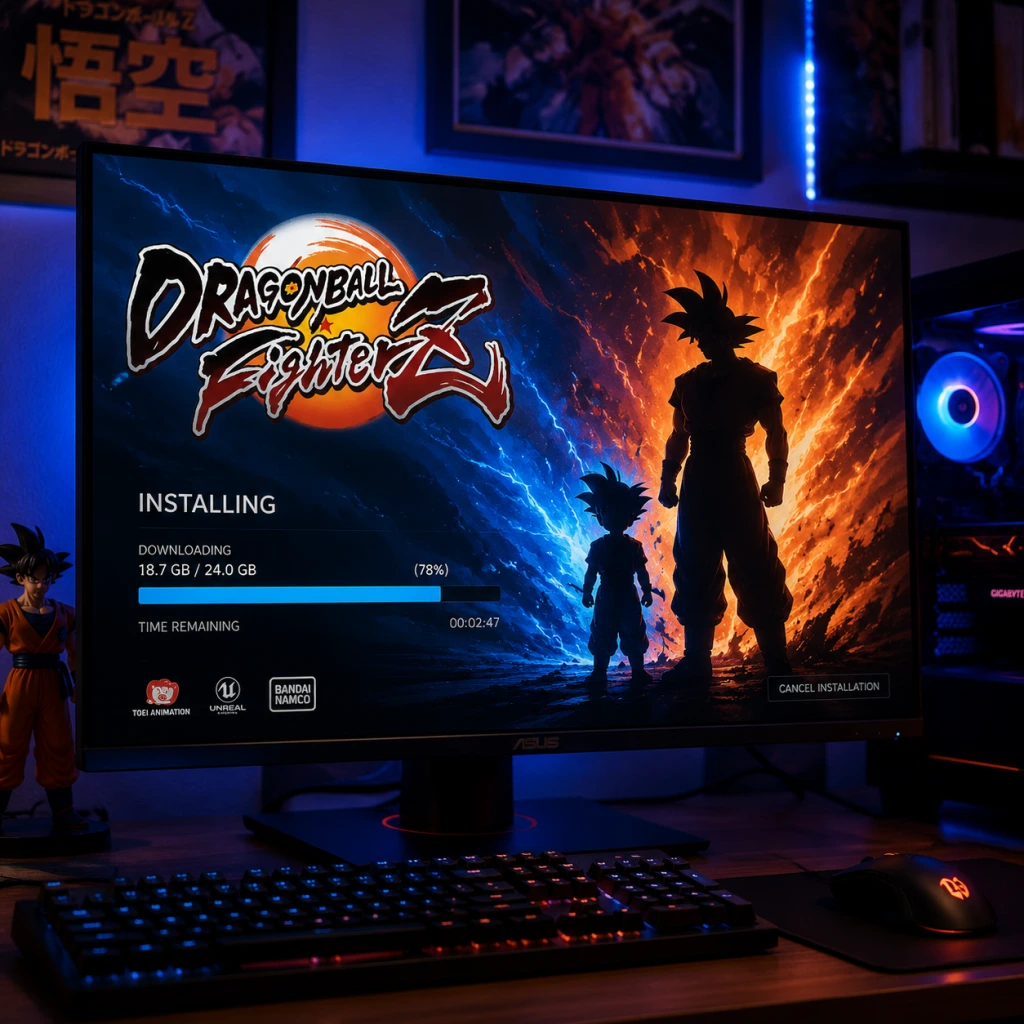
Download & Installation
Download & Installation Guide for Dragon Ball FighterZ
This comprehensive guide covers everything you need to know about downloading and installing Dragon Ball FighterZ on all major platforms: PC (Steam, Epic Games Store), PlayStation 4/5, Xbox One/Series X|S, and Nintendo Switch. Note that there is no official mobile version of this game. All instructions assume you are using legitimate, official sources.
---
Platform-Specific System Requirements
PC (Steam / Epic Games Store)
| Component | Minimum | Recommended |
|---|---|---|
| OS | Windows 7/8/10 (64-bit) | Windows 10 (64-bit) |
| Processor | Intel Core i5-3470 / AMD FX-4350 | Intel Core i7-6700 / AMD Ryzen 5 1400 |
| Memory | 4 GB RAM | 8 GB RAM |
| Graphics | GeForce GTX 650 Ti / Radeon HD 7790 | GeForce GTX 1060 / Radeon RX 580 |
| DirectX | Version 11 | Version 11 |
| Network | Broadband Internet | Broadband Internet |
| Storage | 6 GB available space | 6 GB available space |
PlayStation 4 / PlayStation 5
- Storage: 6 GB minimum free space (PS4); PS5 requires internal SSD or compatible external storage. Backward compatible on PS5.
- Account: PlayStation Network (PSN) account required.
- Online Play: PlayStation Plus subscription needed for online matches.
- Storage: 6 GB minimum free space.
- Account: Xbox Live account (free for offline; Xbox Game Pass Core or Ultimate for online).
- Backward Compatibility: Fully playable on Xbox Series X|S via backward compatibility. Smart Delivery not supported; you play the Xbox One version.
- Storage: 6.1 GB free space on internal storage or microSD.
- Account: Nintendo Account required. Online play requires Nintendo Switch Online subscription.
- Performance: Docked mode targets 1080p, handheld at 720p. Loading times may be longer than on other platforms.
Xbox One / Xbox Series X|S
Nintendo Switch
---
Step-by-Step Installation by Platform
PC via Steam
1. Create/Log into Steam Account: Launch the Steam client, or download it from [store.steampowered.com](https://store.steampowered.com) and install.
2. Purchase or Retrieve Game:
- Buy from Steam Store: Search "Dragon Ball FighterZ" → add to cart → complete purchase.
- If you own a key, go to Games → Activate a Product on Steam → enter key.
3. Install Steam Client (if not already): Run the installer and sign in.
4. Download the Game:
- In Steam Library, find Dragon Ball FighterZ in your games list.
- Click Install.
- Choose installation directory (ensure at least 6 GB free).
- Click Next and wait for download. Steam will show progress.
5. Launch: After download completes, click Play.
PC via Epic Games Store
1. Install Epic Games Launcher: Download from [epicgames.com](https://www.epicgames.com).
2. Sign In: Use your Epic account (or create one).
3. Add Game: If you have a key, click your avatar → Redeem Code. If purchased, it appears in your Library.
4. Install: Click Install on Dragon Ball FighterZ → choose location → start download.
5. Play: Click Launch when ready.
PlayStation 4 / PlayStation 5
#### Physical Disc
1. Insert the game disc into console.
2. Wait for automatic detection → follow on-screen prompts to install.
3. If needed, update the game via internet.
#### Digital Download
1. Navigate to PlayStation Store on your console.
2. Search for Dragon Ball FighterZ → select edition (Standard, Deluxe, Ultimate).
3. Purchase or redeem a voucher.
4. Go to your Library → Purchased → find the game → click Download.
5. Installation starts automatically. Wait for completion.
6. Launch from home screen.
PS5 Note: You may need to manually copy the PS4 version if you own the PS4 disc. No separate PS5 version exists.
Xbox One / Xbox Series X|S
#### Physical Disc
1. Insert disc → console prompts to install.
2. Update if required (requires internet).
#### Digital Download
1. Open Microsoft Store on your Xbox.
2. Search Dragon Ball FighterZ → choose edition → purchase or redeem code.
3. Go to My games & apps → Full library → All owned games → select Dragon Ball FighterZ → Install.
4. Wait for download and installation.
5. Launch from dashboard.
Xbox Series X|S: The game runs via backward compatibility. No performance enhancements patch expected.
Nintendo Switch
#### Physical Cartridge
1. Insert game cartridge into the Switch slot.
2. The game icon appears on home screen. If required, download an update (check internet).
#### Digital Download
1. From Home Menu, open Nintendo eShop.
2. Search Dragon Ball FighterZ → select → purchase or redeem download code.
3. Once purchased, it begins downloading automatically. You can check progress on Home screen.
4. After download completes, the game icon will no longer show a cloud symbol. Launch to play.
---
Account Requirements
| Platform | Account | Online Subscription Needed? |
|---|---|---|
| Steam | Steam Account | No (online free, but Steam account required) |
| Epic Games | Epic Games Account | No |
| PlayStation 4/5 | PSN Account | PlayStation Plus for online matches |
| Xbox One/Series X | S | Xbox Live Account |
| Nintendo Switch | Nintendo Account | Nintendo Switch Online for online play |
---
Storage Space Details
- All platforms: approximately 6 GB (some updates may increase to ~8 GB).
- PC: additional space for save files (negligible) and DLC content (small).
- Nintendo Switch: physical cartridge version does not require large internal storage; updates may require ~1-2 GB.
- Ensure enough free space before downloading. If insufficient, clear unwanted games or use external storage (Xbox Series X|S, PS4/PS5 support external drives; Switch supports microSD).
- Error: "Insufficient Storage" – Free up space or install external drive.
- Error: "Corrupted Data" – Delete and reinstall the game. On console, rebuild database (PS4: safe mode option 5; Xbox: restart).
- Slow Download Speed – Pause and resume download; close other applications; restart router.
- "X3DAudio1_7.dll missing" – Install DirectX Runtime from Microsoft (run DXSETUP in Steam\steamapps\common\_CommonRedist).
- "Failed to initialize graphics device" – Update GPU drivers; ensure DirectX 11 is installed. Try running in windowed mode.
- Crash on startup – Verify game files (Steam: right-click game → Properties → Local Files → Verify integrity). Epic: Settings → Manage Games → Verify.
- Antivirus blocking – Add the game folder and executable to antivirus exceptions. Common folders: `C:\Program Files (x86)\Steam\steamapps\common\DRAGON BALL FighterZ`.
- Error CE-30022-7 (data corruption) – Rebuild database: Turn off console, hold power button until second beep → Safe Mode → Rebuild Database.
- Cannot download/purchase – Check PSN status; sign out/in; renew licenses (Settings → Account Management → Restore Licenses).
- Error 0x87e0000f (installation stopped) – Hard reset: hold power button 10 seconds. Or clear local saved games (Settings → System → Storage → Clear local saved games).
- Game stuck at "Queued" – Change DNS to Google (8.8.8.8 / 8.8.4.4) in network settings.
- Error 2002-2061 (download failed) – Check internet connection; restart Switch; try redownloading from eShop.
- Corrupted data after update – Archive software (System Settings → Data Management → Manage Software → Dragon Ball FighterZ → Archive) then redownload.
- PC: Consider using a wired controller for lower input lag.
- Cross-play: Dragon Ball FighterZ does not support cross-platform play (except between PS4 and PS5 via backward compatibility).
- Updates: Keep the game updated for new balance patches and bug fixes.
- Backup saves: On PC, saves are in `%APPDATA%\..\Local\DBFighterZ` (Steam cloud sync if enabled).
- Reinstalling: If you encounter persistent issues, completely uninstall the game and any related folders before reinstalling.
---
First Launch Setup
1. Language Selection: On first boot, choose your preferred language for text and audio.
2. Network Connection: The game will prompt to connect online. You can skip (offline mode available for single-player).
3. Controller Settings: Adjust button layout if needed. Game supports arcade sticks and standard controllers.
4. Graphic Options (PC only): Set resolution, window mode, and graphics quality. Recommended to start with default.
5. Tutorial: Optionally play the tutorial to learn basic mechanics.
6. DLC Check: Game will scan for downloadable content. If you have purchased DLC, ensure it is installed (check your platform store).
7. Save Data: Game automatically creates save file. On PlayStation/Xbox, sync to cloud if enabled.
---
Common Installation Errors & Fixes
All Platforms
PC Specific
PlayStation 4/5
Xbox One/Series X|S
Nintendo Switch
---
Post-Installation Verification
1. Launch the game successfully – It should load to title screen without errors.
2. Check version number – On main menu, look for version info (usually corner). Should match latest patch.
3. Test controls – Play a quick local match or training mode to ensure all buttons work.
4. Online functionality – If you have subscription, try to log in to online lobby. If stuck at connecting, check firewall/ports (PC) or server status.
5. DLC verification – If you purchased DLC characters (e.g., GT Goku, Janemba), go to Character Select and see if they are unlocked. If not, restart game; on PC verify DLC ownership in Steam/Epic.
6. Save file check – Exit game and re-enter. Settings should persist.
If all steps pass, your installation is successful. Enjoy the high-speed 3v3 battles!
---
Additional Tips
For further help, visit the official Bandai Namco support page or the game’s Steam Community hub.
---
Last updated: 2025. This guide is unofficial but fact-checked against current platform procedures.