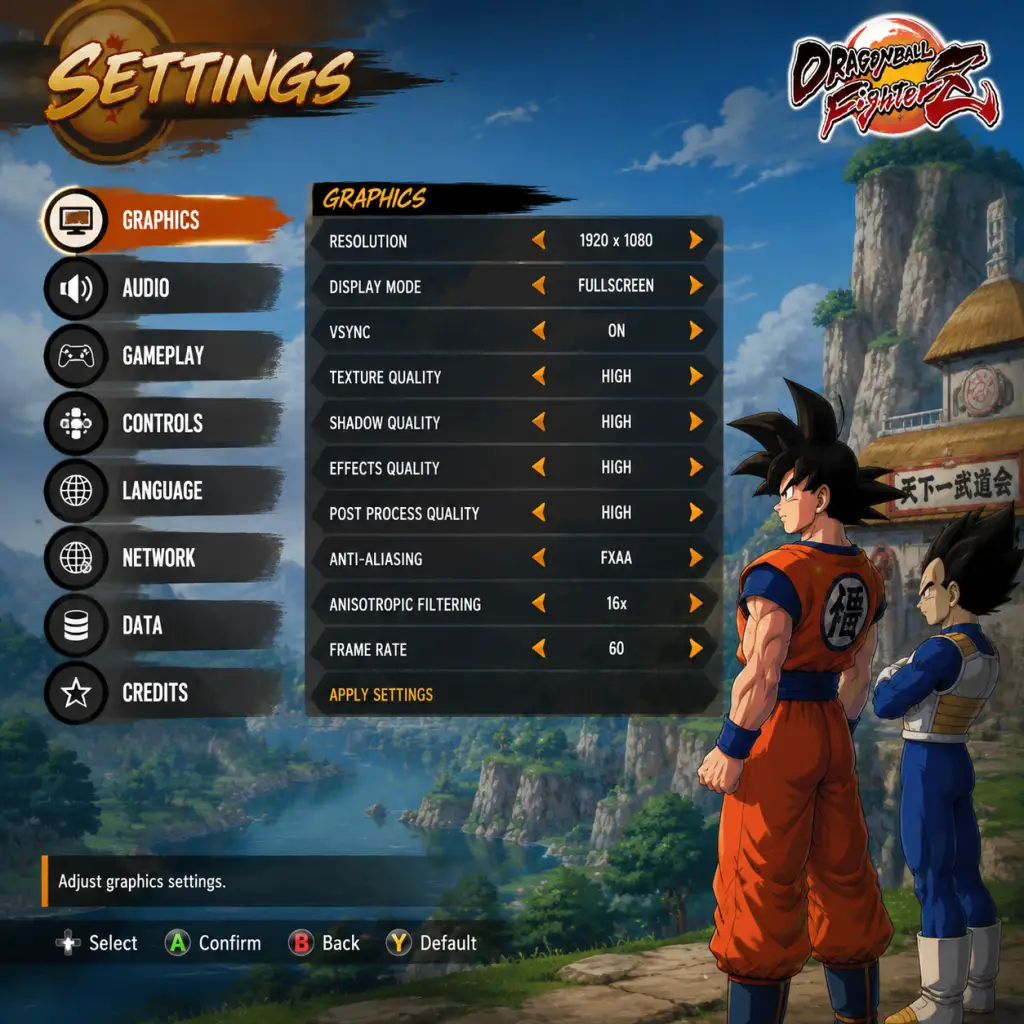
Game Settings
Game Settings Guide for Dragon Ball FighterZ
This guide covers every settings category in Dragon Ball FighterZ, with optimized recommendations for different hardware levels and special attention to easily misconfigured options. Proper settings can reduce input lag, improve visual clarity, and make the game more enjoyable, especially in competitive play.
Overview of Settings Categories
Dragon Ball FighterZ offers six main settings tabs:
- Graphics (PC only)
- Audio
- Controls
- Accessibility
- Language
- Network
- Gameplay
---
Graphics Settings (PC)
Available on the PC version only. These settings directly affect performance, input lag (via V-Sync), and visual quality.
Key Graphics Options
| Setting | Options | Performance Impact | Notes |
|---|---|---|---|
| Resolution | Native, Lower % | High | Lower for performance. Use native for competitive play to avoid scaling blur. |
| Window Mode | Fullscreen, Borderless, Windowed | Low | Fullscreen reduces input lag slightly. Borderless for easier alt-tabbing. |
| V-Sync | On, Off, Adaptive (if available) | Medium | OFF recommended for lowest input lag. On causes 1-2 frames extra delay. |
| Anti-Aliasing | Off, FXAA, TAA, MSAA x2/x4/x8 | Medium-High | TAA blurs less than FXAA. MSAA sharp but heavy. Off for max performance. |
| Shadow Quality | Low, Medium, High | Medium | Low gives clean, flat shadows; High adds self-shadowing. Low recommended. |
| Texture Quality | Low, Medium, High, Ultra | Low-VRAM | Set based on VRAM: <2GB = Low, 2-4GB = Medium, 6GB+ = High/Ultra. |
| Post Processing | Low, Medium, High | Medium | Controls bloom, DOF, motion blur. Turn to Low for clarity and performance. |
| Motion Blur | On, Off | Low | Off recommended. Causes blurring during fast movement. |
| Background Quality | Low, Medium, High | Low-Medium | Low reduces stage detail, can improve loading times slightly. |
| Render Ahead Limit (NVIDIA) | 1-4 frames | N/A | Force 1 frame via driver for minimal input lag. |
Recommended Graphics Presets
#### Low-End System (e.g., Intel HD Graphics 520, 4GB RAM, 2GB VRAM)
- Resolution: 1280x720 (or 1600x900)
- V-Sync: Off
- Anti-Aliasing: Off
- Shadows: Low
- Textures: Low
- Post Processing: Low
- Motion Blur: Off
- Background: Low
- Target FPS: 60 (may need to lower resolution further if dips occur)
- Resolution: 1920x1080
- V-Sync: Off (or Adaptive via driver)
- Anti-Aliasing: TAA (or MSAA 2x)
- Shadows: Medium
- Textures: High
- Post Processing: Medium
- Motion Blur: Off
- Background: Medium
- Target FPS: Stable 60
- Resolution: 1920x1080 or 2560x1440
- V-Sync: Off (or G-Sync/Freesync)
- Anti-Aliasing: TAA (or MSAA 4x at 1080p)
- Shadows: High
- Textures: Ultra
- Post Processing: High
- Motion Blur: Off
- Background: High
- Target FPS: 60 (capped by game engine; no uncapped option)
- V-Sync Off is mandatory for serious play. It eliminates 1–2 frames of display lag. If you experience screen tearing, use G-Sync/Freesync or enable Fast Sync (NVIDIA) / Enhanced Sync (AMD) in driver settings.
- Render Ahead Limit (NVIDIA Profile Inspector): Set to 1 for the lowest possible input delay. This overrides the game's default triple buffering.
- Fullscreen vs Borderless: Fullscreen offers lowest latency. Borderless can introduce a frame of lag due to compositor.
#### Mid-Range System (e.g., GTX 1060, RX 580, 8GB RAM)
#### High-End System (e.g., RTX 3070, 16GB RAM)
Special Attention: V-Sync & Input Lag
Misconfiguration Warning: Anti-Aliasing
Many players leave anti-aliasing on FXAA or TAA without realizing TAA adds slight blur (but less than FXAA). For the sharpest image, use MSAA 2x or 4x if performance allows. Turning it off completely gives the crispest image (pixelated edges) and reduces input delay negligibly.
---
Audio Settings
Available on all platforms. Proper audio can help with audio cues for super moves and stage transitions.
| Setting | Options | Recommendation |
|---|---|---|
| Master Volume | 0-10 | 8-10 (depends on headphones/speakers) |
| BGM Volume | 0-10 | 7 (music is iconic but can be distracting in competitive play) |
| SFX Volume | 0-10 | 10 (essential for hit confirms, supers) |
| Voice Volume | 0-10 | 8 (character calls useful) |
| Sound Output | Stereo, Surround | Stereo (precise left/right panning) |
| Controller Speaker (PS4/PS5) | On/Off | Off (reduces audio delay) |
Special Attention: SFX Volume
- Keep SFX at max. In clutch moments, hearing the whoosh of a vanish or the startup of a Level 3 super can be the difference between reacting or getting hit.
- Reduce BGM in competitive play to better hear in-game sounds.
---
Controls Settings
Crucial for customizing your fighting experience. Available on all platforms.
Button Configuration
The game offers three preset layouts plus a Custom option. You can assign each action to any button.
| Action | Default (Standard) | Recommended (for 6-button fighters) | Explanation |
|---|---|---|---|
| Light Attack (L) | Square / X | Square / X | Fastest normals |
| Medium Attack (M) | Triangle / Y | Triangle / Y | |
| Heavy Attack (H) | Circle / B | Circle / B | Slower but stronger |
| Special (S) | R1 / RB | R1 / RB | Ki blasts, special moves |
| Assist 1 | L2 / LT | L2 / LT | Calls partner 1 |
| Assist 2 | R2 / RT | R2 / RT | Calls partner 2 |
| Dragon Rush | R1+R2 / RB+RT | Macro | Not default; assign to L3 or R3 for easy input |
| Vanish | L2+R2 / LT+RT | Macro | Assign to a spare button if desired |
| Super Dash | R2 / RT (hold) | – | Already available |
Custom Button Map Example (Competitive)
- Light: L1 / LB (left bumper)
- Medium: R1 / RB
- Heavy: L2 / LT
- Special: R2 / RT
- Assist 1: Square / X
- Assist 2: Triangle / Y
- Dragon Rush: Circle / B
- Vanish: L3 (press left stick)
- Dead Zone (Left Stick): Default is fine. Lowering may cause unintended inputs; raising may miss inputs. Leave at default.
- Trigger Dead Zone: Only relevant for analog triggers (PS4/5, Xbox). Set to minimum to reduce input lag from trigger travel. Many players set to 0-10%.
- DPad vs Stick: For fighting games, DPad is recommended for precise directional inputs. Analog stick can cause accidental jumps or diagonal misreads.
This layout places heaviest attacks on triggers and face buttons for assists, which can be faster for some players.
Special Attention: Dead Zone & Stick Sensitivity
---
Accessibility Settings
Available on all platforms.
| Setting | Options | Recommendation |
|---|---|---|
| Button Color | Normal, Protanopia, Deuteranopia, Tritanopia | Choose based on color vision deficiency |
| Fighter Color | 1P Normal, 2P Normal, Mixed, User | Left as default for most. Colorblind players should use appropriate preset. |
| Vibration | On/Off | Off (reduces distraction and saves battery) |
| Subtitle | On/Off | On if you want story dialogue |
| Auto-Ready | Off/On | Off. If on, automatically ready up after matches – can cause accidental rematching. |
| Screen Shake | On/Off | Off for less visual noise during supers. |
| Motion Blur (Console) | On/Off | Off (same as PC) |
Special Attention: Screen Shake
- Turning Screen Shake Off reduces visual distraction during supers and counters, making it easier to see your opponent’s recovery and avoid mix-ups.
---
Language Settings
Changes voice and text language. Note that voice language only affects in-battle character voices; menu text is separate.
| Setting | Options | Notes |
|---|---|---|
| Voice Language | Japanese, English, French, etc. | Japanese is preferred by purists; English is also high quality. |
| Menu Language | Based on system language | Can be changed to any supported language. |
| Subtitle Language | Same as menu |
Recommendation
- Voice: Japanese (original voice actors, more authentic). If you prefer English, it’s fine.
- Menu: Your native language for ease.
---
Network Settings
Critical for smooth online play. Available on PC and consoles.
| Setting | Options | Recommendation |
|---|---|---|
| Input Delay (PC/Console) | 1F-8F | 1F (minimum) if your connection is stable. Increase to 2F-3F if matches lag. |
| Search Range | Any, Same Region, Close/Good | Same Region or Close for best connection. |
| Connection Filter | None, Only 4+ bars, Only 5 bars | Only 4+ bars recommended. Lower leads to laggy matches. |
| Stage Select | Random, Stage of Winner, Random Stage | Random Stage avoids loading imbalances. |
| Ranked Mode Settings | Accept Rematch? | On if you want rematches; off to avoid long sets. |
| Matchmaking | Ranked, Casual, Arena, Ring | Choose based on preference. |
Special Attention: Input Delay Setting
- This is the most misconfigured setting in the game. Setting it too high (e.g., 4F or more) adds artificial lag that makes combos and reactions much harder. Set to 1F if you have a wired connection and both players have good ping (<80ms). Increase to 2F only if you encounter stutter or rollback issues.
- Console players: The delay is applied client-side, so even with good opponents, a high setting hurts you more than helps.
- Always use a wired Ethernet connection for online play. Wi-Fi introduces packet loss and jitter, making the game unplayable for both sides.
- If you must use Wi-Fi, set Input Delay to 3F-4F and lower search range to “Good”.
Wired vs Wireless
---
Gameplay Settings
These affect the in-match experience.
| Setting | Options | Recommendation |
|---|---|---|
| Control Type | Classic, Arcade, Custom | See Controls section above |
| Auto-Combo | On/Off | Off for manual combos. On is for beginners. |
| Simple Controls (Super Dash assist) | On/Off | Off for competitive play. On can teach bad habits. |
| Display Timings (Frame Data) | On/Off | On to see frame advantage numbers in training mode. |
| Reversal Input (button hold) | Normal, 2F Window, 3F Window | Default is fine. Widening window makes reversals easier but less precise. |
| Stage Select | Random, Player’s Pick | Random avoids stage advantage (some stages have brightness or frame drops). |
| Battle Reminder (Hold-start) | On/Off | On if you want tips during loading; Off for faster starts. |
Special Attention: Auto-Combo & Simple Controls
- Auto-Combo (mash Light to get a full combo) is on by default. For competitive play, turn it Off immediately. It prevents you from learning manual combos and can accidentally trigger when you want a single light attack.
- Simple Controls (e.g., Super Dash with one button) similarly hinder your growth. Disable them unless you are a complete beginner.
- The game runs at 60 FPS native with no performance modes. Use fullscreen (if PC) or default resolution.
- PS5: Disable “Trigger Effect Intensity” in system settings to avoid extra resistance on L2/R2 when using triggers for assists.
- Xbox Series: Go to Settings > Devices & Connections > Accessories > Configure > Button Mapping to map Dragon Rush macro if desired.
- Graphics are locked to 720p docked / 600p handheld with 60 FPS (mostly stable). No graphics options.
- Use DPad on Pro Controller or Joy-Con grip for best directional inputs.
- Network: Use wired LAN adapter for stable online.
Training Mode Specific Settings
In training mode, turn on Frame Data Display to learn frame advantages, startup, and recovery. This is critical for understanding punishes.
---
Platform-Specific Notes
PlayStation 5 / Xbox Series X|S
Nintendo Switch
---
Final Checklist for Optimal Competitive Settings
1. Graphics (PC only): V-Sync Off, Render Ahead Limit 1, Anti-Aliasing off or MSAA, Motion Blur Off, Screen Shake Off.
2. Audio: SFX at 10, BGM at 7, stereo output.
3. Controls: Custom layout you’re comfortable with, dead zones default, DPad.
4. Network: Input Delay 1F, Search Range Same Region, Connection Filter 4+ bars, wired Ethernet.
5. Gameplay: Auto-Combo Off, Simple Controls Off, Display Timings On (in training), Stage Select Random.
By following this guide, you will have a responsive, clear, and fair playing experience whether you are a casual player or a seasoned competitor.