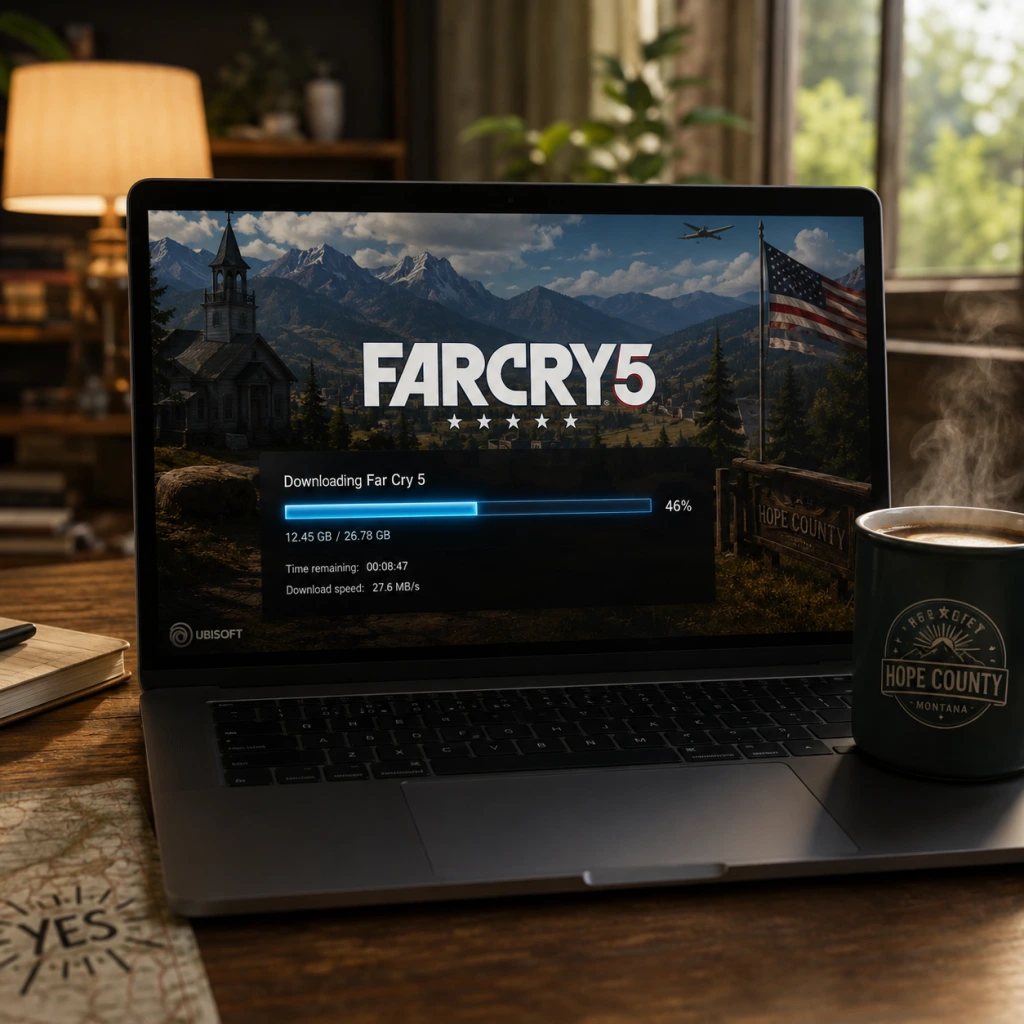
Download & Installation
Download & Installation Guide for Far Cry 5
This guide covers legitimate download and installation methods for Far Cry 5 on all supported platforms: PC (via Ubisoft Connect, Steam, Epic Games Store), PlayStation 4/5, and Xbox One/Series X|S. Note: Far Cry 5 is not officially available on Nintendo Switch or mobile devices. Streaming services like GeForce Now or Stadia (discontinued) are not covered here.
---
1. Platform Availability & Where to Buy
| Platform | Store / Service | Digital Availability | Physical Disc |
|---|---|---|---|
| PC | Ubisoft Connect (Uplay) | ✅ | ❌ (no disc, but retail keys available) |
| PC | Steam | ✅ | ❌ |
| PC | Epic Games Store | ✅ | ❌ |
| PlayStation 4 | PlayStation Store | ✅ | ✅ |
| PlayStation 5 | PlayStation Store (backward compatible) | ✅ | ✅ (PS4 disc works on PS5) |
| Xbox One | Microsoft Store | ✅ | ✅ |
| **Xbox Series X | S** | Microsoft Store (backward compatible) | ✅ |
---
2. System Requirements (PC)
#### Minimum Requirements
- OS: Windows 7 SP1, Windows 8.1, Windows 10 (64-bit versions only)
- CPU: Intel Core i5-2400 @ 3.1 GHz / AMD FX-6300 @ 3.5 GHz
- RAM: 8 GB
- GPU: NVIDIA GeForce GTX 670 / AMD Radeon R9 270 (2 GB VRAM)
- DirectX: Version 11
- Storage: 40 GB free space (HDD recommended; SSD beneficial)
- Sound: DirectX 9.0c compatible
- Network: Broadband internet connection for activation and updates
- OS: Windows 10 (64-bit)
- CPU: Intel Core i7-4770 @ 3.4 GHz / AMD Ryzen 5 1600 @ 3.2 GHz
- RAM: 16 GB
- GPU: NVIDIA GeForce GTX 970 / AMD Radeon R9 290X (4 GB VRAM) or better
- DirectX: Version 11
- Storage: 40 GB SSD (for faster loading)
- Sound: DirectX 9.0c compatible
- Network: Broadband internet connection
- Ubisoft Account: Required on all platforms for activation, online features, and cloud saves. Even if you buy on Steam or Epic, you will be prompted to link/ sign into an Ubisoft account.
- Steam Account: Required if purchasing on Steam.
- Epic Games Account: Required if purchasing on Epic Games Store.
- PlayStation Network (PSN) Account: Required for PlayStation store purchase and online playing.
- Xbox Live / Microsoft Account: Required for Xbox store purchase and online playing.
#### Recommended Requirements
Note: For 4K or high refresh rate, a GTX 1080 / RTX 2060 or equivalent is recommended.
---
3. Account Requirements
---
4. Installation Steps (Per Platform)
#### 4.1 PC – Ubisoft Connect
1. Download and install Ubisoft Connect from [ubisoft.com/connect](https://ubisoft.com/connect).
2. Launch Ubisoft Connect and log in with your Ubisoft account.
3. Go to the Store section and search for “Far Cry 5.”
4. Purchase (or redeem a key from third-party retailer) and click Download.
5. Choose a installation directory (ensure at least 40 GB free).
6. The download will begin; wait for completion (file size ~ 40 GB).
7. Once downloaded, the game will install automatically. Click Play to launch.
#### 4.2 PC – Steam
1. Install Steam from [store.steampowered.com](https://store.steampowered.com) and log in.
2. In the Steam store, search for “Far Cry 5” and purchase.
3. Go to your Library, select Far Cry 5, and click Install.
4. Choose installation directory and ensure 40 GB free.
5. Steam will download the game. After completion, the game will install.
6. On first launch, Steam will prompt you to link your Ubisoft account. Follow the on-screen instructions.
7. The game will open Ubisoft Connect overlay; sign in if needed. Then game launches.
#### 4.3 PC – Epic Games Store
1. Install Epic Games Launcher from [epicgames.com](https://www.epicgames.com) and log in.
2. In the Epic store, search for “Far Cry 5” and purchase.
3. Go to your Library, find Far Cry 5, and click Install.
4. Choose installation path (40 GB free).
5. Download and installation proceed automatically.
6. First launch will require linking your Ubisoft account (similar to Steam).
#### 4.4 PlayStation 4 & 5
##### Digital Download
1. On PS4/PS5, go to PlayStation Store.
2. Search for “Far Cry 5” and purchase (or redeem code from retail).
3. Click Download. The game will start downloading to your console’s storage.
4. Wait for download and installation to finish (game size ~ 30-35 GB on PS4; PS5 uses same file).
5. Launch from the home screen.
##### Physical Disc
1. Insert the disc into your console.
2. The installation process should start automatically. Follow on-screen prompts.
3. If not, navigate to the disc icon on the home menu and press Options > Install.
4. Wait for installation. You may need a large day-one patch (download required).
5. After installation, the game is ready to play. Keep disc inserted for verification.
PS5 Note: Runs via backward compatibility. No PS5-specific upgrade or enhanced version exists (but can run with higher frame rate via PS4 Pro mode).
#### 4.5 Xbox One & Xbox Series X|S
##### Digital Download
1. On Xbox, go to Microsoft Store on your console or via web.
2. Search for “Far Cry 5” and purchase.
3. Click Install (choose which console to install on if multiple).
4. The game downloads and installs automatically.
5. Launch from My games & apps.
##### Physical Disc
1. Insert the disc into the Xbox.
2. Installation begins automatically. If not, select the disc tile from the dashboard and choose Install.
3. Apply any required updates.
4. Play with disc in drive.
Xbox Series X|S Note: Backward compatible. Will run with improved performance (60 FPS, auto HDR) on Series X|S. No Smart Delivery upgrade given it’s an older title, but it benefits from faster load times on the SSD.
---
5. Storage Space
| Platform | Download Size | Installed Size (approx.) |
|---|---|---|
| PC (all stores) | ~ 40 GB | Up to 45 GB (with updates) |
| PlayStation 4/5 | ~ 35 GB | 35–40 GB |
| Xbox One/Series | ~ 40 GB | 40–45 GB |
- Notes: Values may vary slightly after patches and DLC. Always ensure at least 10 GB additional free space for temporary files during installation.
- External Drives: Supported on all consoles and PC. For best performance on PC, use an SSD.
---
6. First Launch Setup (All Platforms)
1. Language Selection: You may be prompted to choose in-game language (text and/or audio). This can usually be changed later in settings.
2. Brightness Calibration: Adjust the brightness slider until the logo is barely visible (follow on-screen instructions).
3. Graphics Settings (PC only): The game will auto-detect your hardware. You can manually adjust resolution, texture quality, anti-aliasing, etc., in the Options menu before starting a new game.
4. Sign into Ubisoft Connect: On PC, even if you launched through Steam/Epic, the Ubisoft Connect overlay will appear. Ensure you are signed in for cloud saves and online features.
5. Online Features: Accept the online services agreement if prompted. Multiplayer/co-op requires an active internet connection.
6. Update: The game may check for updates on first launch. Allow it to download any patches.
7. New Game: From the main menu, select New Game to begin. You can also adjust accessibility options (subtitles, colorblind modes) before starting.
---
7. Common Installation Errors & Fixes
#### 7.1 PC Errors
| Error | Cause | Solution |
|---|---|---|
| “Game failed to launch” / “Ubisoft Connect error” | Ubisoft service interruption or corrupt install | Verify game files via Ubisoft Connect (Library > Far Cry 5 > Properties > Verify Files). Also restart launcher and PC. |
| “The file is too large” when copying to external drive | FAT32 file system (max 4GB) | Reformat drive to NTFS. |
| “DirectX Error” | Outdated graphics drivers or missing DirectX files | Update GPU drivers (NVIDIA GeForce Experience or AMD Adrenalin). Install/repair DirectX from Microsoft. |
| “Insufficient storage” despite free space | Hidden system or recovery partitions | Check actual free space using Disk Management. Move game to another drive. |
| Steam download stuck / slow | Server congestion or cache issues | Exit Steam, delete download cache (Settings > Downloads > Clear Download Cache), restart. |
| Epic Games Launcher error “LS-0013” | Account authentication loss | Log out and log back in to Epic Launcher. |
| Error | Cause | Solution |
|---|---|---|
| PS4 “Cannot install” (CE-30002-5) | Corrupted data or disc issue | Rebuild database (Safe Mode option 5). If disc, clean and try again. |
| PS5 “Cannot start game” | Backward compatibility glitch | Restore licenses (Settings > Users and Accounts > Other > Restore Licenses). |
| Xbox “0x87e107f0” | Missing license or account sync | Go to Settings > Account > Remove account and re-add. Hard restart console. |
| Update fails repeatedly | Low disk space or network issue | Free up space (check Storage settings). Try wired connection or alternate DNS. |
| Disc read error | Dirty or scratched disc | Clean disc with microfiber cloth. If persists, contact retailer for replacement. |
- Disable antivirus temporarily during installation (some AV may interfere with game installers).
- Run launchers as Administrator (right-click > Run as Administrator).
- Close background applications (especially overlay progs like Discord, GeForce Experience) before first launch.
- Check system date/time incorrect date can cause authentication failures.
- Pre-loading: Far Cry 5 supported pre-load on all platforms before release. Currently, you can still pre-purchase and pre-load before a set launch date if buying a new DLC/expansion. For the base game, it’s already released, so pre-load is not applicable.
- Uninstalling:
- Reinstalling: Simply download again from your library; no extra purchase needed.
---
8. Post-Installation Verification
After a successful installation, perform these checks to ensure the game is fully operational:
1. Launch the game and ensure the main menu loads without error.
2. Check the version number (usually displayed in the lower-right corner of the main menu or under Options > General). Compare with latest patch notes from Ubisoft.
3. Test gameplay – start a new game and complete the intro sequence (the plane crash). If controls work and visuals appear correctly, the installation is sound.
4. Verify DLC – if you purchased the Gold Edition or season pass, check if the DLC missions (Hours of Darkness, Lost on Mars, Dead Living Zombies) are available in the menu.
5. Online functionality – attempt to connect to online services (Arcade mode or co-op). If it fails, ensure your firewall/ router allows the game through.
6. Save game – manually save at a save point (church or safe house) and then load that save to confirm cloud sync works.
7. Benchmark (PC) – optional: run the in-game benchmark to see if performance meets expectations.
---
9. Additional Notes
- PC: Use the launcher (Ubisoft Connect, Steam, Epic) to uninstall; or use Windows Control Panel.
- PlayStation: Highlight game icon > Options > Delete.
- Xbox: My games & apps > Highlight game > Menu > Manage game & add-ons > Uninstall.
---
10. Frequently Asked Questions
Q: Do I need an internet connection to play Far Cry 5 single-player?
A: An initial internet connection is required for activation (first launch). After that, single-player can be played offline. However, some updates and DLC may require online check-ins. On consoles, offline mode works after the initial license check.
Q: Can I transfer my save between platforms?
A: No, save files are platform-specific. Cloud saves are per platform (Ubisoft Connect for PC, PSN for PlayStation, Xbox Live for Xbox). Cross-progression is not supported.
Q: Why is my installation taking so long?
A: Large game size and slow download speeds are common. Use a wired connection, pause other downloads, and check your internet speed. On consoles, installation from disc can be slower if the reading is slow; ensure disc is clean.
Q: I bought the game on disc but it still requires a huge download. Why?
A: The disc contains only a base version without updates and patches. A day-one patch (often 10-20 GB) must be downloaded to ensure compatibility and bug fixes.
---
If you encounter an error not listed, consult the official Ubisoft Support page at [support.ubisoft.com](https://support.ubisoft.com) or visit community forums. Remember to always download from official sources to avoid malware and ensure activation.