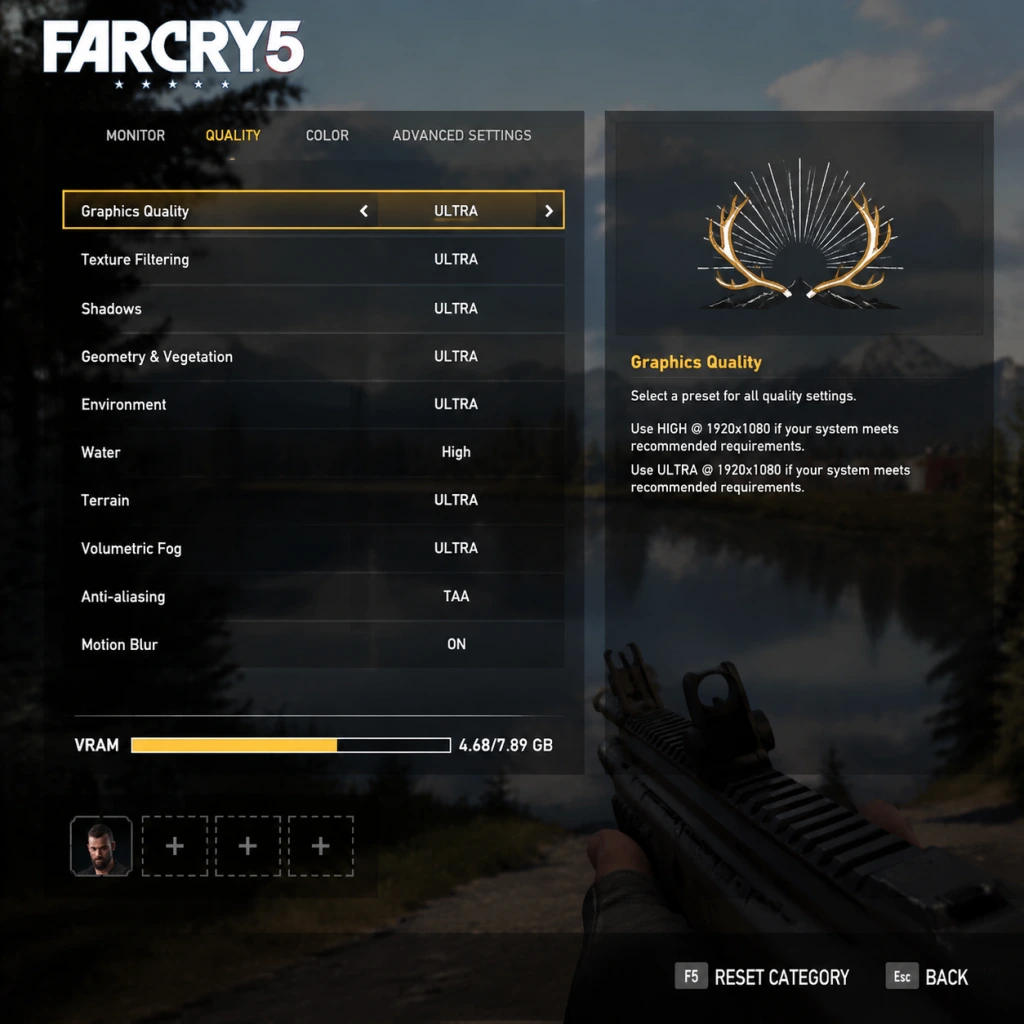
Game Settings
Game Settings Guide for Far Cry 5
Properly configuring your settings in Far Cry 5 can dramatically improve your experience—whether you’re aiming for smooth performance on a modest PC, crisp visuals on a high‑end rig, or the best accessibility options. This guide covers every setting category and provides recommendations for different hardware levels.
---
1. Graphics Settings
Far Cry 5 uses the Dunia Engine 2 (a heavily modified version of CryEngine). It offers a wide range of options, but some are more impactful than others.
#### 1.1 Display
| Setting | Recommended Value | Notes |
|---|---|---|
| Monitor | Your primary display | If you have multiple monitors, ensure the correct one is selected. |
| Display Mode | Fullscreen (for best performance) | Borderless Windowed can reduce FPS slightly; Fullscreen exclusive (if available) is preferred. |
| Resolution | Native monitor resolution | Lowering resolution improves performance but reduces clarity. |
| Aspect Ratio | Auto (matches monitor) | Manually set only if you have a non‑standard ratio. |
| Refresh Rate | Maximum supported by monitor | Ensure your monitor’s refresh rate is selected (e.g., 60Hz, 144Hz). |
| V‑Sync | Off (unless screen tearing bothers you) | Turn on if you experience tearing; Off to reduce input lag. |
| FOV (Field of View) | 75–90 (default 65) | Higher FOV increases awareness but reduces performance slightly. Adjust to comfort. |
Ubisoft provides four presets: Low, Medium, High, and Ultra. We recommend starting with the appropriate preset for your hardware, then tweaking individual options.
Hardware Level Recommendations:
| Level | GPU | CPU | RAM | Preset | Notes |
|---|---|---|---|---|---|
| Low‑end (30–40 FPS) | GTX 960 / RX 460 | i5‑2400 / Ryzen 3 1200 | 8 GB | Low | Lower resolution scaling if needed (e.g., 900p). |
| Mid‑range (50–60 FPS @1080p) | GTX 1060 / RX 580 | i5‑7600 / Ryzen 5 2600 | 16 GB | High | Turn off shadows and water quality to Very High if stable. |
| High‑end (60+ FPS @1440p/4K) | RTX 2070 / RX 5700 XT | i7‑9700 / Ryzen 7 3700X | 16 GB | Ultra | Fine‑tune anti‑aliasing and resolution scaling for 4K. |
| Enthusiast (120+ FPS @1440p) | RTX 3080 / RX 6800 XT | i9‑10900K / Ryzen 9 5900X | 32 GB | Ultra | Optional: Enable NVIDIA Ansel or AMD FSR if desired. |
- Resolution Scaling (`Render Scale`): Reduces internal resolution while keeping UI crisp. Warning: Setting below 100% blurs the image; above 100% for supersampling can tank performance. Use 80–90% on low‑end systems, 100% otherwise.
- Anti‑Aliasing (`SMAA` / `TAA`): TAA (Temporal Anti‑Aliasing) is best for performance but can cause ghosting. SMAA is sharper but more taxing. Recommendation: TAA on mid‑range, SMAA on high‑end if you dislike ghosting.
- Shadows: Ultra shadows are very expensive. Medium is a good balance on mid‑range hardware.
- Water Quality: Set to High or below; Ultra adds expensive reflections.
- Terrain Quality: Controls draw distance of ground detail. High is fine on most systems; Ultra only for high‑end 4K.
- Texture Quality: Limited by VRAM. Use Ultra if you have 6+ GB VRAM; High if 4 GB; Medium if 2 GB.
- Ambient Occlusion (`SSAO`): High impact on performance. Off or Low on low‑end; High on mid‑range; Ultra on high‑end.
- Motion Blur: Personal preference – turn Off for clarity, On for cinematic feel.
- Depth of Field: Off recommended for gameplay clarity.
- Chromatic Aberration: Off – adds visual noise and can cause eye strain.
- Lens Flare: Optional – can obscure vision in bright scenes.
Special Attention Point: The FOV setting is extremely easy to mis‑set. A very high FOV (over 100) can cause fish‑eye distortion and reduce performance. A very low FOV (under 60) can cause motion sickness. Test in the game’s opening area.
---
2. Audio Settings
Audio in Far Cry 5 is crucial for immersion (ambient sounds, gunfire, cult radio broadcasts).
| Setting | Recommended | Notes |
|---|---|---|
| Master Volume | 80–100% | Adjust to taste, ensure you can hear dialogue. |
| Music Volume | 70% | The soundtrack is excellent; don’t turn it too low. |
| SFX Volume | 100% | Essential for hearing enemy footsteps and gunshots. |
| Dialogue Volume | 100% | Mission-critical dialogue can be missed if too low. |
| Voice Chat | On or as needed | Online co-op: set to Push-to-Talk to avoid background noise. |
| Sound Mode | Stereo (headphones) / 5.1/7.1 (surround) | Select according to your audio setup. |
| Dynamic Range | Wide (for headphones) / Normal (TV speakers) | Wide increases immersion but can cause clipping on weak speakers. |
| Subtitles | On | Helpful for understanding cult propaganda and NPC chatter. |
| CC (Closed Captions) | Optional | Useful for hearing‑impaired players. |
---
3. Controls Settings
Customizable keybindings and controller settings are essential for comfort. Far Cry 5 supports both keyboard + mouse and gamepad (Xbox/PlayStation).
#### 3.1 Keyboard & Mouse
| Setting | Recommended | Notes |
|---|---|---|
| Mouse Sensitivity | 10–15 (default 10) | Adjust to your DPI. Lower for precision, higher for quick turns. |
| Aim Down Sights (ADS) Sensitivity | 0.5–0.7 (multiplier) | Lower than hip‑fire for better aim. |
| Invert Mouse Y | Off (unless you prefer inverted) | Personal preference. |
| Mouse Smoothing | Off | Can introduce input lag. |
| Key Bindings | Customize as needed | Highlights: T for tagging, F for action, Q for weapon wheel. Change melee (V) to a mouse button if you prefer. |
| Quick Key Settings | Enable for quick select | Allows tapping numbers to instantly equip weapons. |
| Setting | Recommended | Notes |
|---|---|---|
| Vibration | On | Provides tactile feedback on damage and vehicle handling. |
| Controller Sensitivity | 50–70% | Lower for precision aiming. |
| Aim Assist | High (for casual) / Low (for skilled) | Game offers strong aim assist; you can reduce or turn off. |
| Trigger Effect (Xbox One/Series) | On | Enhanced rumble in triggers (only on supported controllers). |
| Button Layout | Default or Tactical (crouch on right stick) | Tactical allows crouching without removing thumb from aim stick. |
---
4. Accessibility Settings
Ubisoft has included several options to help players with various needs.
| Setting | Recommended | Notes |
|---|---|---|
| Subtitles | On + Background opacity | Increases readability. |
| Colorblind Mode | Choose type (Protanopia, Deuteranopia, Tritanopia) | Adjusts HUD colors and map markers. |
| Camera Shake | Off (if prone to motion sickness) | Dramatically reduces screen shake from explosions. |
| Hold vs Tap (Interact) | Default (Tap) | Change to Hold if you accidentally trigger interactions. |
| Toggle Crouch | On (if you prefer toggle) | Reduces need to hold a button during stealth. |
| Quick Time Event (QTE) Mode | Single Button (instead of mashing) | Accessible for players with limited dexterity. |
| High Contrast Mode | Off (can be enabled for UI) | Raises contrast of important elements; may be distracting. |
---
5. Language Settings
| Setting | Options | Notes |
|---|---|---|
| Spoken Language | English, French, German, etc. | Affects voice acting. English is original. |
| Subtitles Language | Select separately from spoken | Useful for learning a language. |
| Text Language | Menu/UI language | Must match Ubisoft Connect settings on PC. |
| Audio Language | Same as spoken? | Some platforms separate menu audio from voice. |
---
6. Network Settings
For co‑op and online features, network settings are crucial.
| Setting | Recommended | Notes |
|---|---|---|
| Online Permissions | Friends Only or Public | Private if you don’t want randoms joining. |
| Co‑op Mode | Invite Only (prevent unwanted help) | Can change in game menu. |
| Matchmaking Region | Automatic | Manually set to closest region for lower ping. |
| Voice Chat | Push to Talk (PC) / Open Mic (console) | Reduces background noise. |
| Network Statistics | On (show ping/packet loss) | Helps diagnose connection issues. |
---
7. Gameplay Settings
These affect the core experience, including difficulty and HUD.
| Setting | Recommended | Notes |
|---|---|---|
| Difficulty | Normal (first play) / Hard (experienced) | Easy is forgiving; Hard increases enemy damage and reduces health pickups. |
| Auto‑save Frequency | Frequent | Prevents loss of progress. |
| HUD Presets | Minimal (immersive) or Full (informative) | Minimal hides most elements; use Compass mode for direction without clutter. |
| Quick HUD | On | Shows ammo and health only when needed. |
| Crosshair | On | Essential for aiming. Some prefer dot or cross. |
| Mission Log Marker | On | Guides you to objectives. |
| Fast Travel | Enabled | Saves time; can be disabled for immersion. |
| Photo Mode | Unlocked | Not a setting but a feature; bind to F3 (PC) or press both sticks (console). |
---
8. Performance Tweaks (PC Only)
Beyond in‑game settings, a few system‑level adjustments can help:
1. Update GPU drivers (NVIDIA Game Ready or AMD Adrenalin).
2. Disable overlays from Ubisoft Connect, Steam, or Discord while playing.
3. Set Windows power plan to High Performance.
4. Close background apps (browsers, streaming software).
5. Use NVIDIA Reflex (if available) to reduce latency – enable in graphics settings.
6. Adjust resolution scale instead of lowering overall resolution for a sharper image.
Bonus: Far Cry 5 has a built‑in benchmark tool. Run it after changes to verify stability.
---
9. Save & Cloud Settings
| Setting | Recommended | Notes |
|---|---|---|
| Cloud Saves (Ubisoft Connect) | Enabled | Syncs progress across multiple PCs. |
| Save Slots | Manual saves every hour | Game auto‑saves, but manual saves prevent overrides. |
| Backup Saves | Copy files from `%USERPROFILE%\Documents\My Games\Far Cry 5` | Useful before major changes. |
Conclusion: Spend 10 minutes adjusting these settings before starting the game. The biggest performance gains come from turning down Shadows, Water, and Ambient Occlusion. For the best visual experience on high‑end hardware, keep everything at Ultra with SMAA T2X anti‑aliasing. Always test with the benchmark after significant changes.