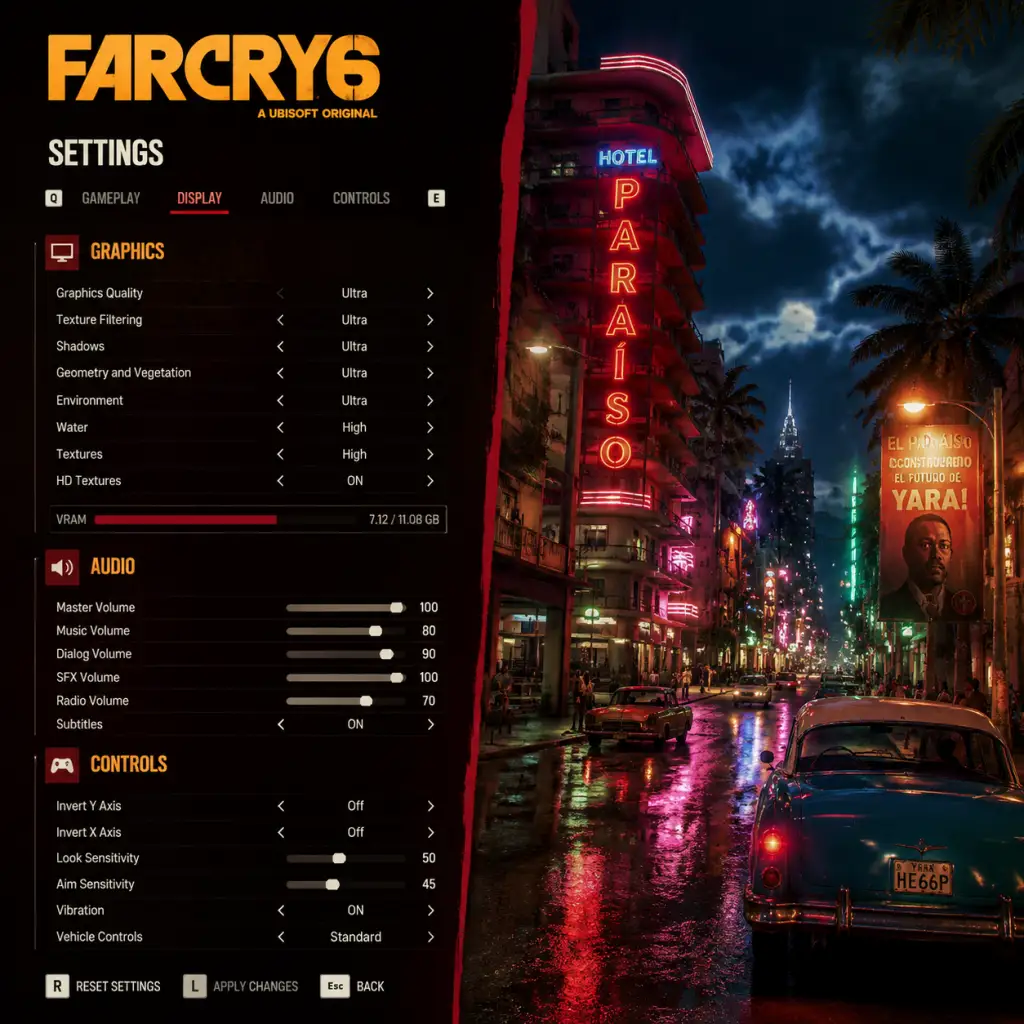
Game Settings
Far Cry 6 – Game Settings Guide
This guide covers all major settings in Far Cry 6 across Graphics, Audio, Controls, Accessibility, Language, Network, and Gameplay categories. Recommendations are provided for different hardware tiers (Low-End, Mid-Range, High-End, and Ultra) to balance performance and visual quality. Special attention points are highlighted to avoid common misconfigurations.
---
1. Graphics Settings
Graphics settings have the most impact on performance and visual fidelity. Far Cry 6 uses the Dunia engine (based on an evolved version of the CryEngine) and is demanding on hardware, especially with ray tracing and high-resolution textures.
#### 1.1 Display Settings
- Resolution: Native monitor resolution is recommended. For performance, you can lower the render resolution or use the FSR (FidelityFX Super Resolution) upscaling.
- Refresh Rate: Set to your monitor’s maximum refresh rate (e.g., 60 Hz, 144 Hz).
- VSync: Off for lower input lag (unless screen tearing is bothersome). On for consistent frame times but adds latency.
- Window Mode: Fullscreen for best performance; Borderless Window for easier alt-tabbing (slight performance cost).
- Field of View (FOV): Default is 75. Increase up to 90–100 for a wider peripheral view. Higher FOV reduces perceived speed but can drop performance slightly.
- Upscaling / Sharpening:
- NVIDIA DLSS (if supported): Best for RTX cards. Use Quality or Balanced for good image quality.
- Sharpening: Keep at 0.5–0.7; too high creates artifacts.
#### 1.2 Graphics Quality Presets
Far Cry 6 offers presets: Low, Medium, High, Ultra. Manual tweaking is recommended for optimal balance.
#### 1.3 Individual Graphics Settings & Performance Impact
| Setting | Low-End | Mid-Range | High-End | Ultra | Performance Impact | Special Attention |
|---|---|---|---|---|---|---|
| Texture Quality | Low | Medium | High | Ultra | Medium VRAM usage | Ultra requires >8GB VRAM; may cause stutter if VRAM is exceeded. |
| Shadow Quality | Low | Medium | High | Ultra | High | High and Ultra cast softer shadows but cost heavily. Medium is a good balance. |
| Ambient Occlusion | Off / SSAO Low | SSAO Low | HBAO+ | HBAO+ | High | HBAO+ looks better but drops ~10% FPS. SSAO is lighter. |
| Reflections | Low | Medium | High | Ultra | High | Screen-space reflections are medium; ray-traced reflections (if enabled) are extremely demanding. |
| Post-Processing | Low | Medium | High | Ultra | Medium | Includes bloom, motion blur, depth of field. Turn motion blur Off if you dislike it. |
| Geometry / Detail | Low | Medium | High | Ultra | Medium | Affects object LOD distance. High on mid spec is fine. |
| Terrain Quality | Low | Medium | High | Ultra | Low | Minor visual difference. Lower to save VRAM. |
| Water Quality | Low | Medium | High | Ultra | Medium | Reflection and transparency changes. Medium is fine. |
| Anti-Aliasing | TAA Low | TAA High | TAA High | TAA High | Low | TAA is standard; TAA High smooths edges better. FXAA is lighter but blurry. MSAA is too heavy. |
| Motion Blur | Off | Off | Off | Off | Negligible | Personal preference; almost always recommended Off. |
| Depth of Field | Off | Off | On | On | Low | Cinematic but can blur distant targets. Keep Off for competitive clarity. |
| Ray Tracing (if available) | Off | Off | Selective (Shadows only) | Full (Shadows + Reflections) | Very High | Only for high-end GPUs (RTX 3070+ or RX 6800+). Turn off for stable 60+ FPS. |
Low-End (e.g., GTX 1060 6GB, RX 580 4GB, or lower)
- Resolution: 1080p (or 900p)
- Upscaling: FSR Quality
- Preset: Low (then tweak up)
- Textures: Medium (if VRAM >4GB)
- Shadows, AO, Reflections: Low or Off
- Ray Tracing: Off
- Aim for: 30–60 FPS
- Resolution: 1080p or 1440p (with FSR)
- Preset: Medium, then adjust
- Textures: High (if 6GB+ VRAM)
- Shadows: Medium
- AO: SSAO Low
- Reflections: Medium
- Ray Tracing: Off
- Aim for: 60 FPS at 1080p; 45–60 at 1440p
- Resolution: 1440p native or 4K with FSR/DLSS Quality
- Preset: High
- Textures: Ultra (if VRAM >=8GB)
- Shadows: High
- AO: HBAO+
- Reflections: High
- Ray Tracing: Shadows only (or Off for higher FPS)
- Aim for: 60+ FPS at 1440p; 30-60 at 4K
- Resolution: 4K Native or with DLSS Quality
- Preset: Ultra, then enable Ray Tracing
- Ray Tracing: Full (Shadows + Reflections)
- Other settings maxed
- Aim for: 60+ FPS
- Master Volume: 70–80% to avoid distortion.
- SFX Volume: Keep at 100% for clarity.
- Music Volume: Reduce to 50–60% so it doesn’t overpower footsteps.
- Dialogue Volume: 100% for story moments.
- Voice Chat: Adjust if you play co-op; can mute.
- Speaker Configuration:
- 3D Audio: Enable if using headphones; helps with directional sounds.
- Movement: WASD (default). Some players prefer ESDF for more keys nearby.
- Interact / Reload: E (default). R for reload. Consider swapping if you prefer.
- Crouch / Slide: C (toggle) or Ctrl (hold). Many remap to Left Alt or a mouse thumb button.
- Melee: V (default). Bind to mouse side button for quick access.
- Grenade / Gadget: G (default) or middle mouse.
- Weapon Wheel: Tab (default). Hold to slow time. Consider binding to a mouse button.
- Vehicle Controls: WASD driving; Space for handbrake; Shift for boost.
- Special attention: The default key for “Call Vehicle” is not bound to anything; assign it (e.g., X) to quickly summon a ride.
- Layout: Choose from Default, Classic, Southpaw, etc.
- Invert Look: Off unless you prefer inverted Y-axis.
- Look Sensitivity: Start at 50 for X and Y, adjust. Higher for quick turns, lower for precision.
- Aim Sensitivity: Reduce to 30–40 for better aiming down sights.
- Dead Zones: Keep default (small). Increase if joystick drift occurs.
- Trigger Dead Zones: Default is fine.
- Vibration: Off for competitive aim; on for immersion.
- DPI: 800–1600 typical. Higher DPI may cause jitter.
- Sensitivity: Lower (e.g., 5–10 in-game) for precise aiming; higher for flick shots. Combine with DPI.
- Aim Down Sights (ADS) Sensitivity: 0.5–0.7 multiplier to slow down while aiming.
- Raw Input: ON – avoids OS acceleration.
- Mouse Smoothing: OFF – causes lag.
- Mouse Acceleration: OFF – inconsistent movement.
- Subtitles: Enable. Choose background opacity for readability.
- Closed Captions: On/off; includes sound effect descriptions.
- Hearing Impaired Settings: Enables visual cues for sound sources (footsteps, alarms).
- Colorblind Modes: Options for Deuteranopia, Protanopia, Tritanopia. Apply to UI and/or gameplay.
- Text Size: Adjust for menu and HUD.
- Screen Shake: Reduce or turn off if you experience motion sickness.
- Camera Bobbing: Off for smoother FPS.
- Auto-Progress Dialogue: Off if you want to read at your own pace.
- Hold vs. Toggle:
- Simplified Controls: An option that reduces button combinations (not recommended for advanced players).
- Interface Language: Choose from available languages (English, French, German, Spanish, etc.).
- Audio Language:
- Subtitles Language: Independent of audio.
- Note: Changing audio language requires a game restart on some platforms, so set before starting your playthrough.
- Connection Type: LAN or Online (automatically determined).
- Matchmaking Region: Choose your region (e.g., Europe, North America) for lower latency.
- Cross-Play:
- Bandwidth: Ensure you have at least 5 Mbps upload for stable co-op hosting.
- NAT Type: Open for best connectivity. Enable UPnP on router if having issues.
- Voice Chat: Can be disabled in Audio settings.
- Difficulty: Ranges from Story (easy) to Action (normal) to Guerilla (hard). Choose based on your skill. You can change at any time.
- Auto-Ammo Pickup: On – automatically picks up ammo from enemies/chests.
- Auto-Loot: On – loot enemies without pressing a button (after killing).
- Compass / Minimap:
- HUD Elements: Customizable visibility for objective markers, enemy markers, loot prompts. Turn off for immersion (e.g., remove enemy markers for a more realistic stealth experience).
- Quick Selection Wheel: Time slow while using wheel – can be enabled/disabled. Enabled makes combat easier.
- Auto-Equip Better Gear: On – equips better weapons/gear automatically (can be annoying; manually manage if you prefer).
- Clutch Mode (accessibility): Slows down time when taking damage, giving you a chance to respond. Can be turned off for challenge.
- Vehicle Control Options: Normal or Simplified. Simplified makes driving easier but less realistic.
- Sniper Hold Breath: Default toggle (shift). Can be changed to hold.
- Inventory Management: Use quick slots for gadgets (e.g., throwable, camera). Assign in Controls.
- Low FPS despite recommended settings: Disable ray tracing, lower shadow quality, turn off ambient occlusion. Update GPU drivers.
- Crash on startup: Verify game files on your platform. Disable overlays (Discord, Steam, Ubisoft).
- Audio crackling: Lower audio sample rate in Windows sound settings to 48000 Hz.
- Controller not working: Use Steam Input for Xbox/PlayStation controllers. Disable other input software. Restart game.
- Mouse input lag: Turn off VSync, enable Raw Input, remove mouse smoothing.
Mid-Range (e.g., RTX 2060, RX 5600 XT, GTX 1660 Ti)
High-End (e.g., RTX 3070, RX 6800, RTX 2080 Super)
Ultra (e.g., RTX 4090, RTX 4080, RX 7900 XTX)
---
2. Audio Settings
Audio settings affect your ability to hear enemy footsteps, gunfire direction, and ambient cues. Far Cry 6 supports 3D audio (Windows Sonic, Dolby Atmos) on compatible headsets.
- Headphones: Use if playing with headphones for spatial sound.
- Stereo: For desktop speakers.
- Surround (5.1/7.1): If you have a surround setup.
- Special attention: Selecting “Headphones” when using surround speakers will give poor spatial audio. Match your actual hardware.
---
3. Controls Settings
Controls are fully customizable on PC. On consoles, you can choose from presets.
#### 3.1 Key Bindings (PC)
#### 3.2 Controller Settings
#### 3.3 Mouse Settings (PC)
---
4. Accessibility Settings
Far Cry 6 includes robust accessibility options.
- Crouch: Toggle is easier on hands.
- Sprint: Toggle (default) or hold.
- Aim Down Sights: Toggle recommended for less strain.
---
5. Language Settings
- English (original) for authentic voice acting.
- Spanish (Castilian or Latin American) for immersion, as the game is set in a fictional Latin American island.
---
6. Network Settings
Far Cry 6 has a single-player campaign but also supports co-op for up to two players. Network settings mainly affect multiplayer.
- Far Cry 6 supports cross-play between Ubisoft Connect platforms (PC, Stadia, Luna) and consoles (PlayStation, Xbox) for specific modes? Actually, cross-play is limited to Ubisoft Connect PC and consoles? Verify: As of 2025, Far Cry 6 does not support cross-play for co-op between PC and consoles? It only supports same-platform co-op? Wait, check: According to Ubisoft, Far Cry 6 does not have cross-play. Players on PC can only play with other PC players (Steam/Ubisoft Connect). Console players can only play with same console family. This setting is not present but worth noting.
---
7. Gameplay Settings
- Compass: Shows only cardinal direction; less cluttered.
- Minimap: Detailed but can be distracting. Choose based on preference.
---
8. Special Attention Points During Setup
1. VRAM Usage Warning: Far Cry 6 has a VRAM bar in Graphics settings. If you exceed your available VRAM, you may experience stuttering or crashes. For example, Ultra textures on a 6GB card will likely overshoot. Lower Texture Quality if you see the bar exceed 90%.
2. Ray Tracing Performance: Ray tracing is extremely demanding. Even on RTX 3070, enabling full ray tracing at 1440p may drop below 60 FPS unless DLSS is on Performance mode. Test separately.
3. HD Textures Pack: The optional HD Textures add-on (free) requires 30+ GB of storage and high VRAM (8GB+). If your system can’t handle it, do not install it. It can slow down loading times.
4. FSR vs. DLSS: If you have an NVIDIA RTX card, prefer DLSS for better image quality. FSR is a fallback for non-RTX or AMD cards. Ensure you are using the correct version (FSR 1.0 is built-in; FSR 2.x not supported? Verify: FC6 uses FSR 1.0, which is less sharp than FSR 2.1).
5. Windowed Mode Stutter: Borderless windowed mode can cause micro-stutter on some systems. If you notice, switch to Fullscreen.
6. Audio Sync Issues: If dialogue is out of sync, check audio format (try stereo instead of surround) and turn off 3D audio.
7. Key Binding Conflicts: The game does not warn about duplicate bindings. If you assign a key already in use, both actions may conflict. Check the list carefully.
8. Controller vs. Keyboard Input Lag: If using a controller, ensure “Raw Input” for controller? Not present; just ensure no Steam controller overrides cause double input.
9. Difficulty Impact: Guerilla mode makes enemies more bullet-spongey and reduces health regen. If you find it frustrating, lower difficulty—it doesn’t affect achievements.
10. Save Game Corruption Prevention: Far Cry 6 auto-saves frequently. Do not manually quit during an auto-save icon. Also, disable cloud saves if you experience sync issues (especially on Steam/Ubisoft Connect).
---
9. Troubleshooting Common Issues
---
Use this guide to tailor Far Cry 6 to your hardware and preferences. The game is forgiving in terms of settings, but fine-tuning the ones above will give you the best experience in Yara.