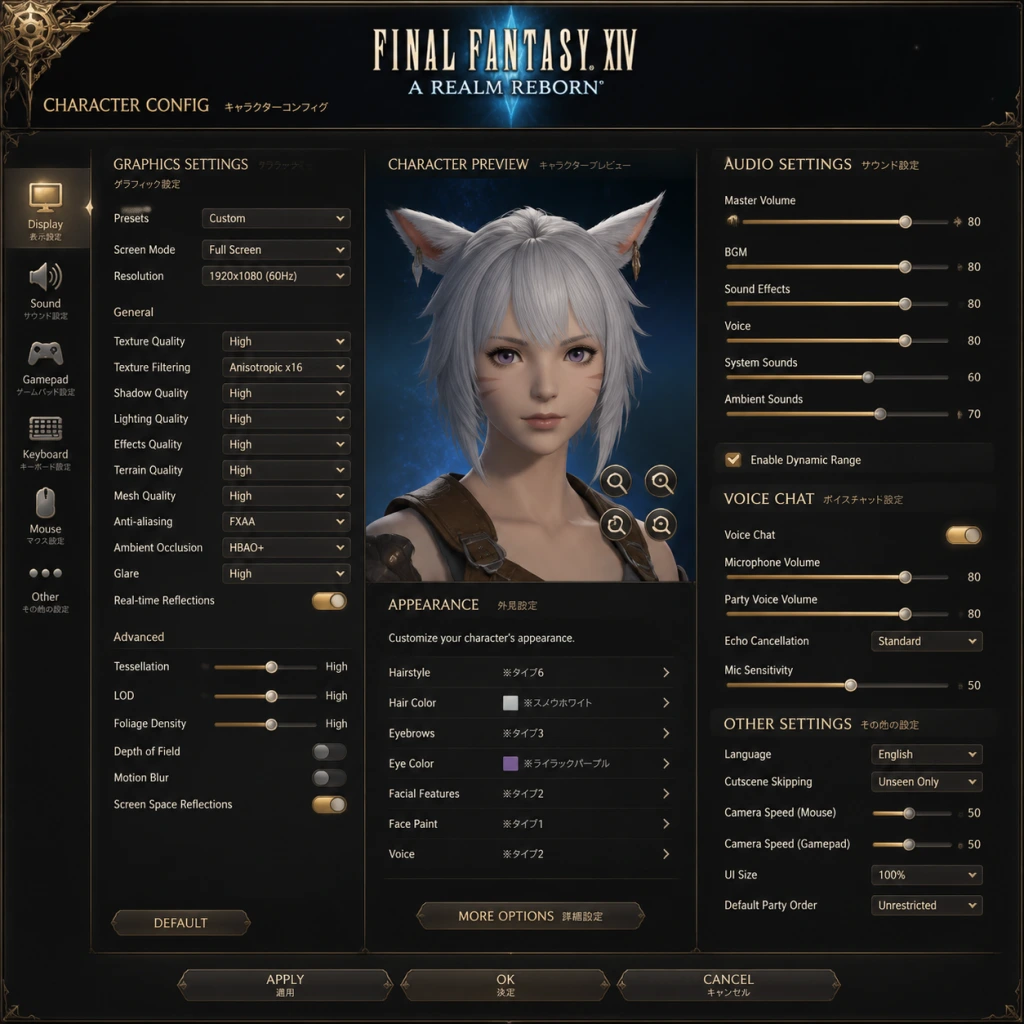
Game Settings
Game Settings Guide for Final Fantasy XIV: A Realm Reborn
This guide covers every settings category in Final Fantasy XIV: A Realm Reborn (FFXIV) across all platforms (PC, Mac, PlayStation, Xbox). Proper configuration can dramatically improve performance, visual fidelity, and comfort. We’ll explain each option, recommend optimal values for different hardware tiers, and flag settings that are easy to misconfigure.
---
1. Graphics Settings
Location: `System Configuration` → `Graphics`
#### Display & General
- Display Mode: `Full Screen` (lowest input lag); `Borderless Windowed` (easier alt-tabbing); `Windowed` (rarely used).
- Resolution: Set to your monitor’s native. Lower resolution improves performance but blurs text.
- Refresh Rate: Match your monitor’s max. `60` is safe; `120+` if supported.
- Frame Rate Limiter: Choose `No Limit` (GPU can run full speed) or cap at `60`/`120` to reduce power/heat. For competitive gameplay, cap at your monitor’s refresh rate.
- Screen Size Adjustment: Only if UI appears off-center.
- Graphics Quality Preset: `Standard` (Desktop) for most; `Laptop` uses lower power. Custom settings override the preset.
- Custom Settings (advanced):
- Real-time Reflections: `High` is very demanding. `Off` on mid/low-end.
- Depth of Field: Personal preference. `Off` improves clarity.
- Motion Blur: Typically turned off for clean visuals.
- Bloom, Radial Blur: Minor cost, can be disabled.
#### Quality Presets
- Texture Quality: `High` has minimal performance impact. `Low` blurs ground/walls.
- Shadow Quality: `High` is expensive. `Medium`/`Low` saves 10–20% GPU load.
- Lighting Quality: `High` adds more dynamic lights. `Standard` is fine for most.
- Grass Quality: `High` adds dense grass. `Off` in cities for better FPS.
- Grass Swaying: Visual effect, disable for slight boost.
- Water Reflection: `High` (screen-space) is heavy. `Low` or `Off` for performance.
- Anti-aliasing: `FXAA` (fast but blurs); `MSAA 2x/4x` (nice but heavy). Recommended: `TAA` (sharp, low cost) if available.
- Ambient Occlusion: `HBAO+` / `SSAO` – adds depth but costs 10–15% FPS. Use `Off` on low-end.
- Anisotropic Filtering: `16x` (negligible cost, huge visual gain for textures).
- LOD on Distant Objects: `On` reduces far details to save performance. Caution: Can cause noticeable pop-in when moving fast.
- LOD Quality: `High` reduces pop-in but uses more memory.
#### Performance Recommendations by Hardware Tier
| Tier | GPU Example | Resolution | Preset | Key Custom Changes | Expected FPS (60Hz) |
|---|---|---|---|---|---|
| Low-end | GTX 1050, RX 560 | 1280x720 | Standard (Laptop) | Shadows Low, Water Low, AO Off, LOD On | 30–50 |
| Mid-range | GTX 1660, RX 580 | 1920x1080 | Standard (Desktop) | Shadows Medium, Water Low, AO Off, Reflection Off | 50–60 |
| High-end | RTX 3060, RX 6700 | 1920x1080 | Maximum | Everything High, AO High, Reflections On, MSAA 2x | 60–80 |
| Ultra | RTX 4080, RX 7900 | 2560x1440 | Maximum | Shadows & Lighting High, AO HBAO+, Reflections On, MSAA 4x | 80+ |
---
2. Audio Settings
Location: `System Configuration` → `Sound Settings`
- Master Volume: Overall game sound.
- BGM (Background Music): 80–100% recommended.
- Sound Effects (SFX): 100% – critical for combat cues.
- Voice: 70–100%; many players find default too low – adjust upward.
- System Sounds: 50–100% for UI beeps.
- Performance Action Sounds: Separate volume for enemy skills; keep high.
- Speaker Configuration: `Headphones` / `Stereo` / `5.1` / `7.1`. Use what matches your setup.
- Character Voice Override: If enabled, your character will always voice their lines fully (instead of grunts). Important: This setting is off by default; turn it on for full voice acting during cutscenes.
- Play Sound When Window is Inactive: Toggle off if you alt-tab often.
- Movement Type:
- Auto-run: `Toggle` (double-tap W) or `Hold`.
- Camera: `Rotate by clicking mouse` vs `Legacy` (keyboard only).
- Targeting:
- Click to set Focus Target: Assign a keybind to easily mark a priority monster.
- Hotbar Display: Number of bars, rows, columns. Max 12.
- Keybind Presets: For example, `1234` for hotbar 1, `Shift+1234` for hotbar 2.
- Controller Support: Full customisation available. Use `Cross Hotbar` for quick skills.
- Color Blind Corrections: Options for Protanopia, Deuteranopia, Tritanopia. These apply to UI elements and can greatly improve clarity.
- UI Scale: Increase from 100% to 120% or 140% for easier reading on high-res monitors or smaller screens.
- Subtitle Settings:
- Text Size: Not adjustable per se, but UI Scale affects all text.
- High Contrast Mode: For better visibility of UI panels.
- Effects While Red: If you’re colorblind, this option changes effect indicators (e.g., poison) to be more distinct.
- Text Language: Choose from English, French, German, Japanese, etc. This affects all game menus, dialog, and quest text.
- Voice Language: Can be set independently. Common choice: Japanese voice + English text for many players. Changing voice language requires restart.
- System Language: Usually follows OS default.
- Port Forwarding: Usually not needed unless you have strict NAT.
- Connection Type: Auto-detect (wireless/wired). Wired is always recommended.
- Limit Number of Connections: `Standard` or `High`. `High` can reduce lag in crowded areas but may increase CPU load. Default is usually fine.
- Proxy Settings: Only if you are behind a corporate proxy.
- Data Center / World Selection: Not a settings menu – done at character select.
- Display Action Effects (Self/Party/Others): Keep self at `Show All`, party at `Show Limited` (important to see ground AoEs), others at `Hide All` for clarity in large battles.
- Display Fly Text: Damage numbers, heal numbers, etc. Enable all.
- Auto-aim: For target lock when using skills.
- Weapon Auto-sheathe: `Never` if you want weapon drawn.
- Automatic Weather Forecast: Turn ON – shows upcoming weather in UI.
- HUD Layout Editor: Press `Esc` → `HUD Layout`. Drag every element (hotbars, minimap, party list, etc.) to your liking. Crucial for reducing clutter.
- Display Party Frames: Always ON.
- Display Limit Break Gauge: ON.
- Mini-map: Size and transparency adjustable.
- Inventory Sorting: Auto-sort by category, type, or custom.
- Enmity List: Shows threat levels. Enable for tanks and DPS.
- Cycle Through Enemies: Custom keybind.
- Click to add Focus Target: ON.
- After changing graphics, restart the game for some settings to take full effect (e.g., Texture Quality).
- Use the in-game Benchmark tool (downloaded separately or from launcher) to test your settings before committing.
- Cloud saving of settings: Not automatic; keep a backup of `FFXIV.cfg` in `Documents/My Games/FINAL FANTASY XIV - A Realm Reborn/` if you reinstall.
- Controller users: Go to `System Configuration` → `Gamepad Settings` → `Calibrate` to ensure dead zones are correct.
- Mac users: Some settings might be locked due to Metal API – use presets and custom tweaks conservatively.
---
3. Controls Settings
Location: `Character Configuration` → `Control Settings`
#### Movement & Targeting
- Standard: Move forward/backwards & strafe with W/A/S/D. Backpedal is slow.
- Legacy: You always face the target; pressing S runs backward at full speed. Recommended for new players.
- Target Selection: `Cone` vs `Cylinder` vs `Radial`. `Cone` (default) works well.
- Cycle Targets: `Tab` cycles enemies; `Shift+Tab` cycles party.
- Inherit Target’s Target: ON for healers – pressing heal will target the ally the enemy is facing.
#### Hotbar & UI
> Easy to misconfigure: Under Character Configuration → Control Settings → General, the Auto-sheathe weapon timer (default 10s). Set to `Never` if you want to keep weapon drawn. Also, Auto-attack toggles – ensure it’s ON for melee.
---
4. Accessibility Settings
Location: `System Configuration` → `Accessibility`
- Subtitle Display: Choose `Always` or `Only for Events`. Recommended: Always – you won’t miss dialogue.
- Subtitle Language: Independent from voice/text.
---
5. Language Settings
Location: `System Configuration` → `Language Settings`
> Special point: If you play on a European or Japanese data center, matching language to the server’s main language (e.g., English on Aether, Japanese on Elemental) can help with group communication, but it’s not required.
---
6. Network Settings
Location: `System Configuration` → `Network Settings`
> Easy to misconfigure: The Limit Number of Connections slider – setting it too low can cause “lag” in cities with many players. Leave at `Standard` or `High`.
---
7. Gameplay Settings
Location: `Character Configuration` → various tabs
#### Battle Settings
#### UI & HUD Layout
#### Targeting & Enmity
> Special attention: The Display Action Effects slider for “Others” – if you set it to `Show All` in a 24-man raid, your screen will be a fireworks display. Always set to `Hide All` for sanity.
---
8. Special Setup Considerations
---
Conclusion
Final Fantasy XIV is highly customizable. Start with the presets for your hardware, then fine-tune using this guide. Remember that performance is subjective – if you prioritise smooth 60+ FPS in crowded cities, sacrifice shadows and reflections first. For the best experience, test your settings in a busy location like Limsa Lominsa (Aetheryte Plaza) before raiding.
> Last updated: October 2023 – applies to Endwalker (6.x) and earlier expansions.