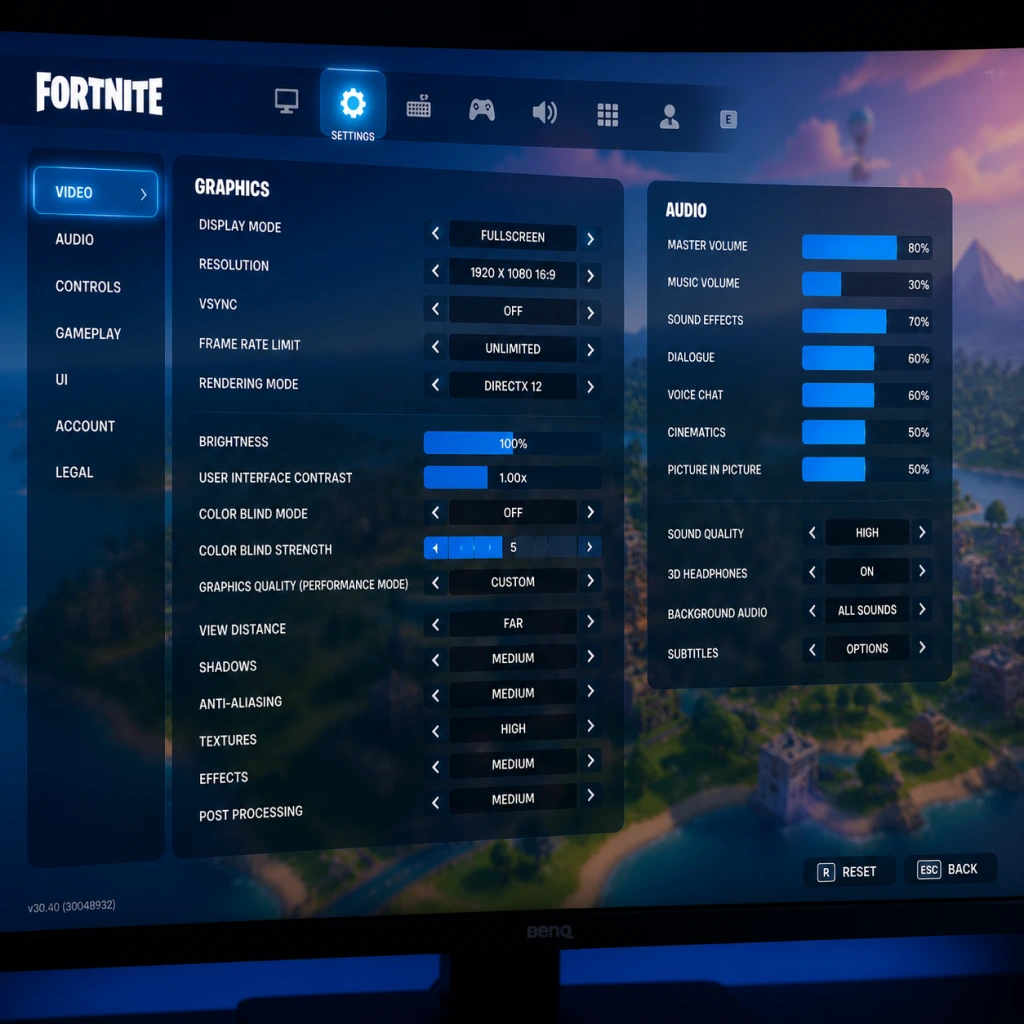
Game Settings
Game Settings
Overview
Fortnite offers a wide range of settings that directly impact performance, visual clarity, and competitive advantage. This guide covers every major settings category—Graphics, Audio, Controls, Accessibility, Language, Network, and Gameplay—with recommended configurations for low-end, mid-range, and high-end systems. Pay special attention to settings that are frequently misconfigured or that can significantly affect gameplay.
---
Graphics Settings
Graphics options affect both visual fidelity and frame rate. Higher FPS (frames per second) reduces input lag and makes gameplay smoother. Below are the key options and their impact.
| Setting | Description | Impact |
|---|---|---|
| Resolution | Native resolution of the game window. Lower = more FPS. | Critical |
| 3D Resolution | Internal render scale (e.g., 100% = native). Lower = less GPU load. | High |
| View Distance | How far objects render. High helps spot far enemies but costs FPS. | Medium |
| Shadows | Renders dynamic shadows. Off improves visibility and FPS. | Medium |
| Anti-Aliasing | Smooths edges. Options: Off, FXAA, TAA, etc. TAA blurs, but reduces jagged edges. | Low |
| Textures | Quality of surface detail. Lower = less VRAM usage. | Medium |
| Effects | Quality of explosions, fire, etc. Lower = more clarity in fights. | Low |
| Post-Processing | Bloom, motion blur, lens flares. Turn off for competitive play. | Low |
| Global Illumination (Lumen) | Real-time lighting. Only on high-end PCs with RTX. Off for performance. | High |
| Reflections | Screen space vs. ray-traced. Off for FPS. | Low |
| VSync | Syncs to monitor refresh rate. Off to reduce input lag. | Low |
Low-End PC (GTX 1050 / RX 560 / i3-8100)
- Resolution: 1920×1080 (or 1280×720 if needed)
- 3D Resolution: 100% (can drop to 75% for more FPS)
- View Distance: Medium (keeps enemy spotting viable)
- Shadows: Off
- Anti-Aliasing: Off or FXAA (performance)
- Textures: Low
- Effects: Low
- Post-Processing: Off
- Global Illumination: Off
- Reflections: Off
- VSync: Off
- Expected FPS: 60-100
- Resolution: 1920×1080
- 3D Resolution: 100%
- View Distance: Medium
- Shadows: Off (or Low for aesthetics)
- Anti-Aliasing: TAA (balanced)
- Textures: Medium
- Effects: Low
- Post-Processing: Off
- Global Illumination: Off
- Reflections: Off
- VSync: Off
- Expected FPS: 100-144
- Resolution: 1920×1080 or 2560×1440
- 3D Resolution: 100% (lower if targeting 240+ FPS)
- View Distance: High (max spotting)
- Shadows: Low (still improves visibility vs High)
- Anti-Aliasing: TAA (or DLSS Quality for Nvidia)
- Textures: High
- Effects: Low (avoid visual clutter)
- Post-Processing: Off (keeps competitive edge)
- Global Illumination: Off (unless you want ray tracing and have high GPU headroom)
- Reflections: Off
- VSync: Off
- Expected FPS: 144-240+
- Use the built-in Performance Mode (120 FPS) if your display supports 120Hz. Go to Settings > Video > 120 FPS Mode: On. This reduces resolution to 1080p but doubles frame rate.
- Turn off Motion Blur and VSync.
- On PS4/Xbox One, stick to 60 FPS mode.
- 3D Resolution – Many players set this to 100% thinking it’s a sharpness slider. Dropping to 75-80% can give a huge FPS boost with minimal visual loss.
- View Distance – Setting to Epic may cause FPS drops in busy areas. Medium is usually sufficient to spot enemies from a distance.
- Shadows – Turning shadows off not only improves FPS but also removes dark areas where enemies can hide.
Mid-Range PC (GTX 1060 / RX 580 / i5-8400)
High-End PC (RTX 3070 / RX 6800 / i7-10700+)
Consoles (PS5/Xbox Series X)
Easy to Misconfigure:
---
Audio Settings
Good audio helps you hear footsteps, gunfire, and chests. Fortnite’s audio engine supports 3D spatial sound on compatible headsets. Key settings:
| Setting | Recommendation |
|---|---|
| Master Volume | 100% (adjust OS volume instead) |
| Sound Effects | 100% (footsteps, guns) |
| Music | 0% (distracting) |
| Voice Chat | 100% (if using voice comms) |
| 3D Audio (Headphones) | On (if using stereo headphones) |
| Visualize Sound Effects | On (shows directional icons for sounds – highly recommended for competitive and accessibility) |
| Hearing Impairment Visual Cues | On (shows chest/vehicle sounds as icons) |
- Visualize Sound Effects – This setting displays on-screen markers for footsteps, gunshots, chests, and vehicles. Even without hearing issues, it provides a massive situational advantage. Turn it ON.
- Music – Music can mask crucial game audio. Set it to 0%.
- 3D Audio – Works best with stereo headphones. If using 7.1 virtual surround, test both on and off.
- Horizontal/Vertical Sensitivity: Start at 6-8 (1-10 scale) and adjust. Lower = more precise aim, higher = faster building/editing.
- ADS Sensitivity Multiplier: 0.40-0.60 – reduces sensitivity while aiming down sights for better tracking.
- Scope Sensitivity: Same as ADS.
- Controller Sensitivity Boost: Linear vs Exponential. Linear is more responsive, exponential has a curve. Most pros use Linear with 0% boost.
- Building: Use separate keys for wall, ramp, floor, and cone (e.g., Q, E, C, V). Avoid using mouse buttons for walls if they interfere with clicking.
- Editing: Set a dedicated edit key (e.g., F or double-click on mouse). Enable Confirm on Release (Gameplay Settings) to edit faster.
- Reset Building Edit: Bind a key (e.g., right-click) to reset edits quickly.
- Weapon Slots: Bind 1-5 for quick switching.
- Pickaxe: Tab or Q (if not used for wall).
- Use Builder Pro control scheme – allows one-button builds and turbo building.
- Deadzone: Set to 0.08-0.12 for sticks. Too low causes drift; too high reduces precision.
- Look Dampening Time: 0.0-0.2 (lower = faster camera acceleration when stopping).
- Instant Edit: On (press L3 or R3 to edit).
- Deadzone – Controllers with stick drift need higher deadzone. Test in the settings screen: if your crosshair moves without touching the stick, increase deadzone by 0.01 until it stops.
- Sensitivity – Many players copy pro sensitivities but don’t adjust for their own hardware or play style. Start low and slowly increase.
- Confirm on Release – Turn it ON for editing. It removes the need to click the edit key twice, speeding up edits drastically once muscle memory develops.
---
Controls Settings
Fortnite is unique for its building and editing mechanics. Customizing controls is essential for efficiency.
#### Sensitivity
#### Keybinds (Mouse & Keyboard)
#### Controller (PlayStation/Xbox) – Builder Pro
#### Easy to Misconfigure:
---
Accessibility Settings
Fortnite includes robust accessibility features.
| Feature | Recommendation |
|---|---|
| Visualize Sound Effects | On (see Audio section) |
| Color Blind Mode | Off (unless needed). Options: Protanopia, Deuteranopia, Tritanopia. Select the one that matches your condition. Even without color blindness, some players use mode 3 (Deuteranopia) to make enemies more visible. |
| Hold to Interact | On – prevents accidental searches. Tap to interact is faster but can cause errors. |
| Toggle Sprint | On – you don’t want to hold a key to run. |
| Auto Pick Up Weapons | Off – you need manual control of inventory. |
| Controller Auto-Run | Off (or on if you want to run without pressing stick). |
Language Settings
- In-Game Language: Choose your preferred language.
- Subtitles: On (for voice lines, especially in story events).
- Voice Chat Language: Set to your preferred communication language — this doesn’t affect game text.
---
Network Settings
Stable internet is critical. Fortnite uses UDP ports. Settings:
| Setting | Recommendation |
|---|---|
| Region | Auto (if you don’t know your optimal region). You can manually select a server region (e.g., NA-East, EU) for lower ping. |
| Net Debug Stats | On – displays your ping, packet loss, and server FPS in the top-left corner. Invaluable for diagnosing lag. |
| Bandwidth Limit | Auto (unless you have a very slow connection). |
| Proxy | Off (unless required by your network). |
- Net Debug Stats – Turn it ON permanently. If you see high ping (>80) or packet loss (>1%), troubleshoot your connection.
- Region – If you frequently play with friends from another region, you can change it manually but expect higher ping.
---
Gameplay Settings
These control how you interact with the world.
| Setting | Recommendation |
|---|---|
| Hold to Swap Pickaxe | On – prevents accidental weapon swaps when trying to swing pickaxe. |
| Tap to Search / Interact | Off (use Hold to Interact in Accessibility) |
| Toggle Targeting | Off – hold to aim down sights is more responsive. |
| Mark Danger When Pinging | On – pinging an enemy will automatically mark the enemy as a danger. |
| Auto Pick Up | Off (as above) |
| Confirm on Release | On (essential for fast editing) |
| Builder Pro (Controller) | On (for controller users) |
| Turbo Building | On – holds down the build key to place multiple pieces. Must be on for competitive building. |
| Reset Building Choice | On – after placing a build, it resets to the previously selected piece. |
- Confirm on Release – It’s off by default. Turn it on and practice editing in Creative. The initial frustration is worth the speed gain.
- Hold to Swap Pickaxe – If you find yourself accidentally swapping to your pickaxe during fights, enable this.
- Turbo Building – Do not turn off! It is fundamental to quick building.
- For Performance (Low-End PCs / Switch): Prioritize frame rate over visuals. Use the low-end preset above.
- For Competitive (Mid to High-End PCs): Max FPS by turning off shadows, post-processing, and effects. Use Performance Mode if available.
- For Consoles: Enable 120 FPS mode if your display supports it.
- General: Spend 15 minutes in Creative or Battle Lab to tweak settings before jumping into a real match. Adjust sensitivity and keybinds based on your comfort.
---
Special Attention Points – Quick Recap
1. 3D Resolution – Do not assume 100% is best; lower for performance.
2. Visualize Sound Effects – Always ON, regardless of hearing ability.
3. View Distance – Medium is balanced; Epic may hurt FPS.
4. Deadzone – Set just above the point where drift appears.
5. Confirm on Release – Enable for editing speed.
6. Net Debug Stats – Monitor your connection in real time.
7. Shadows – Off for better visibility and FPS.
---
Final Recommendations
Now go optimize your settings and drop into the island!