Game Settings
Overview
Forza Horizon 5 offers a vast array of settings across graphics, audio, controls, accessibility, language, network, and gameplay. Proper configuration is essential for optimal performance, visual fidelity, and personal comfort. This guide details every significant setting, recommends values for different hardware tiers (low-end PC, mid-range PC, high-end PC, Xbox One, Xbox Series S, Series X), and flags common pitfalls that can degrade experience.
---
Graphics Settings
Display
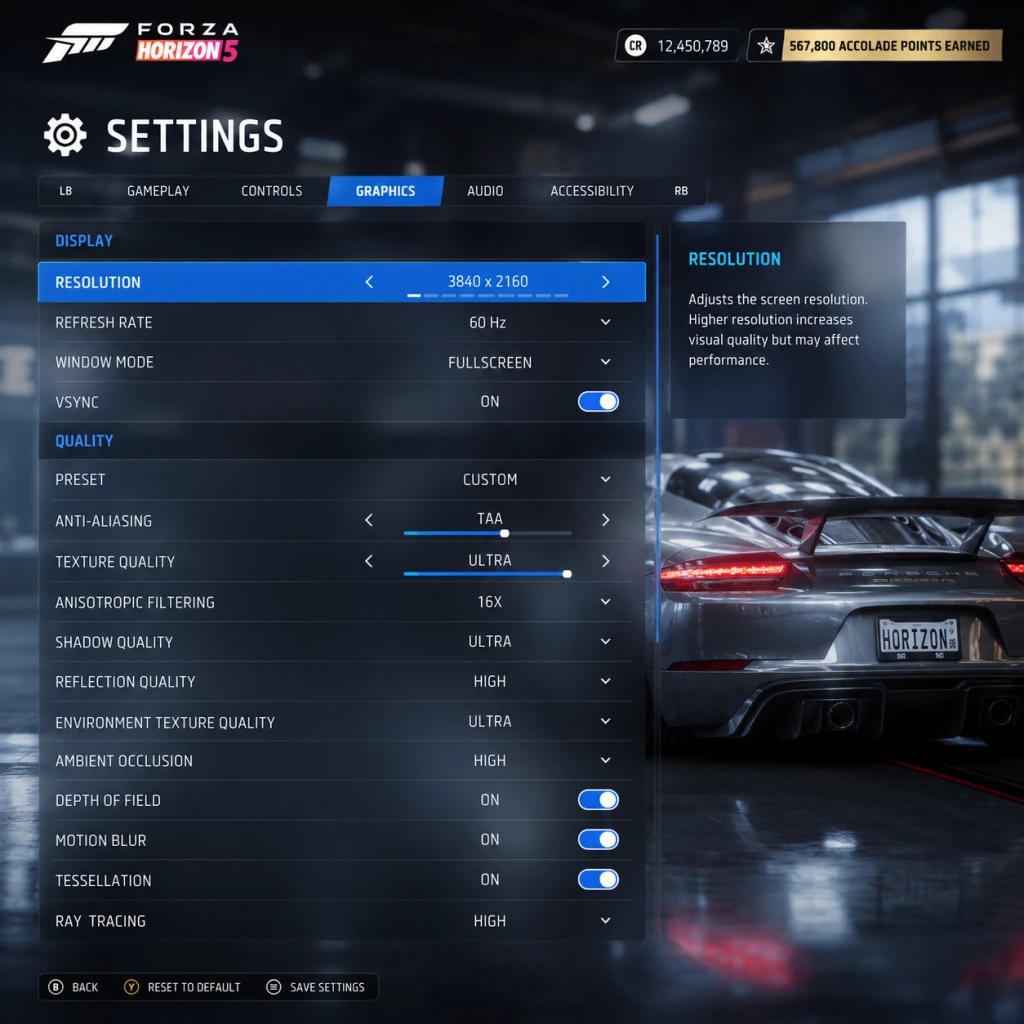
- Resolution: Set to native monitor/TV resolution. For performance gains on PC, use Dynamic Resolution Scaling (DRS) rather than dropping resolution outright.
- Refresh Rate: Match your display’s max (e.g., 60Hz, 120Hz, 144Hz). Higher rates reduce input lag.
- VSync: On – eliminates screen tearing but may add slight input lag. Off – recommended for competitive play on G-Sync/FreeSync displays; cap frame rate instead.
- Fullscreen vs Windowed: Fullscreen (exclusive) gives best performance. Borderless windowed is useful for multi-monitor setups but adds latency.
- Field of View (FOV): Default 80°; adjust higher (90-110°) for better peripheral awareness in cockpit view. Too high can distort.
- Graphics Preset: Quick way to set many options. For fine control, use custom.
- Xbox One: 1080p ~30fps, use Performance mode (fixed 30fps).
- Xbox Series S: 1440p ~60fps Quality, or 1080p ~60fps Performance with lower shadows.
- Xbox Series X: 4K ~30fps Quality, or 1440p ~60fps Performance.
- PC: refer to recommended table below.
Platform Tips:
Advanced Graphics (PC)
| Setting | Low-End (GTX 1060/RX 580 equivalent) | Mid-Range (RTX 2060/5700 XT) | High-End (RTX 3080/RX 6800 XT) | Notes |
|---|---|---|---|---|
| Dynamic Resolution Scaling | Off (render at 720p if needed) | On, target 60fps 1080p | On, target 120fps 1440p | Prevents drops; set target FPS |
| Shadow Quality | Medium | High | Ultra | High impact on performance |
| Motion Blur | Off | Off | Off | Hides details; most players disable |
| Environment Texture Quality | High | Ultra | Ultra | Visual pop-in reduced at Ultra |
| Geometry Quality | Medium | High | Extreme | Loads distant objects |
| Reflection Quality | Low | Medium | Ultra | Screen-space reflections demanding |
| SSR Quality | Low | Medium | Ultra | Secondary reflections |
| Lens Flare | Off | On | On | Cosmetic |
| Car Model Quality | High | Ultra | Extreme | LOD for vehicles |
| Water Quality | Medium | High | Ultra | Reflection complexity |
| Particle Effects | Low | Medium | High | Smoke, sparks |
| Shader Quality | High | Ultra | Ultra | Affects lighting and materials |
| Ambient Occlusion | Low | High | Ultra | Adds depth; performance hit |
| Anti-Aliasing | FXAA | TAA | TAA + MSAA x2 | TAA better for motion but softer |
| Anisotropic Filtering | 4x | 8x | 16x | Texture sharpness at angles |
| Depth of Field | Off | Off | High | Blurs distant objects (cinematic) |
| Texture Filtering | High | Ultra | Ultra | Similar to AF above |
Video Capture (In-Game)
- Clip Resolution: 1080p max; higher impacts performance.
- Clip Frame Rate: 30fps recommended; 60 very demanding.
- Enable Replay Recording: On – uses system resources; off to save performance.
- Master Volume: 80-100%
- SFX Volume: 70-90% – engine sounds, collision
- Music Volume: 60-80% – ambient and menu music (radio stations have separate mix)
- Voice Volume: 100% – characters, narrator
- Audio Output Dynamic Range:
- Enable Spatial Audio: On – works with Dolby Atmos, DTS:X, Windows Sonic. Great for hearing opponent positions.
- Audio Latency: Default; adjust only if you notice sync issues.
- Controller Layout: Choose from preset or custom. Default “Gamepad” works well.
- Vibration: On/Off; off reduces immersion but can improve lap times for some.
- Steering Sensitivity: 0 (linear) to 10 (very twitchy). Start at 5; increase for drift styles.
- Steering Deadzone: 0-100. For new controllers, set 0-5% inner deadzone to eliminate stick drift.
- Acceleration Deadzone: Similar; 0-5% recommended.
- Brake Deadzone: 0-5%.
- Clutch Deadzone (if using manual w/ clutch): 0-5%.
- Force Feedback (for steering wheels):
- Steering: A/D or mouse (relative).
- Throttle/Brake: Arrow Up/Down.
- Look Left/Right: Q/E.
- Switch Camera: C.
- Subtitles: On; choose “All” or “Dialogue Only”.
- Subtitle Color: Variety of colors for visibility.
- Subtitle Background: Black box helps readability.
- Text-to-Speech: Reads menu text aloud; useful for visual impairments.
- Speech-to-Text: Not available in FH5 yet.
- Color Blind Mode: Protanopia, Deuteranopia, Tritanopia filters for UI.
- UI Scale: Increase to 150% for larger menus.
- Narrator Speed: Slow-Normal-Fast.
- Audio Cues: Toggle for collision warnings, checkpoint beeps.
- Difficulty Assists: Can be scaled in Gameplay Settings (see below).
- Game Language: Choose interface text language. (Download required for some packs.)
- Voice Language: Select dubbing for characters – English, Spanish (Mexico) recommended for immersion.
- Subtitle Language: Independent from voice.
- Region: Affects in-game radio stations (e.g., Spanish stations in Mexico region).
- Online Mode: Enable to access multiplayer and Horizon Life. Disable for single-player only (faster loading).
- Privacy:
- Cross-Play: Enable to play with PC and Xbox players together. Disable for platform-only.
- Broadcast Settings (Twitch integration):
- Network Quality: Auto; manual adjustment not needed.
- Drivatar Difficulty: 1 (Very Easy) to 10 (Unbeatable). AI aggression scales.
- Braking Assist: Off / On (auto-brakes). On for beginners.
- Steering Assist: Off / On (auto-steers). On for learners.
- Acceleration Assist: Off / On (automatic throttle modulation). On for novices.
- Shift Mode: Manual w/ Clutch / Manual / Automatic. Manual gives speed advantage.
- Transmission: Manual gives better gear control.
- Drivetrain: Sway from default; RWD, AWD, FWD – affects handling.
- Simulation Mode (Full or Simplified) :
- Damage: Cosmetic only (visual) or Simulation (performance degradation). Simulation adds risk, costs more to repair.
- Traction Control: On / Off. Off for faster corner exits but requires throttle control.
- ABS (Anti-Lock Brakes): On / Off. Off can reduce braking distance but needs precise braking.
- Stability Control: On / Off. Off helps in drifting but makes spinning easier.
- Rewind: On / Off. Enable for learning; disable for challenge.
- Race Length: Normal (3 laps) / Long / Very Long. Affects tire wear strategy.
- Collision Mode: Ghosted (no contact) / Standard (contact) / Only Collision with AI (offline). Ghosted is great for beginners.
- Race Start: Standing or Rolling. Standing tests launches.
---
Audio Settings
- Headphones: Use “Headphones” setting for enhanced spatial awareness.
- Stereo: For TV/speaker bars.
- Home Theater: 5.1/7.1 setups; best for positional audio.
Common Mistake: Leaving dynamic range on “TV” with headphones can flatten explosions. Switch to “Headphones” for better damage cues.
---
Controls Settings
Controller (Xbox/PlayStation)
- FFB Scale: 100% default; reduce if wheel clips.
- Wheel Damper: 0-100; higher reduces vibrations.
- Centering Spring: Off for realism.
- Steering Sensitivity: 50% linear default.
Keyboard & Mouse:
Warning: Steering deadzone too high causes understeer; too low causes unwanted input. Test by checking controller calibration tool in-game.
---
Accessibility Settings
Key Point: Difficulty Assists (like automatic braking) can be turned on independently of main difficulty. Great for learning tracks.
---
Language Settings
Conflict to Avoid: If you set voice language to English but region to US, you miss unique Mexican radio content. For full authenticity, set Region to Mexico and Voice to Spanish.
---
Network Settings
- Open: Anyone can join your convoy.
- Friends Only: Only friends can join.
- Invite Only: No automatic join.
- Streamer Mode: Hides real player names.
- Allow Chat Interaction: For community votes.
Note: Turn off cross-play if you experience latency issues with PC players; or turn off for consistent console-only lobbies.
---
Gameplay Settings
These heavily impact handling and feel.
Difficulty
Simulation
- Simplified: Lenient tire grip, forgiving physics.
- Full: Realistic tire wear, weight transfer, off-road physics. Requires practice.
Critical Mistake: Many new players turn on automatic shifting + assist steering, then wonder why they can’t keep up in online races. Start with automatic but manual w/ clutch later for performance.
Event Settings
---
Recommended Settings Summary by Hardware
| Platform | Resolution Target | FPS Target | Graphics Preset | Additional Tweak |
|---|---|---|---|---|
| Xbox One | 1080p | 30 | High | Turn off motion blur, lens flare |
| Xbox Series S | 1440p | 60 | High Performance mode | DRS on (target 60fps) |
| Xbox Series X | 4K | 30 Quality | Ultra | RT reflections on |
| Xbox Series X | 1440p | 60 Performance | High | DRS off, shadows to high |
| PC Low-End (GTX 1060) | 1080p | 60 | Medium | DRS on (60fps), shadows medium, particles low |
| PC Mid-Range (RTX 2060) | 1440p | 60 | High | DRS off, TAA, shadows high, reflections medium |
| PC High-End (RTX 3080) | 1440p | 120 | Ultra | DRS off, MSAA x2, RT on if supported |
| PC Extreme (RTX 4090) | 4K | 120 | Extreme | DRS off, MSAA x4, RT high |
Final Notes
- Always apply settings and test in a short race (e.g., sprint event) to check performance.
- Save your personal profile changes; they are stored in the cloud.
- For competitive online play, disable V-Sync, motion blur, and use 120Hz if available.
- Use the Performance Overlay in Settings (PC) to monitor GPU/CPU usage and adjust accordingly.
- If you experience input lag, disable V-Sync and cap FPS one below max refresh (e.g., 59 for 60Hz).