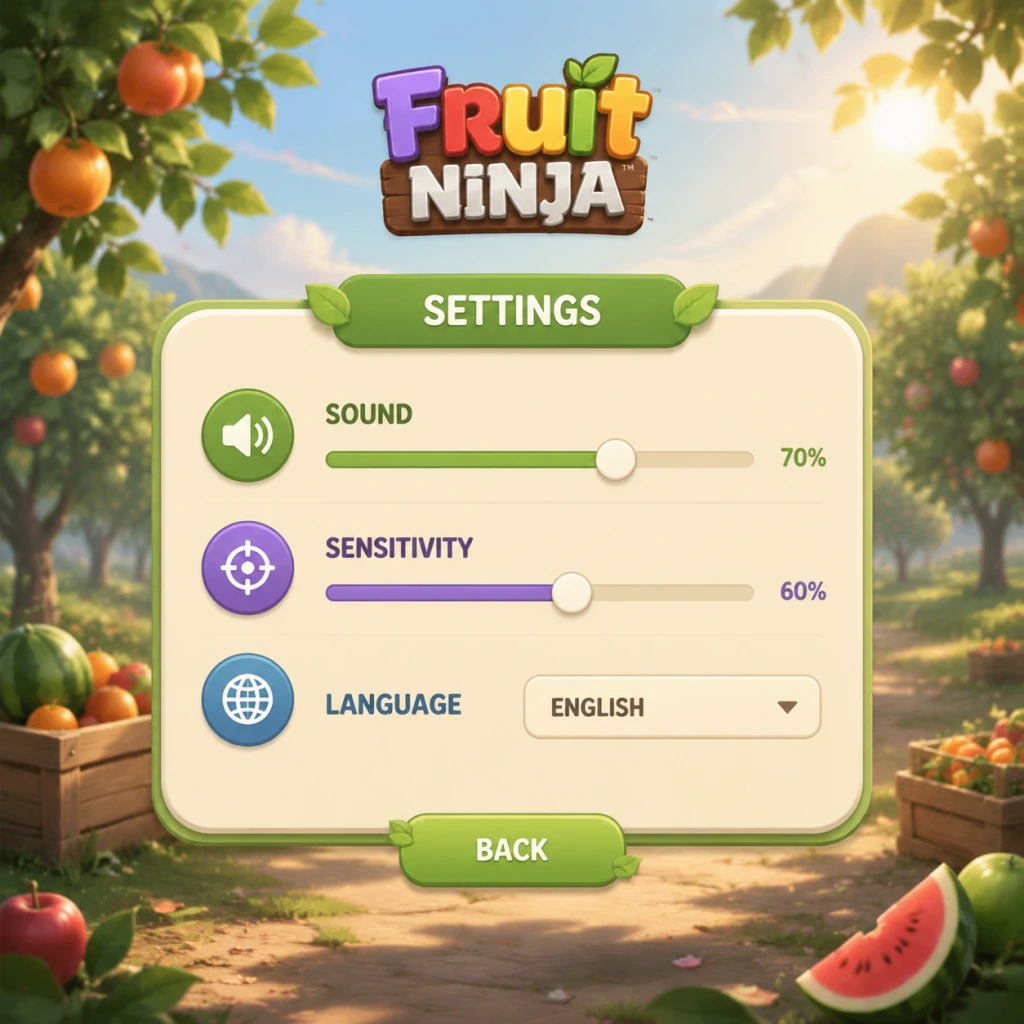
Game Settings
Fruit Ninja Game Settings Guide
Overview
Fruit Ninja is a lightweight arcade game that runs smoothly on almost any hardware. However, tweaking certain settings can significantly improve your slicing precision, reduce distractions, and tailor the experience to your platform. This guide covers every settings menu—graphics, audio, controls, accessibility, language, network, and gameplay—with optimal recommendations for low-end, mid-range, and high-end systems, plus pitfalls to avoid.
Graphics Settings
Graphics options are available only on PC (Steam, Microsoft Store) and mobile devices. Console versions run at a fixed resolution and refresh rate.
Available Options
- Resolution: PC only. Choose your monitor’s native resolution for best clarity. Lower resolutions can improve performance on very old hardware, but Fruit Ninja is not demanding.
- VSync: Prevents screen tearing. Enable if you see tearing; disable for slightly lower input lag on high-refresh-rate monitors.
- Particle Effects: Controls explosion and juice splatter intensity. Set to Low if you experience frame drops on low-end PCs or older mobile devices.
- Bloom: Bright glow on sliced fruit. Disable for a crisper look and minor performance gain.
- Anti-Aliasing: Smooths jagged edges. FXAA is sufficient; MSAA is unnecessary given the simple art style.
- Display Mode: Windowed, Fullscreen, or Borderless Windowed. Fullscreen offers best performance; Borderless allows quick alt-tabbing.
Recommended Settings by Hardware Level
| Setting | Low-End (Intel HD Graphics) | Mid-Range (GTX 1050 / RX 560) | High-End (RTX 2060+) |
|---|---|---|---|
| Resolution | 720p or 900p | 1080p | 1440p or 4K |
| VSync | Off | On (if tearing) | On at native refresh |
| Particle Effects | Low | Medium | High |
| Bloom | Off | Off | On |
| Anti-Aliasing | None | FXAA | FXAA |
| Display Mode | Fullscreen | Fullscreen | Fullscreen |
Audio Settings
Audio settings are identical across all platforms.
- Master Volume: Overall game sound.
- SFX Volume: Sound effects for slicing, bombs, power-ups, and blade sounds.
- Music Volume: Background music.
- Voice Volume: Announcer and combo shouts (e.g., “Excellent!”).
- Swipe Sensitivity: Determines how quickly a touch is registered as a swipe. Higher values require faster movement; lower values register slow swipes. Default is usually fine, but if you find your cuts missing, increase sensitivity.
- Blade Trail: Visual feedback for your finger path. Keep On.
- Blade Color: Cosmetic, no gameplay effect.
- Mouse Sensitivity: Affects the distance needed to register a slice. Start at default; adjust if you overshoot fruit (lower) or need more range (higher).
- Key Bindings: Some versions allow remapping. Default: Click and drag to slice. No keyboard shortcuts for slicing (must use mouse).
- Controller Support: Xbox/PlayStation controllers work via Steam Input. Set up analog stick or touchpad for slicing. Recommended: Use the right stick for slashing motions. Sensitivity settings apply to controller sticks too.
- Stick Sensitivity: Same logic as PC mouse sensitivity. If you find the slice curving unexpectedly, lower sensitivity.
- Motion Controls (Switch only): Tilt to aim? Not standard—only uses stick. Check if motion slicing is available in options; if yes, disable unless you prefer gyro aiming.
- Bomb Flash: When a bomb appears, the screen flashes. Can be toggled for players with photosensitivity or for clarity.
- Subtitles: For announcer lines (available in some versions). Enable if you have hearing difficulties.
- Colorblind Mode: Changes bomb and fruit colors to more distinguishable palettes (e.g., blue/purple bombs instead of black). Available on mobile and modern PC builds.
- Reduced Motion: Disables extra particle effects and animations for motion sensitivity. Improves clarity as well.
- Font Size: Not changeable; the game uses large, clear fonts by default.
- Online Leaderboards: Enable to submit your high scores. Requires internet connection. Disable if you play offline to avoid annoying “connection lost” popups.
- Cloud Save: Syncs progress across devices. Recommended to turn on if you use multiple platforms (e.g., Steam and mobile via same account).
- Multiplayer (if available in your version): Matchmaking region and NAT type. Usually automatic. If you experience lag in Versus mode (some mobile versions), switch to a server region closest to you.
- Blade Trail Duration: How long the slash trail lingers. Shorter = less screen clutter; longer = more visual feedback. Default is fine.
- Score Display: Show live score or hide it. Keep visible for high-score attempts.
- Bomb Explosion Effect: May be toggleable. On by default; can be disabled for cleaner view.
- Auto-Retry: In Arcade mode, some versions ask if you want to try again after dying. Enable to save a tap.
- Classic Timer Display: In Classic mode, you see a countdown. No option to change it.
Optimal: Leave all at 100% for classic arcade feel. Reduce SFX if playing in a quiet environment or if bomb sounds startle you. Some players mute music to focus on the rhythm of bomb beeps.
Pitfall: The bomb warning sound is part of SFX, not music. If you lower SFX too much, you might miss bomb audio cues—especially dangerous in Arcade mode where bombs end the game.
Controls Settings
Controls vary greatly by platform. This section covers the most important adjustments.
Mobile (Touch)
PC (Mouse & Keyboard)
Console (PS, Xbox, Switch)
Special Attention: Sensitivity and Slice Precision
Misconfigured sensitivity is the #1 cause of missed slices. Test in Zen Mode (no bombs) after changing sensitivity. If you repeatedly miss fruit on the edges, turn sensitivity down. If you cannot slice fast fruit at the center, turn it up. On mobile, also ensure your screen protector does not reduce touch responsiveness.
Accessibility Settings
Fruit Ninja offers a few helpful features:
Optimal Setup: Enable Bomb Flash (it helps even without conditions), and if you have mild colorblindness, toggle Colorblind Mode to avoid confusing bomb fuses with fruit stems.
Language Settings
The language option is usually found in the main menu or settings gear icon. The game supports dozens of languages. Important: The language change affects UI text and announcer voice (if available). On PC, voice language is tied to game language; on mobile, you can sometimes separate them. If you prefer the original English announcer but want menu text in your language, check for separate “Voice Language” option. If not available, you may need to keep the entire game in English.
Misconfiguration Tip: Some players accidentally set language to a script they cannot read, then cannot navigate back to change it. Memorize the settings icon position: It’s usually a gear or wrench in the top-right corner. If you change language and cannot read the menu, tap that icon, then look for a flag or language list (often the second option). Alternatively, reinstall the game to reset language.
Network Settings
Fruit Ninja primarily works offline. Network settings are minimal:
Attention: If you are on PC and use mods or trainers, disable cloud saves to prevent sync corruption or bans.
Gameplay Settings
These settings affect how the game plays.
Optimal: Keep all defaults. The only tweak worth making is disabling Bomb Explosion Effect if you find the explosion surprises you—but it also provides visual feedback of your mistake.
Summary of Must-Change Settings
| Setting | Recommendation | Reason |
|---|---|---|
| Mouse/Stick Sensitivity | Medium (adjust per feel) | Too high or low causes missed slices |
| Bomb Flash | On | Helps anticipate bomb damage |
| Language | Your preferred language | Ensure you can read menus |
| Online Leaderboards | Off if offline | Prevents error prompts |
| Colorblind Mode | On if needed | Improves fruit/bomb discrimination |