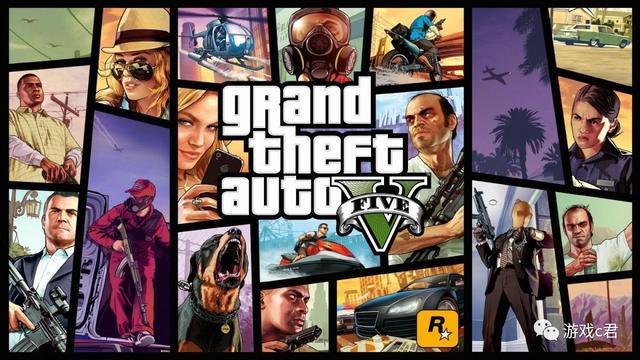
Download & Installation
Grand Theft Auto V – Download & Installation Guide
This guide covers all official platforms where Grand Theft Auto V (GTA V) is available for purchase and installation: PC (Steam, Epic Games Store, Rockstar Games Launcher), PlayStation 4 & 5, and Xbox One & Series X|S. Note: GTA V is not released natively on Nintendo Switch or mobile devices (excluding cloud streaming services). Always download from legitimate sources to avoid malware or account bans.
1. System Requirements (PC)
Minimum Requirements:
- OS: Windows 10 64-bit (older versions may work but are not supported)
- Processor: Intel Core 2 Quad Q6600 @ 2.4GHz / AMD Phenom 9850 @ 2.5GHz
- Memory: 4 GB RAM
- Graphics: NVIDIA GeForce 9800 GT 1GB / AMD Radeon HD 4870 1GB (DirectX 10 support required)
- Storage: 110 GB available space (HDD recommended; SSD improves load times)
- Sound Card: 100% DirectX 10 compatible
- Internet: Internet connection required for activation and online play
- OS: Windows 10 64-bit (latest update)
- Processor: Intel Core i5 3470 @ 3.2GHz / AMD FX 8350 @ 4GHz
- Memory: 8 GB RAM
- Graphics: NVIDIA GeForce GTX 780 3GB / AMD Radeon RX 580 4GB
- Storage: 110 GB available space (SSD strongly recommended)
- Sound Card: DirectX 10 compatible
- Internet: Broadband connection
- Rockstar Games Social Club account is mandatory for all platforms. Create one at [socialclub.rockstargames.com](https://socialclub.rockstargames.com) before installation.
- PC (Steam): You also need a Steam account.
- PC (Epic Games Store): You need an Epic Games account.
- PC (Rockstar Games Launcher): Only a Rockstar Social Club account is needed.
- PlayStation: A PlayStation Network (PSN) account.
- Xbox: An Xbox Live / Microsoft account.
- Physical disc: Insert the GTA V disc. The console will begin installing the game data (around 50–60 GB for GTA Online components). Follow on-screen prompts. You may need to download updates and the full GTA Online content (additional ~50 GB).
- Digital purchased: Go to PlayStation Store → search “Grand Theft Auto V” → purchase → download. The game will appear in your Library → select “Download”.
- Storage: Ensure at least 110 GB free (some updates require more).
- Installation: After download, the game installs automatically. First launch will prompt you to sign in to PSN and Rockstar Social Club.
- Physical disc: Insert disc, follow on-screen installation. Again, expect large download for updates and GTA Online.
- Digital: Purchase from Microsoft Store → go to “My games & apps” → see download queue. Installation begins automatically.
- Smart Delivery: On Xbox Series X|S, GTA V benefits from Smart Delivery – you get the optimized version automatically. Ensure your console is connected to the internet.
- Storage: 110 GB free required.
- Setup: Sign in to Xbox Live and Rockstar Social Club on first launch.
- Base game download: Approximately 95–110 GB depending on platform and edition.
- Final installed size (with updates): 100–120 GB. On PC, it can reach up to 110 GB after updates.
- Additionally: GTA Online updates (free) may add extra GBs over time. Ensure you have at least 150 GB free before installing to accommodate patches.
- Fix: Install the required Visual C++ Redistributables. Download from Microsoft Official site (both x86 and x64). Also ensure .NET Framework 4.8 is installed.
- Reinstall: Uninstall Rockstar Launcher completely and reinstall from Rockstar’s official site.
- Fix: Update your GPU drivers to the latest version (NVIDIA or AMD).
- Check DirectX: Install DirectX End-User Runtime Web Installer.
- Fix: Ensure you purchased the correct region. Contact Rockstar Support if key is invalid. If using Steam/Epic, verify game file integrity first.
- Fix: Pause and resume download. Restart the launcher/Steam/Epic. Clear download cache (in Steam: Settings → Downloads → Clear Download Cache).
- Network: Disable VPN or firewall temporarily (but reconnect after download).
- Fix: The game requires the exact amount of contiguous free space. Defragment your HDD or free up more space. On SSD, this is usually not an issue.
- Fix: Verify game files. On Steam: right-click game → Properties → Local Files → Verify integrity. On Rockstar Launcher: go to Settings → Verify game files.
- Run as admin: Right-click GTAVLauncher.exe → Properties → Compatibility → Run as administrator.
- Fix: Disable antivirus temporarily. Reinstall launcher. Check Windows date/time settings.
- Check version: After installation, launch the game and go to Settings → Game to see the version number. Latest version should be 1.xx (check online).
- Run benchmark (PC): In the menu, select Settings → Graphics → Run Benchmark. This ensures performance is stable.
- Verify online connectivity: Enter GTA Online. You should be able to join a session without errors.
- Update check: The launcher will automatically check for updates on launch. Ensure you have the latest patch.
- SSD recommended: For faster load times (especially online) install on an SSD.
- Backup saves: Regularly backup your save files (PC: Documents\Rockstar Games\GTA V\Profiles).
- Avoid piracy: Only download from official stores. Pirated copies may contain malware and cannot access GTA Online.
- Cross-save: GTA V does not support cross-progression between platforms (except transferring from PS4/Xbox One to PS5/Xbox Series via Rockstar migration tool – one-time).
Recommended Requirements:
Note for high-end graphics: For 4K resolution or 60+ FPS, an NVIDIA RTX 2070 or AMD RX 5700 (or higher) and 16 GB RAM are recommended.
2. Account Requirements
3. Platform-Specific Installation Steps
#### 3.1 PC – Steam
1. Purchase: Buy GTA V from the Steam store (Standard or Premium Edition).
2. Install Steam client (if not already installed) and log in.
3. Library: Go to your Steam Library → right-click “Grand Theft Auto V” → select “Install”.
4. Choose location: Select a drive with at least 110 GB free space. For SSDs, choose your SSD drive.
5. Download: Steam will download the game (~110 GB). This may take several hours depending on your internet speed.
6. Rockstar Launcher: After download, the Rockstar Games Launcher will install automatically. You will be prompted to log in with your Social Club account.
7. Activation: Enter your product key (if required; Steam usually handles this automatically).
8. First launch: The game will perform a one-time configuration and start.
#### 3.2 PC – Epic Games Store
1. Purchase: Buy from Epic Games Store.
2. Install Epic Games Launcher (or ensure it is updated).
3. Library: Navigate to Library → find GTA V → click “Install”.
4. Set install location: Similar to Steam, choose a drive with enough space.
5. Download & Install: The launcher downloads the game.
6. Rockstar Launcher: Epic will install the Rockstar Games Launcher as part of the process. Log in with Social Club credentials.
7. Activation: The key is linked automatically.
8. Launch: Click “Play” from Epic or Rockstar Launcher.
#### 3.3 PC – Rockstar Games Launcher
1. Download Launcher: Go to [rockstargames.com](https://rockstargames.com) and download the Rockstar Games Launcher.
2. Install: Run the installer and create an account or log in.
3. Purchase: Buy GTA V from the Rockstar store within the launcher or redeem a retail key.
4. Install: In the launcher, go to “My Games” → GTA V → “Install”.
5. Download: Same as above – ensure enough space.
6. Play: The game is ready immediately after download.
#### 3.4 PlayStation 4 & 5
#### 3.5 Xbox One & Series X|S
4. Storage Space & Download Sizes
5. First Launch Setup (All Platforms)
1. Rockstar Social Club login: You must log in with your Social Club account. If you don’t have one, create it on the launcher or console prompt.
2. Activation: Enter the product key if prompted (usually automatic for digital purchases).
3. Settings: The game will detect your hardware and set default graphics / display settings. You can adjust them later.
4. GTA Online: You will be asked to create a character (if you want to play online). This is optional; you can skip and play Story Mode first.
5. License agreements: Accept the end-user license agreement (EULA) and privacy policy.
6. Updates: The launcher may download a small update (usually a few MB) after first install.
7. Launch: Start Story Mode or GTA Online.
6. Common Installation Errors and Fixes
#### 6.1 Error “Rockstar Games Launcher not installed” or “Missing VCRuntime”
#### 6.2 “Grand Theft Auto V is unable to run because your graphic drivers are too old”
#### 6.3 “Activation failed” / “Invalid product key”
#### 6.4 Download interrupted or stuck at X%
#### 6.5 “Insufficient disk space” even though you have enough free
#### 6.6 “GTA V has stopped working” on startup
#### 6.7 Rockstar Launcher crashes during update
7. Post-Installation Verification
8. Additional Tips
---
Legal notice: This guide is for informational purposes only. All trademarks belong to Rockstar Games.