Game Settings
Grand Theft Auto V – Game Settings
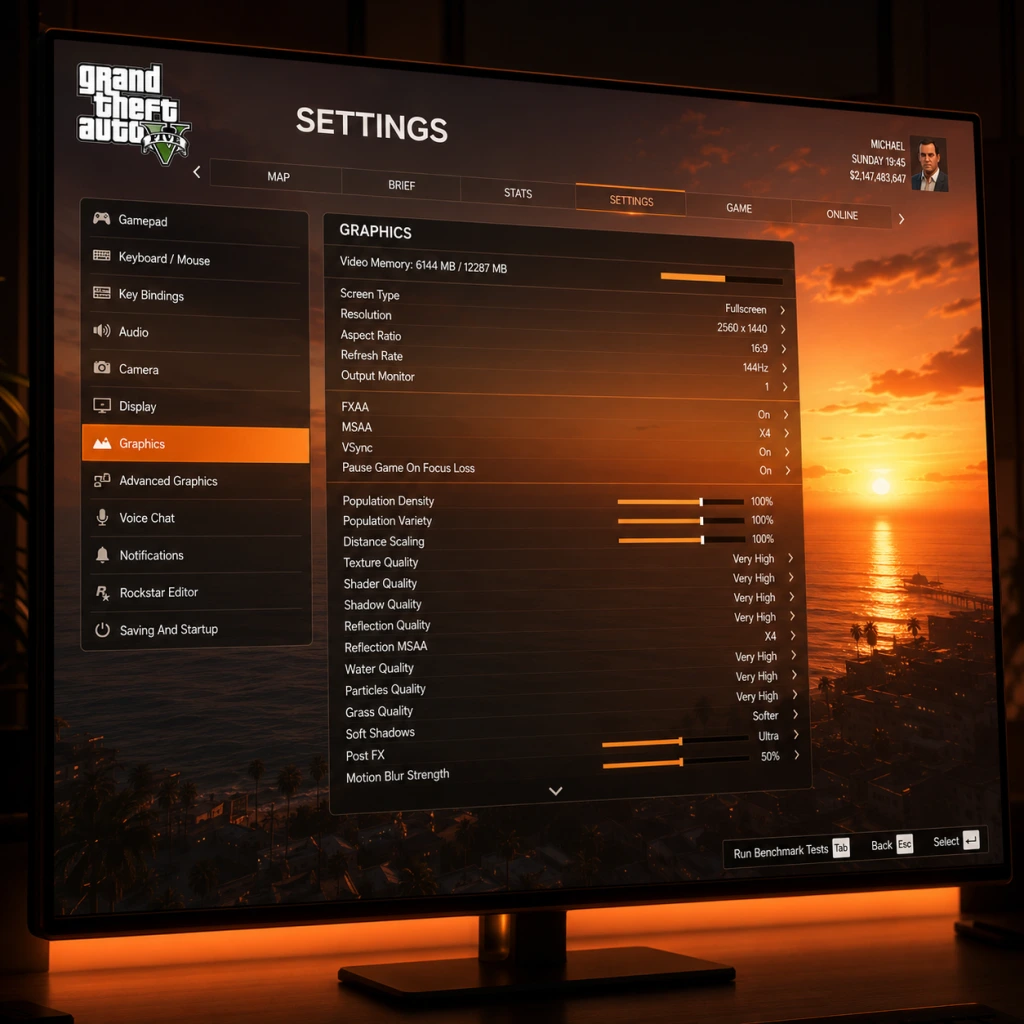
This guide covers every important setting in Grand Theft Auto V and GTA Online. Proper configuration can drastically improve performance, visual quality, and gameplay comfort. We’ll explain each category, recommend optimal values for different hardware tiers, and highlight common mistakes.
Graphics Settings
Graphics are split into Basic and Advanced. The in-game menu also offers a Benchmark tool to test stability. Always run the benchmark after changing major options.
| Setting | Recommended Value (Low-End) | Mid-Range | High-End | Notes |
|---|---|---|---|---|
| Resolution | Native monitor resolution (e.g., 1920×1080) | Same | Same | Never go below native; use resolution scaling if needed. |
| Aspect Ratio | Auto | Auto | Auto | Set to match your monitor. |
| Refresh Rate | Highest supported | Highest supported | Highest supported | Match your monitor’s max Hz. |
| Screen Type | Fullscreen | Fullscreen | Fullscreen | Borderless windowed can reduce performance due to compositor overhead. |
| Graphics API | DirectX 11 | DirectX 11 | DirectX 11 | DX12 is experimental and may cause issues on some systems. |
| SSAO | Off | Normal | High | Ambient occlusion; heavy on low-end GPUs. |
| Anisotropic Filtering | x4 | x8 | x16 | Little performance cost; set high for clearer textures. |
| Texture Quality | Normal | High | Very High | Affects VRAM. Check your VRAM usage bar. |
| Shader Quality | Normal | High | Very High | Impacts reflections and lighting. |
| Shadow Quality | Normal | High | Very High | Major performance drain on Very High. |
| Reflection Quality | Normal | High | Very High | Use “High” even on mid-range; Very High is heavy. |
| Reflection MSAA | Off | Off | x2 | Extremely expensive; avoid unless you have a top-tier card. |
| Water Quality | Normal | High | Very High | Impacts ocean and puddle reflections. |
| Particles Quality | Normal | High | Very High | Affects explosions and dust. |
| Grass Quality | Normal | High | Very High | Biggest performance hog in GTA V. Set to Normal on low-end, High on mid-range, Very High only on high-end. |
| Soft Shadows | Soft | Softest | NVIDIA PCSS (if NVIDIA) or Softest | Softest is good balance; PCSS is realistic but demanding. |
| Post FX | Normal | High | Ultra | Adds bloom, depth of field, motion blur. Turn off or Normal on weak GPUs. |
| Motion Blur | Off | Off | Off or On | Personal preference; can cause nausea. |
| Depth of Field | Off | Off | On | Subtle effect; disable for clarity. |
| Tessellation | Off | Normal | Very High | Adds geometry detail; avoid on low-end. |
| FXAA | On | On | Off | Cheap anti-aliasing that blurs; use MSAA or TXAA for better quality. |
| MSAA | Off | x2 | x4 | Very expensive; combine with FXAA x2 (low-end) or TXAA (if supported). |
| TXAA | Off | Off | On | Temporal anti-aliasing, good for shimmer reduction. |
| VSync | Off | On | On (unless using G-Sync/FreeSync) | On eliminates screen tearing; off can increase input lag. |
| Population Density | 50% | 80% | 100% | Controls car and pedestrian count; reduces CPU strain. |
| Population Variety | 50% | 80% | 100% | Affect variety of NPCs; can lower FPS on CPU-limited systems. |
| Distance Scaling | 50% | 80% | 100% | Draw distance for objects; low for performance. |
| Texture Quality | Normal | High | Very High | Already listed above – adjust based on VRAM. |
- Long Shadows: Off on low-end, On for realism.
- High Resolution Shadows: Off on low/mid, On for high-end.
- High Detail Streaming While Flying: On (minor CPU impact).
- Extended Distance Scaling: 0% low-end, ~50% mid, 100% high. Heavily GPU-bound.
- Extended Shadows Distance: 0% low-end, 50% mid, 100% high.
- Frame Scaling Mode: 1.0x (native) for all; only use to downsample (e.g., 2.0x) on overpowered systems for super-sampling.
- Grass Quality is the single biggest FPS killer. Many players leave it on Ultra without realizing it halves performance. Always test.
- Reflection MSAA is extremely expensive. Leave it off unless you have a high-end card and plenty of headroom.
- Frame Scaling above 1.0x renders internal resolution higher than display; it massively reduces performance. Avoid unless you have a very strong GPU.
- VRAM Warning: The game displays a red bar when you exceed VRAM. Exceeding VRAM causes stutter and texture pop-in. Stay in the green.
- VSync in GTA V can add input lag. If you have a G-Sync/FreeSync monitor, turn VSync off and enable adaptive sync in the GPU control panel. Cap FPS 3 below refresh rate (e.g., 141 for 144Hz).
Important Misconfigurations:
#### Optimal Presets by Hardware Tier
| Tier | Example GPU | Graphics Preset | Additional Tweaks |
|---|---|---|---|
| Low (30-60 FPS, 1080p) | GTX 1050 / RX 560 | Normal preset, then manually reduce Grass to Normal, Shadows to Normal, Population to 50%. Turn off MSAA, SSAO, Motion Blur. | Set resolution to 720p if needed; use FXAA only. |
| Mid (60 FPS, 1080p) | GTX 1060 / RX 580 | High preset, then Grass to High, Shadows to High, MSAA off, FXAA on. Population ~80%. | Keep VRAM under limit; enable VSync. |
| High (60+ FPS, 1440p) | RTX 3060 Ti / RX 6700 XT | Very High preset, Grass to Very High, MSAA off, TXAA on. Shadows to Very High, Soft Shadows to Softest. | Turn on High Resolution Shadows, Long Shadows, Extended Distance Scaling to 50%. |
| Ultra (60+ FPS, 4K) | RTX 4090 / RX 7900 XTX | Very High preset, Grass Very High, MSAA x2, TXAA off (or FXAA). Soft Shadows: NVIDIA PCSS. All Advanced settings maxed. | Consider Frame Scaling 1.25x for downsampling if you have headroom. |
Audio Settings
- Master Volume: 80-100%.
- Voice Volume: 100% to hear missions and characters.
- SFX Volume: 100%.
- Music Volume: 80% (personal preference).
- Radio Volume: Separate for vehicles; adjust to avoid overpowering dialogue.
- Advanced Audio:
- Radio EQ: Flat is neutral; use Rock, Pop, etc. only if you like the effect.
- Special Attention: If using a virtual surround sound app (e.g., Dolby Atmos), set output mode to Stereo to avoid double processing.
- Movement: WASD (default)
- Look: Mouse (800-1200 DPI, in-game sensitivity 10-20%)
- Sprint/Climb: Shift (default)
- Cover: Q (default) – but many remap to a mouse side button for quicker access.
- Reload: R (default)
- Interaction Menu (Online): M (default) – keep as is.
- Weapon Wheel: Tab (default) – hold to equip.
- Special Ability: Caps Lock (single-player) – works well.
- Aim/Look: Right stick (invert Y optional)
- Accelerate/Brake: Triggers (RT/ R2, LT/ L2)
- Steering: Left stick
- Sprint: Click left stick (L3) – this can be fatiguing; consider “Toggle Sprint” in settings.
- Controller Sensitivity: Start at 50% and adjust. Higher for faster turning.
- Aim Sensitivity: Separate setting for aiming; set to 50-70% for fine control.
- Aim Assist (Online): “Full” or “Partial” for auto-aim; “Free Aim” for manual (no aim assist). Many dedicated PvP players use Free Aim to avoid magnetic lock. In Story Mode, you can toggle anytime.
- Vehicle Control: “Simple” (arcade) or “Advanced” (more realistic). Advanced is recommended for drifting and precision.
- Steering Speed: 100% for quick turns.
- Vibration: On for immersion, off for precision (e.g., racing)
- Key Bind Conflicts: Check that no two actions share the same key. For example, “Enter Vehicle” and “Cover” might conflict near cars. Remap one.
- Mouse Acceleration: GTA V uses raw input by default. Ensure Windows mouse acceleration is off (Enhance pointer precision disabled).
- Controller Support: GTA V natively supports Xbox and PlayStation controllers. Steam Input can override. If using DualSense on PC, disable Steam Input for GTA V to avoid double input.
- Subtitles: Turn On (Story + Online). All dialogue and radio get subtitles.
- Subtitle Size: Normal or Large for better readability.
- HUD Opacity: 0% (minimal) to 100%. Adjust for visibility – 80% is good.
- Radar Type: “Blips” (default) or “Solid” – blips are clearer.
- Colorblind Mode:
- Camera Shake: Off if sensitive to motion sickness.
- Chat Text Size: Can be increased in Online > Settings > Display.
- Screen Reader: Not available natively. Use third-party overlays (e.g., NVDA) for menus.
- Auto-Lock Retry (Online): When failing a mission, automatic retry option can speed up replay.
- Special Attention: The colorblind modes only affect some UI elements; mission briefs may still rely on color-coded maps. Use online resources if needed.
- Game Language: Select from available languages (English, French, German, Italian, Spanish, Japanese, Korean, Russian, Polish, Portuguese-Brazil, Simplified Chinese, Traditional Chinese).
- Voice Language: Separate from text – choose e.g., English voices with German subtitles.
- Subtitles Language: Independent of game language. Set to your preference.
- Note: Language change requires restart. After changing, the game downloads new audio files (large) if needed.
- Special Attention: On PC, the Rockstar Games Launcher allows language selection per installation. Some languages (Japanese, Korean) require separate regional settings in Windows.
- Online Options:
- Advanced Network:
- Special Attention:
- Weapon Targeting Mode (Online):
- Auto-Aim (Story Mode): Can be toggled anytime. On for casual play, Off for challenge.
- Lock-On Range (Vehicles): Full, Standard, Near. Standard is balanced.
- Camera Follow Pedestrians: Off – keep camera steady.
- Camera Follow Vehicles: Default (On) – camera moves with car; Off gives free look.
- Reticle Type: Default (dot), Crosshair, Small. Crosshair is visible.
- Radar Type: Dual (mini-map + info), or Off. Dual is best.
- HUD Mode: On, Dim, Off. Dim reduces clutter.
- Display GPS: On/Off – keep on until you know the map.
- Quick GPS: Default (on) – press down on d-pad to set waypoint to nearest road.
- Radio Station: No setting – press right on d-pad to cycle.
- Skip Cutscenes (Online): Hold a button (e.g., Space on PC) to skip. All players must skip for it to skip.
- Special Attention:
- Always run the in-game benchmark after adjusting settings. It provides an average FPS and indicates stability.
- For GTA Online, negative effects from high pop/density low draw distance can cause NPCs to pop in – find balance.
- FPS cap: For competitive response, cap FPS at 60 (or monitor refresh) to avoid screen tearing. Use in-game VSync or RTSS to cap.
- Save profile: Take screenshots of your settings so you can restore them after updates (uncommon).
- Audio Output Mode: “Stereo” for headphones, “Surround” for 5.1/7.1 setups. Wrong setting can cause phase issues.
- Dynamic Range: “Headphones” or “Small Speakers” for low volume; “Home Theater” for loud systems. Setting too high may distort.
Controls
Recommended Layout for Keyboard & Mouse:
Controller (Xbox/PlayStation/DualShock):
Special Attention:
Accessibility Settings
- “Deuteranopia” (red-green), “Protanopia” (red-green), “Tritanopia” (blue-yellow).
- Changes mission markers, health bars, and UI elements.
Language Settings
Network Settings (GTA Online)
Accessible via Pause Menu > Online > Options.
- Matchmaking: “Open” (join any), “Friends Only”, “Closed”. For solo sessions, use “Closed” or start an Invite Only session from Story Mode via Online > Play GTA Online > Invite Only Session.
- Cross-Play: GTA Online does not support cross-play between platforms (PC, PS4/5, Xbox). So this setting is absent.
- Voice Chat: “Everyone”, “Friends”, “Crew”, “No One”. Default “Everyone” can be chaotic; set to “Friends” or “No One” for peace. You can mute individual players from the Interaction Menu.
- Voice Chat Output: Your mic input device – select your headset mic.
- Voice Chat Volume: 100%.
- Max Players: 30 (default). Lowering to 10-15 can reduce lag in public sessions but limits matchmaking.
- Time Out Join: Use default.
- Network Morse Check (Port Forwarding): If having connection issues, enable to test UDP ports.
- NAT Type: Open NAT (Type 1/2 on console, Moderate or Open on PC) is required for seamless matchmaking. Forward ports: TCP 80, 443; UDP 6672, 61455, 61456, 61457, 61458.
- VPN Usage: GTA Online bans VPNs. Do not play via VPN, or you risk a ban.
- Lag Compensation: None specifically, but playing on a wired connection reduces rubber-banding.
Gameplay Settings
These are in Pause Menu > Settings > Gameplay.
- “Assisted Aim – Full” (auto-aim locks onto enemies). Easier for PvE, hated by PvP purists.
- “Assisted Aim – Partial” (snaps, then free aim). Balanced.
- “Free Aim – Assisted” (no snap, but slight magnetism).
- “Free Aim” (no assistance). Most skill-based. Note: When you choose a targeting mode, matchmaking groups you with similar modes. Free Aim lobbies are less populated but more competitive.
- Aim Assist can cause frustration in PvP because of auto-lock fights. Many players switch to Free Aim after reaching respected rank.
- Lock-On Range in vehicles: If set to Full, you lock onto far targets first; can be annoying. Set to Standard.
- Controller vs KB/M: In vehicle combat, KB/M gives more precise aim. If using controller, consider aim assist.
- Auto-Lock Retry (Online): When failing a heist, you can automatically restart. Disable to avoid accidental restarts.
Summary of Easy-to-Misconfigure Settings
1. Grass Quality: Default “Very High” – turn to Normal or High for big FPS gain.
2. Frame Scaling Mode: Often left at 1.5x or 2.0x unknowingly – set to 1.0x.
3. VRAM Overflow: The game will allow you to exceed VRAM but performance tanks. Stay within green bar.
4. Aim Assist Mode (Online): Selecting the wrong mode groups you with different play styles. Choose deliberately.
5. Voice Chat Output: Muted by mistake – check if you can’t hear others.
6. Controller vs Mouse Input: The game may switch between two if you bump a pad. Disable “Enable Controller” in settings if you only use KB/M.
7. Audio Output Mode: Setting to “Surround” on stereo headphones causes hollow sound. Stick to “Stereo” unless you have a multi-speaker setup.