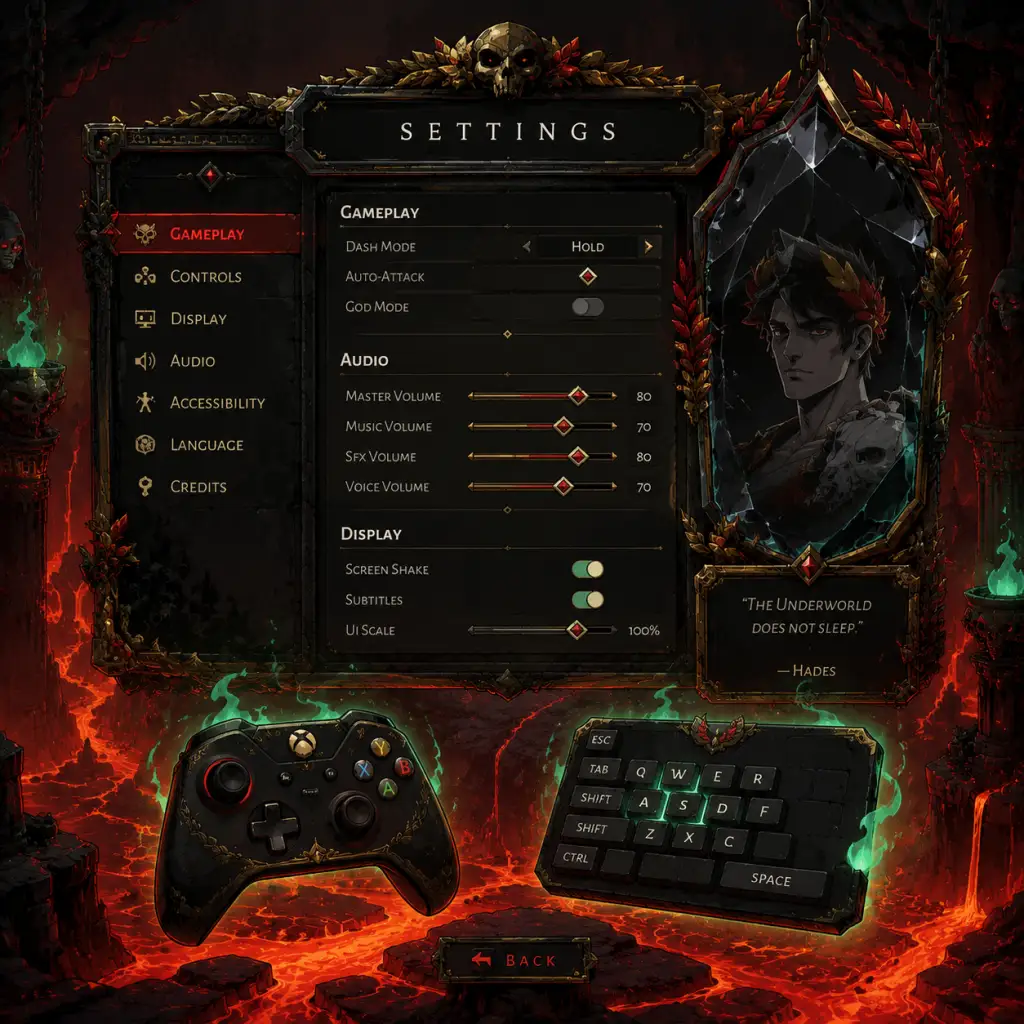
Game Settings
Game Settings Guide
This guide covers all configurable settings in Hades (PC, Nintendo Switch, PlayStation, Xbox). The game is highly optimized, but fine-tuning certain options can improve performance, readability, and comfort. Below we break down each category and recommend optimal settings for different hardware tiers.
Graphics Settings
Hades uses a hand-drawn art style that scales well across platforms. The settings below affect both performance and visual clarity.
| Setting | Low-End (Integrated GPU) | Mid-Range (GTX 1060 / RX 580) | High-End (RTX 3060+ / PS5 / XSX) | Notes |
|---|---|---|---|---|
| Display Mode | Fullscreen | Fullscreen | Fullscreen | Borderless windowed may cause input lag; use exclusive fullscreen for best performance. |
| Resolution | 720p or 900p | Native (1080p/1440p) | Native (1440p/4K) | Lower resolution significantly boosts FPS on weak hardware. |
| V-Sync | Off (cap FPS manually) | On (if screen tearing) | On (if screen tearing) | Disable V-Sync for lower input lag; cap framerate via GPU driver or in-game (see Gameplay). |
| Framerate Cap | 30 FPS | 60 FPS | 60 FPS or 144+ | Capping prevents GPU overwork; for high refresh rate monitors set to match display. |
| Graphics Quality Preset | Low | Medium/High | Ultra | Controls overall detail (shadows, bloom, reflections). |
| Shadows | Off | Low | Medium | High-quality shadows impact performance on low-end. |
| Bloom | Off | On | On | Bloom adds glow to light sources; can obscure enemies on bright backgrounds. |
| Point Light Shadows | Off | On | On | Small performance hit; adds depth. |
| Screen Shake | Off | 50% | User preference | Easy to misconfigure! Screen shake can disorient during intense combat. Set to 0% for clarity. |
| Motion Blur | Off | Off | User preference | Motion blur reduces clarity; most players disable it. |
| Anti-Aliasing | Off | TAA | TAA or FXAA | TAA smooths edges but may cause slight blur. Off for sharpest image. |
| Texture Quality | Low | Medium | High | Affects memory usage; low textures avoid VRAM issues. |
| Effects Quality | Low | Medium | High | Controls particle effects (fire, blood). Lower reduces visual noise. |
| Ambient Occlusion | Off | Low | High | Adds depth to shadows; minor performance cost. |
- Nintendo Switch: Docked mode uses 1080p, handheld 720p. Keep settings at default (Medium) for stable 60 FPS. Disable Screen Shake and Motion Blur for handheld play.
- PS4/Xbox One: Preferred settings: 1080p, V-Sync On, High Preset, Shadows Medium. Screen Shake off.
- PS4 Pro / Xbox One X: Can run at 1440p or 4K with High presets.
- PS5 / Xbox Series X: Ultra preset at 60+ FPS. Enable 120Hz mode if your TV supports it (framerate cap 120).
Audio Settings
| Setting | Recommendation |
|---|---|
| Master Volume | 70–90% |
| Music Volume | 80% (excellent soundtrack) |
| SFX Volume | 100% (important for enemy cues) |
| Voice Volume | 100% (character banter is vital) |
| Output Configuration | Stereo (default) or surround |
| Subtitles | On (helps catch dialogue in combat) |
Controls Settings
Hades supports full remapping on all platforms. Special attention: assign Dash to a comfortable button (e.g., right trigger or bumper) for quick access. On PC, mouse and keyboard players often bind Dash to Right Mouse Button or a side mouse button.
| Input | Default (PC) | Default (Switch) | Default (PlayStation) | Default (Xbox) | Notes |
|---|---|---|---|---|---|
| Dash | Space | B | Circle | B | Rebind to a finger-friendly key (e.g., Right Trigger) to dash while attacking. |
| Attack | Left Click | Y | Triangle | Y | |
| Special | Right Click | X | Square | X | Some players swap Attack and Special. |
| Cast | Q | A | Cross | A | |
| Call | E | R | R1 | RB | |
| Summon | R | L | L1 | LB | |
| Interact | F | A | Cross | A | |
| Open Menu | Esc | + | Share/Options | Menu | |
| Quick Select | 1-4 | D-Pad | D-Pad | D-Pad | |
| Auto-Aim | Toggle | Hold ZL | Hold L2 | Hold LT | See Accessibility. |
Accessibility Settings
| Setting | Description | Recommendation |
|---|---|---|
| Auto-Aim | Automatically targets nearest enemy when attacking/casting. | On for beginners or ranged builds; Off for precise aiming (e.g., sword dash-strikes). |
| Aim Assist | Magnetizes projectiles toward enemies. | On (reduces frustration). |
| Colorblind Mode | Three types: Protanopia, Deuteranopia, Tritanopia. | Enable if you struggle with enemy health bars or boon colors. |
| Subtitle Size | Normal/Large. | Large for readability. |
| God Mode | Unlockable option: gives 20% damage resistance, increasing per death. | Easy to misconfigure! This is a permanent mode toggle in settings—once enabled, it cannot be disabled for that save file. Use only if you want an easier experience. |
| Screen Shake Intensity | 0–100%. | Set to 0% for maximum combat clarity. |
| Flash Effects | On/Off. | Off reduces epileptic risk; also reduces visual clutter. |
| Damage Numbers | On/Off. | On to assess weapon damage; off for cleaner screen. |
| Health Bars | Always/On Enemy/Off. | Always (shows health for bosses and enemies). |
| Timer Display | Show/Hide. | Show if speedrunning; otherwise hide. |
| Show Gold | On/Off. | On (know your currency). |
| Show Darkness | On/Off. | On. |
| Summon Wheel | Hold/Click. | Hold (prevents accidental activation). |
Language Settings
| Setting | Options |
|---|---|
| Language | Full localization: English, French, German, Spanish, Italian, Portuguese-Brazil, Russian, Polish, Japanese, Korean, Simplified Chinese, Traditional Chinese. |
| Voice Language | English only (all characters speak English). Subtitles respect selected language. |
Network Settings
Hades is a single-player game with no online multiplayer. Only relevant settings:
- Cloud Saves (Steam/Epic/Console): Enable to sync progress across devices. On PC, ensure Steam Cloud is active in game properties. On consoles, check system save data management.
- Leaderboards (Speedrunning): Visible only when connected to the internet. No in-game toggle.
- Auto-Pause (pause on menu, pause on focus loss): Keep On to avoid dying while alt-tabbing.
- Invert Camera Y/X: Common for flight sim players; not needed for Hades.
- Camera Sensitivity (controller): 0.5–1.0. Lower values help precision.
- Vibration (controller): On/Off. Off to save battery and reduce distraction.
- Resolution: 720p
- V-Sync: Off, cap FPS at 30
- Preset: Low
- Screen Shake: 0%
- Bloom: Off
- Shadows: Off
- All accessibility: On
- Resolution: 1080p
- V-Sync: On
- Preset: High
- Shadows: Medium
- Screen Shake: 50% or off
- Anti-Aliasing: TAA
- Resolution: 1440p or 4K
- V-Sync: On
- Preset: Ultra
- Shadows: High
- All effects: On
- Framerate cap: 60 or display refresh
Gameplay Tweaks
Beyond the main menu, some settings are toggled during a run:
Recommended Presets by Hardware
#### Low-End (Intel UHD 620, Vega 8, etc.)
#### Mid-Range (GTX 1050 Ti / RX 470 / PS4 Base)
#### High-End (RTX 3060 / RX 6000 / PS5 / XSX)
Special Attention Points During Setup
1. God Mode – Toggle located in the Accessibility tab. Once enabled, it persists and cannot be turned off for that save. Read the warning before confirming.
2. Dash Binding – Not rebinding dash to a comfortable button (e.g., R2/RT) will hinder your combat flow, especially for dash-strike combos.
3. Screen Shake – Default is 100%. Many players find it nauseating; reduce to 0% immediately.
4. Auto-Aim – While helpful, it can lock your attacks onto the wrong target (e.g., a weak enemy instead of a boss). Experiment with it off once you’re comfortable.
5. Resolution & V-Sync – On PC, if you experience stutter, try disabling V-Sync and capping FPS via GPU control panel (e.g., Nvidia Control Panel set max frame rate to 60).
6. Controller vs Keyboard – Hades does not auto-detect controller on PC; you may need to switch from M&KB to controller in settings. If you plug in a controller mid-game, restart the game.
After adjusting settings, the game will apply them immediately (most settings). If you change resolution, a confirmation popup appears; accept or revert within 10 seconds. Test in the House of Hades before starting a run.