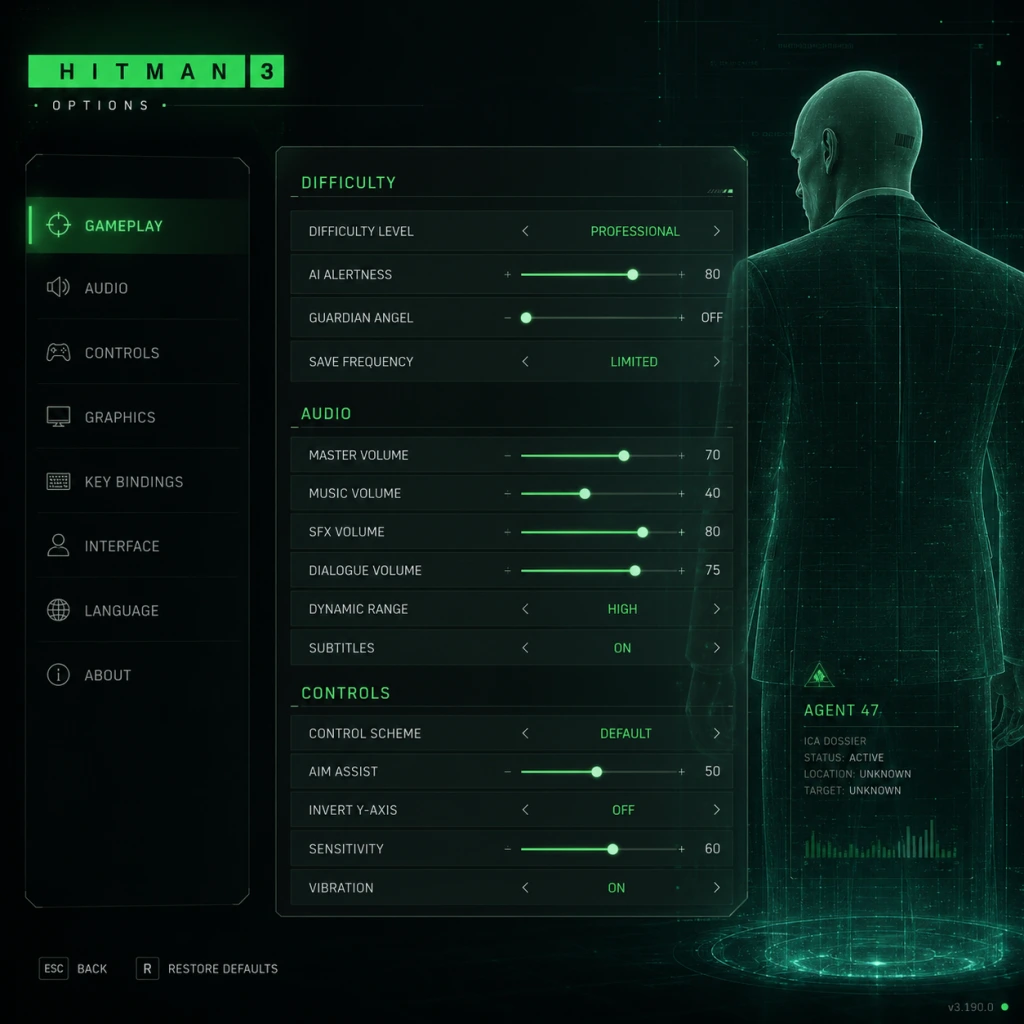
Game Settings
Overview
Hitman 3 (now integrated into the World of Assassination trilogy) offers a vast array of customizable settings across graphics, audio, controls, accessibility, language, network, and gameplay. This guide covers every option, provides recommended configurations for different hardware tiers (low-end, mid-range, high-end PC, plus console tips), and highlights settings that are easy to misconfigure. Proper setup ensures smooth performance, clear visuals, and comfortable gameplay – essential for staying silent and deadly.
Graphics Settings
Display
- Resolution: Match your monitor’s native resolution. For 1080p or 1440p, choose accordingly. For 4K, ensure GPU has enough VRAM (8 GB minimum).
- Fullscreen Mode: Prefer Exclusive Fullscreen for best performance (reduces input lag). Use Borderless Windowed if you frequently alt-tab.
- V-Sync: Off for lowest latency (unless you see tearing). On caps framerate to monitor refresh rate. Adaptive (in driver) is a good middle ground.
- Framerate Limit: Unlimited for variable refresh rate screens. 60 FPS for consistent performance on weaker GPUs.
- Field of View (FOV): Default 60° (vertical). Increase for wider peripheral vision (e.g., 75°–85°), but beware of performance cost on low-end hardware.
- Aspect Ratio: Auto (detects monitor). Manually set only for ultra-wide monitors (21:9 or 32:9).
- Low: For older GPUs (GTX 960, RX 470) or laptops with integrated graphics. Reduces shadows, textures, and post-processing.
- Medium: Balanced for GTX 1060 / RX 580 at 1080p60.
- High: Recommended for RTX 2060 / RX 5700 at 1440p.
- Ultra: For RTX 3080 / RX 6800 XT at 4K. Enables all visual bells and whistles.
- Custom: Manually tweak each setting (see below).
Quality Presets
Advanced Graphics Options
| Setting | Impact | Recommendation | Misconfiguration Risk |
|---|---|---|---|
| Level of Detail (LOD) | Draw distance, object complexity | Medium to High. Avoid Ultra on low VRAM | Low LOD causes pop-in; high costs FPS but minimal visual gain |
| Texture Quality | Resolves detail on surfaces | Medium (2 GB VRAM min), High (4 GB), Ultra (6+ GB). Takes effect after restart | Setting too high on low VRAM causes stutter and texture popping |
| Shadow Quality | Shadow resolution and distance | Low (simple), Medium (good), High (sharp), Ultra (soft shadows) | High shadows are GPU-intensive; medium is sweet spot for most |
| Ambient Occlusion | Adds depth to corners | Off (performance), SSAO (light), HBAO+ (best) | HBAO+ can reduce FPS by 10% on older GPUs |
| Anti-Aliasing | Smooths edges | TAA (temporal, blurrier), SMAA (sharp, less effective), MSAA (expensive) | TAA causes motion blur; SMAA is good balance |
| Post-Processing | Bloom, depth of field, motion blur | Off for competitive clarity; On for cinematic feel | Motion blur can cause nausea for some players |
| Volumetric Fog | Fog density and light shafts | Medium to High. Low on weak GPUs | High fog is very demanding; medium looks similar |
| Screen Space Reflections | Reflections on wet surfaces | Medium (performs well), High (accurate), Ultra (expensive) | Off for significant FPS gain on mid-range cards |
| Lighting Quality | Global illumination and light source count | Medium (balanced), High (better shadows), Ultra (only for high-end) | Minimal visual difference between High and Ultra |
| Simulation Quality | Crowd AI, physics, cloth, particle density | Critical for Hitman 3. Low (fewer NPCs, simpler physics), Medium, High | Affects gameplay: lower settings reduce crowd size in levels like Dubai, Mendoza – reducing disguise options and hiding spots. Set to High on capable hardware; Medium if CPU bottlenecked. |
| Deferred Rendering | Affects bloom, shadow, and light quality | On (default). Off only for compatibility issues | Rarely changed. Off disables HBAO+ and some lighting effects |
| NVIDIA Reflex (if available) | Reduces input lag | On + Boost for best responsiveness. On (no boost). Off only if CPU-limited | Must have supported GPU (GTX 900 series+). Works best with V-Sync Off |
| DLSS / FSR (if supported) | Upscaling for performance | Quality (near-native), Balanced, Performance (sharp but artifacts) | Use Quality for 4K on RTX 20 series+; FSR helps AMD cards. Enable only if struggling with native resolution. |
| HDR (if display supports) | High dynamic range | On with proper calibration; Off if HDR looks washed out | Requires HDR-capable monitor/TV and tweaking in-game brightness/peak luminance (1000 nits recommended). Misconfigured HDR leads to grey blacks. |
Recommended Graphics Presets by Hardware Level
#### Low-End (e.g., GTX 1050 Ti, RX 560, Intel Iris Xe)
- Resolution: 1080p (or 900p/720p if needed)
- Preset: Custom based on Low
- LOD: Low
- Textures: Medium (if 4 GB VRAM) else Low
- Shadows: Low
- Ambient Occlusion: Off
- Anti-Aliasing: SMAA
- Post-Processing: Off
- Volumetric Fog: Low
- Screen Space Reflections: Off
- Lighting Quality: Low
- Simulation Quality: Low (expect smaller crowds)
- DLSS/FSR: If available, set to Performance
- Target: 30–45 FPS
- Resolution: 1080p or 1440p
- Preset: Custom (High with tweaks)
- LOD: High
- Textures: High (4 GB VRAM) or Medium (6 GB not required)
- Shadows: High
- Ambient Occlusion: HBAO+
- Anti-Aliasing: TAA
- Post-Processing: On (bloom, depth of field enabled)
- Volumetric Fog: Medium
- Screen Space Reflections: High
- Lighting Quality: High
- Simulation Quality: Medium (for CPU headroom) or High if CPU is strong (e.g., Ryzen 5 3600)
- NVIDIA Reflex: On + Boost (if NVIDIA)
- DLSS: Quality (for 1440p) or Balanced (for 1080p high FPS)
- Target: 60 FPS
- Resolution: 4K (or 1440p 144Hz)
- Preset: Ultra (custom)
- LOD: Ultra
- Textures: Ultra (needs 8+ GB VRAM)
- Shadows: Ultra
- Ambient Occlusion: HBAO+
- Anti-Aliasing: TAA or DLSS Quality
- Post-Processing: Enable all (motion blur optional)
- Volumetric Fog: High
- Screen Space Reflections: Ultra
- Lighting Quality: Ultra
- Simulation Quality: High (full crowds and physics)
- NVIDIA Reflex: On + Boost
- DLSS: Quality (for 4K) or Balanced (for high FPS)
- Target: 60–120 FPS depending on rest of hardware
- Simulation Quality: Do not set to Low without understanding the gameplay impact. In levels like Dubai (skyscraper party) or Berlin (club), crowd density is part of the gameplay. Low settings remove many NPCs, reducing your ability to blend in or use human shields.
- Texture Quality requires a restart: If you change texture quality, the engine must reload assets. The game does not warn you; you will see pop-in if you don’t restart.
- HDR Calibration: Go to Settings > Graphics > HDR Calibration. Use the on-screen prompts to set black level and peak brightness. A common mistake is setting peak brightness too high, washing out colors. Aim for what your display can handle.
- Framerate Cap for Cutscenes: Some cutscenes are locked to 30 FPS regardless of settings. This is normal.
- V-Sync + Framerate Cap = Input Lag: If you enable V-Sync, also set a framerate cap slightly below refresh rate (e.g., 58 FPS for 60 Hz) to reduce input lag. Better yet, use G-Sync/FreeSync.
- Master Volume: Set to comfortable level. Check in-game sounds like gunshots are not clipping.
- Music Volume: Lower if you want ambient footsteps to stand out. Music is atmospheric but not critical for gameplay.
- SFX Volume: Keep high to hear footsteps, weapon sounds, and environmental cues.
- Voice Volume: Important for dialogues and NPC banter that reveal intel. Keep at least 80%.
- Dialog Subtitles: On recommended – helps catch crucial conversations in noisy environments.
- Sound Output: Stereo (most common), Surround (5.1/7.1) if supported. Headphones mode provides spatial audio simulation.
- Audio Device: Choose your default output device. Ensure correct sample rate (48 kHz recommended).
- Enable HRTF (Head-Related Transfer Function) : For headphones, this creates 3D sound direction. On for stereo speakers (simulated surround) – improves locating guards.
- Misconfiguration: If you set sound output to Surround but only have stereo speakers, you lose left/right fallback (some sounds may be silent). Always set to match your actual hardware.
- Mouse Sensitivity: Start at 5.0 (scale 0–20). Adjust so you can do a 180° turn with a comfortable wrist flick. Too high leads to over-aiming when sneaking.
- Mouse Smoothing: Off (adds input lag). On only if you have a low DPI mouse and want to reduce jitter.
- Invert Mouse: Off for most (on for flight-sim players).
- Key Bindings: The default layout (WASD + action keys) is standard. Notable binds:
- Difficulty Setting: Not in controls per se, but affects aiming assist. See Gameplay section.
- Holster Weapon: Unbound by default. Bind to `H` to quickly put away gun when detected.
- Look Behind: Bind to `C` (default V) for easier checking while running.
- Sprint: Toggle (default) or hold (change to hold if you prefer). In Gameplay settings, set Sprint Behavior.
- Crouch: Set to toggle if you plan to sneak for long periods.
- Invert Y-axis: Off (unless you prefer inverted).
- Controller Sensitivity: 50% default. Increase to 70% for quick camera turns in frantic moments.
- Aim Assist: On (default) helps lock onto targets slightly. Off for purist challenge.
- Vibration: On for haptic feedback (gunshots, footsteps, NPC alerts). Turn off to save controller battery.
- Button Layout: Choose Standard (shooting with right triggers) or Legacy (older game style).
- Trigger Dead Zone: Adjust if triggers feel mushy. Default works for most.
- Radial Menu Speed: Set to 60%+ for quicker weapon/gear switching.
- Subtitle Size: Options: Small, Medium, Large (recommended for readability).
- Dialog Subtitles Always On: Force subtitles even for unimportant NPC chatter – helpful for hearing impaired.
- Enable Highlighting of Interactive Objects: On highlights mission items, weapons, and unlockable doors with a subtle glow. Reduces pixel hunting.
- Colorblind Modes: Options for Protanopia, Deuteranopia, Tritanopia, Grayscale. Adjusts Instinct highlights, noise map indicators, and threat circles. Greatly improves gameplay clarity for colorblind players.
- Text Speed: For dialog subtitles, set to match your reading speed (0.5x to 2x).
- Screen Shake: Off if you are sensitive to motion sickness. Cinematic shakes (explosions, kills) are reduced.
- Camera Bob: Off for smoother walking animation.
- Haptic Feedback for Dialogue: On controller, dialogue triggers slight rumble to indicate speech. Helpful for impaired hearing.
- Quick-Time Events (QTE): Some challenges (like combat takedowns) have QTEs. Enable Automatic QTE (accessibility option) to skip button prompts – crucial for players with limited hand mobility.
- Audio Cues for Ammo, Health: Visual indicators are always present, but audio pings confirm low health or empty magazine.
- Colorblind mode may disable some UI elements if not matched to your type. Test each mode in the Dubai level (many lights) to see which works best.
- Turning off screen shake also affects the “camera shake” when Agent 47 is pushed or dizzy – you may miss environmental cues.
- Interface Language: Choose language for menus, subtitles, and prompts. Available in many languages (English, French, German, Spanish, Italian, Japanese, etc.).
- Audio Language: Dialogues and NPC speech. Options: English (default), Japanese, French, etc. Note that lipsync is only synced to English; other languages may have mismatched animations.
- Subtitles Language: If audio language is not English, set subtitles to your preferred language (e.g., English subtitles for Japanese audio).
- Source Language (for subtitles): Usually tied to audio language. For best immersion, match audio to your region but use native subtitles.
- Online Status: Hitman 3 requires online connection for Escalations, Featured Contracts, Season of Sin content, and Elusive Targets. Offline mode limits you to story missions and some challenges.
- Connection Type: Wired or Wi-Fi. Wired recommended for stable sync of leaderboards and cloud saves.
- Server Region: Auto-selected based on account. Changing may reduce latency for online contracts.
- Auto-Sync Saves: On ensures progress is backed up to IOI servers. Off risks losing progress if local save corrupts.
- Allow Cross-Platform Progression: If you linked IOI account, enable to transfer saves across PC, PlayStation, Xbox, Stadia (legacy). Requires same account on all platforms.
- Voice Chat: In-game voice chat is disabled by default (Hitman 3 has no multiplayer). Only relevant for co-op (unavailable in main game).
- Data Sharing: Optional. Affects Elusive Target rewards and promotional content.
- Playing offline disables Elusive Targets, which are time-limited assassination contracts. If you go offline after starting an Elusive Target, you may fail the mission.
- Disabling auto-sync can lead to losing progress if you switch devices.
- Casual: More checkpoints, auto-save frequently, enemies less alert, easy disguises. Best for exploration.
- Professional: Standard Hitman experience. Fewer saves, enemies more observant, alarms last longer.
- Master: Hardest. No minimap, guards have perfect memory, very few saves, suspects will notice your suspicious behavior quicker.
- Mini-Map: On for orientation. Off for immersion (Master difficulty forces off).
- Instinct Mode: On by default. Highlights enemies through walls, interactive items, and objectives. Off removes the orange glow – increases challenge.
- Opportunity Prompts: On displays guide steps for mission stories. Off for a more organic experience.
- Context Actions: On shows which button to press for interactions. Leave on until you memorize.
- Ammo and Health Display: On by default. Keep enabled.
- Auto-Sprint: Off (manual). On makes Agent 47 always sprint when moving forward – can cause accidental alarms.
- Sprint Behavior: Toggle (press once to sprint, again to stop) vs Hold (must hold shift). Many prefer Hold for precise control.
- Crouch Toggle: Off (hold to crouch) / On (press to toggle). Toggle recommended for long sneak sections.
- Cover Behavior: Automatic (press up to cover) – standard. Manual (press a key to stick to cover) – more control.
- Interaction Priority: Nearest (default) – picks closest item. Context – prioritize mission-critical items. Switch to Context if you often pick up wrong objects.
- Weapon Holster Behavior: Automatic (holster after aiming for a few seconds) vs Manual. Set to Manual to avoid accidental holstering mid-firefight.
- Aim Assist Strength: For controller, set to High (casual) or Low (professional). Keyboard players: no aim assist.
- Tutorial Tips: On for new players. Disable after first few missions to avoid clutter.
- Mission Story Guide: On shows objective markers. Off for blind runs.
- Ingame Encyclopedia: Accessible via menu. Links to mechanics.
- Master Difficulty and Auto-Saves: Master mode disables auto-save completely. Only save at designated save spots (globes). Plan accordingly.
- Sprint Behavior: If you set sprint to toggle, you may find yourself running when trying to walk, breaking stealth. Test in the first mission (Dubai) before proceeding.
- Interaction Priority: In crowds, setting to Nearest makes you pick up many random items (fruit, phones). Change to Context to prioritize mission items like keys or bombs.
#### Mid-Range (e.g., GTX 1660 Super, RTX 2060, RX 5600 XT)
#### High-End (e.g., RTX 3080, RX 6800 XT, RTX 4070 Ti)
Special Attention Points for Graphics
Audio Settings
Controls Settings
Mouse & Keyboard
- Instinct: Hold Q – use frequently.
- Crouch: Left Ctrl – toggle or hold (set in Gameplay).
- Subdue: E (behind enemy) – practice timing.
- Weapon Quick Switch: Scroll wheel or 1-3 keys.
- Pick Up / Interact: F.
- Gadget Wheel: 4.
#### Recommended Key Remaps for Efficiency
Controller (PlayStation / Xbox / PC)
Special Notes: If you use a controller on PC, ensure it is recognized (Steam Input or native XInput). Hitman 3 supports both DualShock 4 and Xbox controllers natively. For DualSense, PlayStation button prompts appear automatically.
Accessibility Settings
Misconfiguration Risks:
Language Settings
Special Note: Changing language requires a restart to apply fully. Some UI elements (like mission briefings) may not update until next load.
Network Settings
Misconfiguration Risks:
Gameplay Settings
Difficulty
HUD & UI
Movement & Combat
Tutorials & Hints
Special Attention Points:
Summary Table: Quick-Start Recommended Settings
| Category | Setting | Recommendation | Reason |
|---|---|---|---|
| Graphics | Simulation Quality | High (if CPU strong) | Maintains crowd density crucial for gameplay |
| Graphics | Texture Quality | Medium (4 GB VRAM) | Balances quality and performance |
| Graphics | V-Sync | Off (use G-Sync/FreeSync) | Reduces input lag |
| Audio | HRTF Headphones | On (if using headphones) | Better spatial awareness |
| Controls | Mouse Smoothing | Off | No added input lag |
| Accessibility | Colorblind Mode | As needed | Improves UI readability |
| Network | Online Status | On (for full content) | Unlocks Elusive Targets and escalation |
| Gameplay | Difficulty | Professional | Standard challenge with fair saves |
| Gameplay | Sprint Behavior | Hold | Prevents accidental sprints |
| Gameplay | Interaction Priority | Context | Avoids picking up junk |
Final Tips
- Always restart the game after changing Texture Quality.
- Test settings in a busy level like Berlin or Mendoza to gauge performance.
- If you experience stuttering, lower Simulation Quality first, then Shadow Quality.
- For the ultimate stealth experience, disable HUD elements and use Instinct only sparingly.
- Use the Benchmark tool (in Graphics menu) to automatically find a balanced preset.