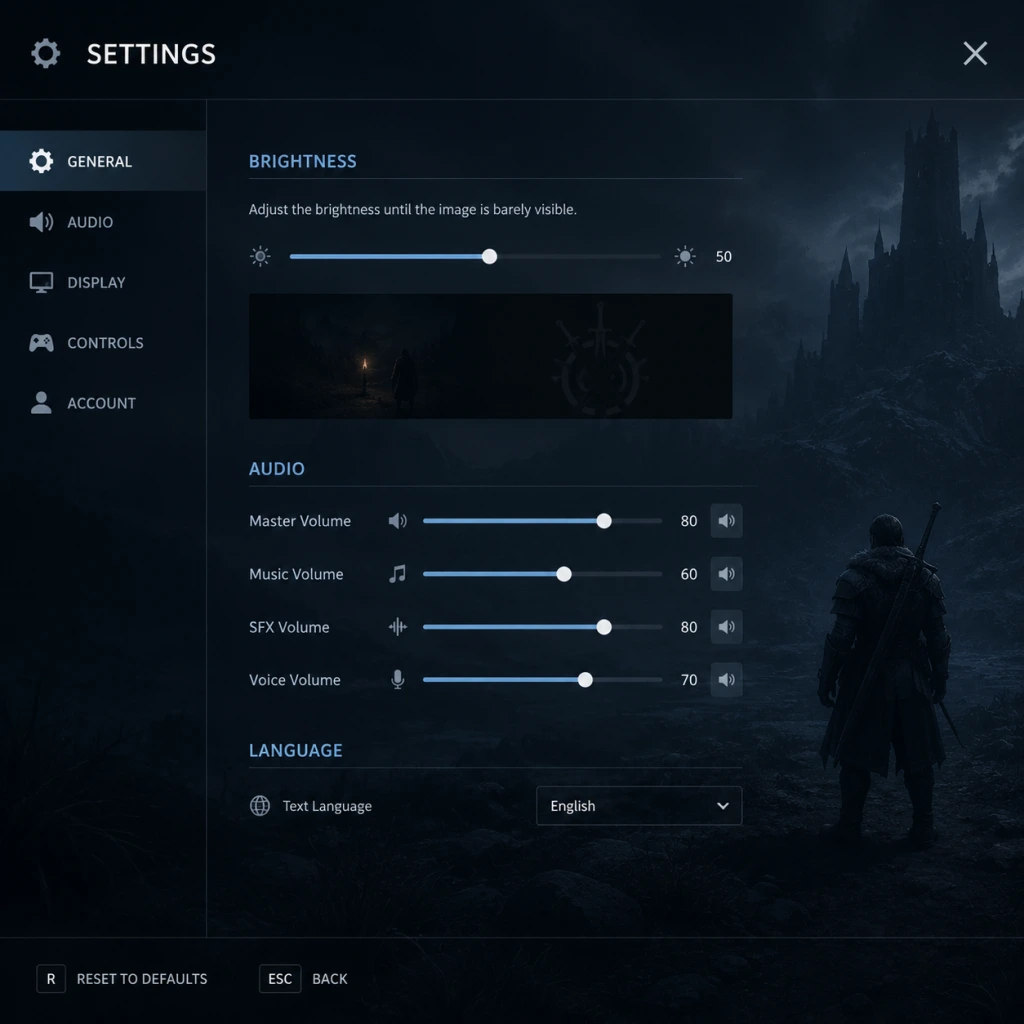
Game Settings
Game Settings Guide for Inside
Inside is a minimalist, atmospheric game with a deliberately sparse settings menu. Options are grouped under Graphics, Audio, Controls, and Language. There is no separate Accessibility menu, no Network settings (single-player offline only), and no gameplay difficulty options (the game has a fixed challenge). This guide explains each setting, recommends optimal configurations for different hardware tiers, and warns about common misconfigurations.
---
1. Graphics Settings
The Graphics menu is the most impactful for visual fidelity and performance. Inside uses a dark, muted color palette with heavy use of shadows, volumetric lighting, and post-processing effects.
| Setting | Options | Description |
|---|---|---|
| Resolution | List of supported resolutions (e.g., 1920x1080, 2560x1440, 3840x2160) | Sets the render resolution. Higher = sharper but more GPU load. |
| Display Mode | Windowed, Fullscreen, Borderless Windowed | Fullscreen offers best performance; Borderless windowed useful for multi-monitor. |
| VSync | On / Off | Synchronizes frame rate with monitor refresh rate. On eliminates screen tearing but can introduce input lag. Off gives lower latency but may cause tearing. |
| Texture Quality | Low / Medium / High / Ultra | Controls resolution of textures. High/Ultra improve detail on surfaces (wood, fabric, water). Low can make environments look blurry. |
| Shadow Quality | Low / Medium / High | Affects shadow resolution and distance. Low produces blocky shadows; High gives soft, realistic shadows. Performance impact moderate. |
| Ambient Occlusion | On / Off | Adds contact shadows where objects meet. Improves depth perception. Minor performance cost. |
| Post-Processing | On / Off | Enables bloom, depth of field, color grading, and film grain. Essential for the game's moody aesthetic. Disabling makes visuals flat. |
| Anti-Aliasing | None / FXAA / SMAA / TAA | Removes jagged edges. SMAA/TAA provide better quality. TAA may cause slight blur in motion. |
| Motion Blur | On / Off | Adds blur when camera moves. Can cause motion sickness for some players. Off improves clarity. |
| Gamma / Brightness | Slider (0.0 – 1.0) | Adjusts overall brightness. Default around 0.5. Setting too low hides details in dark areas; too high washes out contrast. |
Low-End Hardware (e.g., integrated Intel HD Graphics, GTX 750 Ti, Ryzen 3 with Vega 8)
- Resolution: 1280x720 or 1366x768
- Display Mode: Fullscreen
- VSync: On (if screen tearing bothers you)
- Texture Quality: Low
- Shadow Quality: Low
- Ambient Occlusion: Off
- Post-Processing: On (off only if desperate for FPS)
- Anti-Aliasing: FXAA (lightweight)
- Motion Blur: Off (saves a few FPS)
- Gamma: 0.5 (default)
- Expected performance: 30-60 FPS, stable at 30.
- Resolution: 1920x1080
- Display Mode: Fullscreen or Borderless Windowed
- VSync: Off (for lower input lag)
- Texture Quality: High
- Shadow Quality: Medium
- Ambient Occlusion: On
- Post-Processing: On
- Anti-Aliasing: SMAA or TAA
- Motion Blur: Personal preference (On recommended for cinematic feel)
- Gamma: 0.5
- Expected performance: 60 FPS (capped by engine, but stable).
- Resolution: 2560x1440 or 3840x2160 (4K)
- Display Mode: Fullscreen
- VSync: On (use G-Sync/FreeSync if available; otherwise Off)
- Texture Quality: Ultra
- Shadow Quality: High
- Ambient Occlusion: On
- Post-Processing: On
- Anti-Aliasing: TAA (best quality)
- Motion Blur: On (maintains intended look)
- Gamma: 0.5
- Expected performance: 60 FPS stable at 4K; 1440p may exceed 60 FPS (engine caps at 60).
- Gamma/Brightness: The default gamma (0.5) is intentionally dark. If you cannot see details in shadows (e.g., the boy's silhouette against dark backgrounds), increase gamma slightly to 0.55-0.60. Do not exceed 0.7 or contrast is lost.
- VSync: If you experience stuttering, disable VSync. If you see screen tearing, enable it. Borderless windowed mode also depends on VSync behavior of the OS (Windows DWM).
- Post-Processing: Disabling Post-Processing drastically changes the game's visual mood. Only turn it off for performance emergencies. The game was designed with bloom and depth of field.
Mid-Range Hardware (e.g., GTX 1060, RX 580, GTX 1660 Super)
High-End Hardware (e.g., RTX 2070 Super, RX 6700 XT, RTX 3080)
> Note: Inside has an engine-level frame rate cap of 60 FPS. Higher refresh rate monitors will still show 60 FPS. This is normal and part of the design for consistent physics and animation.
#### Settings to Watch Out For
---
2. Audio Settings
Audio is critical for immersion and puzzle clues. Settings are straightforward.
| Setting | Options | Description |
|---|---|---|
| Master Volume | Slider (0-100) | Overall volume. Default 70. |
| Music Volume | Slider (0-100) | Background music. Default 100. |
| SFX Volume | Slider (0-100) | Sound effects (footsteps, machinery, puzzles). Default 100. |
| Voice Volume | Slider (0-100) | N/A in Inside – no voices. Slider present but ineffective. |
| Subtitles | On / Off | Displays subtitle text for environmental sounds and ambient dialogue (very minimal). |
- Master Volume: 70-80 for balanced experience. Turn down if using headphones due to sudden loud sound effects (e.g., water splashes, dog barks).
- Music & SFX: Keep both at 100 relative to master. The atmospheric score and environmental sound design are integral.
- Subtitles: On recommended for first playthrough. Subtitles occasionally provide textual hints (e.g., "[distant shouting]") that can alert you to upcoming threats.
- Voice Volume does nothing because there are no spoken lines. Do not waste time adjusting it.
- Subtitles Off: New players often miss subtle audio cues for puzzles. Keep subtitles on to catch translations of non-verbal sounds (e.g., dog barks indicate proximity).
#### Easy Misconfiguration
---
3. Controls Settings
Inside uses minimal controls: move, interact, and a few actions. Platform-specific buttons differ.
| Setting | Options | Description |
|---|---|---|
| Keyboard/Mouse | Customizable key bindings | Remap movement (WASD default), Interact (E), Run (Shift), Pause (Esc). |
| Controller Layout | Presets (Xbox, PlayStation, Generic) | Choose button prompts matching your controller. Only changes on-screen icons. |
| Invert Y-Axis | On / Off | Inverts vertical camera control (camera is auto-scrolling, so this rarely matters). |
| Controller Vibration | On / Off | Controller rumble (e.g., when drowning, dog attacks). |
| Mouse Sensitivity | Slider | Only affects cursor in menus; not used in gameplay. |
- Keyboard: Default is fine. Consider rebinding Interact to a nearby key (e.g., F or Space) if you find E awkward.
- Controller: Use Xbox or PlayStation layout. The game is very playable on controller; analog movement improves precision for puzzles.
- Invert Y-Axis: Keep Off. Camera is not player-controlled.
- Controller Vibration: On – adds tactile feedback for danger (e.g., heartbeat when drowning). Off if you dislike rumble.
- Mouse Sensitivity: Irrelevant unless you use mouse to navigate menus. Leave default.
- Button Mapping: The Interact button is used for grabbing objects, pulling levers, and climbing. Make sure it is easy to press repeatedly (e.g., hold to drag). On keyboard, avoid using a key that conflicts with movement.
- Controller Dead Zones: There is no dead zone adjustment. If analog stick drifts, the game may register unintended movement. Check controller calibration in OS or consider using a newer controller.
#### Special Attention Points
---
4. Language Settings
| Setting | Options | Description |
|---|---|---|
| Language | List of available UI languages (English, French, German, Spanish, Italian, Japanese, Korean, Portuguese, Russian, Simplified Chinese, Traditional Chinese) | Changes menu text and subtitles (if enabled). |
- Choose your preferred language. The game has minimal text (menus, subtitles). Language does not affect gameplay.
- Changing language mid-game is safe. However, if you switch to a language you don't read, you may struggle to find settings again. Remember the approximate positions: Graphics is usually the first tab, Audio second, etc.
- Colorblindness: No colorblind modes. The game uses contrast (light vs dark) heavily, so most puzzles are accessible to colorblind players. Brightness adjustment can help.
- Difficulty: No difficulty settings. The game is linear and death is common (quick reloads). Persistence is the only mechanic.
- Motion Sickness: Disable Motion Blur in Graphics settings. Also keep Post-Processing On (the depth of field and bloom are not violent). If still nauseated, limit play sessions to 30 minutes.
- Hearing Impairment: Enable Subtitles (Audio settings). They provide text for ambient sounds, but do not convey all audio cues (e.g., direction of dog barks). Consider using headphones.
- One-Handed / Limited Mobility: The game can be played with one hand if you map Interact to a mouse button (e.g., left click) and movement to directional keys. Controller may be easier with one hand (using left analog stick and face buttons).
- Save System: The game auto-saves frequently at checkpoints (shown by a subtle white flash in the top-right corner). You cannot manually save or load earlier saves.
- Do not disable Post-Processing deliberately. The visual style is the core of the game.
- If performance is poor, first lower Shadow Quality and Texture Quality before touching Anti-Aliasing or Post-Processing.
- VSync: If you have a variable refresh rate monitor (G-Sync/FreeSync), leave VSync Off and cap FPS via GPU driver (e.g., Nvidia Control Panel) to avoid tearing.
- Game Crashes? Verify file integrity (Steam: right-click game > Properties > Local Files > Verify). If on Game Pass, reinstall. Also update graphics drivers.
#### Easy Misconfiguration
---
5. Accessibility Features
Inside has no dedicated Accessibility menu. The following workarounds exist:
---
6. Network / Multiplayer Settings
Inside is a single-player offline game. There are no network settings, no online connectivity, no multiplayer, and no DRM that requires internet. The game does not save to cloud unless your platform handles it (Steam Cloud). No configuration needed.
---
7. Gameplay Settings
There are no gameplay settings in Inside. The game has no difficulty levels, no tutorial toggle, no hints system, and no assist modes. Everything is fixed. The only configurable gameplay-related option is the in-game pause menu (Esc or Start), where you can save and quit.
---
Quick Setup Checklist for New Players
1. Graphics: Start a new game. Adjust gamma until you can clearly see the boy's silhouette against the first dark background. If you see a logo disappear into black, gamma is likely too low.
2. Audio: Ensure subtitles are ON.
3. Controls: Try both keyboard and controller. Pick whichever feels natural. Remap if needed.
4. Language: Confirm it's set to your preferred language.
5. Play: Enjoy the immersion. Resist temptation to tweak settings further during gameplay.
---
Final Tips
Inside is a polished, low-budget game that runs well on most hardware. The settings menu is intentionally minimalist; trust the defaults unless you have a specific issue.