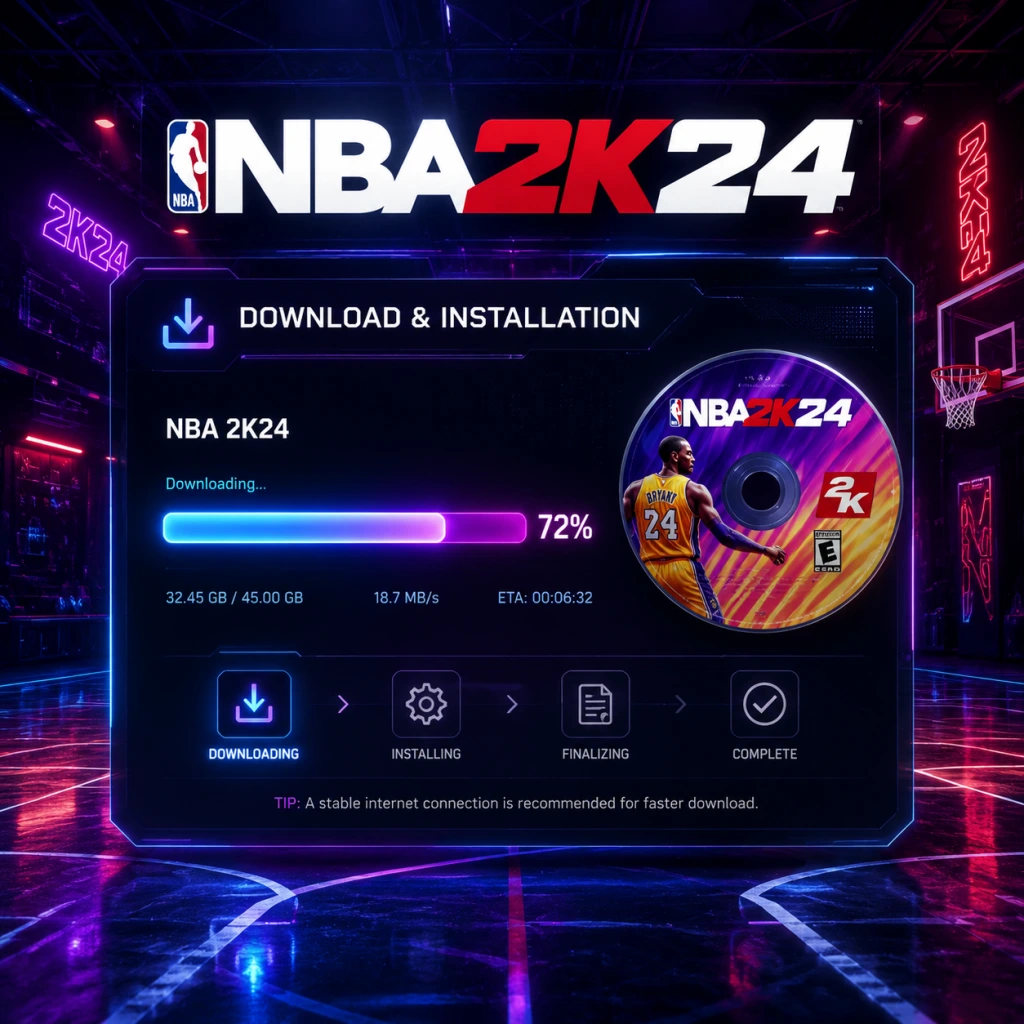
Download & Installation
Introduction
NBA 2K24 is the latest installment in the basketball simulation series, available on PC, PlayStation 4, PlayStation 5, Xbox One, Xbox Series X|S, and Nintendo Switch. This guide covers everything you need to download and install the game legally, including platform-specific steps, system requirements, troubleshooting, and post-installation setup.
---
Platform Availability & Purchase
| Platform | Storefront | Version |
|---|---|---|
| PC | Steam, Epic Games Store | Standard / Kobe Bryant Edition / Black Mamba Edition |
| PlayStation 4/5 | PlayStation Store | Standard / Kobe Bryant Edition / Black Mamba Edition |
| **Xbox One / Series X | S** | Microsoft Store |
| Nintendo Switch | Nintendo eShop | Standard Edition only |
---
System Requirements (PC)
Minimum Requirements
- OS: Windows 10 64-bit (version 1909 or higher)
- CPU: Intel Core i3-6100 / AMD Ryzen 3 1200
- RAM: 8 GB
- GPU: AMD Radeon RX 460 / NVIDIA GeForce GTX 750 (2GB VRAM)
- DirectX: Version 12
- Storage: 110 GB available space (HDD recommended for installation, but SSD strongly recommended for performance)
- Sound Card: DirectX 9.0c compatible
- Network: Broadband internet connection
- OS: Windows 10/11 64-bit
- CPU: Intel Core i5-8400 / AMD Ryzen 5 2600
- RAM: 16 GB
- GPU: AMD Radeon RX 580 / NVIDIA GeForce GTX 1060 (4GB VRAM) or better
- DirectX: Version 12
- Storage: 110 GB SSD (NVMe recommended)
- Sound Card: DirectX 9.0c compatible
- Network: Broadband internet connection
- 2K Account: Required for online features (MyCAREER, MyTEAM, online play). You can create one at 2ksports.com or during the first launch.
- Platform Accounts:
- Cause: Not enough free space on your drive/console.
- Fix: Clear space by deleting unused games, moving files to external storage, or expanding internal storage (NVMe SSD for PS5, Seagate Card for Xbox, microSD for Switch). For PC, use Disk Cleanup or uninstall programs.
- Cause: Firewall/antivirus blocking file verification; corrupt cache.
- Fix:
- Cause: Outdated or incompatible graphics drivers.
- Fix: Update drivers from NVIDIA/AMD website. Also ensure DirectX 12 is updated via Windows Update.
- Fix: Check internet connection; restart console; clear cache (Xbox: hold power button 10 sec; PS5: rebuild database in safe mode; Switch: hold power→turn off→on).
- Possible causes: Corrupted files, conflicting software, outdated firmware.
- Fixes:
- Fix: Check server status at 2k.com/support; try later; restart router; ensure ports 80, 443, and 3074 are open (for consoles).
- Pre-load: If available, pre-load the game to play on release day. Check storefront options.
- SSD heavily recommended on PC to reduce loading times, especially for online matches.
- Use wired connection for large downloads to avoid interruptions.
- Keep your console firmware and PC drivers up to date for optimal performance.
- Backup save files regularly (PC saves are usually in %LOCALAPPDATA%\NBA 2K24\).
Recommended Requirements
Important: NBA 2K24 uses Denuvo anti-tamper technology. Ensure your antivirus does not block the game files.
---
Step-by-Step Installation Guides
1. PC (Steam)
1. Launch Steam and log into your account.
2. Search for “NBA 2K24” in the store.
3. Select the edition you purchased (Standard, Kobe Bryant, or Black Mamba).
4. Click “Add to Cart” and complete the purchase if not already owned.
5. Go to your Library → find NBA 2K24 → click “Install”.
6. Choose installation location (ensure at least 110 GB free).
7. Wait for download (approx. 90-110 GB). The download speed depends on your internet and Steam server load.
8. After download, installation will automatically proceed. Do not interrupt.
9. Launch from Library once installation is complete.
2. PC (Epic Games Store)
1. Open Epic Games Launcher and log in.
2. Search for “NBA 2K24”.
3. Click “Buy Now” or “Get” if redeemed.
4. In your Library, find the game and click “Install”.
5. Select installation folder (recommend SSD).
6. Download begins. You can pause/resume.
7. Installation starts automatically after download.
8. Launch from Epic Library.
3. PlayStation 4 & 5
1. Turn on console and sign in to your PSN account.
2. Go to PlayStation Store from the home screen.
3. Search “NBA 2K24”.
4. Select the edition and “Download” or “Buy” if needed.
5. Choose your console (PS4 or PS5 version) – note that the PS5 version is separate and requires a PS5 console. If you own a PS4 version, you can upgrade for a fee (see store listing).
6. Click “Download” – the game will start downloading automatically.
7. For PS5: The game installs from the main menu; ensure you have enough internal storage. You can also use an external USB drive for PS4 games, but PS5 games require internal or M.2 SSD.
8. Wait for installation – the console will show a progress bar.
9. Launch from the game tile once ready.
4. Xbox One & Xbox Series X|S
1. Sign in to your Xbox Live / Microsoft account.
2. Open Microsoft Store from the dashboard.
3. Search “NBA 2K24”.
4. Select your edition and “Install” (or “Buy” first).
5. Choose where to install – internal or external storage. For Series X|S games, external USB 3.1 SSDs are supported for backward-compatible Xbox One versions, but Series X|S optimized versions require internal storage or Seagate Expansion Card.
6. Click “Install” – download begins.
7. Monitor progress in My Games & Apps.
8. Launch once installation is complete.
Smart Delivery: If you own an Xbox One version and upgrade to Series X|S, the game will automatically download the best version for your console.
5. Nintendo Switch
1. Turn on Switch and connect to the internet.
2. Open Nintendo eShop from the home menu.
3. Search “NBA 2K24”.
4. Select the Standard Edition (only edition available on Switch).
5. Click “Purchase” if not already owned, then “Download”.
6. Choose a location – system memory or microSD card. Ensure at least 25 GB free (download size ~22 GB).
7. Download automatically starts. You can put the console in sleep mode.
8. Installation is automatic; you can launch once the download finishes from the home screen.
Note: The Switch version does not include all next-gen features; it is a port of the PS4/Xbox One version.
---
Account Requirements
- PC: Need a Steam or Epic Games account (depending on store).
- PlayStation: PSN account with PlayStation Plus for online multiplayer.
- Xbox: Xbox Live Gold or Game Pass Core/Ultimate subscription for online multiplayer.
- Switch: Nintendo Switch Online subscription required for online multiplayer (though not for all modes).
---
First Launch Setup
1. Start the game. You may see a splash screen with logos.
2. Accept the End User License Agreement (EULA).
3. Select your language and region.
4. Create or sign in to your 2K Account (internet required). If you skip, you can do it later but some modes will be locked.
5. Apply initial game settings:
- Display: brightness calibration, HDR if supported.
- Audio: adjust volume for commentary, sound effects, etc.
- Controls: choose controller layout (default, custom).
6. Download any day-one patches – the game will check for updates. Allow it to proceed. Patches can be several GB.
7. Choose your starting mode – MyCAREER (requires account), MyTEAM, Play Now, etc.
8. Sync cloud saves if you have them from another platform (via 2K account).
---
Common Installation Errors & Fixes
Error: “Insufficient Storage Space”
Error: “Download Stuck at 99%” (PC)
- Pause and resume download.
- Temporarily disable antivirus.
- Verify integrity of game files (Steam: right-click→Properties→Local Files→Verify; Epic: library→click three dots→Manage→Verify).
Error: “Failed to Initialize GPU” (PC)
Error: “Connection Lost During Download” (Consoles)
Error: “Game Crashes on Launch” (All Platforms)
- PC: Run as administrator; disable overlays (Discord, GeForce Experience); update Windows.
- Consoles: Install the latest system update; reinstall the game.
Error: “Unable to Connect to 2K Servers”
---
Post-Installation Verification
After installation, confirm that everything works:
1. Launch the game – it should reach the main menu without errors.
2. Check version number – should match latest patch (e.g., 1.05). See in-game settings or pause menu.
3. Test a quick Play Now match – ensure graphics, audio, and controls are functional.
4. Try online mode (MyCAREER, MyTEAM) to verify server connection.
5. Check storage usage:
- PC: Right-click game folder→Properties (should be ~100-110 GB).
- PlayStation: Settings→Storage→Games and Apps.
- Xbox: My Games & Apps→Manage→NBA 2K24.
- Switch: System Settings→Data Management→Nintendo Switch.
6. If any issues, reinstall or contact 2K Support.
---
Additional Tips
---
This guide was accurate as of [current date]. Always refer to official 2K support for the latest updates.