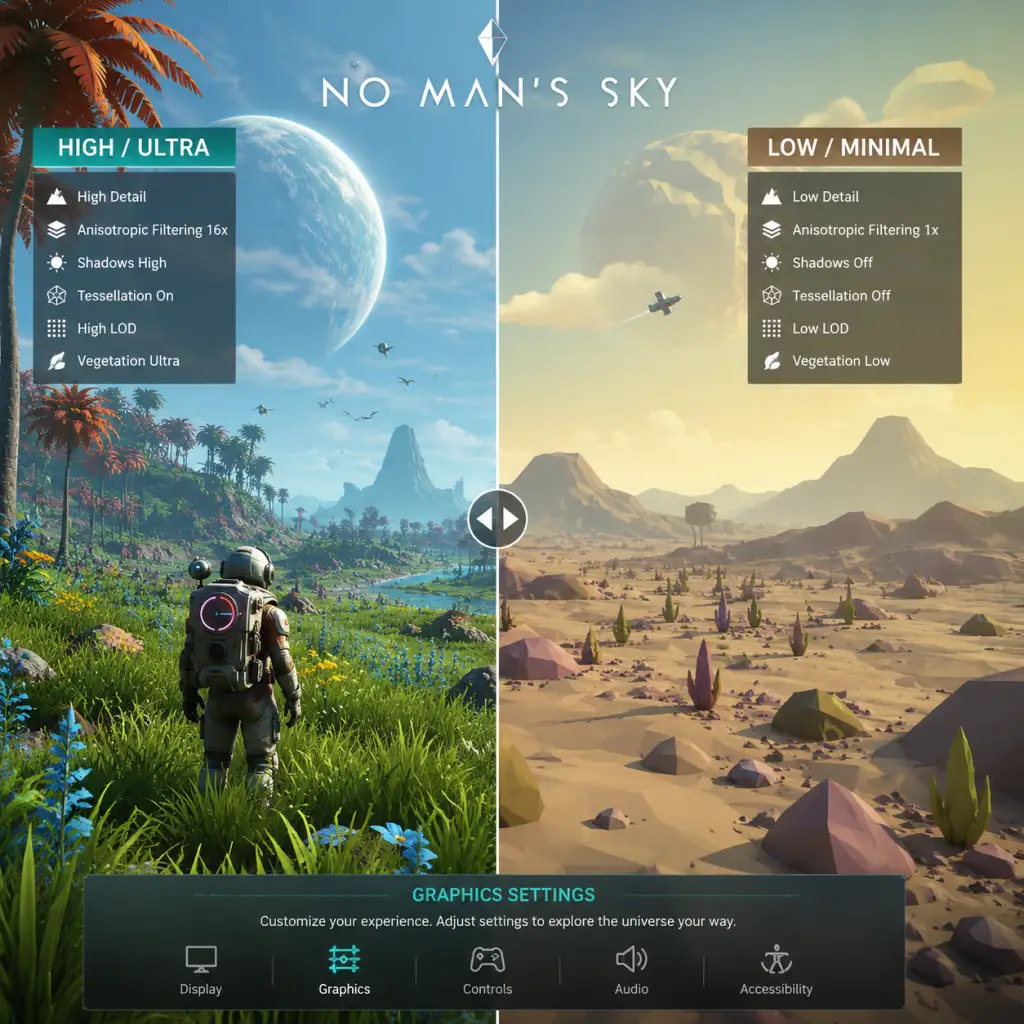
Game Settings
No Man's Sky Game Settings Guide
No Man's Sky offers a wide array of settings that let you tailor the experience to your hardware and preferences. This guide covers every major settings menu, explains what each option does, and provides recommended configurations for low-end, mid-range, high-end, and ultra hardware. We also highlight settings that are easily misconfigured and point out special considerations during initial setup.
---
1. Graphics Settings
Graphics settings have the largest impact on performance and visual quality. The game uses the proprietary engine from Hello Games, which is well-optimized but can be demanding in dense planetary environments or during base building.
#### Key Graphics Options (PC)
| Setting | Description | Recommendation |
|---|---|---|
| Display Mode | Fullscreen, Borderless Windowed, Windowed | Fullscreen for best performance. Borderless Windowed can cause slightly higher input lag. |
| Resolution | Native monitor resolution | Match your monitor's native resolution. Lowering can boost FPS significantly but makes UI tiny. |
| Resolution Scale | Renders at a percentage of chosen resolution | Leave at 100% for native. Lower to 75-85% if struggling. High-end GPUs can use 125-150% for super-sampling. |
| Monitor | Select display if multiple | Ensure correct monitor is selected. |
| VSync | Synchronizes frame rate with monitor refresh | Off unless you experience screen tearing. If on, use Adaptive or Triple Buffering (NVIDIA Fast Sync) to reduce input lag. |
| Fullscreen Mode | Exclusive or borderless | Choose Exclusive Fullscreen for lowest latency. |
| Anti-Aliasing | Controls jagged edges | TAA (Temporal Anti-Aliasing) is recommended for best quality/performance balance. FXAA is lighter but blurrier. None for maximum FPS. |
| Texture Quality | Affects sharpness of surfaces | High on GPUs with 4GB+ VRAM (6GB+ for Ultra). Medium for 2-3GB cards. Low is very blurry. |
| Animation Quality | Skeletal and object animation detail | High is fine for most. Low reduces creature animation complexity, may cause stiffness. |
| Shadow Quality | Resolves shadow sharpness and draw distance | Medium provides a good balance. High and Ultra are heavy on GPUs. Low causes blocky shadows. |
| Post-Processing | Bloom, motion blur, depth of field | Medium is safe. Disable motion blur if it bothers you. High can cause haze. |
| Reflections | Screen-space reflections (SSR) | Medium works well. High is expensive on water and metals. Low disables SSR, using cube maps instead. |
| Light Shafts | God rays from sun/light sources | On for atmosphere. Off gains ~10% FPS in daytime planets. |
| Planet Quality | Multi-resolution texturing for terrain | High for detail. Ultra can drop frames on complex planets. Medium if VRAM limited. |
| Terrain Tesselation | Adds 3D displacement to ground | Off is recommended for performance. On increases GPU load significantly and may cause flickering on older GPUs. |
| Terrain Shadows | Shadows on ground from terrain | Ultra is very expensive. High is good. Medium for performance. |
| Motion Blur | Blurs fast movement | Off for clarity and responsiveness. Only enable if you are motion sick without it. |
| GTAO | Global illumination approximation | Off or Low. High is heavy. This adds ambient occlusion but can darken caves too much. |
| HBAO (NVIDIA only) | Horizon-based ambient occlusion | Slightly better than GTAO but same performance cost. Use Off for more FPS. |
| Volumetric Clouds | Adds 3D cloud formations | Low for performance. Ultra looks fantastic but can cut FPS in half on older GPUs. |
| DLSS (NVIDIA RTX) | AI upscaling | Quality is recommended for clean image. Balanced or Performance for higher FPS. Ultra Performance is blurry. |
| FSR (AMD) | Spatial upscaling | Quality is decent. Performance is softer. Use if DLSS unavailable. |
| Reflex Low Latency | Reduces input lag (NVIDIA) | On + Boost for competitive feel. Enable if you have NVIDIA GPU. |
| Frame Rate Limit | Caps max FPS | Set to monitor refresh rate (e.g., 60, 144) or leave uncapped. Use limit if you experience screen tearing or to reduce GPU heat. |
| Brightness | Adjusts gamma | Follow the on-screen calibration: the middle logo should be barely visible. |
| FOV | Field of View | Default 75 is fine. Increase to 90-100 for wider view, but it reduces FPS slightly. |
On consoles, graphics settings are limited to Resolution Mode (4K/30 FPS) vs Performance Mode (1080p-1440p/60 FPS) on PS5/Xbox Series. PS5 also has VRR (Variable Refresh Rate) support. HDR can be calibrated under Video Output.
#### Recommended Presets by Hardware Level
Low-End (GTX 1060 / RX 580 / 8GB RAM)
- Resolution: 1080p
- Quality Preset: Standard (or custom as below)
- Textures: Medium
- Shadows: Low
- Reflections: Low
- Volumetric Clouds: Low
- Post-Processing: Low
- All AO, tessellation, motion blur: Off
- Anti-Aliasing: FXAA or TAA (light)
- FSR Quality or DLSS Performance (if available)
- Frame Limit: 60
- Resolution: 1080p or 1440p
- Quality Preset: Enhanced (with tweaks)
- Textures: High
- Shadows: Medium
- Reflections: Medium
- Volumetric Clouds: Medium
- Post-Processing: High
- AO: Low (GTAO)
- Anti-Aliasing: TAA
- DLSS Quality or FSR Quality
- Frame Limit: Match display, or 60 if 1440p
- Resolution: 1440p or 4K (with upscaling)
- Quality Preset: Ultra (with some compromises)
- Textures: Ultra
- Shadows: High
- Reflections: High
- Volumetric Clouds: High
- Post-Processing: High
- AO: High (GTAO or HBAO)
- Terrain Tessellation: Off (still expensive)
- Anti-Aliasing: TAA
- DLSS Quality (4K) or Balanced (1440p)
- Reflex: On+Boost
- Resolution: 4K native (or with DLSS Quality for extra smoothness)
- Quality Preset: Ultra – all sliders to max
- Volumetric Clouds: Ultra
- Terrain Tessellation: On (if you like the look, but FPS may drop 10%)
- Reflections: Ultra
- Shadows: Ultra
- Post-Processing: Ultra
- AO: HBAO High
- Anti-Aliasing: TAA
- DLSS: Off or Quality (personal preference)
- Frame Limit: To monitor max (120/144/165)
- Terrain Tessellation is one of the heaviest settings. It adds real geometry to ground but often causes micro-stutters even on high-end systems. Most players leave it off.
- Volumetric Clouds on Ultra can tank FPS by 20-30% on planets with thick atmospheres. Consider keeping it on High or Medium.
- Anti-Aliasing: TAA is preferred but can cause a slight blur. FXAA is sharper but shows more jaggies. Do not use MSAA as it is not supported.
- DLSS vs FSR: DLSS is superior in image quality. If you have an RTX card, always use DLSS Quality. For AMD, FSR Quality is fine. Do not use FSR Ultra Performance as it becomes mud.
Mid-Range (RTX 2060 / RX 6600 / 16GB RAM)
High-End (RTX 3070 / RX 6800 / 16GB RAM)
Ultra (RTX 4090 / RX 7900 XTX / 32GB RAM)
Special Attention Points:
---
2. Audio Settings
| Setting | Description | Recommendation |
|---|---|---|
| Master Volume | Overall game volume | 80-100% |
| Music Volume | Ambient and combat music | 70% (helps with immersion without overpowering) |
| SFX Volume | Sound effects (engines, tools, creatures) | 100% |
| Voice Volume | In-game dialogue and NPC speech | 100% |
| UI Volume | Menu sounds and clicks | 50-70% (can be annoying at high levels) |
| Dynamic Range | Compression vs wide range | High for headphones, Low for TV speakers to avoid loud peaks |
| Voice Chat | In-game proximity chat (multiplayer) | Mute if not needed. Push-to-talk recommended. |
| Sound Output | Stereo, Surround, or Headphones | Headphones for 3D audio. Surround only if you have genuine 5.1/7.1 setup. |
| Subtitles | Display spoken text | On recommended, especially for lore |
| Subtitle Background | Darkens behind text | On to improve readability |
- Dynamic Range: If you hear explosions or ship engines as distortion, set to Low. High dynamic range is fine for quiet environments.
- Voice Chat: Default is open mic; it can pick up background noise. Switch to Push-to-Talk and bind a key.
---
3. Controls Settings
#### Keyboard & Mouse
| Setting | Recommendation |
|---|---|
| Mouse Sensitivity | Start at 50%, adjust for comfortable turning. Higher for quick 180s. |
| Mouse Smoothing | Off for raw input |
| Invert Y-Axis | Personal preference |
| Flight Controls | Normal (roll with mouse) or Legacy (yaw with mouse) |
| Quick Menu | Default 'X' – consider rebinding to a thumb button |
| Inventory | Tab – keep default |
| Scan | 'F' – keep default |
| Sprint | Left Shift – hold vs toggle (toggle recommended) |
| Melee | 'Q' – keep or rebind to mouse thumb |
| Jetpack | Space – hold to boost |
| Build Menu | 'Z' – useful to have on a side button |
| Photo Mode | 'X' (with menu) – rebind if you use it often |
| Markers/Place Waypoint | 'E' (use button) – keep default |
| Hotkeys | Use 1-9 for weapon/multi-tool modes |
| Setting | Recommendation |
|---|---|
| Controller Sensitivity | 60-80% |
| Dead Zone | Default (10-15%) is fine. Lower if you have drift. |
| Invert Y | Off default |
| Button Layout | Standard or Custom – can swap triggers for flight |
| Vibration | On for immersion, Off for battery saving or competitive |
| Trigger Threshold | Default – no need to change |
- Flight Controls: The default Normal mode uses mouse roll/joystick roll. If you prefer yaw (like in most space sims), switch to Legacy mode. This changes how you steer ships.
- Melee/Jetpack Boost: This is a popular movement tech. It requires pressing Melee then Jetpack quickly. The default bindings (Q then Space) work but some rebind melee to a thumb button for speed.
- Quick Menu: The 'X' key is used for context actions, but also opens the quick menu. Rebinding to 'V' or a mouse button can reduce accidental activations.
---
4. Accessibility Settings
No Man's Sky has robust accessibility options.
| Feature | Description | Recommendation |
|---|---|---|
| Color Blind Mode | Filters for Protanopia, Deuteranopia, Tritanopia | Enable if applicable. It recolors UI elements (hazard icons, discovery names). |
| Large Text | Increases font size | On if you play on a small screen or TV far away |
| High Contrast Mode | Inverts or enhances UI contrast | On reduces eye strain. Can look jarring – test in menus. |
| Hold to Confirm | Requires holding a button for actions | Off for faster interactions, On to prevent misclicks. |
| Auto-Move | Continues moving forward without input | Off default. Useful for long flights. |
| Auto-Jump on Planets | Automatically hops over small obstacles | Off (can interfere with precise movement). Enable if you have difficulty with jumping. |
| Dialogue Auto-Advance | Moves to next line automatically | Off (helps when reading) |
| Subtitle Size | Adjust subtitle text size | Large recommended for readability |
| Screen Reader (PC only) | Reads UI text aloud (Windows Narrator) | Requires activation. Useful for visually impaired players. |
| Controller Remapping | Full remapping for analog and buttons | Use if default layout is uncomfortable. |
- Hold to Confirm default is Off. If you find yourself accidentally selling items or deleting bases, turn it On.
- Auto-Jump can cause you to stumble into hazards (e.g., jumping into water on a toxic planet). Keep it off until you are comfortable.
- Language: No Man's Sky supports many languages (English, French, German, Spanish, Italian, Japanese, Simplified/Traditional Chinese, Korean, Russian, Portuguese, Polish, Dutch, Swedish, etc.).
- Voice Language: Covers in-game dialogue and NPC voices. Not all languages have voice acting; if a language has no voice, it falls back to English.
- Text Language: Independent of voice – you can have English voices with Spanish subtitles.
- Change during game: Language can be switched at any time in the Options menu under Language. No restart required for text, but voice change may take effect after loading a save.
- The language setting is separate from the system language. If you accidentally switch to a language you cannot read, navigate blindly by remembering the menu order: Language is under Options (second tab) and the first option is the language dropdown. You can reset by moving left/right.
---
5. Language Settings
Easy to Misconfigure:
---
6. Network Settings
| Setting | Description | Recommendation |
|---|---|---|
| Online Discovery Services | Connect to servers for player discoveries | On (default) – without it, you won't see other players' named planets. |
| Multiplayer | Enable/disable joining other players | On if playing co-op, Off for single-player to avoid unwanted visits. |
| PvP | Player versus Player damage | Off by default. Turn On only if you want to fight other players. |
| Voice Chat | Enable/disable voice | Off or Push-to-Talk |
| Crossplay | Play with users on other platforms | On (recommended) – No Man's Sky has true crossplay. |
| Network Mode | Precision setting for connection quality | Auto works well. If you have a poor connection, try Low Bandwidth mode to reduce lag. |
| Show Other Players | Display player models, markers, and names | On (you can hide them individually) |
| Base Sharing | Allow others to see/edit your base | Friends Only (default) is safest. Anyone can cause griefing. |
| Report Player | When you encounter offensive behavior | Use the quick menu > Report function. |
- PvP is OFF by default, but if you join a group, the group host can force PvP on. Always check the group settings before entering potentially hostile areas (e.g., community events).
- Discovery Services sometimes become overloaded; if you see yellow 'ON' text at the top right of the Discovery screen, you are connected. If it is red, try restarting the game or waiting.
- Base Sharing set to Anyone can allow strangers to build or edit your base (if you have permissions enabled). Change to Friends Only or Nobody to protect your builds.
---
7. Gameplay Settings
This category includes difficulty modifiers and gameplay toggles.
#### Difficulty Settings (Customizable)
No Man's Sky offers a Difficulty Presets system (Creative, Normal, Survival, Permadeath, and Custom). You can change difficulty at any time via Options > Difficulty. Key toggles:
| Subsetting | Effect | Recommendation |
|---|---|---|
| Damage Received | Multiplier on incoming damage | Normal (1x). Survival (2x) is harsh. |
| Depletion Rates | How fast hazard protection, life support drain | Normal (slow). Survival (fast). |
| Fuel Usage | Starship, vehicle, base fuel consumption | Normal (1x). Survival (3x). |
| Resources Availability | Amount of resources from mining | Normal (1x). Abundant (more resources per node). |
| Start with Technology | Ship and Exosuit initial tech | Normal (basic). Rich start gives better gear. |
| Enemy Damage | Damage from sentinels, pirates, predators | Normal (moderate). Survival (lethal). |
| Death Consequences | Lose items? Drop on death? | Normal: lose inventory items that break. Survival: lose items permanently. Permadeath: save deleted. |
- If you crank up Resources Availability to Abundant, you may get bored quickly because everything is too easy. Conversely, Scarcity forces you to scavenge.
- Switching to Permadeath cannot be undone (the save itself is deleted on death). Do not toggle Permadeath accidentally – it is clearly labeled but still easy to misclick.
- Start with Technology can give you a head start, but may spoil the early progression. Recommended for second playthroughs.
#### Gameplay Toggles
| Setting | Description | Recommendation |
|---|---|---|
| Auto-Move | Forward hold not required | Off default |
| Auto-Jump | Automatic hopping over obstacles | Off default |
| Camera Roll | Head-tilt when turning in ship | On for immersion, Off to prevent motion sickness |
| Screen Shake | Screen effect from explosions | Off if it distracts |
| Motion Blu r (separate setting) | Overlap with Graphics | Off recommended |
| Show HUD | Toggle head-up display | On for info. Press H to hide for screenshots. |
| Marker Limit | Maximum waypoints shown | 50 (default). Lower if map is cluttered. |
| Photo Mode Settings | Camera controls, filters, depth of field | Access with 'X' (default) – no performance impact. |
| Cursor Speed (UI) | Speed of pointer in menus | 100% default. Speed up if you find menus sluggish. |
- Camera Roll causes the cockpit view to tilt when you bank. This can induce motion sickness for some players. If you feel dizzy, turn Camera Roll Off.
- Screen Shake is on by default and can be intense during storms or combat. Many players turn it Off for clarity.
- Marker Limit: If you use many custom waypoints, you may have trouble seeing them all. Increase the limit if needed.
- First Launch: After installing, go directly to Options > Graphics and apply a preset that matches your system (options: Standard, Enhanced, Ultra). Then adjust from there.
- Console Players: On PS5/Xbox Series, choose Performance Mode for 60 FPS unless you prefer 4K visuals. Note that Performance Mode still looks great.
- Cloud Saves: If you play on PC Game Pass, save files are synced via Xbox cloud. On Steam, cloud saves are automatic. Do not manipulate save files externally unless you know what you're doing.
- VR Users: Settings for VR are the same as flat, but you may need to lower Graphics to maintain 90 FPS. Use DLSS Quality if available. Enable Comfort Mode in VR settings to reduce motion sickness.
- Experimental Branch: On Steam, you can opt into Experimental for the latest fixes and features. This may introduce bugs. Settings may reset after switching branches.
---
Summary of Easy-to-Misconfigure Settings
1. Terrain Tessellation – Looks nice but depletes FPS heavily. Leave off.
2. Flight Controls (Normal vs Legacy) – If you can't steer your ship intuitively, check this setting.
3. PvP – Off by default, but group hosts can turn it on. Double-check when joining multiplayer.
4. Hold to Confirm – Turn On to avoid accidental deletes.
5. Difficulty Presets – Permadeath is irreversible. Customize carefully.
6. Language – If you accidentally change to an unknown script, navigate the menu blind to revert.
---
Final Tips for Setting Up No Man's Sky
With these settings, you'll be ready to explore the universe comfortably. Tweak them further as you discover what matters most to you—whether it's breathtaking vistas or smooth combat.