Game Settings
Game Settings Overview
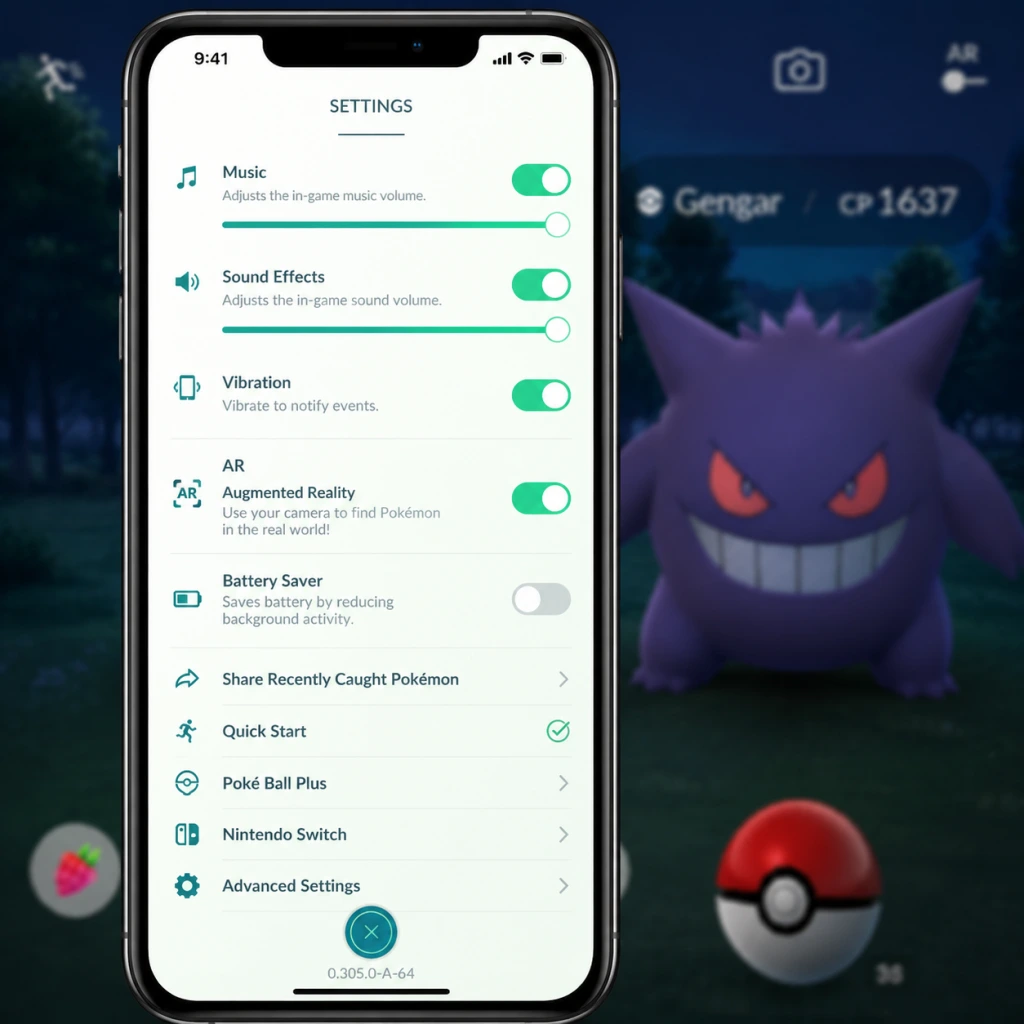
Pokémon GO offers a variety of settings accessible from the Main Menu (Poké Ball icon) > Settings. This guide covers every setting category, provides optimization recommendations for different hardware levels, and highlights common pitfalls.
---
Graphics Settings
AR / AR+
- AR Mode (Camera): Uses your device's camera to overlay Pokémon in the real world. Requires camera permission.
- Recommendation: Disable AR+ for catching (especially during events) to improve performance and throw accuracy. Enable only for photo opportunities.
- Options: Low / Medium / High (not all devices show all tiers).
- Low: Reduced textures, simplified shadows, lower resolution. Best for older or lower-end devices.
- High: Full textures, improved lighting, better shadows. Requires a powerful GPU and may cause overheating.
- Recommendation: Set to Medium on mid-range devices for a good balance. Use Low on devices with less than 3GB RAM or older chipsets.
- 60 fps: Unlocked frame rate (available on newer iOS/Android with high refresh screens). Smoother animations but more battery drain.
- 30 fps (default): Better battery life and less heat. Sufficient for most gameplay.
- Recommendation: Use 30 fps on devices with smaller batteries (e.g., iPhone SE). Enable 60 fps only if you have a high refresh rate display and adequate cooling.
- On: Dims the screen when the phone is pointed downward (e.g., while walking). Helps conserve battery when not actively looking at the screen.
- Recommendation: Always keep this ON for extended outdoor play sessions.
- On (if available): Allows the game to run at your device's native refresh rate (e.g., 90Hz, 120Hz). Very smooth but heavy battery drain.
- Off: Locks to 60Hz.
- Recommendation: Turn OFF unless you specifically want buttery-smooth scrolling for short sessions.
- Auto (default): Game dynamically adjusts resolution to maintain performance.
- Manual: Some devices allow setting resolution (e.g., 1x, 1.5x, 2x). Higher = sharper but more taxing.
- Recommendation: Leave on Auto. If you experience lag, try forcing a lower resolution (if available).
- Music On/Off: Toggles background music.
- Sound Effects On/Off: Toggles Pokémon cries, battle sounds, etc.
- Vibration: Buzzes when a Pokémon appears nearby or during actions (battles).
- Recommendation: Turn off Music during extended play to reduce distraction. Keep Sound Effects on for audio cues (e.g., nearby Pokémon notification). Vibration can be turned off to save battery.
- Touch Gestures: Tap to interact, swipe to scroll, pinch to zoom map.
- Hold to Throw: For curveballs, hold the Poké Ball and spin before flicking.
- Quick Catch (Advanced): Use two fingers – one to hold the Berry button, another to throw the ball – to skip the catch animation. Not a setting but a learned technique.
- Native Gyroscope: Used for AR+ and camera mode. Ensure it's calibrated if AR tracking is jittery.
- Improved Throwing: (iPhone X and later) Haptic feedback when throwing curveballs – helps with accuracy.
- Large Text: Increases UI font size for readability. Very useful on small screens or for visually impaired players.
- Recommendation: Enable if you find in-game text too small, especially for egg distances and Raid timers.
- On/Off: Adjusts colors for type matchups, gym teams, and damage numbers to be distinguishable for common color vision deficiencies (deuteranopia, protanopia, tritanopia).
- Recommendation: Enable even if not colorblind – it can make type effectiveness clearer for everyone.
- Access in Settings > Advanced Settings: Reset gyroscope if AR mode misbehaves or compass drifts.
- English (default): Follows device language unless changed.
- Other Languages: Bulgarian, Chinese (Simplified/Traditional), French, German, Italian, Japanese, Korean, Portuguese, Russian, Spanish, Thai, Turkish, etc.
- Recommendation: Choose your preferred language. Changing language does not affect server region or Pokémon availability.
- On: Reduces data usage by limiting map tile downloads and lowering texture quality over cellular. Can cause slower map loading.
- Off: Full network usage. Better for catching quick Pokémon but consumes more data.
- Recommendation: Turn ON if you have a limited data plan. Turn OFF during events where you need quick spawns.
- Option in Settings > Advanced Settings: Downloads all game assets (models, textures, sounds) at once rather than on-the-fly. Reduces in-game delays but requires a large download (often >1GB).
- Recommendation: Do this over Wi-Fi before a major event (Community Day, GO Fest) to avoid lag during gameplay.
- Manual check: Forces refresh of downloaded assets. Use if you suspect outdated models or missing sprites.
- Pokémon Nearby: Alert when a Pokémon spawns near a PokéStop.
- Raid Invites / Friend Requests: Toggle push notifications.
- Recommendation: Keep Pokémon Nearby ON to catch rare spawns. Turn off non-essential notifications to reduce distractions.
- Synced with Health app (iOS) / Google Fit (Android): Tracks walking distance even when app is closed.
- Requires permission: Device activity tracking.
- Recommendation: Enable – it's crucial for hatching eggs and earning Candy without the app open. Disable only if battery drain is severe (rare).
- Notification for Buddy: Alert when your buddy finds a present or is at a PokéStop.
- Auto-Spin (with Poké Ball Plus or Go Plus): Let a connected device spin stops automatically. Set in the accessory settings.
- Budget Controls: Set a spending limit for in-app purchases (if available through parent account).
- Graphics: Low
- AR: Off
- Frame Rate: 30 fps
- Battery Saver: On
- Native Refresh Rate: Off (if present)
- Data Saver: On
- Download All Assets: Yes (over Wi-Fi)
- Special Notes: Reduce screen brightness to minimum, enable battery saver mode in phone settings. Disable vibration.
- Graphics: Medium
- AR: Off (use for photos only)
- Frame Rate: 30 fps (try 60 if gameplay feels sluggish)
- Battery Saver: On
- Native Refresh Rate: Off
- Data Saver: Off if unlimited data, otherwise On
- Download All Assets: Yes
- Special Notes: Keep the phone cool – avoid sun exposure. Close background apps.
- Graphics: High
- AR: AR+ for fun, but turn off for catches
- Frame Rate: 60 fps
- Battery Saver: On (still helps)
- Native Refresh Rate: On (if you enjoy smoothness)
- Data Saver: Off
- Download All Assets: Yes
- Special Notes: Monitor temperature – high graphics + 120Hz may overheat. Use a cooling pad during long sessions.
- Before your first major event (Community Day, Raid Hour), go to Settings > Advanced Settings > Download All Assets on Wi-Fi and confirm completion.
- For competitive play (GO Battle League), disable AR completely and ensure frame rate is stable at 30 or 60 – lag can lose matches.
- If the game crashes frequently, try setting Graphics to Low, turning off Native Refresh Rate, and clearing the game cache in phone settings.
- Keep the app updated via the App Store/Google Play Store to access new settings and bug fixes.
- AR+: Enhanced AR that allows Pokémon to move and react to surroundings (iPhone 6s+/Android equivalent or newer). Provides a more immersive catch screen but uses more battery.
- AR Off: Uses a generic 3D background. Saves battery and is easier for precise throws.
Graphics Quality
Frame Rate
Battery Saver
Native Refresh Rate
Resolution Scaling
---
Audio Settings
Music & Sound Effects
---
Controls Settings
General Controls
Advanced Settings
---
Accessibility Settings
Text Size
Color Blind Mode
Gyroscope Calibration
---
Language Settings
---
Network Settings
Data Saver
Download All Assets
Update Assets
---
Gameplay Settings
Notifications
Adventure Sync
Buddy / Partner Settings
Poké Coin Settings
---
Optimal Settings by Hardware Tier
Low-End Devices (e.g., iPhone 6, Android with 2GB RAM)
Mid-Range Devices (e.g., iPhone XR, Samsung Galaxy A52)
High-End Devices (e.g., iPhone 14 Pro, Samsung Galaxy S23 Ultra)
---
Settings Easy to Misconfigure & Special Attention Points
1. AR Mode Left On
- Issue: Players often leave AR+ enabled out of curiosity, causing extreme battery drain and difficult throws (Pokémon moves away from the ball).
- Solution: Check Settings > AR and set it to OFF during general gameplay. Re-enable only for AR photos.
2. Native Refresh Rate
- Issue: Enabling 120Hz on high-end phones looks great but can drop to 60Hz inconsistently, causing stutter. Also drains battery fast.
- Solution: Keep it OFF unless you have a separate power bank and are okay with reduced battery life.
3. Adventure Sync Permission
- Issue: Adventure Sync stops working after OS updates or if Health/Fitness permissions are revoked without notice.
- Check: Go to Settings > Adventure Sync and verify it's enabled. Also check device OS app permissions for location and activity recognition.
4. Data Saver During Events
- Issue: Data Saver may delay spawn loading during Community Day when you need immediate Pokémon appearance.
- Solution: Temporarily turn off Data Saver during events, then re-enable after.
5. Notifications Overwhelm
- Issue: All notifications ON can lead to constant buzzing during gameplay, distracting from catching.
- Solution: In Settings > Notifications, disable 'Raid Invitations' and 'Friend Requests' unless you need them. Keep 'Pokémon Nearby' on.
6. Download All Assets Over Cellular
- Issue: The ~1.2GB download may eat up your data plan if not on Wi-Fi.
- Solution: Always use Wi-Fi for the initial asset download. Re-download after major game updates (new generation).
7. Color Blind Mode Mistaken as 'Graphics Enhancement'
- Issue: Some players enable it accidentally thinking it improves visuals, but it reduces color vibrancy.
- Solution: Only turn on if needed; otherwise leave OFF.
---
Final Recommendations
By following this guide, you can tailor Pokémon GO to your device’s strengths while maximizing performance and minimizing frustration.