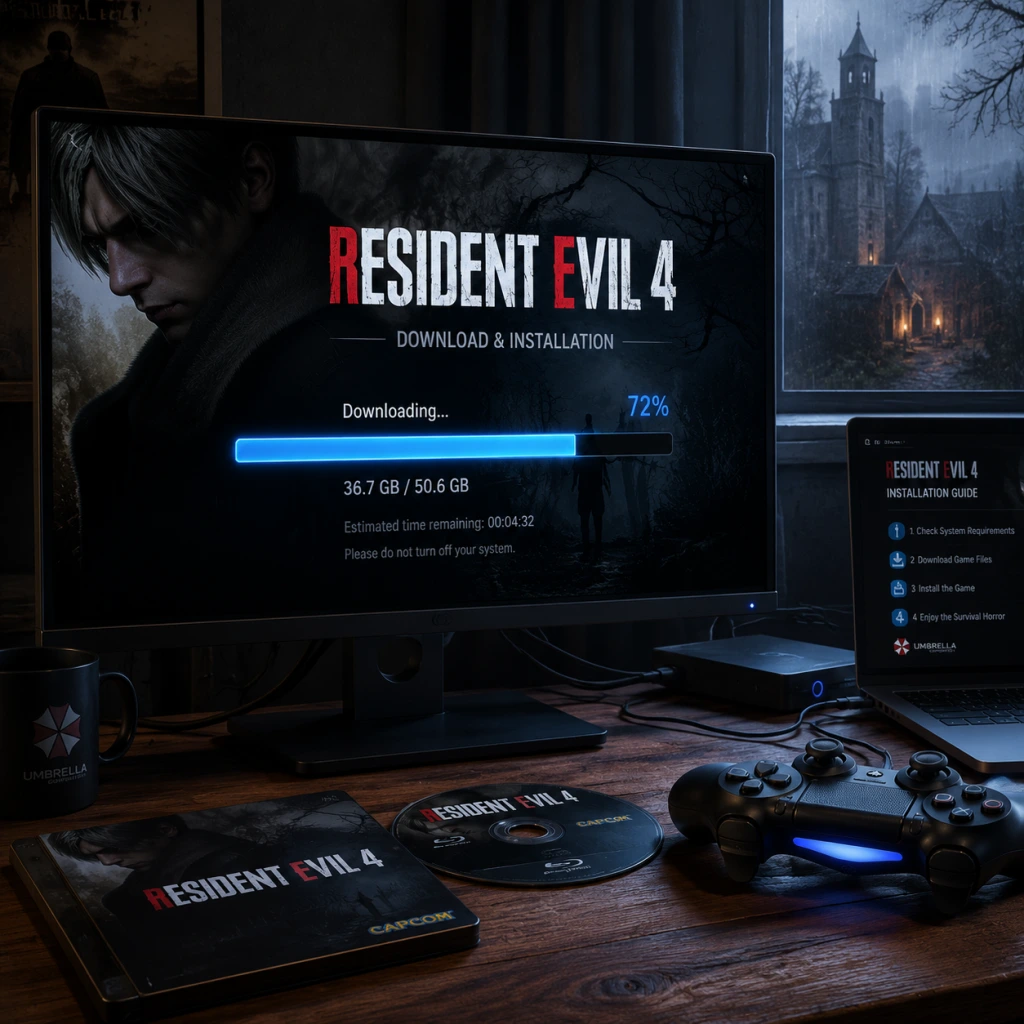
Download & Installation
Resident Evil 4 – Download & Installation Guide
This guide covers both the Resident Evil 4 (2023 Remake) and the original Resident Evil 4 (2005) for all major platforms. Follow the section that matches your version and device.
---
1. PC (Steam / Epic Games Store)
Resident Evil 4 (2023 Remake)
- Steam: [Resident Evil 4 on Steam](https://store.steampowered.com/app/1023610/Resident_Evil_4/)
- Epic Games Store: [Resident Evil 4 on Epic](https://store.epicgames.com/en-US/p/resident-evil-4-remake-b5e3ff)
- Steam Only: [Resident Evil 4 (2005) on Steam](https://store.steampowered.com/app/254700/Resident_Evil_4/)
- Installation steps are identical to the remake above. Note: This version includes the base game and may require a separate download for HD textures (free DLC).
#### Step-by-step Installation (Steam)
1. Create or log into your [Steam account](https://store.steampowered.com/).
2. Install the Steam client from [steampowered.com](https://store.steampowered.com/about/).
3. Launch Steam, go to Store, search “Resident Evil 4”, and purchase the game.
4. Click Install on the game’s library page. Choose your installation directory (recommend an SSD for best performance).
5. Wait for download and automatic installation. Steam will verify files after download.
6. Launch from Library or Desktop shortcut.
#### Step-by-step Installation (Epic Games Store)
1. Download and install the [Epic Games Launcher](https://store.epicgames.com/en-US/download).
2. Log in or create an Epic Games account.
3. Search “Resident Evil 4” in the store, purchase, and click Install.
4. Select destination folder. The launcher will download and install.
5. Launch from the Epic Launcher library.
Resident Evil 4 (2005 Original)
#### System Requirements (PC)
Resident Evil 4 (Remake)
| Component | Minimum | Recommended |
|---|---|---|
| OS | Windows 10 64-bit | Windows 11 64-bit |
| CPU | AMD Ryzen 3-1200 / Intel Core i5-7500 | AMD Ryzen 5-3600 / Intel Core i7-8700 |
| RAM | 8 GB | 16 GB |
| GPU | AMD Radeon RX 560 (4GB) / NVIDIA GeForce GTX 1050 Ti (4GB) | AMD Radeon RX 5700 / NVIDIA GeForce GTX 1070 |
| DirectX | Version 12 | Version 12 |
| Storage | 60 GB (SSD recommended) | 60 GB (SSD) |
| Component | Minimum | Recommended |
|---|---|---|
| OS | Windows 7 64-bit | Windows 10 64-bit |
| CPU | Intel Core 2 Duo 2.4 GHz / AMD Athlon 64 X2 2.8 GHz | Intel Core i5-4460 / AMD Ryzen 3-1200 |
| RAM | 2 GB | 4 GB |
| GPU | NVIDIA GeForce 8800 GTS / AMD Radeon HD 4850 | NVIDIA GeForce GTX 760 / AMD Radeon R7 260X |
| DirectX | Version 9.0c | Version 11 |
| Storage | 15 GB | 15 GB (HDD or SSD) |
2. PlayStation (PS4 / PS5)
Both the remake (PS4/PS5) and the original (PS4 as a PS2 Classic) are available.
Digital Download
1. Turn on your console and go to the PlayStation Store.
2. Search “Resident Evil 4 Remake” (or “Resident Evil 4 (2005)”).
3. Purchase and select Download.
4. The game will download and install automatically. You can monitor progress in Downloads from the home screen.
5. Once installed, launch from the game tile.
Physical Disc (PS4 / PS5)
1. Insert the disc into your console.
2. If prompted, install the game from the disc (you may need to download a day-one patch).
3. Wait for installation to complete. Launch from the disc icon.
Note: PS5 version is optimized for 4K/60 FPS. PS4 version is backward compatible but may require a free upgrade on PS5.
Storage Space
- Resident Evil 4 Remake: ~67 GB (PS5), ~59 GB (PS4)
- Resident Evil 4 (2005): ~8 GB (PS4)
- Remake: ~64 GB (Xbox Series X|S), ~58 GB (Xbox One)
- Original: ~7 GB (backward compatible on Xbox One/Series)
---
3. Xbox (One / Series X|S)
Digital Download
1. Turn on your Xbox and open the Microsoft Store (or My Games & Apps > See all).
2. Search “Resident Evil 4 Remake” (or “Resident Evil 4”).
3. Purchase and select Install. Choose a destination drive (internal or external).
4. Wait for download. The installation is automatic. Launch from My Games & Apps.
Physical Disc
1. Insert the game disc.
2. The console will automatically detect and begin installation. You may be prompted to download the latest update.
3. After installation, launch from the disc tile.
Storage Space:
---
4. Nintendo Switch
Available only as the original Resident Evil 4 (2005) (includes all bonus content).
Digital Download (Nintendo eShop)
1. From the Switch Home menu, open Nintendo eShop.
2. Search “Resident Evil 4”.
3. Purchase and select Download.
4. The game will download to your system memory or SD card (you can choose during download).
5. Launch from Home screen.
Physical Cartridge
1. Insert the game card into the Switch.
2. The console will automatically install any required updates. No additional installation needed (except patch).
3. Play directly from the cartridge.
Storage Space: ~13 GB (download only; physical still requires space for saves/updates).
---
5. Mobile (iOS / Android)
The original Resident Evil 4 (2005) is available as a paid mobile port on iOS and Android. Not the remake.
iOS (iPhone / iPad)
1. Open the App Store and search “Resident Evil 4”.
2. Look for the app by Capcom (icon features Leon). Cost: ~$9.99 (may vary).
3. Purchase and download. Requires iOS 9.0 or later.
4. Launch from home screen. Touch controls are default; MFI controller support available.
Android
1. Open Google Play Store and search “Resident Evil 4”.
2. The official version is by Capcom. Purchase (~$9.99).
3. Download and install. Requires Android 4.4+ and at least 2 GB RAM.
4. Launch from app drawer.
Note: The mobile version is not cross-platform save or controller compatible with all devices. Check device compatibility before purchase.
---
6. Account & Installation Requirements
| Platform | Required Account | Notes |
|---|---|---|
| PC (Steam) | Steam account | Internet for activation; offline mode available after first launch. |
| PC (Epic) | Epic Games account | Always-online DRM (some users report required connection). |
| PlayStation | PSN account | Needed for digital purchases and updates. |
| Xbox | Xbox Live (free or Gold/Ultimate) | Xbox Live required for first download; Gold/Ultimate for online play. |
| Nintendo Switch | Nintendo Account | Required for eShop; free to create. |
| iOS | Apple ID | Used for purchase; no additional account. |
| Android | Google Account | Used for Play Store purchase. |
Internet Connection
- All platforms require a stable internet connection for initial download and patch updates. Single-player offline is possible after installation (except some Epic Games versions may require periodic online check).
---
7. First Launch Setup
After installation, follow these steps before playing.
PC (Remake & Original)
1. Graphics Settings: On first launch, the game will auto-detect hardware. For Remake, set resolution, ray tracing (if supported), FPS cap, and quality preset. For the original, adjust resolution and texture quality.
2. Controls: Remap keyboard/mouse or controller bindings in the Options menu. Ensure controller (Xbox/PS) is recognized.
3. Language: Choose audio and subtitle language (e.g., Japanese, English).
4. HDR: If using an HDR monitor, enable HDR in Windows and in-game.
5. Performance Check: Use the built-in benchmark tool (Remake only) to ensure smooth gameplay. Adjust settings based on result.
Console
1. System Update: Ensure console firmware is up to date.
2. Game Update: Download the latest patch (usually automatic).
3. Controller Settings: Options for vibration, aim assist, and controller type (Standard/Alternate).
4. Display: Adjust HDR/calibration if needed in the console’s system settings.
Mobile
1. Touch Controls: Customize button layout in the settings.
2. Controller: Pair a Bluetooth controller (e.g., Xbox/PS/Backbone). Not all controls are supported.
3. Graphics: Lower quality for older devices; cap frame rate to 30 FPS for stability.
---
8. Common Installation Errors & Fixes
| Error | Platform | Cause | Solution |
|---|---|---|---|
| “Insufficient Disk Space” | PC | Not enough free space. | Free up space (Remake: 60 GB; Original: 15 GB). Move other files to external drive. |
| “Download Stuck” / “Corrupted Files” | PC | Network interruption or antivirus blocking. | Pause and resume download. Verify integrity of game files (Steam: right-click game > Properties > Local Files > Verify integrity. Epic: click three dots > Verify). |
| “Installation Failed” | PS4/PS5 | HDD corruption or insufficient space. | Rebuild database (Safe Mode > Option 5). Delete unused applications. |
| “Game won’t start after update” | Xbox | Cache issue. | Hard reset console (hold power button 10 seconds). Clear local saved games (Settings > System > Storage > Clear local saved games) – this will not delete cloud saves. |
| “Touch controls unresponsive” | Mobile | Device compatibility. | Restart app. Update device OS. Disable battery saver mode. |
| “DRM / Activation Error” | PC (Epic) | Offline mode or server issue. | Ensure internet connection. Launch Epic Launcher while online. If persistent, contact Epic support. |
| “Controller not recognized” | PC | Driver or input mode. | Use XInput-compatible controllers (Xbox). For PS controllers, use Steam Input or DS4Windows. For Switch Pro, use BetterJoy. |
| “Black screen on launch” | PC | Graphics driver or resolution conflict. | Update GPU drivers (NVIDIA/AMD). Boot in Safe Mode. Change display resolution manually in config file or launch with `-windowed` command. |
9. Post-Installation Verification
After installation, confirm that the game is running correctly.
1. File Integrity Check (PC): Use Steam/Epic verification tool (see above).
2. Benchmark Run (Remake on PC): Run the built-in benchmark and compare score to online results. Should not drop below 30 FPS at your target graphics preset.
3. DLC & Preorder Bonuses: Check the in-game inventory or mailbox for bonus items (e.g., Resident Evil 4 Remake includes bonus weapons like the Sentinel Nine). In Steam, right-click game > Properties > DLC to confirm.
4. Save Function: Start a new game and manually save. Wait 5 minutes, then reload to ensure saves are working.
5. Achievements/Trophies: Check the achievement list; at least one should unlock after the first chapter.
6. Update Status: Ensure you have the latest patch. On console, check for updates from the game tile (Options > Check for Update). On PC, Steam/Epic will auto-update.
---
10. Final Notes
- For the best experience on PC, install on an SSD (especially the Remake). HDD may cause texture pop-in.
- The original Resident Evil 4 (2005) is available on all platforms except mobile (which has its own port). The Remake is only on PC, PS4/PS5, and Xbox Series X|S.
- Cloud saves are supported on Steam, PSN, Xbox Live, and Nintendo Switch (with Nintendo Switch Online). Mobile versions do not support cloud saves.
- If you encounter any issue not listed, visit the official [Capcom Support page](https://support.capcom.com/).
---
Last updated: October 2023