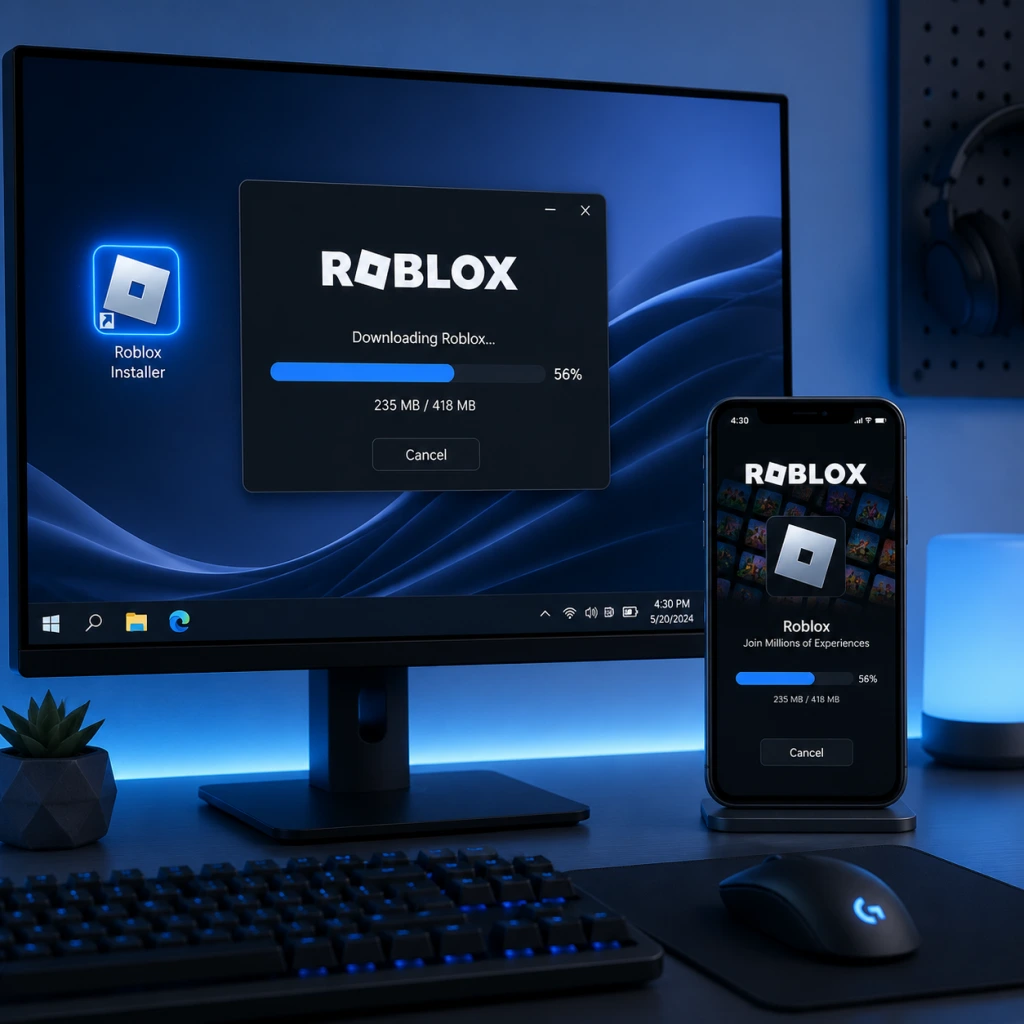
Download & Installation
Download & Installation Guide for Roblox
This guide covers the official and legitimate methods to download and install Roblox on all major supported platforms. Roblox is not available on Steam, Epic Games Store, or Nintendo Switch. Always download from official sources to ensure security and compatibility.
PC (Windows & macOS)
Download Source
- Official website: [roblox.com](https://www.roblox.com) — Click "Play" on any game, then download the installer.
- Direct link: [https://www.roblox.com/download](https://www.roblox.com/download)
Step-by-Step Installation
1. Visit roblox.com and create an account (or log in).
2. Navigate to any experience (game) and click the green "Play" button.
3. A dialog will prompt you to download the Roblox Player installer (e.g., `RobloxPlayerInstaller.exe` for Windows, `Roblox.dmg` for macOS).
4. Run the downloaded installer file:
- Windows: Double-click the EXE. If prompted by User Account Control, click "Yes".
- macOS: Open the DMG and drag the Roblox app into the Applications folder.
5. The installer will download and install the Roblox Player and Roblox Studio (optional). Wait for completion.
6. Once installed, the game you selected will launch automatically in your browser or via the Roblox app.
System Requirements
| Component | Minimum | Recommended |
|---|---|---|
| OS | Windows 7 (64-bit) / macOS 10.10 | Windows 10/11 (64-bit) / macOS 11+ |
| Processor | 1.6 GHz dual-core | 2.0 GHz quad-core or better |
| RAM | 4 GB | 8 GB |
| Graphics | DirectX 10 compatible (Intel HD 2000 or better) | DirectX 11 compatible dedicated GPU (NVIDIA GeForce 400 series / AMD Radeon HD 5000 or newer) |
| Storage | 500 MB free | 1 GB free (recommended for updates) |
| Internet | Broadband (1 Mbps or faster) | Broadband (4 Mbps or faster for smooth gameplay) |
Storage Space
- The installer is small (~5 MB), but the game data expands to ~500 MB to 1 GB after installation, plus additional space for cached content.
- iOS: Apple App Store – search "Roblox" or use direct link: [https://apps.apple.com/app/roblox/id431946152](https://apps.apple.com/app/roblox/id431946152)
- Android: Google Play Store – search "Roblox" or use direct link: [https://play.google.com/store/apps/details?id=com.roblox.client](https://play.google.com/store/apps/details?id=com.roblox.client)
- iOS: Requires iOS 11.0 or later. Compatible with iPhone, iPad, and iPod touch.
- Android: Requires Android 5.0 (Lollipop) or later, with at least 2 GB RAM recommended.
- Storage: ~200 MB initial download, plus additional space for game data (varies by usage).
- Microsoft Store: Search for "Roblox" or use [https://www.xbox.com/en-US/games/roblox](https://www.xbox.com/en-US/games/roblox)
- Xbox One: All models (Original, S, X). Requires an active Xbox Live Gold subscription for online multiplayer (Roblox is free-to-play but Gold is needed for multiplayer on Xbox).
- Xbox Series X|S: Fully compatible. No extra requirements beyond Gold/Game Pass Core.
- Storage: ~500 MB initial install size.
- PlayStation Store: Search "Roblox" or access via console store.
- PS4: PS4 firmware 6.0 or higher. Storage space ~1 GB.
- PS5: Fully backwards compatible. Storage ~1 GB (or more after updates).
- A free Roblox account is required on all platforms to save progress and access online features.
- On Xbox, you also need an Xbox Live Gold or Game Pass Core subscription to play online multiplayer.
- On PlayStation, no additional subscription is needed for online play.
- Parental Controls: Roblox offers account restrictions (PIN, age filters). Set these during first login if needed.
Mobile (iOS & Android)
Download Sources
Step-by-Step Installation
1. Open the App Store or Google Play Store on your device.
2. Search for "Roblox" and select the official app by Roblox Corporation.
3. Tap "Install" (iOS) or "Install" (Android).
4. Wait for the download and automatic installation.
5. After installation, open the app and log in or create an account.
Requirements
Xbox (Xbox One, Xbox Series X|S)
Download Source
Step-by-Step Installation
1. Turn on your Xbox and sign in to your Microsoft account.
2. Press the Xbox button to open the guide, then navigate to Microsoft Store.
3. Search for "Roblox" and select the result from Roblox Corporation.
4. Click Get or Install (the game is free to download).
5. The download will begin automatically. You can monitor progress in My games & apps > Queue.
6. Once installed, launch Roblox from the dashboard. You'll need to log in with your Roblox account or create one.
Requirements
PlayStation (PS4 & PS5)
Download Source
Step-by-Step Installation
1. On your PS4 or PS5, go to PlayStation Store from the home screen.
2. Search for "Roblox" in the store.
3. Select the app (published by Roblox Corporation).
4. Click Download (the app is free).
5. The download and installation will proceed automatically. Check progress under Downloads.
6. Once installed, launch Roblox. You must log in with your Roblox account. A PlayStation Network account is required but no extra subscription is needed for online play on PlayStation (unlike Xbox).
Requirements
Account Requirements
First Launch Setup
1. Login: Enter your Roblox username and password. If new, tap "Sign Up" and follow the on-screen instructions (date of birth, username, password).
2. Avatar Customization: You'll be prompted to customize your avatar (optional).
3. Notification Permissions: Mobile apps may ask for permissions (contacts, notifications). Deny if not needed; it does not affect gameplay.
4. Parental PIN: If setting up a child account, you may be asked to create a 4-digit PIN.
5. Tutorial Quest: The game may offer a short tutorial. You can skip it and explore freely.
Common Installation Errors & Fixes
| Error / Issue | Platform | Cause | Solution |
|---|---|---|---|
| "Roblox Updater Stuck" (stuck at 99%) | PC | Corrupted cache or permissions | Close Roblox, delete `%localappdata%\Roblox\logs` and `%temp%\Roblox`, then restart installer. Run as Administrator. |
| "Failed to Update Roblox" | PC | Antivirus blocking | Temporarily disable antivirus, reinstall. Add Roblox folder to exclusions. |
| "Download Failed" in App Store | iOS/Android | Insufficient storage or network | Free up space (at least 1 GB), switch to stable Wi-Fi, restart device. |
| "Roblox is not responding" after install | PC | Outdated drivers or DirectX | Update graphics drivers. Install latest DirectX runtime from Microsoft. |
| "Your system is not supported" | macOS | Outdated macOS version | Upgrade to macOS 10.10 or later. On very old Macs, Roblox may not run. |
| Installation stuck on Xbox | Xbox | Server overload or corrupt download | Restart console, clear local saved games (Settings > System > Storage > Clear local saved games). |
| PS4/PS5 error CE-xxxxx | PlayStation | Corrupt install data | Delete the app, rebuild database (Safe Mode > Rebuild Database), then reinstall. |
| Crashes on launch | All | Corrupt game files or insufficient memory | Reinstall the app. On mobile, restart phone. On PC, run as admin. |
Post-Installation Verification
1. Launch the game: Open Roblox from your device.
2. Login successfully: Ensure you can sign in without errors.
3. Load an experience: Click on any popular game (e.g., "Adopt Me!" or "Brookhaven"). If it loads within 30 seconds, installation is successful.
4. Check for updates: Roblox updates automatically. If you see a spinning loader, wait a few minutes.
5. Test controls: On PC, use WASD and mouse; on console, use controller; on mobile, touch controls.
6. Verify storage: Check that the app uses no more than ~1.5 GB for base files (excluding cache).
Conclusion
Roblox is easy to install on all supported platforms. Always use official storefronts or the Roblox website to avoid malware. If you encounter issues, consult the Common Errors table above or visit the official Roblox Help Center at [https://en.help.roblox.com](https://en.help.roblox.com). Enjoy your adventures in the metaverse!