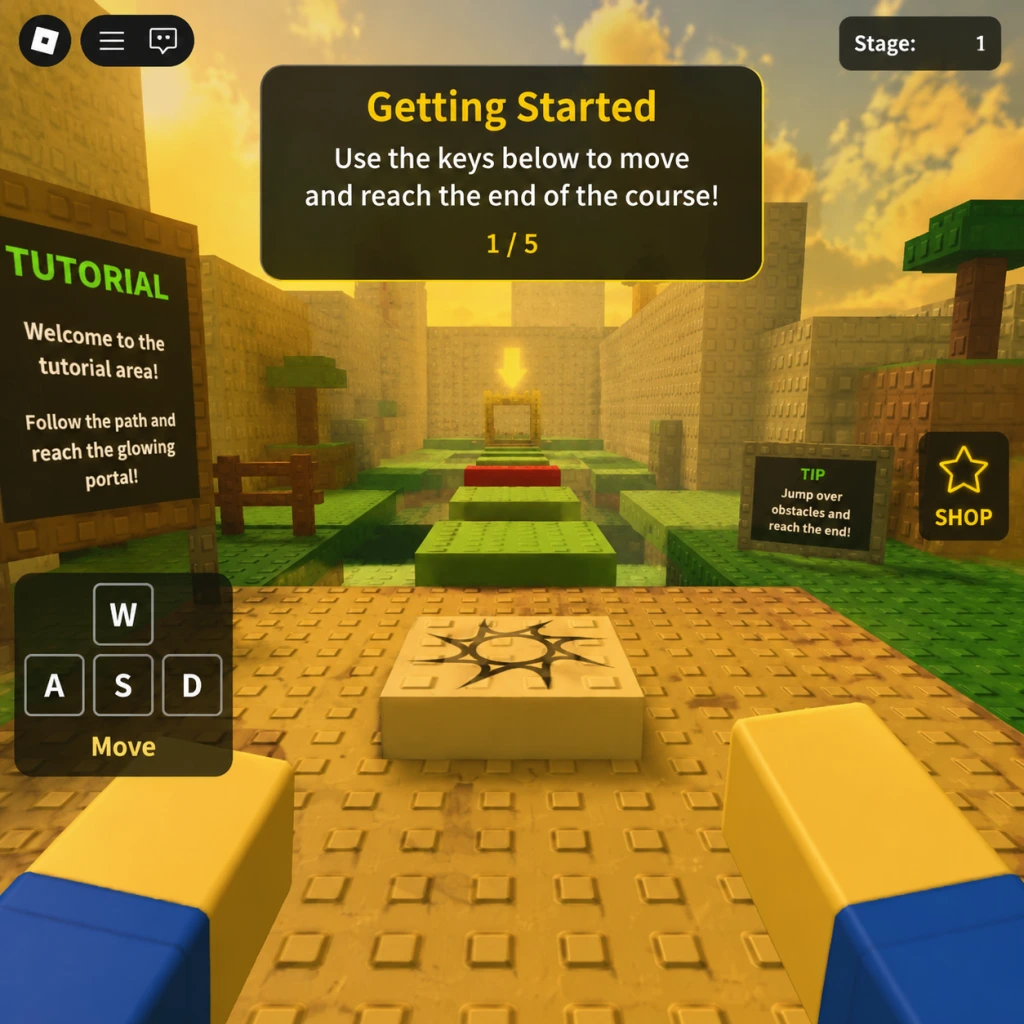
Getting Started
Getting Started with Roblox: A Beginner's Guide
Welcome to Roblox! This guide will walk you through your first hour, explain controls across all platforms, decode the user interface, and set you on a path to avoid common pitfalls. Roblox is a massive platform of millions of games, so the goal is to get you comfortable navigating, customizing your avatar, and playing your first experiences.
First Hour Walkthrough: From Account Creation to First Game
1. Create Your Account (if you haven't already)
- Go to roblox.com or open the app.
- Use a valid email, choose a unique username (your display name), and set a secure password. Your username is permanent, so pick something you'll like for years.
- Verify your email after sign-up to unlock trading and other features.
2. Customize Your Avatar (Character Creation)
- Roblox does not have a traditional character creation screen at start. Instead, you get a default avatar (usually a blocky yellow figure).
- To customize: Click the Avatar icon (a shirt/hanger) in the left sidebar or top navigation.
- You can change:
- Body parts (head, torso, legs) – many are free.
- Clothing (shirts, pants, t-shirts) – hundreds of free items exist.
- Accessories (hats, hair, glasses) – some free, most cost Robux (premium currency).
- Pro tip: Search the Marketplace for “free” items to build a unique look without spending money.
- You can also buy clothing from the Catalog using your free starter items or earned in-game currency (Roblox does not give free Robux easily; only real money purchases or limited events).
3. Explore the Home Page
- After login, you see the Home tab. It shows:
- Featured and popular games (called “experiences”).
- A search bar at the top.
- Quick links: Avatar, Marketplace, Chat, Build, etc.
- The left sidebar has: Home, Discover, Create, Avatar Shop, Chat, Groups, etc.
4. Play Your First Game
- Click on a game tile that looks appealing (e.g., “Adopt Me!”, “Brookhaven”, “Tower of Hell”).
- Click the green Play button. The Roblox Player will launch (a separate app).
- Wait for loading, then you're in! Follow on-screen prompts.
- First 10 minutes in a game: Walk around, find other players, try interacting (use chat or emotes). Many games have a tutorial area – follow it.
Controls Across All Platforms
Roblox adapts to each device. Here are the basics:
| Platform | Movement | Camera | Interaction | Jump | Other |
|---|---|---|---|---|---|
| PC (Keyboard + Mouse) | W/A/S/D or Arrow Keys | Mouse move (look), hold right-click + move to rotate | Click on objects/players | Spacebar | E to equip/use items, R to reload (if applicable), Shift to sprint (many games), Q to drop, Tab to toggle inventory, 1-9 for hotbar, F to toggle fullscreen |
| Mobile (iOS/Android) | Touch joystick (left side) | Swipe anywhere on screen (right side) | Tap objects/buttons | Tap jump button (usually bottom right) | On-screen buttons for actions, inventory (backpack icon), chat (bubble icon) |
| Console (Xbox One/Series X | S, PlayStation 4/5) | Left analog stick | Right analog stick | A button (Xbox) / X button (PlayStation) | Y (Xbox) / Triangle (PlayStation) |
| VR (Meta Quest, PC VR) | Move with thumbsticks or teleport (if enabled) | Head movement + right stick rotation | Trigger buttons to grab/interact | A or Y button to jump | Grip buttons to hold items. Gestures for emotes. |
UI Overview: The Roblox Interface
Main Menu (Home Page):
- Top Bar: Roblox logo, search bar, friend requests, notifications (bell), messages (envelope), and your avatar with Robux balance.
- Left Sidebar: Quick links to: Home, Discover (browse games), Create (Roblox Studio), Avatar Shop, Marketplace, Chat, Groups, etc.
- Central Area: Featured games, sponsored content, and recommendations based on what you play.
- Top-left corner: Game title, leaderboard (can be toggled via Tab on PC or gear icon)
- Bottom of screen: Toolbar – typically chat box (click to type), inventory/backpack, emotes (if enabled), and health/action bars (game-dependent).
- Esc (PC): Opens the game menu – options to leave, settings, report player, and return to home.
- Top-right: In-game currency display (Robux or game-specific currency), friend list, notifications.
- Don't click suspicious links – Scammers often send messages promising free Robux. Never click external links. Report these users.
- Don't share your password – Roblox staff will never ask for your password. Even friends should not know it.
- Don't buy items without checking the price – Some items are extremely rare and expensive. Stick to free items until you understand the economy.
- Don't clog your inventory with junk – You can only have a limited number of items? Actually, inventory is unlimited, but many items are useless. Focus on items you like.
- Don't waste Robux on overpowered gear in games that reset – Many games wipe data periodically. Spend Robux only on games you plan to play long-term.
- Avoid griefers – In many games, trolls try to ruin your experience. Simply leave the server or block the player.
- Time: Your best resource. Use it to learn the game mechanics rather than grinding for currency immediately.
- In-game currency (e.g., coins, cash) – Prioritize earning the first few tens of thousands to unlock basic tools/pets/items in your chosen game.
- Trading (if allowed): Many games have trading. Start by trading duplicates or low-value items to learn the market before trading high-value ones.
- Robux: Do not buy Robux right away unless you plan to invest in premium features. Many games are fully playable without spending money.
- [ ] Create and verify your Roblox account
- [ ] Customize your avatar with free items (at least one shirt/pants)
- [ ] Play 3 different games for at least 10 minutes each (try Brookhaven, Adopt Me!, and a popular obby like Tower of Hell)
- [ ] Add at least one friend (a real-life friend or someone you meet in a game)
- [ ] Learn the basic controls on your platform
- [ ] Turn on 2-factor authentication (Settings > Security > 2FA) for safety
- [ ] Complete any tutorial in each game you try
- [ ] Explore the Avatar Shop and Marketplace to see what free items exist
- [ ] Set your privacy settings to your comfort level (Settings > Privacy – limit who can message/trade/join you)
- [ ] Have fun and don't be afraid to lose – it's a sandbox of possibilities!
Roblox Player (In-Game):
Essential Early Objectives (What to Do First)
1. Complete Tutorials – Many popular games (e.g., Adopt Me!, Brookhaven) have built-in tutorials. Do them to understand the game loop.
2. Earn Your First In-Game Currency – Most games have a free currency (e.g., coins, cash) earned by completing simple tasks, minigames, or just playing.
3. Connect with Friends – Use the Chat function (desktop: click chat icon in lower right; mobile: bottom icon) to add friends. Playing with friends is more fun and safer.
4. Explore Different Genres – Roblox has obbies (obstacle courses), roleplay, racing, simulators, shooters, etc. Try at least 3-4 games to see what you like.
5. Learn to Report Abuse – If you encounter inappropriate behavior, use the Report button (usually found in a player's menu or via Esc > Report). Keep yourself safe.
What to Avoid (Common Beginner Mistakes)
Early Resource Priorities
Day-One Checklist
Roblox is a social, creative platform. Your first day is about exploration. With this guide, you'll avoid the most common pitfalls and quickly find games you love. Welcome to the Metaverse!