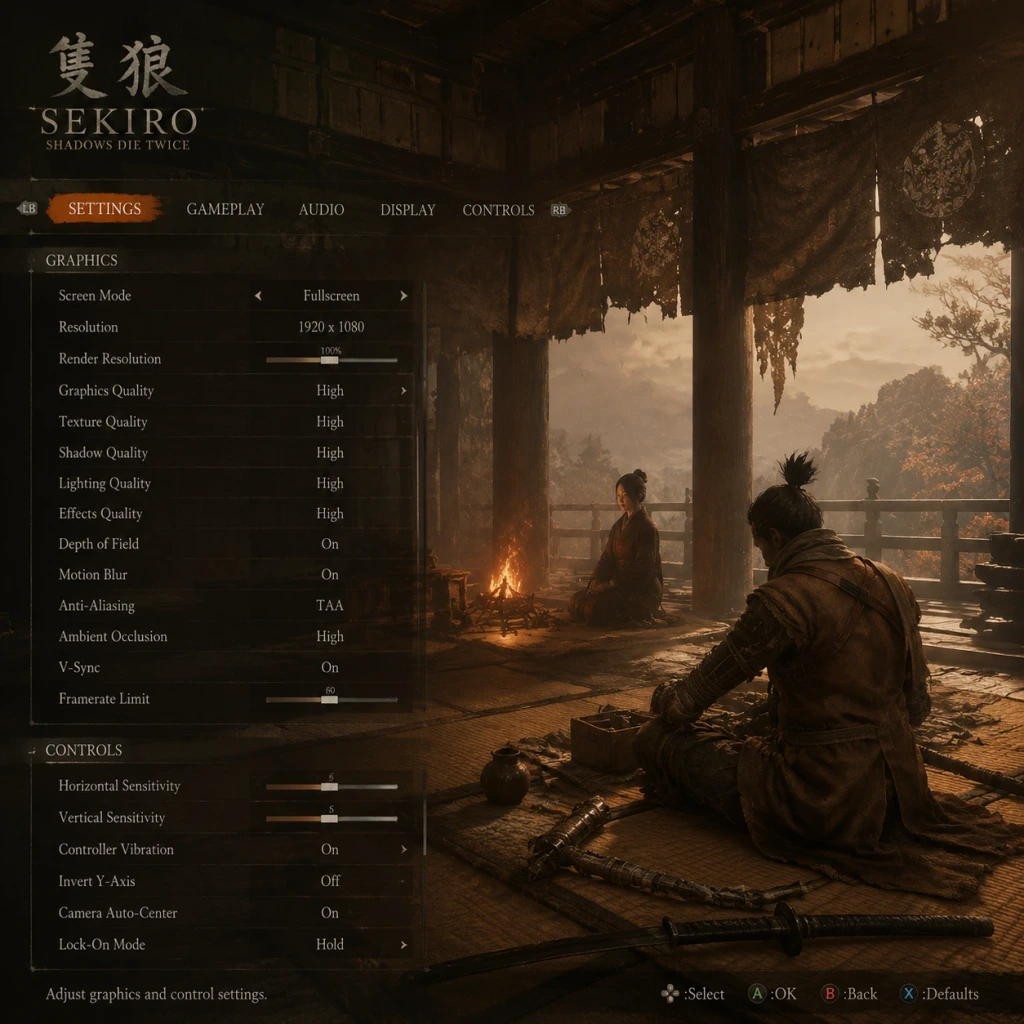
Game Settings
Game Settings: Sekiro: Shadows Die Twice
Introduction
Properly configuring your settings in Sekiro: Shadows Die Twice is crucial for both performance and enjoyment. Whether you prioritize silky-smooth framerates for the game's demanding combat or crave the highest visual fidelity for its beautiful but deadly world, this guide breaks down every major setting. We cover graphics, audio, controls, accessibility, language, network, and gameplay options, with specific recommendations for low-end, mid-range, and high-end PC hardware. Special attention is given to settings that are easy to misconfigure or that have a significant impact on gameplay.
---
Graphics Settings
Display Mode
- Fullscreen (recommended for best performance and input latency)
- Windowed / Borderless Windowed (useful for multi-monitor setups, but may introduce slight input lag)
- Set to your monitor's native resolution. Lowering resolution can drastically improve performance but reduces sharpness.
Resolution
Graphics Presets
Sekiro offers four presets: Low, Medium, High, and Ultra Higher Quality. You can also customize individual options.
#### Individual Options Table
| Setting | Low | Medium | High | Ultra (Higher Quality) | Performance Impact | Notes |
|---|---|---|---|---|---|---|
| Screen Space Reflections | Off | Low | High | Max | Medium | Subtle; can be turned off for FPS boost without huge visual loss. |
| Shadow Quality | Low | Medium | High | Max | High | Low shadows look blurry; High+ improves sharpness of dynamic shadows. |
| Lighting Quality | Low | Medium | High | Max | Medium | Affects global illumination and torch/fire effects. |
| Effects Quality | Low | Medium | High | Max | Medium | Controls particle effects (blood, smoke, etc.). |
| Depth of Field | Off | Low | High | Max | Low | Blurs distant background; can be disabled for clearer view. |
| Motion Blur | Off | Low | High | Max | Low | Can obscure enemies during frantic combat; many players turn it off. |
| Texture Quality | Low | Medium | High | Max | Medium | Low textures are very blurry; try to set to at least Medium if VRAM allows. |
| SSAO (Ambient Occlusion) | Off | Low | High | Max | Medium | Adds depth to shadows near objects; High+ improves realism. |
| Antialiasing | Off | FXAA | TAA | TAA (same as High) | Low | TAA can cause slight blur; FXAA is less effective but sharper. |
| Texture Filtering | 2x | 4x | 8x | 16x | Low | Increases sharpness of textures at angles; 4x or 8x is good compromise. |
Recommended PC Hardware Levels
#### Low-End (e.g., GTX 960, RX 470, 8GB RAM)
- Preset: Low or Custom with Medium textures
- Specific tweaks: Disable Motion Blur, Depth of Field, Screen Space Reflections. Set Shadows to Low, Effects to Low, SSAO off. Use FXAA antialiasing.
- Target: 30-60 FPS at 1080p. Set resolution to 900p or use Dynamic Resolution Scaling (if available) to maintain 60 FPS.
- Preset: High
- Specific tweaks: Keep Shadows at High, Lighting at High, SSAO High. Disable Motion Blur if you dislike it. Use TAA antialiasing. Set Texture Filtering to 8x.
- Target: 60 FPS at 1080p; can try 1440p with some Medium settings.
- Preset: Ultra Higher Quality
- Specific tweaks: Max everything. Enable all settings. Use TAA. Set Motion Blur to your preference.
- Target: 60-120+ FPS at 1440p or 4K (may need to drop to High for stable 4K60).
- Music: 70-100% – music sets the atmosphere but can be lowered if you want to hear environmental cues better.
- SFX (Sound Effects): Keep at 100% – crucial for hearing sword clangs, grapple hook, and enemy actions.
- Voice: 100% – dialogue and enemy taunts are important for situational awareness.
- Key Bindings: You can remap almost every action. Consider these adjustments for combat effectiveness:
- Mouse Sensitivity: Start around 5-7 and adjust until you can do a full 180-degree turn in one mouse movement. Lower sensitivity aids precise deflection.
- Button Layout: Sekiro supports both Xbox and PlayStation button prompts. Change under Settings > Controller > Button Icons.
- Dead Zones: Option to adjust left/right stick dead zones. Reduce to 0 for more precise camera control. If stick drift occurs, increase slightly.
- Camera Speed: Increase to 7-10 for fast tracking of enemies. Slower speed can cause disorientation.
- Invert Y-Axis: Disabled by default; enable if you prefer inverted look.
- Subtitles: On/Off. Recommended ON if you have difficulty hearing dialogue or if English is not your first language. Subtitles also appear for enemy dialogue that gives hints.
- Subtitle Background: Offers options like None, Dark, or Black. Dark or Black improves readability on bright backgrounds.
- Enabling Auto-Camera Rotation (in Camera settings) to keep enemies on screen.
- Using Lock-On (R3/Right Stick click) to track enemies; you can change lock-on behavior under Controls.
- Setting Message Display Speed to Slow if you need more time reading player hints.
- Text Language: Choose from English, French, Italian, German, Spanish, Japanese, Chinese (Simplified), and others depending on region.
- Voice Language: You can set spoken dialogue separately. Japanese voice acting + English subtitles is a popular choice for authenticity.
- Player Messages (helpful hints left by others)
- Bloodstains (see how other players died)
- Phantoms (spectral images of players near death spots)
- Allow Online Play: Turn ON to see messages and bloodstains.
- Allow Bloodstains: Separate toggle within online play.
- Allow Player Messages: Separate toggle.
- Camera Speed (X-axis / Y-axis): 7-10 recommended for both axes. Faster camera helps track agile enemies.
- Invert Y-Axis: Off (unless preferred).
- Auto Camera Rotation: Off by default. Enabling makes camera follow the locked-on enemy automatically. Can be disorienting in multi-enemy situations; try both.
- Camera Distance from Player: Adjustable slider. Pulling back gives wider field of view but may make objects smaller. Default is fine; increase slightly if you feel claustrophobic.
- Lock-On Priority: Choose between "Front of Target" (default) or "Nearest Target". "Nearest" is better when swarmed, but may switch to unintended foes. Experiment.
- Lock-On Switch: You can set a key to switch lock-on targets (default right analog stick click or scroll wheel).
- HUD Opacity: Adjustable from 0% (hidden) to 100%. Lower opacity reduces screen clutter, but you may miss posture/health bars. Recommended 80-100%.
- HUD Auto-Hide: On/Off. If On, HUD fades when not needed (out of combat, exploring). Useful for immersion but can delay seeing your health when entering combat.
- Mini-Map (Compass): Sekiro does not have a mini-map; use the compass at top of screen. No setting to change this.
- Attack Direction Indicator: On by default. Shows a small arrow when an enemy is attacking from off-screen. Keep On.
- Auto-Aim (Lock-On): Essential; always on by default. You can toggle lock-on manually.
- Posture Display: Always visible; no toggle.
- Perilous Attack Warning: The red kanji warning symbol appears above the enemy. Cannot be turned off. Pay attention.
#### Mid-Range (e.g., GTX 1060, RX 580, 16GB RAM)
#### High-End (e.g., RTX 2070 Super, RX 6700 XT, 16GB+ RAM)
Special Attention: Frame Rate Cap
Sekiro is capped at 60 FPS by default. To unlock frame rate above 60, you must use a mod (e.g., Sekiro FPS Unlock Mod). Without the mod, the game's physics and animations are tied to 60 FPS; going beyond without the mod can cause issues. For console players or those satisfied with 60 FPS, leave it as is.
Easy to Misconfigure: Resolution Scaling
In the Graphics menu, there is an option called "Resolution Scaling" (may appear as a slider). Setting it below 100% reduces internal resolution but retains UI resolution. This is a powerful performance tool but often overlooked. If you're struggling to hit 60 FPS, set it to 90% or 80% for a smoother experience with minimal visual degradation.
---
Audio Settings
Master Volume
Adjust overall volume. Recommended 80-100% for clear audio cues (footsteps, enemy dialogue, perilous attack sounds).
Music Volume, SFX Volume, Voice Volume
Special Attention: Headphone Mode
Sekiro has a dedicated Headphone Mode (under Audio settings). This enables binaural audio for headphones, greatly improving spatial awareness of enemy locations, especially during stealth. Always enable this if using headphones.
---
Controls Settings
Keyboard & Mouse
- Attack (default Mouse1): Fine as is.
- Deflect/Block (default Mouse2): Many players prefer to map Deflect to a side mouse button for faster reaction.
- Grapple Hook (default Q or E): Keep on a quick-access key (e.g., Q).
- Item/Prosthetic Use (default R, Shift+Wheel): Map prosthetic tools to number keys 1-4 for quick switching.
- Heal (default H): Move to a more accessible key like E or Mouse4.
Controller (Xbox, PlayStation, or third-party)
Special Attention: Controller vs Keyboard for Deflection
Deflecting (parrying) requires precise timing. Many players find controller triggers (R1/RB) more comfortable than keyboard clicks. If using keyboard, consider mapping Deflect to a key with low travel (e.g., Space) and Attack to a mouse button. Test both input methods to see which gives you consistent reaction.
---
Accessibility Settings
Subtitles
Colorblind Options
Sekiro does not have dedicated colorblind modes. However, you can adjust display color settings via your GPU driver or TV/monitor settings to enhance contrast. For deuteranopia/protanopia, increase color saturation or use a color filter overlay.
Difficulty-Related Accessibility
Sekiro offers no difficulty slider. However, you can make the game easier by:
Special Attention: Cursor Speed for Menus
In Controller settings, there is a Cursor Speed option for menu navigation. Set to Fast if you find the default sluggish. This affects inventory and upgrade menus.
---
Language Settings
Game Language
Special Attention: Changing Voice Language after Starting
You can change the voice language at any time from the Title Screen menu. Do not worry about being locked in. However, note that some enemy taunts and NPC dialogue will change accordingly.
---
Network Settings
Online Features
Sekiro includes optional online features:
These can be enabled/disabled in Settings > Network:
Special Attention: Offline Mode for No Spoilers
If you want to explore completely blind without hints or distractions, disable all online features. Bloodstains can spoil ambushes and message can reveal hidden walls. For first playthrough, many players turn off messages but keep bloodstains for learning dangers.
No Multiplayer
Sekiro does not have cooperative or competitive multiplayer. Network settings only affect the asynchronous features above.
---
Gameplay Settings
Camera
Lock-On Settings
Display & UI
Combat
Special Attention: Control Stick Deadzone
On controller, the left stick deadzone affects movement precision. If you find Wolf unresponsive or drifting, increase deadzone slightly (e.g., 10-15%). If movement feels sluggish, decrease to 0. This setting is under Controller > Advanced Controls.
---
Summary of Settings for Best Performance & Quality
| Setting Category | Low-End PC | Mid-Range PC | High-End PC |
|---|---|---|---|
| Preset | Custom (Low-Medium) | High | Ultra |
| Resolution | 1080p (or 900p) | 1080p (or 1440p) | 1440p or 4K |
| Resolution Scaling | 80-90% | 100% | 100% |
| Shadows | Low | High | Max |
| Lighting | Low | High | Max |
| Effects | Low | High | Max |
| Antialiasing | FXAA | TAA | TAA |
| Motion Blur | Off | Off (optional) | Off (optional) |
| Headphone Mode | On (if headphones) | On | On |
| Camera Speed | 7 | 7 | 8 |
| Subtitles | On | On | On |
| Online Features | Personal choice | Personal choice | Personal choice |
Final Tips
- Before starting your first playthrough, launch the game and run through the opening area with your chosen settings. Make small adjustments to feel how they affect combat readability.
- If you encounter stuttering, lower Effects Quality or disable Screen Space Reflections.
- For the smoothest experience, aim for a stable 60 FPS at all times – the game's rhythm relies on consistent frame timing.
- Back up your save file before modding frame rate or other settings.
Now that your settings are optimized, you are ready to face the challenges of Ashina. Remember: hesitation is defeat.