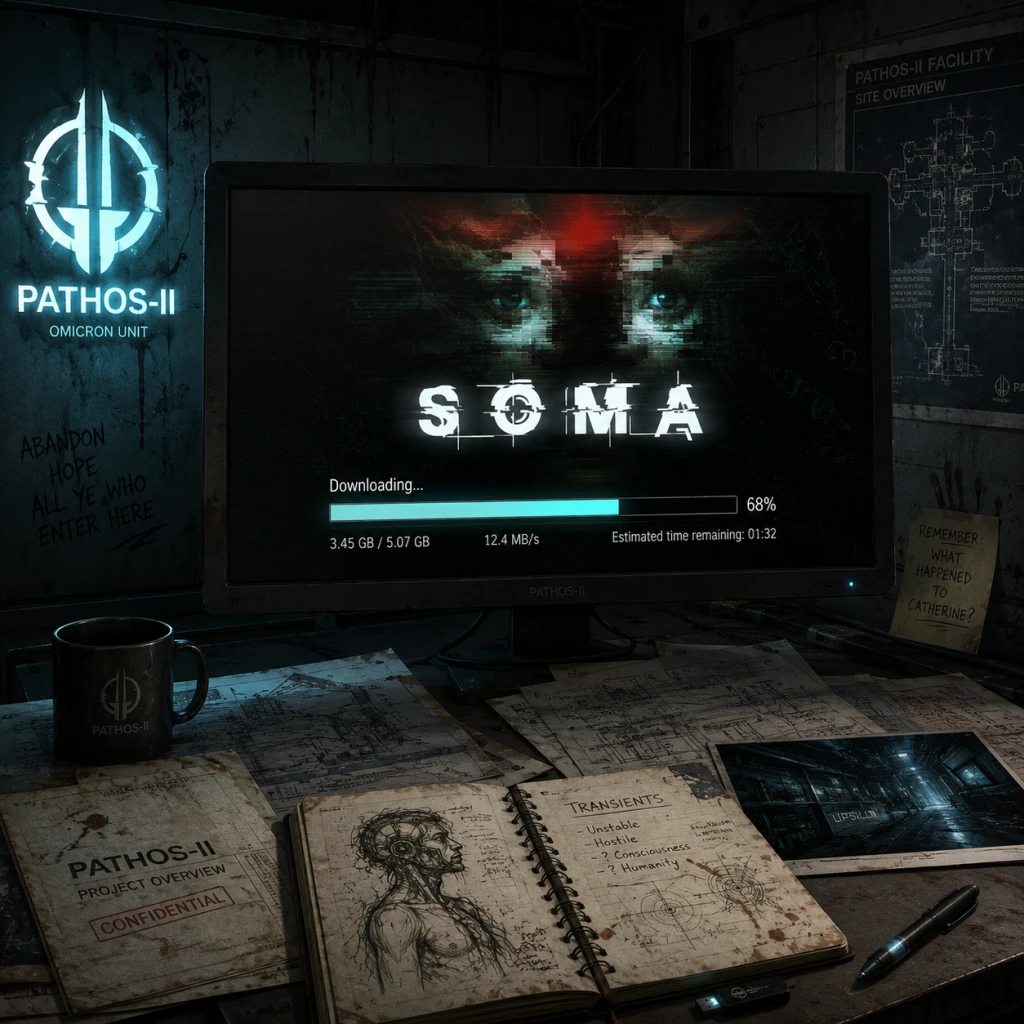
Download & Installation
Download & Installation Guide for SOMA
SOMA is a sci-fi survival horror game developed by Frictional Games. This guide covers all official platforms and provides step-by-step instructions to download and install the game.
1. Platform Availability & Download Sources
| Platform | Store / Source | Notes |
|---|---|---|
| PC (Windows, macOS, Linux) | [Steam](https://store.steampowered.com/app/282140/SOMA/), [Epic Games Store](https://store.epicgames.com/en-US/p/soma), [GOG.com](https://www.gog.com/en/game/soma) | DRM-free on GOG; Steam and Epic require launchers. |
| PlayStation 4 | PlayStation Store (PS4) | Also playable on PS5 via backward compatibility (digital or disc). |
| PlayStation 5 | PlayStation Store (PS5) | Purchase PS4 version; no native PS5 enhancement. |
| Xbox One | Microsoft Store (Xbox One) | Also playable on Xbox Series X\/S via backward compatibility. |
| Xbox Series X\/S | Microsoft Store (Xbox Series) | Purchase Xbox One version; backward compatible. |
| Nintendo Switch | Nintendo eShop | Digital only; no physical release. |
2. System Requirements
#### PC Minimum (Windows)
- OS: Windows 7 64-bit or later
- CPU: Intel Core i5-2300 or AMD Phenom II X4 965
- RAM: 4 GB
- GPU: NVIDIA GeForce GTX 460 or AMD Radeon HD 6850 (1 GB VRAM)
- DirectX: Version 11
- Storage: 10 GB free space
- Sound: DirectX compatible
- OS: Windows 10 64-bit
- CPU: Intel Core i5-4570 or AMD Ryzen 3 1200
- RAM: 8 GB
- GPU: NVIDIA GeForce GTX 760 or AMD Radeon R9 280X (2 GB VRAM)
- DirectX: Version 11
- Storage: 10 GB free space (SSD recommended)
- Sound: DirectX compatible
- PS4 / PS5: ~8 GB
- Xbox One / Series X\/S: ~8 GB
- Nintendo Switch: ~6 GB (requires microSD card if internal space is insufficient)
- Disc version: Insert disc, follow on-screen prompts to install. For PS5, insert PS4 disc into disc drive and install; you may need to download a compatibility patch.
- Digital version:
- Disc version: Insert disc, install from disc. Series X\/S will run the Xbox One version via backward compatibility.
- Digital version:
- Language: SOMA supports multiple languages. On PC, you can change language in the launcher or Steam properties > Language. On consoles, language follows system language (if available).
- Graphics Settings (PC only):
- Controller Support: The game fully supports Xbox, PlayStation, and Switch Pro controllers. On PC, you may need to enable controller in settings if using non-Steam devices.
- Audio Options: Adjust master volume, music, SFX, and enable subtitles (recommended).
- Save System: The game uses manual save points (computer terminals) and autosaves at checkpoints. Ensure you save often.
#### PC Recommended
> Note: Mac and Linux requirements vary slightly; see Steam or GOG store pages for details.
#### Console Storage
3. Step-by-Step Installation
#### A. PC (Steam)
1. Install the Steam client from [steampowered.com](https://store.steampowered.com) and log into your account.
2. Go to the Store page for SOMA or search "SOMA".
3. Click Add to Cart and complete purchase.
4. Go to your Library, find SOMA, and click Install.
5. Choose installation location (ensure at least 10 GB free).
6. Wait for download and automatic installation. Play button will appear.
#### B. PC (Epic Games Store)
1. Install Epic Games Launcher from [epicgames.com](https://www.epicgames.com).
2. Log in and go to the Store or search SOMA.
3. Purchase or claim if free (occasionally).
4. In Library, click Install.
5. Select directory, then download.
6. Launch from Library.
#### C. PC (GOG.com)
1. Download GOG GALAXY client from [gog.com](https://www.gog.com) or use web download.
2. Purchase SOMA from GOG store.
3. In GOG GALAXY, go to Owned games, click Install.
4. Or download offline installer from your account page (no client needed).
5. Run the installer .exe (Windows) and follow prompts.
#### D. PlayStation 4 / PlayStation 5
1. Open PlayStation Store from the main menu.
2. Search "SOMA".
3. Select the game and choose Download (after purchase).
4. The download starts automatically; you can monitor progress from Notifications.
5. Once complete, the game appears on the home screen.
#### E. Xbox One / Xbox Series X\/S
1. Go to Microsoft Store on your console or via web (xbox.com).
2. Search "SOMA" and purchase.
3. On console, go to My Games & Apps > See all > Ready to install, find SOMA and select Install.
4. Wait for download; game appears in Home.
#### F. Nintendo Switch
1. Open Nintendo eShop from the console's home menu.
2. Search "SOMA".
3. Select the game and choose Proceed to Purchase (or Download if already purchased).
4. Confirm payment method.
5. Download begins; progress shown on Home screen. Ensure sufficient free space (internal or microSD).
6. Once complete, launch from Home.
4. First Launch Setup
- Launch the game. Main menu offers Options > Graphics.
- Adjust resolution, quality presets (Low, Medium, High, Ultra), anti-aliasing, vsync, etc.
- Recommended: Start with Medium and tweak based on performance.
5. Common Installation Errors & Fixes
| Error | Platform | Cause | Fix |
|---|---|---|---|
| "Not enough disk space" | All | Insufficient free space | Delete unnecessary files or install on another drive (PC) / delete old games (console) |
| "Steam\/Epic offline" | PC | Internet connection or launcher issue | Restart launcher, check internet, verify login |
| "Failed to initialize renderer" | PC (Windows) | Outdated graphics drivers or DirectX | Update GPU drivers (NVIDIA\/AMD) and install DirectX from Microsoft |
| Crash on launch (black screen) | PC | Corrupted config files | Delete config folder in Documents\/My Games\/SOMA\/Main\/ and restart |
| Error CE-30005-8 | PS4 | Corrupted data | Rebuild database in Safe Mode or delete and reinstall game |
| Error 0x80070005 | Xbox | Insufficient permissions | Hard restart console (hold power button 10 sec) |
| Download stuck at 0% | Switch | Network or eShop issue | Check internet, restart console, or redownload from eShop again |
| Audio crackling | PC | Audio driver or sample rate | Set sample rate to 44100 Hz in Windows sound settings |
- Verify game files (PC): Right-click SOMA in Steam > Properties > Local Files > Verify integrity... (Epic: gear icon > Verify; GOG: Manage > Verify).
- Reinstall launcher if issues persist.
- Update console firmware (PS4\/PS5\/Xbox\/Switch) to latest version.
- Close background apps on PC to free RAM.
- Backup saves: PC saves are in `%USERPROFILE%\Documents\My Games\SOMA\Main\`. Copy this folder occasionally.
- FOV adjustment: On PC, you can edit the `settings.cfg` file in the game folder to increase FOV beyond menu limits.
- Performance: If you experience stutter on PC, disable "Texture Streaming" in graphics options or set to Low.
- Controller vs Keyboard: The game is designed with controller in mind; consider using one for better immersion.
6. Post-Installation Verification
After installation, do the following to confirm the game works correctly:
1. Launch the game and check if it reaches the main menu without errors.
2. Test controls – move the character, look around, interact with objects.
3. Check audio – ensure dialogue and ambient sounds play.
4. Check graphics – no visual artifacts, correct resolution.
5. Save progress – create a manual save at a terminal, exit, and reload to ensure save works.
6. Update – on PC, ensure the game is up-to-date (enabled automatic updates). On consoles, updates are automatic when connected.
> Note for mods (PC): If you plan to use mods, install [SOMA Unified](https://github.com/soma-unified) or other mods after verifying the clean game runs. Mod installation varies; always read mod instructions.
7. Additional Tips
Enjoy your journey through the abyss of PATHOS-II!