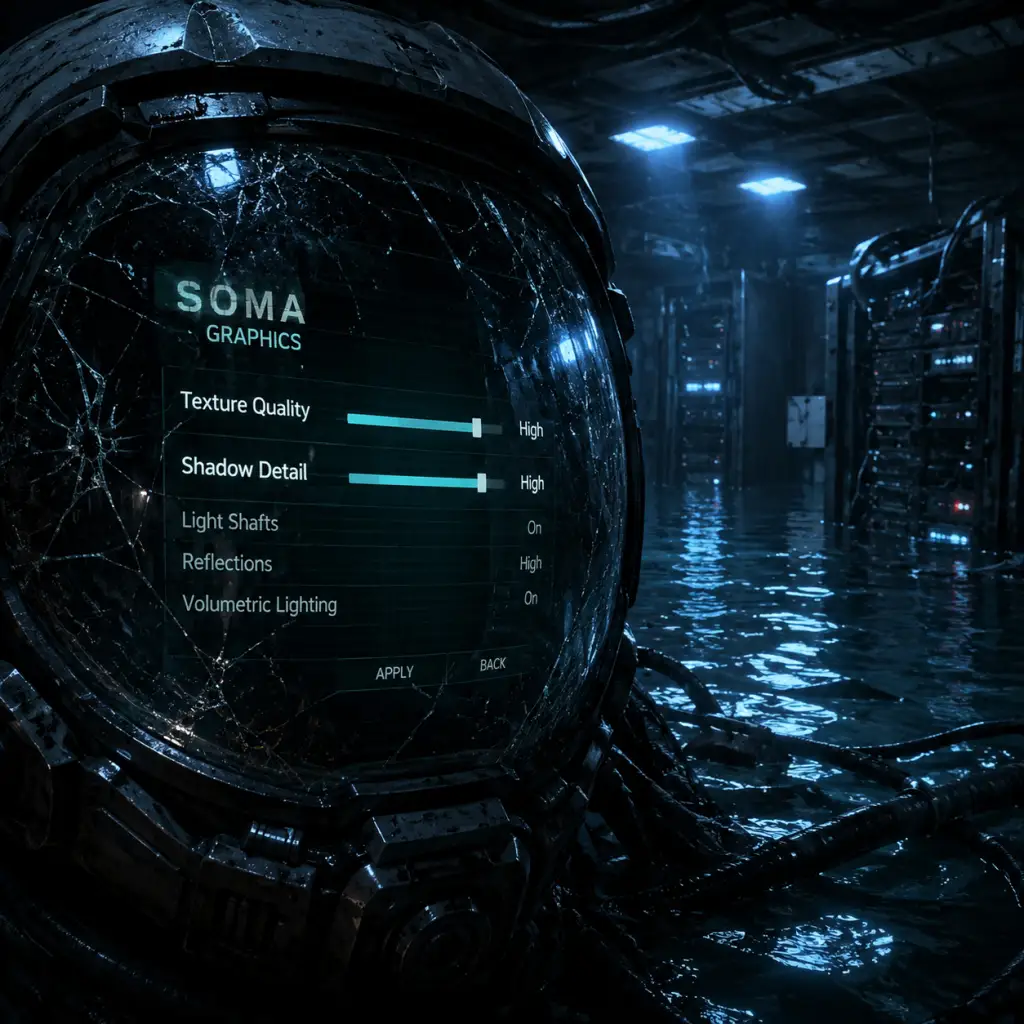
Game Settings
Graphics Settings
SOMA uses the HPL Engine 3 and offers a range of graphics options to balance performance and visual fidelity. The settings are accessible from the main menu under Options > Graphics.
Key Graphics Options
- Resolution: Match your monitor's native resolution for optimal clarity. Lower resolutions (e.g., 1280×720) can boost performance on weaker hardware.
- Display Mode:
- Graphics Quality Preset: Very Low, Low, Medium, High, Very High. This sets many sub-options at once. Customizing individual settings after selecting a preset will override it.
- Texture Quality: Controls texture resolution. High uses more VRAM; Low reduces detail but saves memory.
- Shadow Quality: Off, Low, Medium, High. Higher settings increase shadow resolution and draw distance, impacting performance significantly.
- SSAO (Screen Space Ambient Occlusion): Adds realistic shading in crevices. Off improves performance; High decreases FPS by 10-20% on weaker GPUs.
- Antialiasing: Off, FXAA, TAA, MSAA x2/x4/x8.
- Anisotropic Filtering: Off, 2x, 4x, 8x, 16x. Improves texture sharpness at oblique angles. 16x has negligible performance impact on modern GPUs.
- V-Sync: On/Off. Synchs frame rate to monitor refresh rate to prevent screen tearing. Causes input lag; turn Off for competitive feel (use FPS cap instead).
- Field of View (FOV): Adjustable from 60° to 100°. Default is 75°. Higher FOV reduces motion sickness but lowers performance slightly.
- FPS Cap: 30, 60, 120, 144, Unlimited. Set to your monitor's refresh rate for smooth gameplay.
- Fullscreen: Best performance; minimizes input lag.
- Windowed: Useful for multitasking but may reduce performance.
- Borderless Windowed: Similar to fullscreen but allows alt-tabbing; slightly higher input lag.
- FXAA is lightweight but blurs edges.
- TAA provides smoother motion with moderate performance cost.
- MSAA is heavy; only use on high-end systems.
Recommended Graphics Settings by Hardware Level
| Hardware Level | GPU/CPU Examples | Resolution | Preset | Key Adjustments | Expected FPS |
|---|---|---|---|---|---|
| Low | Integrated graphics (Intel HD 620), GT 1030, Ryzen 2200G | 1280×720 or 1366×768 | Very Low | Shadow Low, SSAO Off, Antialiasing FXAA, FOV 75, FPS cap 30 | 20-30 |
| Medium | GTX 1050 Ti, RX 560, i5-7400 | 1920×1080 | Low | Shadow Medium, SSAO Low, Antialiasing FXAA, FOV 80, FPS cap 60 | 40-50 |
| High | GTX 1060, RX 580, i5-8400 | 1920×1080 | Medium | Shadow High, SSAO High, Antialiasing TAA, FOV 85, FPS cap 60 | 50-60 |
| Ultra | RTX 2060, RX 5700 XT, i7-8700K | 2560×1440 | Very High | Shadow High, SSAO High, Antialiasing TAA or MSAA x2, FOV 90, FPS cap 144 | 60+ |
>
> FOV: Setting it above 90° may cause performance drops on weaker GPUs because more objects are rendered. Start at 80° and adjust upward.
>
> V-Sync & Frame Cap: If you experience input lag, disable V-Sync and set a frame cap slightly below your monitor's refresh rate (e.g., 58 for 60Hz).
---
Audio Settings
Audio is critical for immersion and survival in SOMA—listen for creature sounds and environmental clues.
Audio Options
- Master Volume: Overall volume (0-100).
- SFX Volume: Sound effects (footsteps, machinery, monster noises).
- Music Volume: Background music; lower this to increase tension/dialogue clarity.
- Dialogue Volume: Voice lines from Simon and other characters.
- Ambience Volume: Environmental sounds (water, wind, alarms).
- Voice Chat (Not present – single-player only).
- Sound Mode: Stereo, Headphones, 5.1 Surround, 7.1 Surround. Choose Headphones for best directional audio with stereo headsets.
- Subtitles: On/Off. Enables text for dialogue and sound effects (e.g., "[Footsteps approaching]"). Highly recommended for hearing-impaired players or low-volume play.
- Sound Mode: Headphones (if using headphones) or Stereo for speakers.
- Master Volume: 80% for comfortable play.
- SFX: 100% – crucial for locating threats.
- Music: 60% to not overwhelm other audio.
- Dialogue: 100% – story-driven game.
- Ambience: 80%.
- Subtitles: On – helps track dialogue during stressful moments.
- Invert Y Axis: On/Off – toggles vertical mouse look inversion.
- Mouse Sensitivity: Slider from 0.0 to 10.0 (default ~3.5). Adjust for comfortable turning speed.
- Mouse Smoothing: On/Off – can reduce jitter but adds slight latency. Disable for precise movement.
- Key Bindings: Fully rebindable. Defaults:
- Controller Support: Full support for Xbox, PlayStation, and generic controllers. Buttons are auto-detected; can be remapped in settings.
- Vibration: On/Off – adds feedback for environmental events; can be disorienting for some.
- Look Sensitivity: Separate slider for controller stick.
- Controller Deadzone: Adjust to reduce drift.
- Mouse Smoothing: Off.
- Mouse Sensitivity: Adjust to your preference; start at 3.5 and increase/decrease as needed for 180° turns with one full wrist movement.
- Invert Y: Only enable if you play flight sims or prefer inverted look.
- Key Bindings: Consider rebinding Run from hold (R) to toggle (Shift) for comfort; many players prefer crouch on hold (Ctrl) rather than toggle.
- Subtitle Language: Choose from available subtitle languages (see Language section).
- Subtitle Size: Small, Medium, Large, Very Large. Increase to improve readability.
- Subtitle Background: None, Darker, Black. A black background improves contrast against bright scenes.
- Colorblind Mode: Off, Deuteranopia, Protanopia, Tritanopia. Adjusts UI colors for color vision deficiencies.
- Photo Sensitivity Warning: On/Off. Disables flashing effects (e.g., lightning) if you have epilepsy.
- Navigation Assistance: Off, Subtle, Strong. When enabled, a faint arrow or glow points toward the next objective. Subtle is recommended to avoid breaking immersion.
- Auto-Aim: Off, Weak, Strong. Since there is no combat, this only affects interaction prompts (e.g., aligning with a lever). Keep Off or Weak.
- HUD Opacity: Adjust from 0 to 100. Lower opacity hides the UI for immersion; raise to 100 for clarity.
- Subtitle Background: Black for readability.
- Subtitle Size: Large if playing on a TV or small monitor.
- Navigation Assistance: Subtle – the game's level design can be confusing; this helps prevent frustration.
- Photo Sensitivity Warning: On if you have a history of seizures; otherwise leave Off.
- Text Language: Select from available languages (English, French, German, Italian, Spanish, etc.). Changes UI text and subtitles.
- Audio Language: SOMA supports English, German, French, and Polish audio dubs (depending on region). Default is English.
- Subtitle Language: Independent of text language; you can have English audio with Japanese subtitles, for example.
- Steam Cloud: If playing on PC via Steam, ensure Steam Cloud sync is enabled in Steam's properties for SOMA (right-click game > Properties > General > Keep game saves in the Steam Cloud). This backs up your save files automatically.
- Offline Mode: Completely playable offline. Disable internet if you want to avoid background downloads or interruptions.
- Difficulty Mode:
- Quick Save Loadouts: Only available on PC (F5 to quick save, F9 to quick load). Console versions rely on checkpoint saves. Controller users can remap these in Controls.
- Pause Function: The game pauses on Esc (keyboard) or Start (controller) regardless of difficulty. Use this to read notes safely.
- Auto-Save Frequency: The game autosaves at checkpoints (entering new areas, after major events). Cannot be adjusted.
- Flashlight Battery Management: Not a setting; the flashlight has unlimited battery in Safe Mode, but in Normal/Hard it drains and must recharge by turning off. Plan your routes.
- First Playthrough: Normal difficulty. Safe Mode removes all tension; Hard is punishing for newcomers.
- Second Playthrough: Hard if you want more challenge, or Safe to explore without fear.
- Quick Save: Use F5 liberally in Normal/Hard, but be aware that quick saves are overwritten by each new manual save. Keep a few manual save slots (via menu) as backups.
Recommended Audio Settings
> Special Attention: The Sound Mode setting is easy to mis-set. If you use surround sound speakers but select "Headphones", spatial cues may be inaccurate. Conversely, using headphones with "5.1 Surround" can cause muffled audio. Always match your hardware.
---
Controls Settings
SOMA features standard first-person controls with full keyboard and controller support.
Keyboard & Mouse
- W/A/S/D: Move
- Mouse Left: Interact / Use
- Mouse Right: Crouch (hold)
- E: Interact (alternative)
- R: Run (hold)
- Shift: Run (toggle)
- Ctrl: Crouch (toggle)
- F: Flashlight on/off
- Tab: Inventory / Notes
- M: Map
- Esc: Pause / Menu
Controller Settings
Recommended Controls
> Special Attention: The Run key defaults to hold rather than toggle. New players often miss this, causing fatigue. Change to toggle in the key bindings menu if you prefer. Also, the Interact button (left mouse) is contextual; some puzzles require holding the button, not just clicking.
---
Accessibility Settings
SOMA provides several options to make the experience more inclusive.
Recommended Accessibility Tweaks
> Special Attention: The Navigation Assistance option is hidden under Accessibility, not Gameplay. Many players miss it and get stuck. Enable Subtle early.
---
Language Settings
> Note: Language selections require restarting the game to take full effect.
---
Network Settings
SOMA is a strictly single-player game with no online multiplayer or co-op. Therefore, there are no dedicated network settings in-game.
> Special Attention: Because there is no network menu, some players look for online settings unnecessarily. Just launch the game and play.
---
Gameplay Settings
These options affect core gameplay mechanics and difficulty.
- Safe Mode (added in a patch): Enemies are non-hostile and will not attack. Ideal for players who want to experience the story without stress. Creatures still exist but ignore you.
- Normal Mode: Standard survival horror – enemies chase and kill you on sight.
- Hard Mode: Enemies are more aggressive, fewer saves, and no auto-aim assistance. Recommended for returning players.
Recommended Gameplay Settings
> Special Attention: The Safe mode is easily overlooked because it was added post-launch. Check that you are not accidentally playing on Normal if you only want story. Also note that in Hard mode, autosaves are less frequent and enemies have improved hearing – hide more often.