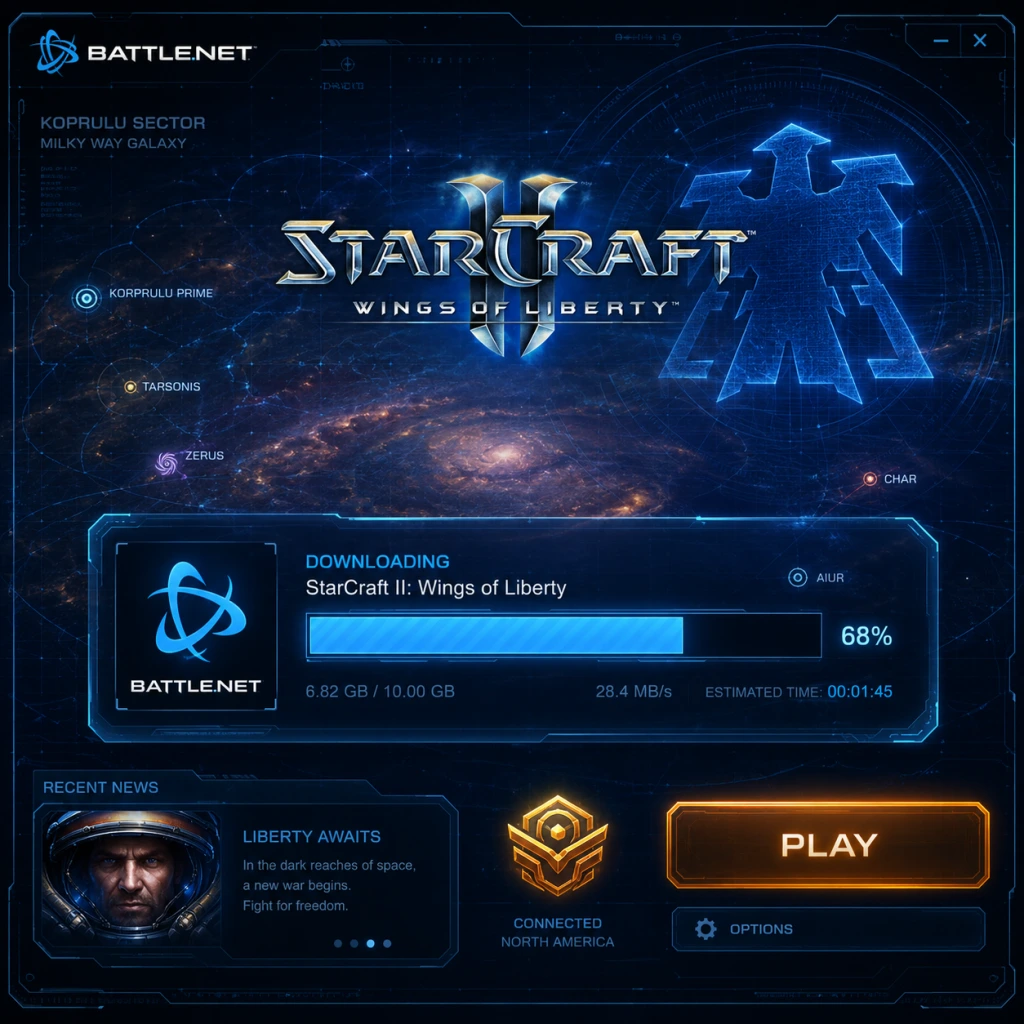
Download & Installation
Download & Installation Guide for StarCraft II: Wings of Liberty
StarCraft II: Wings of Liberty is a real-time strategy game developed by Blizzard Entertainment. As of November 2017, the game is free-to-play, including the full Wings of Liberty campaign, access to multiplayer, and co-op modes. The other campaigns (Heart of the Swarm and Legacy of the Void) are paid DLC. The game is available exclusively on PC (Windows and Mac) via two legitimate digital storefronts: the Blizzard Battle.net desktop app and Steam.
> Note: StarCraft II is not available on PlayStation, Xbox, Nintendo Switch, or mobile devices. This guide covers only PC platforms.
---
1. System Requirements
Before downloading, ensure your computer meets the minimum or recommended specifications.
Windows Minimum
| Component | Requirement |
|---|---|
| OS | Windows 7 / Windows 8 / Windows 10 (64-bit) |
| CPU | Intel Core 2 Duo or AMD Athlon 64 X2 5600+ |
| RAM | 2 GB |
| GPU | NVIDIA GeForce 7600 GT / ATI Radeon HD 2600 XT or Intel HD Graphics 3000 |
| Storage | 30 GB free space |
| Internet | Broadband connection |
Windows Recommended
| Component | Requirement |
|---|---|
| OS | Windows 10 (64-bit) |
| CPU | Intel Core i5 or AMD FX Series |
| RAM | 4 GB |
| GPU | NVIDIA GeForce GTX 650 / AMD Radeon HD 6950 |
| Storage | 30 GB free space (SSD recommended) |
| Internet | Broadband connection |
macOS Minimum
| Component | Requirement |
|---|---|
| OS | macOS 10.12 (Sierra) |
| CPU | Intel Core 2 Duo |
| RAM | 4 GB |
| GPU | NVIDIA GeForce GT 330M / ATI Radeon HD 4670 |
| Storage | 30 GB free space |
| Internet | Broadband connection |
macOS Recommended
| Component | Requirement |
|---|---|
| OS | macOS 10.14 (Mojave) or newer |
| CPU | Intel Core i5 |
| RAM | 8 GB |
| GPU | NVIDIA GeForce GT 750M / AMD Radeon R9 M290X |
| Storage | 30 GB free space (SSD recommended) |
| Internet | Broadband connection |
2. Choosing a Platform: Battle.net vs Steam
Both platforms offer the same game content and require a Blizzard account. Differences:
| Feature | Battle.net | Steam |
|---|---|---|
| Ownership | Directly through Blizzard | Through Steam, but links to Blizzard account |
| Updates | Auto-managed by Battle.net client | Handled by Steam |
| Friends | Blizzard friends list | Steam friends list (plus Blizzard) |
| DLC Purchases | Via Battle.net shop | Via Steam store (but DLC cross-platform?) |
| Achievements | In-game only | Steam achievements + in-game |
---
3. Installation via Blizzard Battle.net (Windows/macOS)
Step 1: Download the Battle.net Desktop App
- Go to the official Battle.net website: [https://www.blizzard.com/download/](https://www.blizzard.com/download/).
- Click the Download for Windows (or Download for Mac) button.
- Save the installer file (`Battle.net-Setup.exe` or `Battle.net-Setup.dmg`).
- Run the downloaded installer.
- Follow the on-screen instructions (default installation location is recommended).
- The installer will download the latest version of the Battle.net app.
- Once installed, the app will launch automatically.
- If you have an existing Blizzard account (from Warcraft, Overwatch, etc.), enter your email and password.
- If new, click Create a Free Account and follow the registration process (email verification required).
- In the Battle.net app, click on the Games tab at the top.
- Find StarCraft II in the list (it should appear as a free game). If not, use the search bar.
- Click Install.
- Choose your installation directory (ensure at least 30 GB free).
- Click Start Install.
- The app will download and install the game. Download size is approximately 25–30 GB depending on language options.
- You can choose Install Now to start immediately, or Install Later to schedule.
- Once installation is complete, click Play in the Battle.net app.
- The game will launch. The first time, it may need to configure graphics and download additional assets (shaders, etc.).
- Log in with your Blizzard account (usually already authenticated).
- You can now access the Wings of Liberty campaign, multiplayer, and co-op.
- Go to [https://store.steampowered.com/about/](https://store.steampowered.com/about/).
- Click Install Steam and download the client.
- Install Steam and create or log in to your Steam account.
- Open Steam and go to the Store tab.
- Search for "StarCraft II" (or use this direct link: [StarCraft II on Steam](https://store.steampowered.com/app/2201840/StarCraft_II/)).
- The game is listed as Free to Play. Click Play Game or Add to Account (it will be tied to your Steam library).
- After adding, go to your Library.
- Find StarCraft II and click Install.
- Choose a download location (Steam will keep the game files).
- Click Next and then Install.
- Steam will download and install the game (similar size as Battle.net: ~30 GB).
- Click Play in Steam.
- The game will launch. On the first start, it will ask you to link your Steam account with a Blizzard account.
- A pop-up will appear: log in to your existing Blizzard account, or create a new one. This linking is mandatory.
- After linking, the game will sync your progress (campaign saves, etc.) if you already played on Battle.net.
- You can now play. Achievements will appear both in-game and on Steam.
- Blizzard Account: Required regardless of platform. You must have or create one. It’s free.
- Steam Account: Only required if you install through Steam. The Steam version still requires a linked Blizzard account.
- No subscription: Multiplayer and all game modes are free. DLC campaigns are one-time purchases.
- The full installation (including all pre-rendered cinematics and high-res textures) takes approximately 30 GB. The download is about 25–30 GB depending on language packs.
- If you later add DLC campaigns, each additional campaign (~Heart of the Swarm, Legacy of the Void) adds roughly 5–8 GB.
- Co-op commanders and other content are included within the base installation via patches.
- Deleting language packs (e.g., non-English audio) can save space. Use the Battle.net app’s Installation Viewer under Options > Installation Viewer to manage.
- On Steam, you can modify language via Steam Properties > Language.
- The game automatically detects your hardware and sets a default quality (Low, Medium, High, Ultra).
- You can adjust these in Options > Graphics:
- For optimal performance, try the Recommended button based on your system.
- Choose your preferred language for audio and text.
- Subtitles can be enabled/disabled.
- On Battle.net, you can download multiple language packs via the app settings.
- Hotkeys: You can rebind keys via Options > Hotkeys. Advanced players can use the Standard or Grid layout.
- Mouse Sensitivity: Adjust in Options > Controls.
- Network: For multiplayer, ensure your firewall allows StarCraft II.
- Immediately after logging in, you can start the Wings of Liberty campaign from the main menu.
- The game will ask if you want to watch the opening cinematic (highly recommended).
- Your campaign progress is saved automatically to your Blizzard account (cloud sync).
- Fix: Pause and resume the download. Restart the Battle.net app or Steam client. Temporarily disable antivirus or firewall (if safe).
- On Battle.net, go to Settings > Downloads and change the Download Bandwidth Limit to 0 (unlimited) or try a different region.
- Fix: Run the Scan and Repair tool.
- If that fails, uninstall and reinstall. Ensure your hard drive is not failing.
- Fix: Open Task Manager, end all processes named `StarCraft II.exe` and `Blizzard Battle.net.exe` (or `Steam.exe` if via Steam). Restart the client.
- Try running the client as Administrator.
- Fix: Ensure you have at least 35 GB free before starting. Check the recycle bin and temporary files (use Disk Cleanup).
- The installer may require extra space for decompression.
- Fix: Update your graphics drivers to the latest version.
- On very old integrated graphics, the game may not run at all (check minimum requirements).
- Fix: Disable VPN or proxy. Flush DNS (ipconfig /flushdns in Command Prompt). Restart router.
- Configure firewall to allow `StarCraft II.exe` and the Battle.net/Steam clients.
- Fix: Log out of Steam and log back in. Ensure the game is in your library (free games require adding). If using family sharing, the owner must have the game.
- Main menu bottom-left corner shows the game version (e.g., 5.0.12). Ensure it matches the latest (Blizzard updates frequently).
- On Battle.net, the app will automatically update the game. On Steam, updates are handled automatically unless you paused them.
- Click Campaign > Wings of Liberty. The first mission should be available. If not, you may need to unlock it by completing the tutorial (if first time).
- Go to Multiplayer > Quick Match (or Custom Game). Try starting a match against AI or another player. If you get a network error, check your firewall.
- On Battle.net: Options > Scan and Repair.
- On Steam: Properties > Local Files > Verify Integrity of Game Files.
- This will take a few minutes and ensure no corrupted files.
- Launch the game, go to Options > Graphics. Use the Benchmark button (available in some versions) to test performance.
- If framerate is low, lower the Graphics Quality preset to Medium or Low.
- Your campaign progress is automatically saved to Blizzard’s cloud. If you played previously, your save should sync. If not, load from a local backup or check the Blizzard account recovery options.
- For Mac users: The Mac version is fully compatible with Apple Silicon (M1/M2) via Rosetta 2, but Blizzard has not released a native ARM build. Performance is still good.
- Language Packs: You can download additional languages via Battle.net app (Options > Installation Viewer > StarCraft II > Language). On Steam, change language in game properties.
- Offline Play: StarCraft II requires online authentication on first launch and periodic checks. However, once authenticated, you can play the campaign offline (but not multiplayer). On Battle.net, you can set the app to “Go Offline” after login. On Steam, set Steam to offline mode.
- Backing Up the Game Folder: If you want to move the game to another drive, you cannot simply copy the folder. Use the Battle.net app’s “Change Install Folder” option or Steam’s “Move Install Folder” feature (Library > right-click > Properties > Local Files > Move Install Folder).
- The base game includes everything (multiplayer, co-op, etc.). You can delete unnecessary language packs, but you cannot remove game modes. The download is all-in-one.
- Yes, campaign progress, achievements, and profile stats are stored on your Blizzard account, not the platform. When you log in via Steam (linking the account), all progress will be available. Steam achievements may unlock retroactively for some but not all.
- Not directly via copy-paste. However, you can create a backup via Battle.net (Options > Installation Viewer > StarCraft II > Export) and import on your machine. On Steam, you can copy the game folder to another computer’s Steam library and then verify files, but it’s trickier.
- This often indicates a conflict with overlays (Discord, GeForce Experience). Disable overlays. Also try running the game in windowed mode (add `-windowed` to launch options in Battle.net or Steam).
Step 2: Install the Battle.net App
Step 3: Create or Log in to Your Blizzard Account
Step 4: Install StarCraft II
Step 5: Launch and Play
---
4. Installation via Steam (Windows/macOS)
Step 1: Install Steam Client (if not already)
Step 2: Navigate to StarCraft II on Steam
Step 3: Install via Steam
Step 4: First Launch via Steam
---
5. Account Requirements
---
6. Storage Space Details
---
7. First Launch Setup
After installing and logging in for the first time, you will encounter:
Graphics Configuration
- Resolution
- Graphics quality preset
- Texture quality (High requires more VRAM)
- Shadow quality, effects, etc.
Sound and Language
Game Settings
Campaign Start
---
8. Common Installation Errors and Fixes
Error: "Installation stuck at 0%" / "Download slow"
Error: "Corrupted files detected" / "An error occurred while installing"
- Battle.net: Click the game icon, select Options (gear icon) > Scan and Repair.
- Steam: Right-click StarCraft II > Properties > Local Files > Verify Integrity of Game Files.
Error: "Failed to launch" / "Application is already running"
Error: "Not enough storage space" even after freeing space
Error: "GPU driver not supported" or crash on launch
- NVIDIA: GeForce Experience
- AMD: Adrenalin
- Intel: Intel Driver & Support Assistant
Error: "BLZBNTAGT00000BB8" or network errors
Error: Steam version shows "No license" or "Product not owned"
---
9. Post-Installation Verification
After the installation completes and the game launches successfully, perform these checks to ensure everything is working:
Verify Game Version
Check Campaign Accessibility
Test Multiplayer
Verify File Integrity (Optional but Recommended)
Adjust Graphics for Performance
Check Cloud Saves (For Campaign)
---
10. Additional Tips
---
11. Troubleshooting Additional Scenarios
I want to play only the Wings of Liberty campaign but the installer downloads all content. Can I reduce size?
I previously played on Battle.net and now want to play on Steam. Will my progress transfer?
I have a slow internet connection. Can I download the game from a friend’s computer?
The game crashes after the Blizzard logo.
---
12. Final Notes
StarCraft II: Wings of Liberty is a fantastic free RTS title. Download it from either Battle.net or Steam—both are legitimate. Ensure your system meets the requirements, free up at least 35 GB of space, and have a stable internet connection. If you encounter issues, the community forums and Blizzard support are excellent resources.
Enjoy commanding the Terran Dominion, and remember: “Hell, it’s about time.”