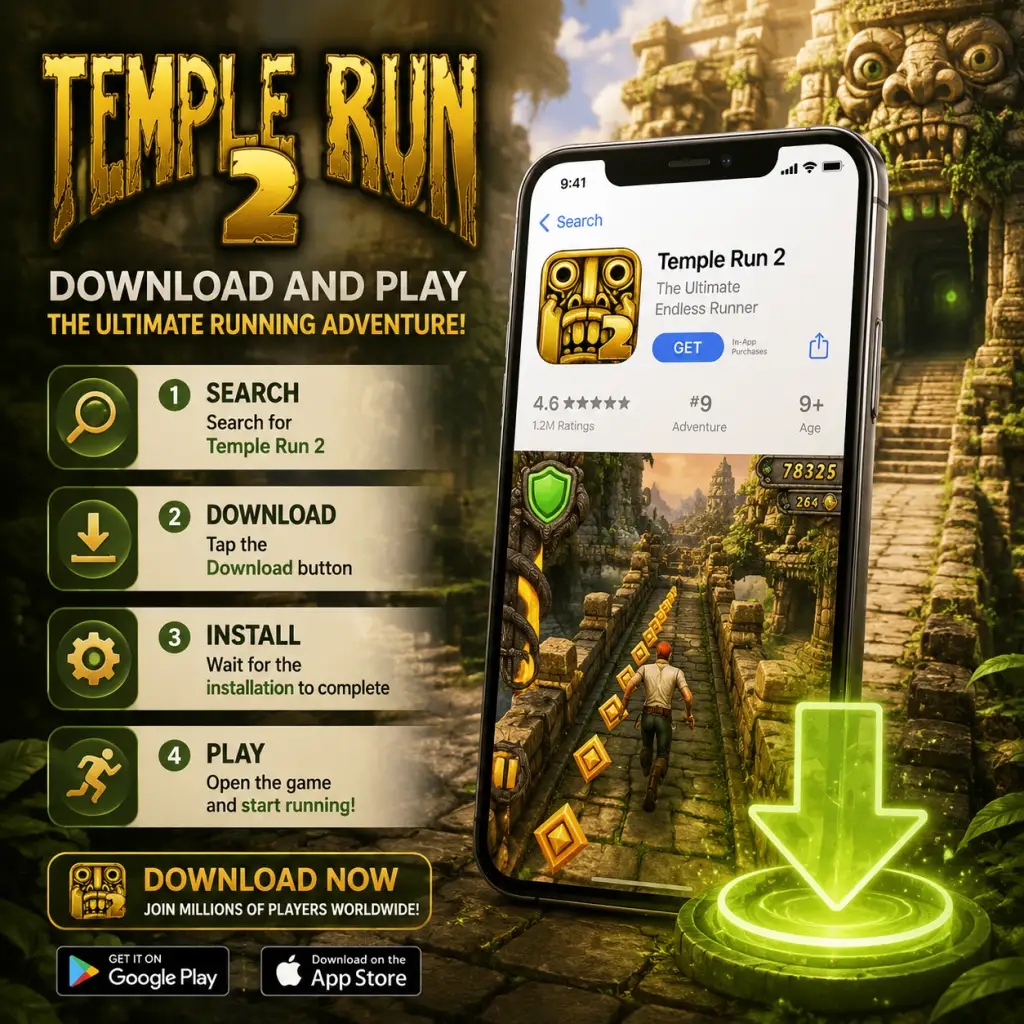
Download & Installation
Overview
Temple Run 2 is a popular endless runner game developed by Imangi Studios. Originally released for mobile devices, it is also available on Windows 10/11 via the Microsoft Store. The game is not available on Steam, Epic Games Store, PlayStation, Xbox, or Nintendo Switch. This guide covers official download sources, step-by-step installation, system requirements, account prerequisites, first launch settings, common errors, and post-installation verification.
Supported Platforms
- iOS (iPhone, iPad, iPod touch) – via Apple App Store
- Android (phones, tablets) – via Google Play Store or Amazon Appstore
- Windows (PC, tablets) – via Microsoft Store (Windows 10 version 14393.0 or higher)
System Requirements
Mobile (iOS & Android)
| Requirement | iOS | Android |
|---|---|---|
| OS Version | iOS 9.0 or later | Android 4.1 (Jelly Bean) or later |
| Device | iPhone 4S+, iPad 2+, iPod touch 5th gen+ | Varies; most modern devices supported |
| Storage | ~300 MB free space | ~300 MB free space |
| RAM | 512 MB or more (recommended 1 GB) | 1 GB or more recommended |
| Internet | Required for initial download and optional cloud saves | Required for initial download and optional cloud saves |
Windows (Microsoft Store)
| Component | Minimum | Recommended |
|---|---|---|
| OS | Windows 10 version 14393.0 or higher | Windows 10 version 1903+ or Windows 11 |
| Architecture | x86, x64, ARM | x64 or ARM64 |
| RAM | 2 GB | 4 GB or more |
| Storage | 1 GB free space | 1 GB free space |
| Graphics | DirectX 10 compatible GPU | DirectX 11 compatible GPU |
| CPU | 1 GHz dual-core | 1.6 GHz quad-core |
Download Sources (Official & Legitimate)
| Platform | Official Store | Link / How to Access |
|---|---|---|
| iOS | Apple App Store | Search "Temple Run 2" or visit [App Store](https://apps.apple.com/us/app/temple-run-2/id572099587) |
| Android | Google Play Store | Search "Temple Run 2" or visit [Google Play](https://play.google.com/store/apps/details?id=com.imangi.templerun2) |
| Android (alternative) | Amazon Appstore | Search inside Amazon Appstore app on compatible devices |
| Windows | Microsoft Store | Search "Temple Run 2" or visit [Microsoft Store](https://www.microsoft.com/store/productId/9WZDNCRFJB1T) |
Step-by-Step Installation
iOS (iPhone/iPad)
1. Open the App Store app on your iOS device.
2. Tap the Search tab (magnifying glass icon) at the bottom.
3. Type "Temple Run 2" in the search bar and tap Search.
4. Locate the official app by Imangi Studios (icon shows a jungle temple with a running figure).
5. Tap the Get button (or the cloud icon if previously purchased).
6. Authenticate using Face ID, Touch ID, or your Apple ID password.
7. Wait for the download to complete. The app will appear on your home screen.
Android (Google Play)
1. Open the Google Play Store app.
2. Tap the Search bar at the top.
3. Enter "Temple Run 2" and press Enter.
4. Select the result by Imangi Studios.
5. Tap the Install button.
6. Review permissions (e.g., storage, network) and tap Accept.
7. The game will automatically download and install. Tap Open to launch.
Windows (Microsoft Store)
1. Open Microsoft Store from your Start menu or taskbar.
2. Click the Search icon (magnifying glass) in the top-right corner.
3. Type "Temple Run 2" and select the game from the dropdown.
4. On the game page, click Get (or Install if you already own it).
5. If prompted, sign in with your Microsoft account (required).
6. Click Next and accept the license terms.
7. Wait for the download and installation to finish. You can launch from the Install button or from your Start menu.
Account Requirements
| Platform | Required Account | Purpose |
|---|---|---|
| iOS | Apple ID | Needed to download from App Store (free). No separate in-game account required. |
| Android | Google account | Needed to access Google Play Store. Optional for cloud saves via Google Play Games. |
| Windows | Microsoft account | Required to download from Microsoft Store. Optional for Xbox Live features if enabled. |
First Launch Setup
1. After installation, tap/click the game icon to launch.
2. Permissions: On mobile, you may be asked to allow access to storage (for saving progress) and notifications (optional). On Windows, no special permissions are requested.
3. Tutorial: The game automatically starts with a brief tutorial showing basic controls (swipe to turn, tap to jump, etc.). You can skip it if already familiar.
4. Optional Login:
- On iOS: A popup may ask to connect to Game Center or Facebook. You can skip or accept.
- On Android: You may be prompted to sign in to Google Play Games for achievements and cloud saves.
- On Windows: You may see an option to sign in with your Xbox Live account (if available).
5. Update Check: The game may check for updates on first launch. Ensure you have an internet connection.
Common Installation Errors and Fixes
Error: Insufficient Storage
- Symptom: Download fails or shows "Not enough space."
- Fix: Free up space by deleting unused apps, photos, or files. On iOS, go to Settings > General > iPhone Storage. On Android, go to Settings > Storage. On Windows, use Disk Cleanup or uninstall large programs. Minimum requirements: Mobile ~300 MB; Windows ~1 GB.
- Symptom: "This app is not compatible with your device." on the store page.
- Fix: Check system requirements. For Android, ensure your device runs Android 4.1+ and has a compatible GPU. For iOS, device must be iPhone 4S or newer / iPad 2 or newer. For Windows, OS must be Windows 10 version 14393.0 or higher. If still incompatible, you cannot run the game on that device.
- Symptom: Download bar does not move or takes extremely long.
- Fix:
- Symptom: Error code like 0x80073CFD or 0x80070005.
- Fix:
- Symptom: Game closes immediately after showing splash screen.
- Fix:
Error: Incompatible Device
Error: Download Stuck / Slow
- All platforms: Pause and resume the download. Restart the store app or device.
- iOS: Go to App Store > Updates tab > pull to refresh. Or sign out and back into your Apple ID.
- Android: Go to Settings > Apps > Google Play Store > Clear cache. Also ensure Wi-Fi is stable.
- Windows: Run the Windows Store Apps troubleshooter (Settings > Update & Security > Troubleshoot > Additional troubleshooters). Also flush the DNS or reset the Store cache using `wsreset.exe`.
Error: Installation Failed (Windows Store)
- Ensure your Microsoft account is properly signed in.
- Run the Windows Update to ensure all system files are up to date.
- Temporarily disable antivirus and firewall.
- Reset the Store cache: Press `Win + R`, type `wsreset.exe`, press Enter.
- Re-register the Store: Open PowerShell as admin and run `Get-AppXPackage Microsoft.WindowsStore | Foreach {Add-AppxPackage -DisableDevelopmentMode -Register "$($_.InstallLocation)\AppxManifest.xml"}`
Error: App Crashes on Launch
- Update the app to the latest version (check store for updates).
- On Android, clear app data: Settings > Apps > Temple Run 2 > Storage > Clear data (note: this may erase local progress if not synced).
- On iOS, offload the app: Settings > General > iPhone Storage > Temple Run 2 > Offload App, then reinstall.
- On Windows, repair the app: Settings > Apps > Apps & features > Temple Run 2 > Advanced options > Repair or Reset.
Post-Install Verification
1. Launch the game and wait for the main menu to load.
2. Check version number (usually visible in the settings or bottom of screen). Ensure it matches the latest version available on the store (you can compare by viewing the store page).
3. Test basic controls: Swipe in any direction on mobile, or use arrow keys/mouse on Windows (if supported). The game should respond smoothly.
4. Check for updates: On mobile, visit the store and check if there is an "Update" button. On Windows, open Microsoft Store, click the three dots (…) > Downloads and updates > Get updates.
5. Verify cloud sync (optional): If you signed into Game Center / Google Play / Xbox Live, play a few runs, then check if your achievements or leaderboard scores appear.
6. Storage usage: Confirm the app size is reasonable (approx. 200-400 MB on mobile, ~500 MB on Windows). You can check in device settings.
If everything runs without errors, your installation is successful. Enjoy the endless running adventure!