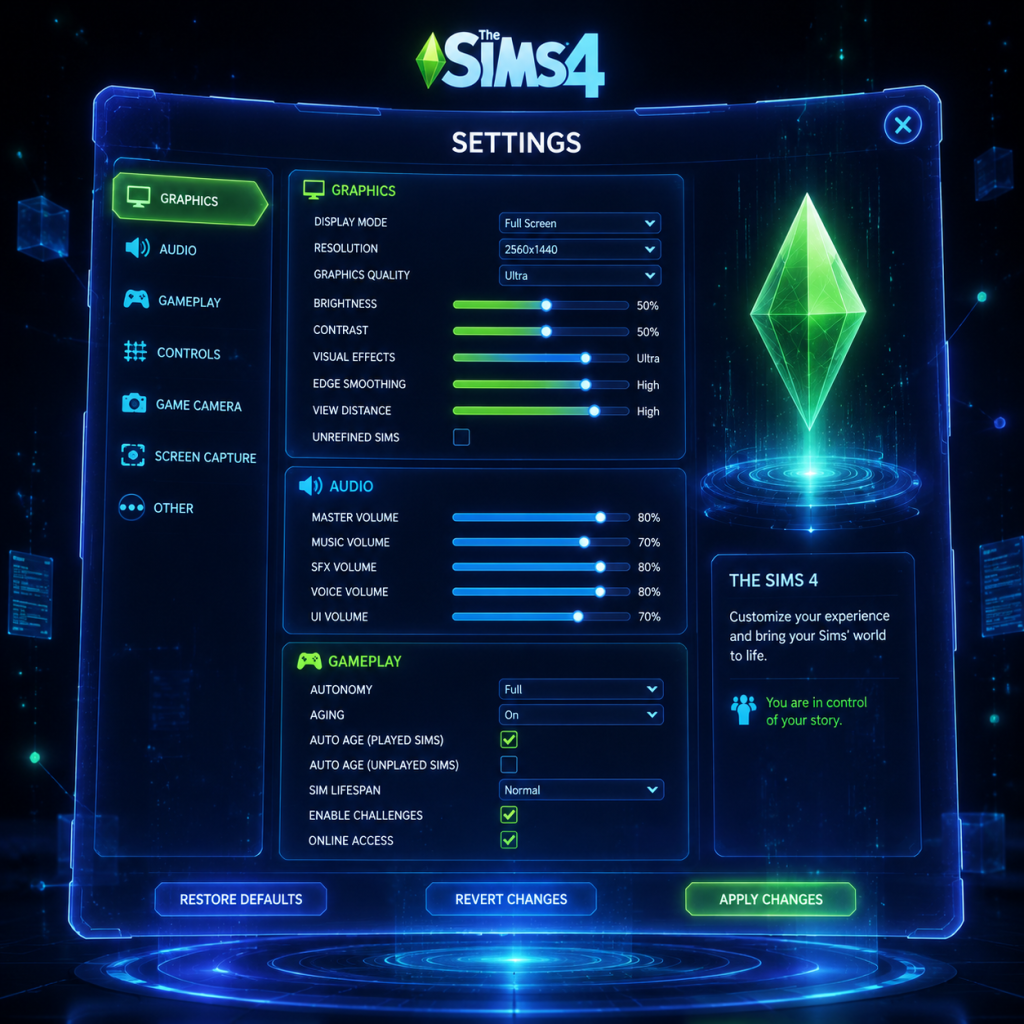
Game Settings
Game Settings
This section covers every settings category in The Sims 4, providing recommendations for different hardware tiers, explaining tricky options, and highlighting common misconfigurations. Settings are accessible from the main menu or via Esc > Game Options in-game.
1. Graphics Settings
Graphics are the most performance-critical category. The Sims 4 uses an older engine, but it can still tax low-end systems if settings are too high.
#### Key Graphics Options
| Setting | Description | Recommendations |
|---|---|---|
| Sims | Controls detail level of Sims (faces, skin, clothing). | Low/Medium for performance; High/Very High for quality. |
| Objects | Detail of furniture, plants, clutter. | Medium is a good balance. High can impact frame rate in cluttered lots. |
| Lighting & Shadows | Shadow quality, sun shadows, and ambient occlusion. | Low or Medium shadows for performance. Shadows are computationally expensive. |
| Reflections | Screen-space reflections (on water, windows). | Off or Low unless you have a dedicated GPU with 4GB+ VRAM. |
| Visual Effects | Particle effects (fire, sparkles, weather). | Medium generally safe. High can cause slowdowns during magic/weather. |
| Edge Smoothing (AA) | Anti-aliasing to reduce jagged edges. | FXAA is lightest; TAA is higher quality but more GPU-intensive. |
| View Distance | How far you can see in the neighborhood. | Medium recommended. High drains performance without much gain. |
| Post Processing | Bloom, depth of field. | Turn Off for performance. Depth of field can blur UI elements. |
| Tier | Typical Hardware | Recommended Preset | Notes |
|---|---|---|---|
| Low-End | Integrated graphics (Intel UHD, AMD Vega 3), 4GB RAM | Low preset or manually turn down all settings to minimum | Lower resolution to 720p if needed. Disable laptop mode (it disables shadows but can cause glitches). |
| Mid-Range | GTX 1050 / RX 560 / Intel Iris Xe, 8GB RAM | Medium preset, with shadows on Low, AA off or FXAA | Can often run High Sims detail with Medium objects. |
| High-End | GTX 1660 / RTX 2060 / RX 5600, 16GB RAM | High preset, with shadows on Medium-High, TAA enabled | Disable Post Processing if you prefer gameplay over eye candy. |
| Ultra | RTX 3070+ / RX 6800+, 32GB RAM | Ultra preset, everything maxed | Even on Ultra, the game rarely uses more than 4GB VRAM. Watch for CPU bottlenecks in busy neighborhoods. |
- Laptop Mode: Enables dynamic resolution scaling but disables shadows and reflections. While it boosts FPS, it often causes Sims to appear blurry or pixelated. Only use if absolutely necessary (e.g., 2GB VRAM).
- Uncompressed Sim Textures: Found in the advanced graphics options. Keep OFF unless you have 6GB+ VRAM. It drastically increases memory usage with minimal visual gain.
- 3D Scene Resolution: Controls the internal render resolution. Setting it above 100% (e.g., 150%) can sharpen textures but heavily impacts performance. Leave at 100%.
- Master Volume: Overall sound level.
- Music Volume: Background music (CAS, Build Mode, neighborhood).
- SFX Volume: Sound effects (interactions, clicks, environment).
- Voice Volume: Sim voices and gibberish. Turn down if playing in a quiet space or if you find it distracting.
- UI Volume: Menu clicks and notifications. Keep sufficiently loud to hear important alerts (e.g., moodlet changes).
- Enable/Disable 3D Audio: Simulates positional audio. Keep On for immersion. Can cause echo effects in small rooms if audio hardware is low-quality.
- Headphones Channel: Explicitly select Headphones if using headphones to avoid cavernous sound.
- Set Master to 80% and adjust others relative to your environment.
- For laptops with poor built-in speakers, reduce Music and increase SFX and Voice.
- 3D Audio: If you experience crackling or metallic echoes, turn it off and switch to Stereo mode.
- Key Mappings: All actions are rebindable. Most players leave defaults, but consider rebinding camera rotation (default: Alt+Mouse) to something more comfortable (e.g., Middle Mouse Button).
- Camera Style: The Sims 3 (follow) vs The Sims 4 (free). Sims 3 style lets you rotate by holding right-click; Sims 4 uses edge-scrolling and Q/E for rotation. Try both; many veterans prefer Sims 3 style for building.
- Invert Y Axis: Only for camera rotation. Most leave unchecked.
- Zoom Speed: Adjust to suit mouse wheel sensitivity. Fast is fine for most.
- Control Presets: Choose from default or alternate (e.g., swapped triggers/bumpers).
- Camera Speed: Set to highest for quick navigation.
- Cursor Sensitivity: Only relevant when using controller cursor in build mode. Increase if cursor feels sluggish.
- Vibration: Turn off for longer sessions to save battery/reduce fatigue.
- CAMERA CONTROLS: New players often get stuck because they don't realize they can zoom in/out with scroll wheel or rotate with right-click. The Camera Walkthrough tutorial in the help menu is worth a quick run.
- BUILD MODE SHORTCUTS: Many players accidentally press F5 (floor up/down) or F6 (foundation). If your Sim gets stuck, check you haven't toggled a floor level.
- Subtitle Size: Small, Medium, Large. Recommended Medium or Large for readability.
- Subtitle Background: Toggle background box behind subtitles. Turn ON if you have visual contrast issues.
- Speech Bubble Opacity: Controls opacity of thought bubbles above Sims. Reduce to 50% if bubbles are distracting.
- UI Scale: Adjust size of interface elements. 100% is standard. Increase to 125% or 150% for 4K monitors or if you have vision difficulties.
- Colorblind Filters: Deuteranopia, Protanopia, Tritanopia modes. Only affects moodlet colors and some UI elements. Not comprehensive.
- Auto-Select Live Mode Objects: When enabled, clicking on a Sim in Live Mode automatically selects them. Disable if you prefer manual selection (prevents accidental swapping).
- UI Scale at 4K: The game's UI does not scale perfectly. At 150% scale, some buttons may clip or overlap. If you encounter issues, try 125% or run the game at 2560x1440 resolution instead.
- Subtitle Background: If you use subtitles, enable background to ensure text is readable against any game scene.
- Language: Changes all text, voiceovers (Sims gibberish remains but menu text changes). Available languages: English, French, German, Italian, Spanish, Japanese, Korean, Portuguese-Brazil, Russian, Chinese (Simplified/Traditional), Polish, Dutch, Swedish, etc.
- Voiceover Language: Separate from text; not all expansions have full voiceover support. Defaults to same as interface.
- The game does not allow changing language mid-save without potential UI glitches. Always set language before starting a new save.
- Some mods (e.g., UI cheats) may break if your game language differs from the mod's intended language.
- Online Access: From main menu > Account > Sign In. Ensure you're connected for Gallery.
- Gallery Sharing: Toggle Allow Custom Content and Show Mature Content filters if you want to see more creations.
- Game Updates: Automatic via EA App, Steam, or console. You can pause updates but must install to play online.
- Offline Mode: Playable fully without internet after logging in once. To play offline on PC: launch EA App > Go Offline > launch Sims 4.
- Network lag only affects Gallery browsing. If you experience slowdowns in build mode while online, you can disable the Gallery auto-refresh in Game Options > Other > Enable Gallery Auto-Refresh.
---
2. Audio Settings
Audio settings are straightforward but affect immersion and system compatibility.
#### Key Audio Options
#### Recommendations
---
3. Controls Settings
Customize keyboard and mouse, or controller for console/PC.
#### PC (Keyboard & Mouse)
#### Console (PS4/PS5, Xbox)
#### Easy-to-Misconfigure Controls
---
4. Accessibility Settings
The Sims 4 offers limited but helpful accessibility options.
#### Special Attention Points
---
5. Language Settings
Set from the main menu before loading a save.
#### Notes
---
6. Network Settings
The Sims 4 requires an internet connection only for logging in to EA servers, downloading content, or online features (Gallery, multiplayer events).
#### Performance Impact
---
7. Gameplay Settings
These control the behavior of the game world, Sims, and progression.
#### Key Gameplay Options
| Setting | Description | Recommendation |
|---|---|---|
| Auto Age (Unplayed Sims) | NPCs age over time. | ON for realism; OFF if you want townies to stay young forever. |
| Auto Age (Played Sims) | Sims in your active household age. | ON for legacy challenges; OFF for sandbox. |
| Story Progression | NPCs can marry, have children, etc. (base game only limited; enhanced by mods). | ON for a living world. |
| Enable Cheats | Allows using cheat codes (e.g., `testingcheats true`). | Leave ON if you want debug freedoms; turn OFF for vanilla achievements/disables tracking. |
| Autonomy | Controls whether Sims make their own choices. | Full is default and fun. Off requires manual control (useful for challenges). |
| Emotional Death | (If you have Seasons or other packs) Sims can die from extreme emotions (embarrassment, rage). | ON for gameplay; OFF if you want to prevent accidental deaths. |
| Household Moves | Allow or restrict moving household members to other lots. | ON unless you want strict control. |
| Time Scale | (With mods or cheats only) Adjust speed of passage of time. Not natively adjustable. | N/A. |
- Auto Age (Unplayed Sims): Many players accidentally turn this off, then wonder why their town never changes. Leave ON for a dynamic world.
- Enable Cheats: Even if you never cheat, having this ON does not harm anything. But if you like seeing achievement notifications (e.g., “Completed 10 Sims”), turn it OFF. Note: Disabling cheats after using them will still block new achievements. That setting only applies to future gameplay.
- Autonomy: Beginners sometimes turn autonomy off because they think Sims will misbehave. But without autonomy, Sims will stand still until you command them, which can be boring. Leave Full and let chaos happen.
#### Special Attention Points During Setup
1. First Launch: After installing, the game will prompt language, graphics detection, and EA login. Let it detect recommended settings, then manually adjust based on this guide.
2. Laptop Users: The game often enables Laptop Mode automatically on laptops with integrated GPU. Turn it off immediately if performance is acceptable, as it reduces visual quality significantly.
3. Mods/CC Disclaimer: If you install custom content, revisit the Graphics tab to ensure texture memory isn't exceeded. The game may crash if you have many high-poly CC items.
4. Save before Changing Critical Settings: Some changes (like enabling uncompressed textures) require a restart. Save your game before applying to avoid losing progress.
---
Summary Table of Quick Recommendations
| Setting Category | Low-End PC | Mid-Range PC | High-End PC | Console |
|---|---|---|---|---|
| Graphics Preset | Low | Medium | High/Ultra | Auto-Detect (usually Medium-High) |
| Shadows | Low/Off | Medium | High | Medium |
| Edge Smoothing | Off | FXAA | TAA | TAA |
| Post Processing | Off | Off | On | On |
| Audio 3D | Off (if crackling) | On | On | On |
| Autonomy | Full | Full | Full | Full |
| Auto Age Unplayed | On | On | On | On |
By carefully tuning these settings, you can ensure The Sims 4 runs smoothly and looks good on any system. Always test changes in a new save before committing to a long-running legacy.