Game Settings
Game Settings Guide for The Witcher 3: Wild Hunt
Overview
The Witcher 3: Wild Hunt received a major Next-Gen Update (version 4.0+) in late 2022, introducing ray tracing, DLSS/FSR, and many new settings. This guide covers all settings categories and provides optimized recommendations for different hardware tiers. The game is available on PC (Steam, GOG, Epic), PlayStation 4/5, Xbox One/Series X|S, and Nintendo Switch. Settings may vary by platform.
Graphics Settings
Key Options
- Display Mode: Fullscreen, Borderless Window, Windowed. Fullscreen offers best performance.
- Resolution: Native monitor resolution recommended unless using dynamic scaling.
- Frame Rate Cap: Set to monitor refresh rate (60, 120, 144, etc.).
- V-Sync: On to avoid screen tearing; off can reduce input lag with G-Sync/FreeSync.
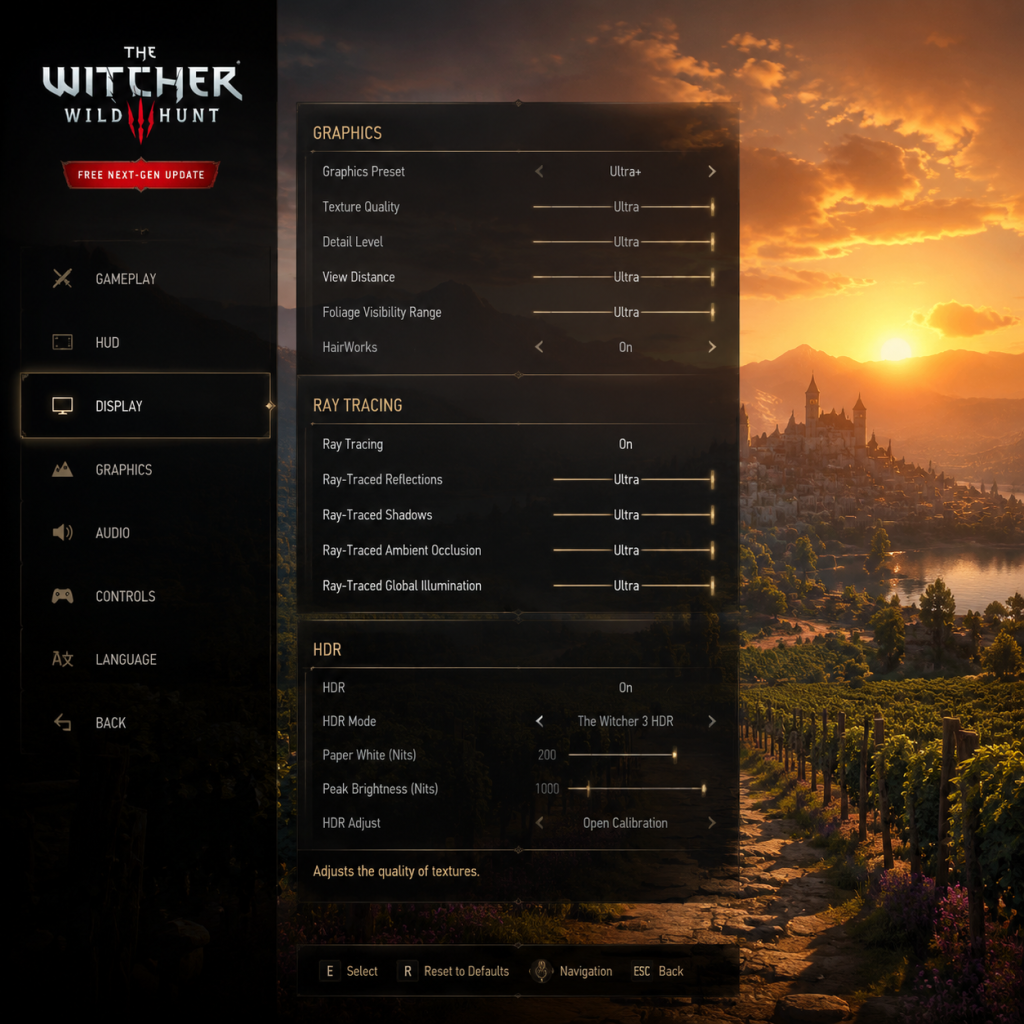
- Graphics Preset: Low, Medium, High, Ultra/Ultra+. Custom tweaking often yields better performance/quality balance.
- Dynamic Resolution Scaling (DRS): Automatically lowers resolution during heavy scenes. Enable for consistent FPS.
- NVIDIA HairWorks: Simulates detailed hair/fur. Extremely demanding. Low/Off on midrange or below; High on high-end with overhead.
- Ambient Occlusion: SSAO (low), HBAO+ (medium/high), RT Ambient Occlusion (extremely demanding). For most, HBAO+ offers good quality.
- Anti-Aliasing: TAA, FXAA Off. TAA recommended; FXAA blurs slightly.
- Texture Quality: Affects VRAM. Ultra requires 4-6GB+. Low/Medium for 2-4GB cards.
- Shadow Quality: Low to Ultra. Medium is good balance.
- Terrain Quality: Affects grass detail and draw distance.
- Water Quality: Low to Ultra. High looks nice without huge cost.
- Foliage Visibility Range: Controls how far grass/trees render. Lowers for performance.
- Level of Detail (LOD): Affects model detail distance. Keep high for quality.
- Background Characters: On/Off. Off saves performance.
- Ray Tracing: RT Reflections, RT Shadows, RT Ambient Occlusion, RT Global Illumination (only in DX12 mode). Very GPU intensive. On high-end cards only.
- DLSS / FSR / XeSS: Upscaling technologies. DLSS Quality or Balanced on RTX; FSR on AMD/others. Performance mode for higher FPS.
- Sharpening: Optional; can improve clarity.
Optimized Settings by Hardware Tier
| Setting | Low-End (GTX 1050 Ti, 2-4GB VRAM, 1080p) | Mid-Range (RTX 2060, 6GB, 1080p-1440p) | High-End (RTX 3070, 8GB, 1440p) | Ultra (RTX 4090, 4K) |
|---|---|---|---|---|
| Preset | Low (then tweak up) | High (then tweak down) | Ultra+ with RT | Ultra+ with RT |
| Resolution | 1080p or 900p | 1080p or 1440p | 1440p or 4K DLSS Performance | 4K native or DLSS Quality |
| DRS | On (target 30-60 FPS) | On if needed (target 60 FPS) | Off (stable FPS) | Off |
| HairWorks | Off | Off | Low (or Off) | Low (or Off) |
| Ray Tracing | Off | Off | On (Reflections + Shadows only) | All RT on (may need DLSS) |
| DLSS/FSR | N/A (too old) or FSR Performance | FSR Quality or DLSS Balanced | DLSS Quality or FSR Quality | DLSS Quality |
| Textures | Medium | High | Ultra | Ultra+ |
| Shadows | Low | Medium | High | Ultra |
| Ambient Occlusion | Off | SSAO | HBAO+ | RT AO or HBAO+ |
| Foliage | Medium | High | Ultra | Ultra+ |
| Water | Low | High | High | Ultra |
Audio Settings
- Master Volume / Music Volume / SFX Volume / Dialogue Volume: Adjust relative levels. Dialogue should be prominent for story.
- Subtitles: On/Off. Highly recommended to enable even if you understand the language, for clarity during combat and accents.
- Subtitles Language: Match voice or separate.
- Audio Dynamic Range: Headphones, TV, Speakers. Choose Headphones for best directional audio.
- Spatial Audio: Windows Sonic, Dolby Atmos (supported on Xbox/PC for compatible headphones). Enhances immersion.
- Language: Interface and Voice language packs (English, Polish, French, German, Chinese, Japanese, etc.). Note that voice language affects lip-sync only for Polish (original) and English. Others may have slight mismatch.
- Sensitivity: Mouse sensitivity for camera. Adjust to personal taste.
- Invert Y axis: Off by default.
- Key Bindings: Fully customizable. Common remaps: dodge to mouse side button, sign selection to keys.
- Quick Sign Casting: A critical setting. In Next-Gen update, you can enable "Quick Casting" (hold a key and press mouse button to cast sign without opening radial menu). Recommended to enable for smoother combat.
- Interaction Delay: Default is fine.
- Sensitivity and Inversion: Similar.
- Button Mapping: Presets (Standard, Alternate, etc.). "Alternate" changes dodge to B and roll to A+B? Check inside game.
- Vibration: On/Off.
- Trigger Dead Zone: Adjust if triggers are too sensitive.
- Stick Dead Zone: Important for fixing stick drift. Increase slightly if camera moves without input.
- Quick Sign Casting (Controller): Hold RB (Xbox) or R1 (PS) and press face button to cast sign. Enable in gameplay settings.
- Aim Assist: For crossbow and signs. Can be adjusted or turned off.
- Difficulty Level: Choose from "Just the Story!", "Story and Sword!", "Blood and Broken Bones!", "Death March!". Lower difficulties auto-pause meditation and reduce enemy aggression. Death March forces you to be tactical.
- Auto-apply Oils: (Next-Gen addition) Automatically applies correct oil to your sword when entering combat. Saves inventory management.
- Auto-apply Blade Enhancement: Similarly applies blade oils.
- Auto-loot: Not available by default – only through mods.
- Subtitle Size: Adjustable in Options -> Video -> HUD Configuration. Larger sizes help readability.
- Color Blind Modes: Not officially built-in, but HUD customization can help. Some users rely on mods.
- Camera Options: Set default distance during combat/exploration (close/far). "Combat Camera Distance" far recommended.
- Motion Blur: On/Off. Turn off for clarity; on for cinematic feel.
- Depth of Field: On/Off. May cause eye strain; off for accessibility.
- Fish-Eye Effect (Cat Potion): Can be disabled in settings (Rendering tab?).
- Controller Remapping for special needs.
- Interface Language: Choose display text language.
- Voice Language: Multiple options. Downloadable language packs via Steam/GOG.
- Subtitles Language: Can be different from voice. Useful to hear original voice while reading native language.
- Speech Volume: Subcategory.
- Cloud Saves: Enable in GOG Galaxy, Steam Cloud, or Epic to sync across devices.
- Automatic Updates: Keep enabled to receive patches and DLC.
- Community Content (console/PC): Enable user-generated markers? (Not sure if standard). On PC, Steam Workshop does not exist; mods are manual.
- GOG Galaxy Overlay: Useful for screenshots/friends.
- Quick Sign Casting: As mentioned in Controls, enable for faster combat.
- Controller Schemes: Standard vs. Alternate. Alternate changes dodge to B, roll to LB+RB. Try both.
- Autosave Frequency: Every 5, 10, 15 minutes, or manually only. Set to frequent if you tend to die often.
- Meditation Auto-heal: Only on lower difficulties. On Death March, meditation does not heal.
- Level Scaling: Enable to make enemies scale with your level, keeping challenge. Some quests become easier without. Recommend off for first playthrough.
- HUD Configuration: Toggle mini-map, health bars, quest objectives, enemy health, XP notifications, etc. You can hide elements for immersion or show all for information.
- Combat Camera: Auto switch to close-up during combat. Can be set to manual.
- Lock-on: Auto or Manual: Auto-lock targets closest enemy; manual lock with a button. Many prefer manual.
- Aiming Sensitivity: For crossbow and signs.
- First time players: Set difficulty to "Story and Sword!", enable subtitles, enable Quick Sign Casting, set autosave to 5 min, turn off HairWorks, use High preset (or Ultra on strong PCs), and adjust DRS if needed.
- Performance seekers: Low preset, DRS on, all extra effects off, prioritize 60 FPS even on low-end.
- Visual purists: Max out except HairWorks, RT on, use DLSS Performance if necessary, and accept 30-45 FPS if hardware cannot hit 60.
Special Attention: The Polish voice acting is widely praised as the original, but English is also excellent. If you want authenticity, choose Polish audio with English subtitles. Audio dynamic range setting "Headphones" is optimal for most players and can help hear faint footsteps and whispers.
Controls Settings
Mouse & Keyboard
Controller (Gamepad)
Special Attention: The Quick Sign Casting feature (introduced in Next-Gen update) is essential for fluid combat. Without it, you must open radial menu slowing down fights. Enable it immediately. For controllers, stick dead zone adjustments can eliminate drift issues without replacing hardware.
Accessibility Settings
Language Settings
Special Attention: Voice and interface language are separate. If you want Polish voices with English UI, set Interface to English, Voice to Polish. Ensure subtitles match.
Network Settings
(Note: The Witcher 3 is single-player, no multiplayer. Network settings are limited.)
Special Attention: If you use Steam, ensure cloud saves are active to protect progress. For GOG Galaxy, the "Cross Save" feature allows transferring saves between PC and Nintendo Switch (if you own both versions).
Gameplay Settings
Special Attention: Autosave frequency should be set to 5 minutes if you are on Death March difficulty. Level Scaling should be used cautiously: some witcher gear quests become impossible if enemies scale too high. HUD elements like the mini-map can be scaled or turned off. Many players disable the mini-map for greater exploration immersion.
Settings That Are Easy to Misconfigure
1. HairWorks: Disabled by default but many enable it for beauty. It can tank FPS. If your FPS drops below 30, turn it off.
2. Dynamic Resolution Scaling (DRS): Default is off. Turning it on can smooth out performance dips without major visual degradation. Good for mid-range.
3. Quick Sign Casting: Not obvious in menus. Look under Gameplay or Controls. Without it, combat feels clunky.
4. Controller Dead Zone: If your controller has drift, adjusting dead zone can fix it. Many don't know this option exists.
5. Subtitle Size: Very small by default. Change to large if you have difficulty reading text.
6. Auto-apply Oils: New option in Next-Gen update. If you forget to apply oils manually, enable this.
7. Ray Tracing: It's tempting to turn everything to maximum, but RT can cut FPS in half. Only enable on powerful systems with upscaling.
8. Voice Language Pack: If you download Polish but didn't install it, it may default to something else. Check in settings after install.
Final Recommendations
Remember that personal preference matters; tweak settings individually until you find the balance between visual quality and smooth gameplay.