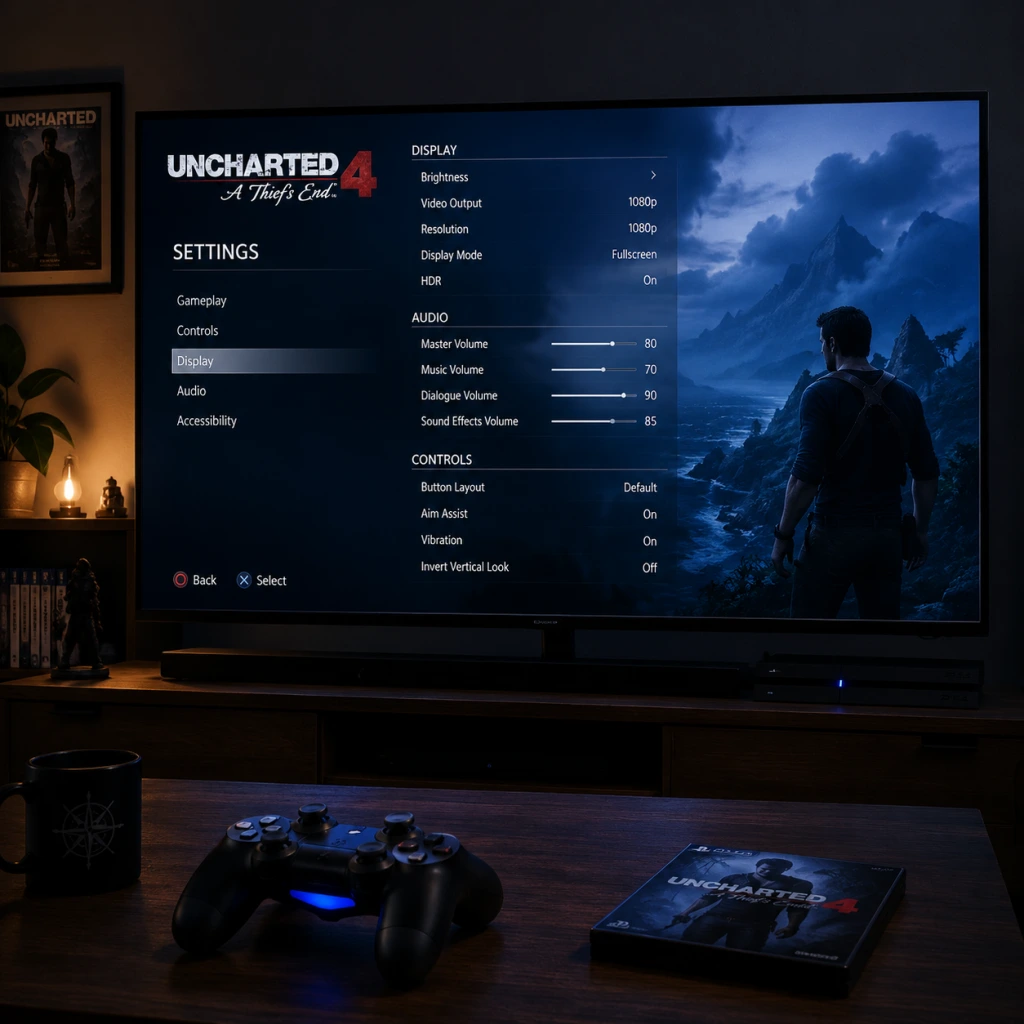
Game Settings
Game Settings Guide for Uncharted 4: A Thief's End
This guide covers all configurable settings across PS4, PS5 (via backward compatibility), and PC (Steam/Epic Games Store). Optimal recommendations are provided for different hardware tiers, along with common misconfiguration pitfalls.
Important Pre-Check: Platform Differences
- PS4/PS5: Limited to preset display modes (e.g., 30 FPS vs. 60 FPS on PS5) and basic audio/control tweaks. No detailed graphics sliders.
- PC: Full suite of graphics, audio, controls, and accessibility settings. This guide focuses primarily on the PC version for advanced options, but notes console equivalents where relevant.
---
1. Graphics Settings (PC only)
#### 1.1 Display Options
| Setting | Options | Recommendation |
|---|---|---|
| Display Mode | Fullscreen, Windowed, Borderless | Fullscreen for best performance; Borderless if you alt-tab frequently. |
| Resolution | Native monitor resolution up to 4K | Match your monitor’s native resolution. |
| Refresh Rate | 60 Hz / 120 Hz / 144 Hz (depending on monitor) | Set to monitor’s max refresh rate, ensuring V-Sync is either off (with G-Sync/FreeSync) or on to avoid tearing. |
| V-Sync | On / Off | Off if using adaptive sync (G-Sync/FreeSync) + FPS cap below refresh rate; On otherwise to prevent screen tearing. |
| Render Scale | 50% to 200% | Keep at 100% for native quality. Use 75%-85% for performance boost on lower-end GPUs. |
| HDR | On / Off | On if your display supports HDR and you calibrate in-game; otherwise Off to avoid washed colors. |
| Brightness | Slider 0–100 (default ~50) | Adjust using the in-game calibration tool; aim for visible details in shadows without clipping. |
| Field of View (FOV) | 50–100 (default 70) | 70–80 is a good balance; higher FOV reduces performance. Increase if you feel claustrophobic. |
- Quick Presets: Low, Medium, High, Ultra (also Custom).
- Individual Adjustments (accessible after setting preset to Custom):
| Setting | Low | Medium | High | Ultra | Performance Note |
|---|---|---|---|---|---|
| Texture Quality | 512 MB VRAM | 1024 MB VRAM | 2048 MB VRAM | 4096 MB VRAM | VRAM intensive; match to your GPU memory. (e.g., 6GB GPU -> Medium/High) |
| Anisotropic Filtering | 4x | 8x | 16x | 16x | Minimal performance impact; set to 16x unless on very old hardware. |
| Shadow Quality | Low | Medium | High | Ultra | Medium to High has small impact; Ultra is costly. Use High for good visuals. |
| Ambient Occlusion | Off | SSAO | HBAO | HBAO+ | Off gains 5-10 FPS; HBAO+ looks best. Recommended HBAO for balance. |
| Reflections | Off | Static | Screen-Space | Ray-Traced (if available) | Screen-Space is fine; Ray-Traced is heavy (RTX 3070+). Use Static on low-end. |
| Model Quality | Low | Medium | High | Ultra | Affects character/polygon detail; High is good; Ultra for cutscenes. |
| Post-Processing | Off | Low | Medium | High | Includes bloom, motion blur, depth of field. Many disable motion blur for clarity. |
| Anti-Aliasing | FXAA | SMAA | TAA | TAA (Ultra) | SMAA for performance + sharpness; TAA for smoother edges (slight blur). |
| Texture Filtering | Bilinear | Trilinear | Anisotropic 4x | Anisotropic 16x | Effectively same as Anisotropic Filtering above; set to 16x. |
| LOD Quality | Low | Medium | High | Ultra | Controls distance objects appear; High is good; Ultra for long vistas. |
| Cloth Simulation | Off | Low | High | Very High | Simulates fabric movement; High is balanced. Off saves ~3 FPS. |
| Terrain Quality | Low | Medium | High | Ultra | Impacts ground texture and tessellation; High on capable GPUs. |
| Vegetation Quality | Low | Medium | High | Ultra | Dense greenery; Medium on weaker systems. |
Budget / Entry-Level (e.g., GTX 1050 Ti, 8GB RAM, old quad-core)
- Resolution: 1080p (or 900p)
- Overall: Low preset
- Custom tweaks: Texture Quality to Medium (if VRAM ≥ 4GB), Anisotropic Filtering 8x, Anti-Aliasing FXAA.
- Target: 30–40 FPS minimum.
- Resolution: 1080p or 1440p
- Overall: Medium to High preset
- Custom tweaks: Shadows High, Ambient Occlusion HBAO, Reflections Screen-Space, Anti-Aliasing SMAA.
- Target: 45–60 FPS (use Adaptive FPS if available).
- Resolution: 1440p or 4K
- Overall: Ultra preset
- Enable Ray Tracing (if supported) at Low/Medium.
- Custom tweaks: Motion Blur Off (personal preference), Post-Processing High, LOD Ultra.
- Target: 60 FPS at 4K with DLSS/FSR Quality (if needed).
- Same as High-End but max out Ray Tracing (Ultra), 4K native, DLAA (Deep Learning Anti-Aliasing).
- Target: 60 FPS locked; or 120 FPS at 1440p.
- Setting Texture Quality above VRAM capacity → stuttering, texture pop-in. Check VRAM usage bar in settings.
- Disabling V-Sync without adaptive sync → screen tearing.
- Enabling HDR without proper calibration → washed out colors. Use Windows HDR calibration tool and in-game slider.
- Setting Render Scale above 100% without GPU headroom → severe FPS drops.
Mid-Range (e.g., GTX 1660 Super, RX 5600 XT, 16GB RAM, modern i5/R5)
High-End (e.g., RTX 3080, RX 6800 XT, 32GB RAM, i7/R7)
Ultra / Enthusiast (e.g., RTX 4090, RTX 4080, 64GB RAM, i9/R9)
#### 1.4 Common Misconfiguration in Graphics
---
2. Audio Settings
| Setting | Description | Recommendation |
|---|---|---|
| Master Volume | Overall volume (slider 0–100) | 70–80, then adjust speaker/headphone volume. |
| Music Volume | Background music | 70 (if you want to hear dialogue clearly, lower to 50). |
| SFX Volume | Sound effects (shooting, climbing, explosions) | 80–100; these convey important gameplay cues. |
| Dialogue Volume | Character voices | 100 — crucial for story and puzzle hints. |
| Ambient Volume | Environment sounds (wind, water) | 70–80 for immersion. |
| Audio Output Device | Speakers / Headphones | Choose correct output (e.g., headphones for 3D audio). |
| Speaker Configuration | Stereo / 5.1 / 7.1 | Match your physical setup. Stereo if using headphones. |
| Dynamic Range | TV / Home Theater / Headphones | Headphones (compressed) for clarity at low volume; TV for standard. |
| 3D Audio (Tempest 3D on PS5, Windows Sonic/Dolby Atmos on PC) | On / Off | On if using headphones; adds spatial audio. |
---
3. Controls Settings
#### 3.1 Controller Layout
- Default (Naughty Dog standard) – jump with X, climb with triangle, shoot with R2, aim with L2.
- Alternative Layouts: Several presets (e.g., “Shooter”, “Classic”) available. Can also fully remap every action.
- On PC, you can remap keyboard/mouse and controller buttons. Common changes: swap jump and climb (if you use bumper jumper), or change cover to hold (toggle vs. hold).
- Mouse sensitivity: Adjust for your DPI. Start at 5 (scale 1–10) and fine-tune.
- Controller dead zone: Default is fine (5%); lower to 2% for precise aiming if you have drift-free sticks.
- Vibration: On/Off. Off can improve aiming accuracy for some players.
- Full KBM support with options for key bindings, mouse smoothing, and aim assist (toggle).
- Common trap: Mouse acceleration is enabled by default on some systems; turn off in OS settings. In-game mouse smoothing should be Off for raw input.
Recommended: Stick with Default for consistency with previous Uncharted games. If you prefer FPS-style controls, try “Shooter” where L1 is aim, R1 is shoot.
#### 3.2 Custom Remapping (PC only, partial on PS4/PS5 via system accessibility)
#### 3.3 Keyboard & Mouse (PC)
---
4. Accessibility Settings
Uncharted 4 has extensive accessibility options, especially after patches (including “The Last of Us Part II” inspired enhancements).
| Feature | Options | Notes |
|---|---|---|
| Subtitles | On / Off, size (small/medium/large), background (dark/light/none) | Enable with large size for readability. |
| Closed Captions | On / Off | Includes sound effects descriptions (“gunfire”, “music swells”). |
| High Contrast Mode | On / Off | Highlights enemies, collectibles, and interactive objects with colors. Useful for visually impaired. |
| Enlarge Reticle | On / Off | Makes aim reticle bigger. |
| Lock-on Aim | Off / Semi / Full | Full = snap to nearest enemy; Semi = assists near target. Use Semi for easier combat without trivializing. |
| Auto Pick-up Items | On / Off | Automatically collects treasures/ammo when near. On saves button presses. |
| One-Handed Navigation (Hold vs Toggle) | Hold / Toggle | For players with limited mobility; e.g., climb toggle instead of holding R2. |
| Screen Narration | On / Off | Reads menu items aloud (requires system TTS). |
| Color Blind Modes | Protanopia, Deuteranopia, Tritanopia | Adjusts UI colors (e.g., enemy markers). |
| Controller Button Assignment | System-level (PS5 accessibility) or in-game remapping | Change as needed. |
---
5. Language Settings
| Setting | Options | Recommendation |
|---|---|---|
| Language | English, French, German, Spanish (etc., depending on region) | Choose your preferred language. Changes menus, subtitles, and dubbing. |
| Audio Language | Same as above (or different) | For authentic experience, keep as original (English) with subtitles in your language. |
| Subtitle Language | Usually matches audio language or separate | Set to your native language if you struggle with spoken English. |
| Text Language | Affects UI and menu text | Same as language or override. |
---
6. Network Settings (Multiplayer & Online Features)
Uncharted 4 has a multiplayer component (co-op and versus) that requires internet connectivity.
| Setting | Description | Recommendation |
|---|---|---|
| Online Connection | Enable/Disable | Enable for multiplayer and leaderboards. Disable if you want to avoid updates or play offline only. |
| Matchmaking Region | Automatic / Manual regions | Leave Automatic for best latency. |
| Voice Chat | On / Off / Push-to-Talk (PC) | Off if you don’t want to hear randoms; Push-to-Talk on PC to broadcast only when needed. |
| Party Privacy | Open / Friends Only / Invite Only | Choose based on whether you want random teammates. |
| Network Quality Indicator | Show latency and packet loss | Enable to monitor connection. |
| Cross-Play | PS4 vs PS5 vs PC (if supported) | Enabled by default; disable if you want to play only with same platform. |
---
7. Gameplay Settings
These settings affect the single-player experience and are separate from difficulty.
| Setting | Options | Notes |
|---|---|---|
| Difficulty | Explorer, Light, Moderate, Crushing (locked until completion), Brutal (locked) | Select Light or Moderate for first playthrough. Explorer is very easy. |
| Aim Assist | Off / Light / Normal / Heavy | Heavy helps a lot. Light is good for balanced feel. |
| Camera Sensitivity (Horizontal/Vertical) | Slider 1–10 | Start at 5; increase for faster turning. |
| Invert Y-Axis | On / Off | Personal preference; Off for most. |
| Camera Auto-Center | On / Off | On makes camera drift behind Drake; off gives full control. Off recommended for motion sickness. |
| Quick-Turn | On / Off | Tap back to spin 180 degrees. Useful in combat. |
| Context-Sensitive Actions | Tap / Hold | Use Tap for faster climbing/puzzle interactions. |
| Auto-Mantle | On / Off | Off requires button press to climb over ledges; On does it automatically. Off for precision climbing. |
| Subtitles (In-Game) | As in Accessibility | Include during gameplay (cinematics always have subtitles). |
| HUD (Heads-Up Display) | Full / Minimal / Off | Full shows health, ammo, objectives. Minimal hides most elements; Off for maximum immersion. |
| Weapon Auto-Pickup | On / Off | Off prevents accidentally swapping weapons. |
| Lock-On (Melee) | On / Off | On locks onto nearest enemy during fistfights. |
| Journal Notifications | On / Off | Shows pop-ups when new journal entries are added. |
---
8. Saving Settings & Profiles
- Auto-Save: The game saves automatically at checkpoints. You cannot manually save in mid-chapter, but you can exit to main menu and resume at last checkpoint.
- Manual Save Slots: Only available upon completing a chapter (chapter select). Use this for testing different choices (there are none in this linear game) or replaying favorite sections.
- Save File Management: On PC, saves are in `%USERPROFILE%\Documents\Uncharted 4` or steam user data. Back up if reinstalling.
- Cloud Saves: Steam Cloud enabled by default; PS Plus cloud saves available.
- Resolution Scale vs. V-Sync: Many players push resolution scale to 150% not realizing it kills FPS. Keep at 100% and adjust other settings first.
- Motion Blur: Off improves clarity, especially at lower FPS. On can hide judder but may cause nausea for some.
- Auto-Center Camera: On by default; turning it off gives a more FPS-like camera control, which helps in combat.
- Lock-on Aim: People often leave it Off because they think it’s cheating, but “Semi” is helpful without being too easy.
- Subtitles Background: If text is hard to read, switch subtitle background to dark.
---
9. Tips for First-Time Setup
1. Start with Defaults: Only adjust graphics if you experience stuttering or low FPS. Begin with Medium preset.
2. Test Audio: Ensure dialogue is audible during cutscenes. Adjust music/SFX if needed.
3. Calibrate HDR: If you have an HDR display, use the game’s calibration tool (found in Display settings) — set peak brightness and paper white according to your TV's capabilities.
4. Controller on PC: If using a PS5 DualSense, enable wired connection for full features (haptic feedback, adaptive triggers). On Steam, use the official Sony driver.
5. Multiplayer: Before diving into multiplayer, complete at least the prologue to understand basic controls. Set voice chat to Friends Only to avoid strangers.
---
10. Frequently Overlooked Settings
---
By following these settings, you can tailor Uncharted 4 to your hardware and preferences, maximizing both performance and enjoyment.