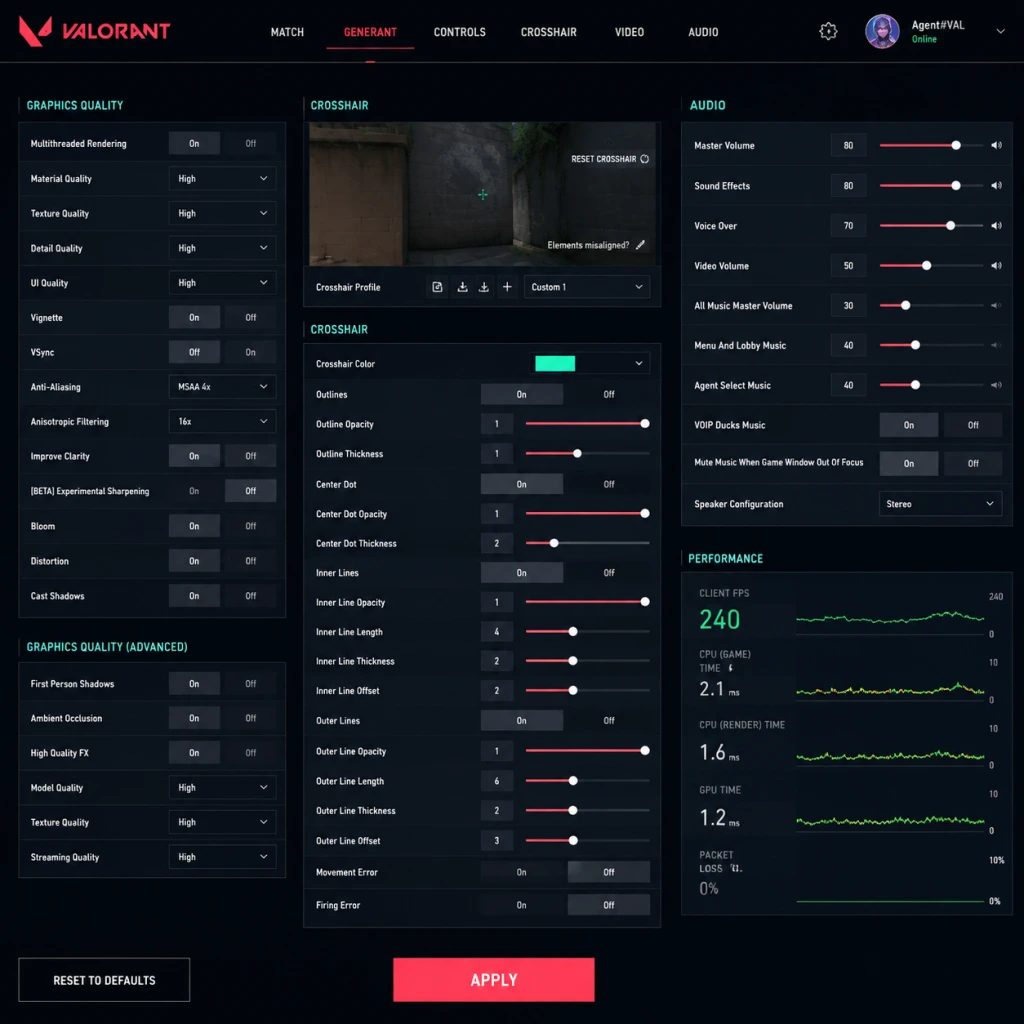
Game Settings
Game Settings Guide for Valorant
Introduction
Valorant offers a wide range of settings that directly impact performance, visual clarity, and gameplay responsiveness. This guide covers all major categories—graphics, audio, controls, accessibility, language, network, and gameplay—and provides optimal recommendations for different hardware levels. Special attention is given to settings that are commonly misconfigured and can put you at a disadvantage.
---
Graphics Settings
Graphics settings affect visual quality and frame rate. Valorant benefits from high and stable FPS (frame rate), especially on high-refresh-rate monitors (144Hz+). Lowering certain settings can improve enemy visibility and reduce input lag.
#### Optimal Settings by Hardware Level
| Setting | Low-End (60 FPS target) | Mid-Range (144 FPS target) | High-End (240+ FPS target) |
|---|---|---|---|
| Display Mode | Fullscreen | Fullscreen | Fullscreen |
| Resolution | Native (e.g., 1920x1080) | Native | Native |
| Aspect Ratio | 16:9 | 16:9 | 16:9 |
| Limit FPS | Off (or match refresh rate) | Off | Off |
| Multithreaded Rendering | On (if supported) | On | On |
| Material Quality | Low | Low | Low |
| Texture Quality | Low | Medium | High |
| Detail Quality | Low | Low | Low |
| UI Quality | Low | Low | Low |
| Vignette | Off | Off | Off |
| VSync | Off | Off | Off |
| Anti-Aliasing | None | MSAA 2x | MSAA 4x |
| Anisotropic Filtering | 1x | 2x | 4x |
| Improve Clarity | Off | Off | Off |
| Bloom | Off | Off | Off |
| Distortion | Off | Off | Off |
| Shadow Quality | Off | Low | Medium |
| Show Corpses | Off | Off | Off |
- Fullscreen always for best performance and lowest input lag.
- Limit FPS: Set this to off or to match your monitor’s refresh rate (if you want to reduce GPU load). For competitive play, leave it off to get maximum FPS.
- VSync MUST be Off — it adds significant input lag.
- Material, Detail, UI, Vignette all set to Low to minimize visual clutter and maximize FPS.
- Bloom & Distortion should be Off — they obscure vision and have no competitive benefit.
- Anti-Aliasing: MSAA 2x is a good balance for mid-range; high-end can use 4x. Avoid FXAA (blurry).
- Anisotropic Filtering: Low values sharpen textures at angles; higher values cost FPS.
- Shadow Quality: Off or Low gives better contrast in bright areas; shadows rarely matter in tactical play.
- Corpses: Off to reduce clutter and potential visual distraction.
- Improve Clarity: Off — it can introduce a blurry effect.
#### This setting can be found in Settings → Video → Graphics Quality.
---
Audio Settings
Audio is critical for hearing footsteps, abilities, and gunfire. Proper configuration gives positional awareness.
| Setting | Recommended | Notes |
|---|---|---|
| Master Volume | 70-80% | Adjust to comfortable level; avoid 100% to prevent distortion. |
| SFX Volume | 100% | Essential for game audio. |
| Music Volume | 0-20% | Reduces distraction from bomb/round music. |
| Voice Chat Volume | 80-100% | Important for team communication. |
| HRTF | On | Head-related transfer function simulates 3D sound over stereo headphones. Critical for directional cues. |
| Mute Everyone (Voice Chat) | Off (or bind to toggle) | Temporary muting can be useful for toxic players. |
| Speaker Configuration | Stereo (Headphones) | Do not use 5.1/7.1 virtual surround; HRTF works best with stereo. |
- HRTF is often misunderstood. It creates a virtual surround effect using only two speakers. Enable it – it significantly improves left/right and front/back distinction for footsteps and gunshots.
- If you use a gaming headset with built-in virtual surround, you may need to disable the headset’s software and use Valorant’s HRTF instead for best results.
- Test audio in the Practice Range by walking around and shooting to verify directional audio.
#### This setting can be found in Settings → Audio.
---
Controls Settings
Controls determine aim, movement, and ability execution. Mouse settings are the most crucial for aim consistency.
#### Mouse & Keyboard
| Setting | Recommended | Explanation |
|---|---|---|
| Mouse Sensitivity | 0.3-0.6 @ 800 DPI (or equivalent eDPI = 240-480) | Lower sensitivity allows more precise aim. Most pros use eDPI (DPI × sensitivity) between 200-500. |
| DPI | 800-1600 | Higher DPI with lower in-game sensitivity reduces pixel skipping. |
| Polling Rate | 1000 Hz | Maximum for smooth tracking. |
| Raw Input Buffer | Off | Not needed if RawInput is On (default). |
| Window Mouse Acceleration | Off (Windows) | Must be disabled in Windows Mouse Properties → Pointer Options → Enhance pointer precision → Unchecked. |
| Key Bindings | Use defaults initially | Customize abilities to reach comfortably. Common changes: bind Spike plant/defuse to mouse button, shift for walk, control for crouch. |
| Crosshair | Use a crosshair that is visible but small | Pixel-thin crosshairs (1/2/2/2) with a gap help with precise aim. Use a color like cyan or green for high contrast. |
Valorant has partial controller support, but mouse and keyboard is strongly recommended for competitive play. If using a controller, set:
- Controller Vibration: Off
- Aim Sensitivity (Controller): Start at 3-5, adjust.
#### This setting can be found in Settings → Controls → Mouse & Keyboard (or Controller).
---
Accessibility Settings
These settings improve visibility and hearing for players with disabilities.
| Setting | Recommended | Notes |
|---|---|---|
| Colorblind Modes | Off / Tritanopia / Protanopia / Deuteranopia | Choose based on your deficiency. Changes minimap, HUD, and ability colors. |
| Minimap Colorblind Mode | Off / Colorblind | Separate toggle for minimap. |
| Subtitle Language | Off / Preferred language | Subtitled dialogue for abilities and game announcer. |
| Show Damage HUD | On | Shows damage numbers and armor break visual. |
| Camera Shake | On (default) | Off reduces motion sickness for some. |
- Colorblind modes affect the minimap’s friendly/enemy colors. For non-colorblind players, leave them Off to avoid confusing color swaps.
- If you are colorblind, test each mode in the Practice Range to see which gives you the clearest distinction.
#### This setting can be found in Settings → Accessibility.
---
Language Settings
Valorant supports multiple languages for text and voice.
| Setting | Selection |
|---|---|
| Text Language | Your preferred language (affects UI, menus, chat, subtitles) |
| Voice Language | Same as text or separate (affects agent voice lines and announcer) |
- Changing voice language can be distracting if you learn agent callouts. Stick to one language for consistency.
- You may need to restart the game after changing these settings.
#### This setting can be found in Settings → Language.
---
Network Settings
Network settings can reduce lag and packet loss. Note: Valorant’s network settings are limited; most tweaks happen outside the game.
| Setting | Recommended | Explanation |
|---|---|---|
| Network Buffering | Minimal | Reduces input delay but may cause packet loss if your internet is unstable. If you experience rubber-banding, set to Moderate or Maximum. |
| Show Network Stats | On | Shows FPS, ping, packet loss, and jitter in the top-left corner. Useful for diagnosing issues. |
| Limit FPS in Menus | Off | Not directly network, but high FPS in menus does nothing. Leave at default (144). |
| Limit FPS in Background | Off | Save resources when alt-tabbed. |
| Raw Input (Buffer) | On | Bypasses Windows mouse acceleration and provides low-level input. Already on by default. |
- Use a wired Ethernet connection over Wi-Fi.
- Close bandwidth-heavy applications (streaming, downloads).
- Reduce bufferbloat with Quality of Service (QoS) in your router.
- Disable VPN or gaming proxies – they usually increase ping.
#### This setting can be found in Settings → Video → Network (or General).
---
Gameplay Settings
These settings affect in-game behavior and HUD.
| Setting | Recommended | Explanation |
|---|---|---|
| Auto-Equip After Purchase | Off | Prevents accidentally equipping a weapon you just bought; allows you to keep your previous weapon until you swing. |
| Auto-Equip After Round | On | Equips last owned weapon automatically at round start. |
| Reveal Minimap Region | On | Shows which part of the map you are looking at; helpful for orientation. |
| Minimap Size | 1.1-1.2 | Slightly larger improves map awareness. |
| Minimap Zoom | Default (0.9) | Adjust to see more of the map. |
| Show Ability Use Alerts | On | Notifies when an ally uses an ability (e.g., Phoenix flash). |
| Pull Weapon While Using Ability/Moving | On | Weapon model draws faster when abilities finish. |
| Show Team Upgrades | On | Displays ultimate status; helpful for comms. |
| Toggle Walk | Off | Use hold-to-walk (shift key) for better control. |
| Toggle Crouch | Off | Use hold-to-crouch (Ctrl) for precise peek timing. |
| Damaged HUD Radius | Default (0.7) | Show health/armor around crosshair when damaged; personal preference. |
- Auto-Equip After Purchase is a common pitfall. If you buy a new weapon and immediately run into enemy fire, you might swap to the new weapon and get caught off-guard. Keep it Off so you can choose when to equip.
- Crosshair is not strictly a gameplay setting but is critical. Use a crosshair profile that is bright, small, and has a small gap to see enemy heads. Settings can be imported using crosshair codes (e.g., from pro players).
- Max FPS with VSync off, low graphics, and raw input.
- HRTF on for audio clarity.
- Appropriate sensitivity and no mouse acceleration.
- Accessibility options only as needed.
- Minimal network buffering and off auto-equip.
#### This setting can be found in Settings → General (or Gameplay).
---
Conclusion
Properly configuring Valorant settings can give you a significant edge in both performance and awareness. Focus on:
Always test new settings in the Practice Range before taking them into competitive matches. Adjust based on your hardware and personal comfort.