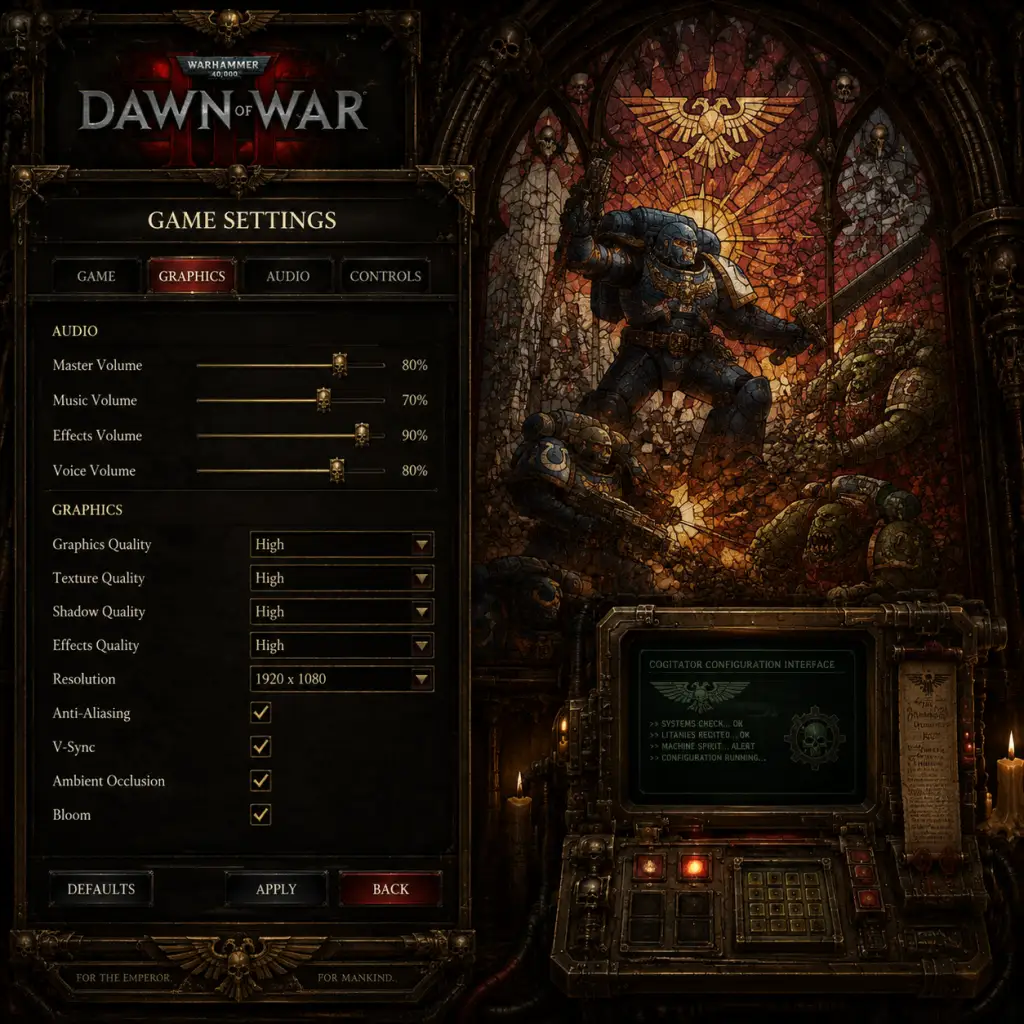
Game Settings
Game Settings Guide for Warhammer 40,000: Dawn of War II
Overview
This section covers all configurable settings in Warhammer 40,000: Dawn of War II (PC, 2009). Properly tuning these options can dramatically improve performance, visual clarity, and gameplay comfort. The game uses the Essence Engine 2.0, which scales reasonably well on modern hardware but has some quirks. Settings are accessed from the main menu under Options (or Settings).
All settings are stored in the game's configuration files (usually `%USERPROFILE%\Documents\My Games\Dawn of War II\Settings\configuration.lua`), so advanced users can manually edit them. The in-game menu is preferred for most changes.
---
Graphics Settings
Located under Options → Video. These settings affect visual quality and performance. Many options are poorly explained in-game; detailed guidance below.
| Setting | Options | Impact | Notes |
|---|---|---|---|
| Resolution | List of supported monitors | High visual quality, major performance impact at higher resolutions | Always set to native monitor resolution. Lowering resolution can boost FPS but makes UI blurry. |
| Display Mode | Windowed, Fullscreen, Borderless | Stability | Fullscreen gives best performance and input latency. Borderless is good for quick alt-tabbing. |
| Texture Quality | Low, Medium, High, Ultra | Heavy VRAM usage | Ultra only for 2GB+ VRAM. High works on 1GB. Low on 512MB. Textures are often the biggest VRAM hog. |
| Shadow Quality | Off, Low, Medium, High, Ultra | Moderate FPS hit | Off removes shadows entirely (gives a tactical advantage). High and Ultra are resource heavy. Medium is a good balance. |
| Global Lighting | Low, Medium, High | Moderate | Affects dynamic lights. High adds bloom/glow but can wash out the screen. Low is clearer for competitive play. |
| Antialiasing | Off, 2x, 4x, 8x MSAA | Heavy performance cost (especially 8x) | MSAA is very demanding. Use MLAA or SMAA if available (some mods add it). Off gives jagged edges but highest FPS. |
| Anisotropic Filtering | Off, 2x, 4x, 8x, 16x | Low performance impact up to 8x, very minor at 16x | Always set to 16x if your GPU can handle it. Makes ground textures crisper at angles. |
| Post-Process Effects | Off, On | Low | Adds motion blur and depth of field. Many players turn off for clarity. |
| VSync | Off, On | Major input lag if enabled | Always set to Off unless you experience screen tearing. If you do, enable VSync in your GPU driver control panel instead (Fast Sync or Adaptive VSync preferred). |
| Shader Quality | Low, Medium, High | Moderate | Controls shader complexity. High enables specular highlights and normal mapping. Low looks flat but runs fastest. |
| Terrain Detail | Low, Medium, High | Moderate | Affects amount of grass, rocks, and clutter. Low gives a barren look but helps FPS in heavy fights. |
| Particle Effects | Low, Medium, High | High on crowded screens | High makes explosions and abilities flashy. Lower to maintain framerate during intense battles. |
| Decals | Off, On | Low | Shows blood splatters and debris. Minor performance impact. On is fine on most hardware. |
| View Distance | Low, Medium, High | High | Determines how far you can see units and terrain. High is essential for tactical awareness, but hits FPS on old GPUs. |
- The game does not have a built-in FPS limiter. Use your GPU driver or third-party tools (like RivaTuner) to cap FPS and reduce heat/power.
- Resolution scaling is not present. To render at lower than native resolution, you must manually lower the Resolution setting; the UI will become pixelated.
- Multi-GPU (SLI/CrossFire) is not officially supported and often causes micro-stutter. Disable it in favor of a single powerful GPU.
- Modern Windows 10/11 may experience compatibility issues with fullscreen. If you get black screens, try Borderless Window mode.
---
Audio Settings
Under Options → Audio. Simple options, but important for immersion and tactical awareness.
| Setting | Options | Notes |
|---|---|---|
| Master Volume | 0–100 | Set to a comfortable level. The game has dynamic range issues; explosions can be loud while voice is quiet. |
| Music Volume | 0–100 | The soundtrack is thematic but can drown out unit callouts. Recommended at 40–60% for campaign, 0–20% for multiplayer focus. |
| SFX Volume | 0–100 | Effects like gunfire and abilities. Set high (70–100%) to hear enemy movements. |
| Voice Volume | 0–100 | Critical for hearing hero callouts, warnings, and story dialogues. Set to 100% and never lower. |
| Ambient Volume | 0–100 | Background sounds (wind, machinery). Fine at default (50%). |
| 3D Audio | On/Off | Keep On for positional cues (e.g., hearing a Dreadnought approach from the left). Off disables spatial sound. |
| Sound Quality | Low, High | High is recommended for better sample rate. Low may cause crackling on modern systems. |
---
Controls Settings
Under Options → Controls. You can remap all keys. Default controls are standard for RTS games, but you can customize for efficiency.
#### Default Key Bindings (Selected)
| Action | Default Key | Alternative Suggestion |
|---|---|---|
| Select All Units | Ctrl+A | Retain |
| Attack Move | A | Good |
| Stop | S | Good |
| Hold Position | H | Good for cover |
| Move (Move Command) | Right Mouse Button | Can't change |
| Abilities 1–4 | Q, W, E, R | Keep for muscle memory |
| Group Number 1–9 | Ctrl+1..9 | Good |
| Camera Rotate | Middle Mouse Button | Not essential; can disable |
| Zoom In/Out | Mouse Wheel | Good |
| Pause | Esc or Pause Key | Important for campaign |
| Toggle UI | F10 | Useful for screenshots |
- Camera Rotation: If you never rotate, disable the middle mouse button binding to prevent accidental rotations.
- Quick Save/Load: Bind to F5 (Quick Save) and F8 (Quick Load) for campaign convenience.
- Mouse Sensitivity: Default is fine for most; lower if you have high DPI mice.
- Scroll Speed: Increase (max) for faster map panning. Too high can be jerky; adjust in small increments.
- Smart Pause: In Options → Gameplay, enable Pause on Ability Use for campaign to give you time to think.
- The game does not support simultaneous multiple mouse buttons (e.g., thumb buttons) natively. Use third-party software to remap them to keyboard keys.
- Gamepad is not officially supported. If you try using a controller, you must use third-party mapping tools (e.g., JoyToKey, Steam Input).
#### Control Issues
---
Accessibility Settings
Dawn of War II was released in 2009 and has limited built-in accessibility features. However, some settings can help.
| Feature | How to Enable | Notes |
|---|---|---|
| Subtitles | Options → Audio → Enable Subtitles | Turn On. Important for campaign story and hearing ability names. Subtitles appear at bottom center. |
| Text Size | Not adjustable | The UI text is fixed size; consider scaling the game window to a lower resolution if text is too small, but be aware of UI blur. |
| Colorblind Modes | None | The game uses red/green colors for enemy/friendly health bars. If colorblind, use mods that alter team colors (e.g., Blue vs Red mod). |
| UI Scaling | Not available | No built-in scaling. Workaround: run in lower resolution and enable GPU scaling (or integer scaling) to make UI larger. |
| Difficulty Level | Campaign: Change at any time via Options → Gameplay → Difficulty | Ranges from Easy (more health, more resources) to Primarch (very hard). Adjust if you struggle with controls. |
| Auto-Order | Not available | No automation of squad actions. You must manually give orders. |
| Audio Cues | Use 3D Audio and high Voice/SFX volumes | Important for hearing warnings like "My armor is breached!" or "Reloading!" |
---
Language Settings
The game supports multiple languages for text and audio. These are set during installation but can be changed manually.
- In-game Language Selection: None. The game uses the language of your Steam client or Windows locale. If you bought the game on Steam, you can change language via Steam Library → Properties → Language.
- Manual Language Change: Navigate to game installation folder (e.g., `C:\Program Files (x86)\Steam\steamapps\common\Dawn of War II`). Rename folders:
- Audio/Text Split: Not possible in vanilla. Some mods allow you to use English audio with foreign subtitles, but not officially.
- For English: Ensure `Locales\English` folder is present. Delete or rename other locale folders to force English.
- Supported languages: English, French, German, Italian, Spanish, Russian, Polish, Czech.
Warning: Changing language improperly may break achievements or cause crashes. Always backup locale folders before altering.
---
Network Settings (Multiplayer & Co-op)
The game uses Games for Windows Live (GFWL) originally, but as of modern updates (especially on Steam), it uses Steamworks. Configure network options under Options → Network or from the main multiplayer lobby.
| Setting | Options | Notes |
|---|---|---|
| Connection Type | LAN, Internet | Select Internet for matchmaking. LAN for local games. |
| Port | 6112 (default) | If you have firewall issues, open UDP port 6112. Can be changed if port is blocked. |
| NAT Traversal | Enabled (default) | Keep enabled for easier connectivity behind routers. |
| Voice Chat | Enabled/Disabled | Disable if you use external voice software (Discord, TeamSpeak). Built-in quality is poor. |
| Bandwidth Limit | Auto, Low, Medium, High, Unlimited | Set to Unlimited if you have decent internet. Auto often throttles too aggressively. |
| Download/Upload Rate | Game handles automatically | No manual control. If you experience lag, check your internet connection. |
- Games for Windows Live Migration: If you encounter login errors, ensure you have the latest GFWL update (very old). On Steam, you no longer need GFWL; the game uses Steam online services directly.
- Firewall: Allow `DOW2.exe` and `DOW2_Launcher.exe` through Windows Firewall and antivirus. UDP port 6112 must be open for hosting.
- Matchmaking Issues: The player base is small. Use the Skirmish lobby or Custom Games from the main menu. If no matches found, try joining via Steam friends or the official Discord.
- Lag: The game uses peer-to-peer connections. Lag is usually due to host's upload speed. High ping ruins micro; cap FPS to reduce input lag.
- Desync: If you and your opponent see different game states (rare), the game will desync. Lower scroll speed and avoid alt-tabbing during the game to reduce risk.
---
Gameplay Settings
Under Options → Gameplay. These affect how the game plays and are often overlooked.
| Setting | Options | Recommended | Notes |
|---|---|---|---|
| Camera | Classic (fixed 2D) or Free (rotatable) | Free (it's actually a fixed 3D camera with rotation) | Allows rotating the view, which helps with cover and sight lines. Classical is locked and less useful. |
| Auto-Center on Event | On/Off | Off | When a group of your units takes damage, the camera jumps to them. This is disorienting. Keep Off for control. |
| Smart Pause | On/Off | On (campaign) | Pauses the game when you click a unit ability, allowing you to issue commands without time pressure. Essential for beginners. |
| Unit Health Bars | Always, When Damage, Off | Always | Vital to see health status at a glance. "When Damage" may hide critical info. |
| Minimap Detail | Simple, Detailed | Detailed | Shows buildings, resources, and enemy blips (if spotted). Simplified hides too much. |
| Ability Tooltips | On/Off | On | Hovering over a unit's ability button shows description. Keep On until you memorize them. |
| Allow Camera Zoom | On/Off | On | Zoom out to see more of the battlefield. Off locks zoom level. |
| Squad Auto-Formation | On/Off | On | Squads automatically spread out to use cover. Off requires manual positioning. On is generally superior. |
| Attack Move Target | Closest, Lowest Health | Lowest Health | When using Attack Move, units target the nearest enemy or the one with least HP. Lowest Health helps focus fire. |
| Double-Click to Select All of Type | On/Off | On | Double-clicking a unit selects all units of that type on screen. Handy. |
| Invert Mouse (Y-axis) | On/Off | Off (default) | Only useful if you prefer inverted camera control. |
| Tooltip Delay | 0–1000ms | 200ms | How long before tooltips appear. Lower for faster access, higher to avoid clutter. |
---
Recommended Settings by Hardware Level
#### 1. Low-End System (e.g., Intel HD Graphics 4000, 4GB RAM, 2.2GHz dual-core)
- Resolution: 1280x720 or 1366x768
- Texture Quality: Low
- Shadow Quality: Off
- Global Lighting: Low
- Antialiasing: Off
- Anisotropic Filtering: 2x
- Post-Process Effects: Off
- Shader Quality: Low
- Terrain Detail: Low
- Particle Effects: Low
- Decals: Off
- View Distance: Low
- VSync: Off
- Target FPS: 20–30. Acceptable for campaign; multiplayer may be choppy.
- Resolution: 1920x1080
- Texture Quality: High
- Shadow Quality: Medium
- Global Lighting: Medium
- Antialiasing: 2x MSAA
- Anisotropic Filtering: 8x
- Post-Process Effects: Off (for clarity)
- Shader Quality: High
- Terrain Detail: Medium
- Particle Effects: Medium
- Decals: On
- View Distance: High
- VSync: Off (use driver-level Fast Sync)
- Target FPS: 50–60. Smooth for campaign and most multiplayer battles.
- Resolution: 2560x1440 or 1920x1080
- Texture Quality: Ultra
- Shadow Quality: Ultra
- Global Lighting: High
- Antialiasing: 4x MSAA (or 8x if you have headroom, but expect some drops)
- Anisotropic Filtering: 16x
- Post-Process Effects: On (if you like bloom)
- Shader Quality: High
- Terrain Detail: High
- Particle Effects: High
- Decals: On
- View Distance: High
- VSync: Off (use G-Sync/FreeSync if available)
- Target FPS: 60+ (cap at 60 or 120 to avoid tearing)
- Disable the intro videos: Delete or rename `Movies` folder in the game directory (or add `-nomovies` launch option in Steam). Saves time.
- Increase CPU affinity: For older CPUs, set DOW2.exe to use only physical cores (disable hyper-threading in process affinity).
- Disable Windows 10 Game Mode: Can interfere with engine performance. Turn off Game Mode and Game Bar.
- Update DirectX: The game requires DirectX 9.0c. Ensure you have it installed; Windows 10/11 may need to install via the legacy DirectX redistributable.
- First Launch: The game may prompt you to install Games for Windows Live. If using the Steam version, accept the update. If the prompt persists, you can bypass it by starting the game with the `-disableGFWL` launch option (add in Steam → Properties → Launch Options).
- Multiplayer Logins: On Steam, you must be online and logged into Steam. If you get a "failed to connect to Steam" error, restart Steam and try again.
- Resolution Detection: The game may not correctly detect your monitor's refresh rate. Manually set the refresh rate to 60Hz (or your highest) in the graphics options if you notice flickering.
- Config File Corruption: The `configuration.lua` file can become corrupted if the game crashes during saving. If your settings reset, delete the file and let the game regenerate it. Back up your custom bindings.
- Mod Compatibility: Many graphics mods (e.g., texture packs) may require you to set Texture Quality to Ultra. Read mod instructions carefully. Overriding settings can cause crashes.
- Achievements: Changing language or modifying game files may disable achievements. If achievements matter, avoid tampering with locale folders or using launch commands that bypass GFWL.
- [ ] Set resolution to native monitor.
- [ ] Turn VSync Off.
- [ ] Turn Auto-Center on Event Off.
- [ ] Enable Subtitles.
- [ ] Set Smart Pause On for campaign.
- [ ] Choose appropriate graphics preset (Low/Medium/High) or manual settings per hardware guide.
- [ ] Set Sound Quality to High.
- [ ] Verify network ports are open if hosting multiplayer.
- [ ] Back up `configuration.lua` after making your perfect settings (optional).
#### 2. Medium System (e.g., GTX 1050, 8GB RAM, i5-4590)
#### 3. High-End System (e.g., RTX 3060, 16GB RAM, i7-10700)
#### Advanced Tweaks for All Systems
---
Settings That Are Easy to Misconfigure
1. VSync (Video) – Default is often On. Causes massive input lag. Turn Off unless you have screen tearing.
2. Auto-Center on Event (Gameplay) – Default On. Extremely disorienting. Change to Off immediately.
3. Antialiasing (Video) – MSAA at 8x can cripple even modern GPUs. If you enable it, expect FPS drops by 30% or more.
4. Shadow Quality (Video) – Ultra shadows are expensive and offer minimal visual improvement over High. Stick to Medium/High.
5. View Distance (Video) – Setting to Low hides units that are far away; you'll miss enemy movements. Keep at High even on low-end, and reduce other settings to compensate.
6. Resolution (Video) – Running at non-native resolution makes the interface blurry. Always use native unless you absolutely need FPS.
7. Texture Quality (Video) – Setting above your VRAM limit causes stutters and texture pop-in. Know your GPU's VRAM (use GPU-Z).
8. Smart Pause (Gameplay) – If you disable it in campaign, you'll lose the ability to queue abilities comfortably. Keep it enabled for the campaign; disable only for multiplayer (where it's not allowed).
9. Camera (Gameplay) – The "Classic" camera angle is restrictive; use "Free" for full situational awareness.
10. Language Files – Accidentally deleting or renaming locale folders can break the game. Only modify if you know what you're doing.
---
Special Attention Points During Setup
---
Final Checklist Before Playing
With these optimizations, you'll get the best balance of visual quality, performance, and tactical control. The game behaves well on modern hardware if these settings are respected. Good luck, Commander.