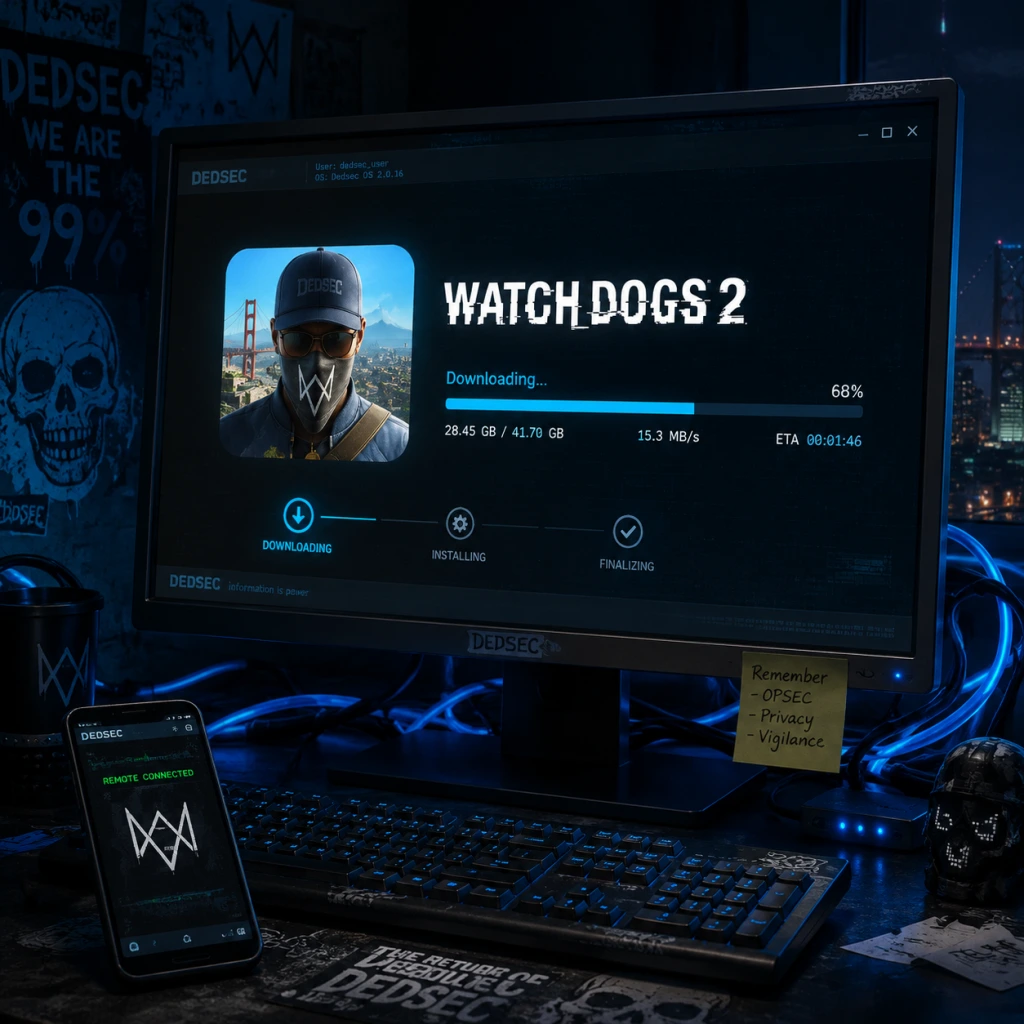
Download & Installation
Watch Dogs 2: Complete Download & Installation Guide
This guide covers legitimate methods to download and install Watch Dogs 2 on all major platforms. Always purchase or download from official sources to avoid legal and security risks.
---
Platform Availability
| Platform | Digital Download | Physical Disc | Notes |
|---|---|---|---|
| PC (Windows) | Yes (Steam, Epic Games Store, Ubisoft Connect) | No | Requires Ubisoft Connect account and client. |
| PlayStation 4 | Yes (PlayStation Store) | Yes | Backward compatible on PS5 via disc or digital. |
| PlayStation 5 | Yes (through PS4 backward compatibility) | Yes (PS4 disc) | No native PS5 version; runs in backward compatibility mode. |
| Xbox One | Yes (Microsoft Store) | Yes | Backward compatible on Xbox Series X |
| **Xbox Series X | S** | Yes (through backward compatibility) | Yes (Xbox One disc) |
| Nintendo Switch | No | No | Not officially available on Switch. |
| Mobile (iOS/Android) | No | N/A | Not available on mobile devices. |
Before You Begin: Prerequisites
- Stable internet connection (minimum 10 Mbps recommended for download).
- Sufficient storage space (see requirements below).
- Ubisoft Connect account (required for all platforms except physical console disc without online features; still recommended for saves and multiplayer).
- Console online subscription (PlayStation Plus or Xbox Game Pass Core/Ultimate for multiplayer).
- OS: Windows 7 SP1, Windows 8.1, or Windows 10 (64-bit versions)
- CPU: Intel Core i5-2400S @ 2.5 GHz or AMD FX-6120 @ 3.6 GHz
- RAM: 6 GB
- GPU: NVIDIA GeForce GTX 660 (2 GB) or AMD Radeon HD 7870 (2 GB) or better
- DirectX: Version 11
- Storage: 50 GB available space
- Sound: DirectX 9.0c compatible sound card
- Network: Broadband internet connection
- OS: Windows 7 SP1, Windows 8.1, or Windows 10 (64-bit versions)
- CPU: Intel Core i5-3470 @ 3.2 GHz or AMD FX-8120 @ 3.9 GHz
- RAM: 8 GB
- GPU: NVIDIA GeForce GTX 780 (3 GB) or AMD Radeon R9 290 (4 GB) or better
- DirectX: Version 11
- Storage: 50 GB available space (SSD recommended)
- Sound: DirectX 9.0c compatible sound card
- Network: Broadband internet connection
- Ubisoft Connect Account: Mandatory for PC versions and for online features on consoles (multiplayer, leaderboards, cloud saves). Create one free at [account.ubisoft.com](https://account.ubisoft.com).
- Console Online Subscriptions:
- No additional subscriptions required for single-player offline.
---
System Requirements (PC)
#### Minimum Requirements
#### Recommended Requirements
Note: Actual storage required after patches may exceed 50 GB. Keep at least 55-60 GB free.
---
Installation Steps by Platform
#### 1. PC (Windows) via Steam
1. Install Steam Client – Download from [store.steampowered.com](https://store.steampowered.com) and log in.
2. Purchase the game – Search "Watch Dogs 2" in the Steam Store and buy it. Alternatively, redeem a Steam key.
3. Link Ubisoft Account – On first launch, Steam will prompt you to link your Steam account to a Ubisoft Connect account. Follow the on-screen instructions.
4. Download and Install – Go to your Library, select Watch Dogs 2, click "Install," choose a location, and wait for download (approx. 45-60 minutes on a 50 Mbps connection).
5. Ubisoft Connect Client – The installer will automatically download and install the Ubisoft Connect client (if missing). This is required.
6. Play – After installation, click "Play" in Steam. The Ubisoft Connect overlay will appear. Sign in, and the game starts.
#### 2. PC (Windows) via Epic Games Store
1. Install Epic Games Launcher – Download from [epicgames.com](https://www.epicgames.com).
2. Purchase or claim – Buy Watch Dogs 2 from the Epic Store (or claim during a free promotion).
3. Initiate Download – Go to Library, find Watch Dogs 2, click the game tile, then "Install." Select installation directory.
4. Link Ubisoft Account – Similar to Steam, you will be prompted to link your Epic account to Ubisoft Connect. Do this to enable cloud saves and multiplayer.
5. Ubisoft Connect Installation – The launcher will install Ubisoft Connect automatically.
6. Launch – Click the game in Epic Library; Ubisoft Connect will open and launch the game.
#### 3. PC (Windows) via Ubisoft Connect (Direct)
1. Download Ubisoft Connect – Get it from [ubisoftconnect.com](https://ubisoftconnect.com).
2. Create/Log in – Use your Ubisoft account.
3. Purchase the game – In the Ubisoft Connect store, buy Watch Dogs 2. You can also activate a CD key.
4. Install – Go to your game library, select Watch Dogs 2, click "Download." Choose installation path and language.
5. Complete Installation – Wait for download and automatic setup. The game is ready to play once finished.
#### 4. PlayStation 4 & 5
##### Digital Download (PS Store)
1. Access PlayStation Store – On PS4/PS5 home screen, select the Store icon.
2. Purchase – Search for "Watch Dogs 2" and buy it. (On PS5, ensure you download the PS4 version; there is no native PS5 version.)
3. Download – The game starts downloading automatically. You can monitor progress from the Downloads menu.
4. Install – The console handles installation automatically after download. Ensure you have at least 50 GB free.
5. Launch – Once installed, the game appears in your library or home screen.
##### Physical Disc
1. Insert Disc – Place the Watch Dogs 2 disc into the console.
2. Install – The console will prompt you to install the game. Follow on-screen instructions. Disc acts as license; you need to keep it inserted to play.
3. Patches – After initial installation, connect to the internet to download the latest patch (usually 5-10 GB).
4. Play – The game icon appears after installation.
PS5 Note: Insert PS4 disc into PS5; it will prompt to download the digital backward-compatible version (disc required for ownership verification).
#### 5. Xbox One & Xbox Series X|S
##### Digital Download (Microsoft Store)
1. Open Microsoft Store – On your Xbox, go to Store.
2. Search and Purchase – Find Watch Dogs 2, buy it or redeem a code.
3. Install – The download begins automatically. You can check progress in My Games & Apps > Queue.
4. Play – Once installed, the game appears in your games list.
##### Physical Disc
1. Insert Disc – Insert the disc into your Xbox One or Series X|S.
2. Install – The console begins installation from disc and downloads any required updates.
3. Play – Disc must be in the drive to play (for disc-based copies).
Xbox Series X|S Enhancement: Watch Dogs 2 benefits from FPS Boost (60 FPS) and faster load times on Series X|S. No additional action needed.
---
Account Requirements Details
- PlayStation Plus (required for online multiplayer on PS4/PS5).
- Xbox Game Pass Core or Ultimate (required for online multiplayer on Xbox).
---
First Launch Setup
1. Language Selection – Choose your preferred language (subtitle and audio languages may be separate).
2. Display Calibration – Adjust brightness, contrast, and HDR settings if available.
3. Graphics Settings (PC Only) – The game will automatically detect your hardware and set default graphics. You can tweak later.
4. Ubisoft Connect Login – If not already linked, the game will prompt you to sign in to Ubisoft Connect to enable online features.
5. Online/Offline Mode – Choose to play online for multiplayer (requires account) or offline for single-player only.
6. Tutorial – A short prologue mission teaches basic controls.
Note: On PC, the game may need to compile shaders on first launch (this can take a few minutes).
---
Common Installation Errors and Fixes
| Error | Likely Cause | Fix |
|---|---|---|
| Ubisoft Connect not installed/linking failed | Missing or corrupted Ubisoft Connect client | Reinstall Ubisoft Connect from [official site](https://ubisoftconnect.com). Relink accounts in platform settings. |
| DirectX Error (PC) | Outdated DirectX or missing runtime | Install the latest DirectX from Microsoft. The game installer usually includes a DirectX setup. |
| "Low disk space" warning | Insufficient free space | Free up space (uninstall other games, delete temp files). Ensure at least 55 GB free. |
| Installation stuck at 0% or hangs | Slow internet, antivirus interference | Pause/resume download. Temporarily disable antivirus/firewall. Switch to wired connection. |
| Error code 0x80070005 (Windows) | Permission issues or corrupted user profile | Run installer as Administrator. Create a new Windows user account and install from there. |
| Game crashes on launch (PC) | Outdated graphics drivers or conflicting software | Update GPU drivers (NVIDIA/AMD). Disable overlays (Discord, GeForce Experience). Verify game files. |
| Controller not working (PC) | Driver issues or input configuration | Use wired connection. Update controller firmware. In Steam, enable Xbox/PlayStation configuration support. |
| PS4: "Cannot start application" | Corrupted data or system software issue | Rebuild database (Safe Mode option 5) or delete and reinstall the game. |
| Xbox: "Installation stopped" | Network issue or disc read error | Clear local saved games cache (Settings > System > Storage > Clear local saved games). Restart console. |
| Disc read error (consoles) | Damaged disc or dirty lens | Clean disc with soft cloth. Try another game disc to rule out hardware issue. |
- Steam: Right-click game > Properties > Local Files > Verify integrity of game files.
- Epic: Go to Library, click three dots on game > Verify.
- Ubisoft Connect: Click game tile > Properties > Verify files.
- Use a wired internet connection for faster downloads and fewer interruptions.
- On PC, installing on an SSD significantly reduces load times.
- For high-end PCs, consider ultra texture pack (free DLC on PC) – needs additional 20 GB space.
- Console players: pre-load available only for digital pre-orders; otherwise, allow time for download.
- Watch Dogs 2 is not available on Nintendo Switch or mobile devices. No emulated version is officially supported.
---
Post-Installation Verification
1. Check Version Number – From main menu, look for version (usually in corner). The latest patch should be 1.0x (e.g., 1.07).
2. Test Online Features (if subscribed) – Access the multiplayer menu; you should see active players if servers are online.
3. Performance Check (PC) – Run the built-in benchmark (Options > Display > Benchmark). Compare FPS with expected results.
4. Confirm Save Backup – On PC, save files are stored in `Documents\My Games\Watch Dogs 2`. Ensure they exist. On consoles, check cloud save sync.
5. Audio and Visual – Ensure dialogue, music, and sound effects play correctly. Check for graphical glitches.
If everything works, you're ready to dive into the vibrant world of Watch Dogs 2!
---
Additional Tips
---
Last updated: October 2023