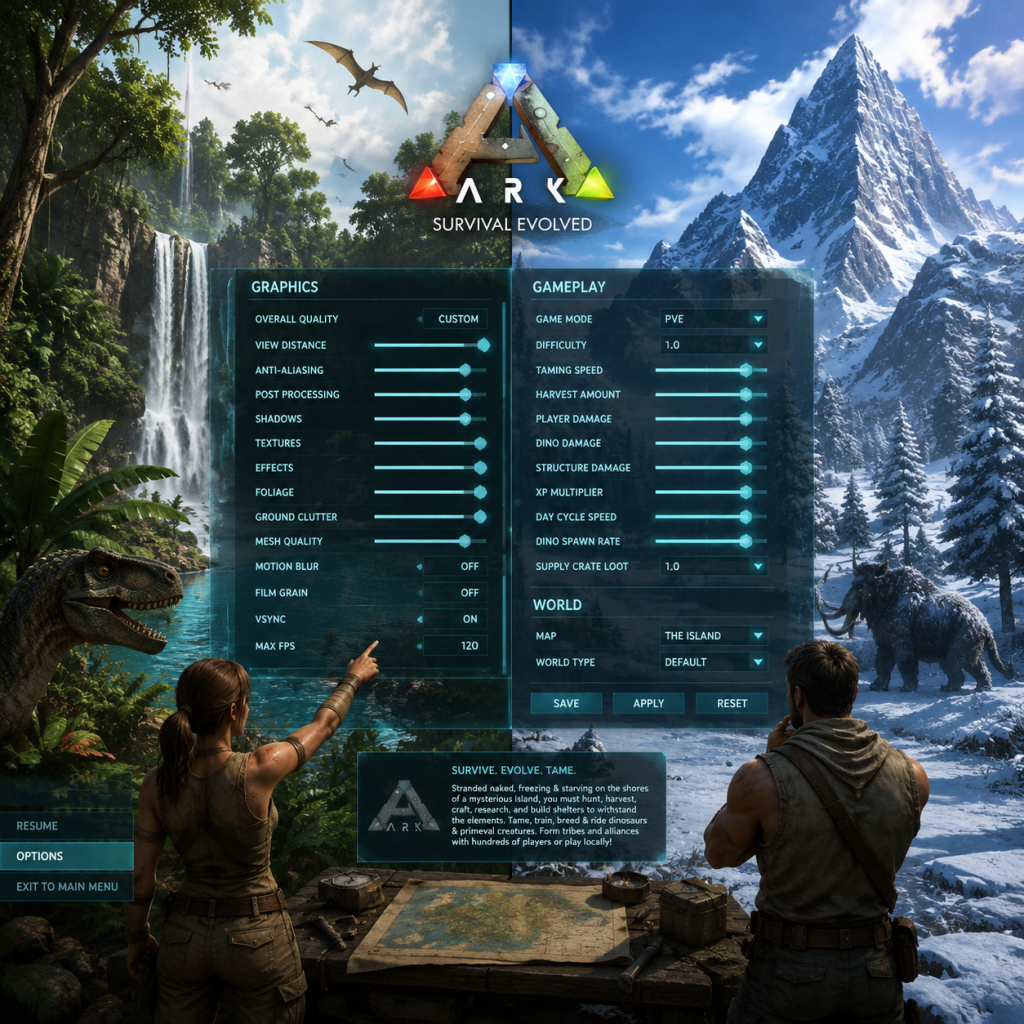
Game Settings
Overview
ARK: Survival Evolved offers a vast array of settings that significantly impact performance, visuals, and gameplay feel. This guide covers all major settings categories: Graphics, Audio, Controls, Accessibility, Language, Network, and Gameplay. Recommended presets for low-end, mid-range, and high-end hardware are provided, along with common pitfalls and settings that are easy to misconfigure. Settings menus vary slightly between platforms (PC, Xbox, PlayStation, and Nintendo Switch) but the core options remain similar.
---
Graphics Settings
Graphics settings have the largest impact on performance and visual quality. Adjust them based on your hardware capabilities.
| Setting | Low-End (e.g., GTX 1050 / RX 560) | Mid-Range (e.g., GTX 1660 / RX 580) | High-End (e.g., RTX 3070 / RX 6800) | Ultra (RTX 4090 / RX 7900 XTX) |
|---|---|---|---|---|
| Resolution Scale | 70% (or lower if needed) | 100% | 100% | 100% (or 125% supersampling) |
| View Distance | Low | Medium | High | Epic |
| Anti-Aliasing | Low (FXAA) | Medium (TAA) | High (TAA) | Epic (TAA + sharpening) |
| Post Processing | Low | Medium | High | Epic |
| Shadows | Low | Medium | High | Epic |
| Textures | Low (or Medium with 2GB VRAM) | Medium | High | Epic |
| Global Illumination | Low | Medium | High | Epic |
| Effects | Low | Medium | High | Epic |
| Foliage | Low | Medium | High | Epic |
| Motion Blur | Off | Off | Off (personal preference) | Off |
| Light Shafts | Off | Off | On | On |
| Bloom | Off | Off | On (reduce glare) | On |
| Subsurface Scattering | Off | Off | On | On |
| Terrain Shadows | Low | Medium | High | Epic |
| High Detail Structures | On (if VRAM permits) | On | On | On |
| Advanced Graphics (tessellation, etc.) | Off | Off | On | On |
- Resolution Scale: This is the most effective setting for performance gains. Reducing it to 70% can nearly double FPS but will make the game blurry. Keep it at 100% if possible.
- Motion Blur & Bloom: Many players find these reduce clarity and cause discomfort. It's recommended to disable them for better visibility, especially during combat.
- Light Shafts: Can tank performance on lower-end hardware; turn off.
- Textures: Use the lowest setting if your GPU has less than 2GB VRAM to avoid stuttering.
- Foliage and View Distance: These greatly affect CPU performance. If you have a weaker CPU, lower these settings first.
- Anti-Aliasing: TAA (Temporal Anti-Aliasing) can cause ghosting. If you dislike it, use FXAA or turn off AA and rely on resolution scaling.
- Xbox Series X / PS5: Use "High Quality" preset, then disable motion blur and reduce bloom if desired.
- Xbox One / PS4: Use "Balanced" or "Performance" mode. Lower foliage and view distance for smoother exploration.
- Nintendo Switch: Use lowest settings, reduce resolution scale to 50-60%, and disable all post-processing effects.
Console Presets (Xbox / PlayStation):
---
Audio Settings
| Option | Recommended Setting | Notes |
|---|---|---|
| Master Volume | 80% (adjust to personal preference) | Keep below 100% to avoid distortion. |
| Music Volume | 50% (or lower) | Music can be immersive but often obscures important sounds. |
| SFX Volume | 100% | Essential for hearing footsteps, creature roars, and crafting. |
| Voice Chat Volume | 80% | Depends on in-game voice activity. |
| UI Volume | 100% | Sounds for menu interactions. |
| Ambient Volume | 70% | Environmental sounds like wind, water. |
| Enable Spatial Audio | On (if supported) | Improves directional awareness of threats. |
| Sound Quality | High | On PC; console may have fixed quality. |
| Audio Output | Headphones or Surround | Choose based on your setup. |
- Lower sound quality can cause missing sounds (e.g., approaching raptor). Keep at High.
- Voice chat volume can interfere with gameplay if too high; reduce if you are in a party using external comms.
- Turn off "Play Music on Startup" in the settings if you find the menu music annoying.
---
Controls Settings
ARK supports keyboard/mouse (PC), gamepad (all platforms), and custom key bindings.
| Setting | Recommended | Notes |
|---|---|---|
| Invert Look | Off (unless accustomed) | Personal preference. |
| Mouse Sensitivity | 0.3–0.5 (adjust per DPI) | Higher sensitivity for quick turns, lower for aiming. |
| Aim Sensitivity | 0.5 (same as general) | Some players prefer lower for precision. |
| Controller Sensitivity (X/Y) | 0.5 / 0.5 | Start here; adjust to avoid overshooting. |
| Controller Dead Zone | 0.2 (left stick), 0.2 (right stick) | Increase if stick drift occurs. |
| Enable Vibration | Off (recommended) | Vibration can mask important audio cues. |
| Use Contextual Controls | On | Allows different actions based on target (e.g., use vs. pickup). |
| Quick Access Wheel | Hold or Toggle | Choose "Hold" for precise selection, "Toggle" for ease. |
| Sprint Mode | Toggle | Easier on hands; Hold can be tiring. |
| Crouch Mode | Toggle | Stealth advantage without holding. |
| Prone Mode | Hold | Avoid accidental prone in combat. |
| Reload Weapon | Tap R | Avoid hold-to-reload which can be mis-triggered. |
- Mouse Smoothing – Disable this in the `GameUserSettings.ini` (add `Smoothing=False` under `[/script/engine.inputsettings]`) for raw input; otherwise, mouse movement may feel floaty.
- Controller Dead Zone – Many players leave it at 0, resulting in drift. Set to 0.15-0.2 for new controllers, 0.25-0.35 for older ones.
- Key Binds for Structures – Bind "Auto Run" and "Toggle Map" to easily accessible keys (e.g., `N` and `M`).
---
Accessibility Settings
| Option | Purpose | Recommended |
|---|---|---|
| Colorblind Mode | Adjusts UI colors for protanopia, deuteranopia, tritanopia. | Select based on your type; affects health bars, dino info. |
| Subtitle Display | Shows spoken text for NPCs and player radio. | On (helps with background noise). |
| Subtitle Size | Increases text size. | Large for easier reading. |
| HUD Scale | Adjusts size of on-screen elements. | 100% default; increase if playing on a small screen. |
| Crosshair Size | Changes reticle size. | Medium; avoid too large which obscures target. |
| Camera Shake | Intensity of screen shake from explosions, quakes. | Off (reduces motion sickness). |
| Field of View (FOV) | Horizontal view angle. | 90–110 on PC; 75–85 on console (limited by hardware). |
- Field of View: ARK's default FOV is quite narrow (~70). Increase to 90-100 for better peripheral awareness, but it may impact performance slightly. On consoles, max FOV is often 85.
- Camera Shake: Turn off to prevent nausea during intense moments.
- Colorblind Mode: Even if not colorblind, some players find the deuteranopia mode enhances visibility of health bars.
---
Language Settings
| Option | Notes |
|---|---|
| Game Language | Select from available languages (English, French, German, Spanish, etc.). Changes UI text and subtitles. |
| Audio Language | Usually reads the selected UI language; some versions have separate audio languages for narrator. |
| Text Language | Separate from voice; useful for multi-language households. |
---
Network Settings
These are found in the main menu under "Options" → "Network" or in server browser.
| Setting | Description | Recommendation |
|---|---|---|
| Server Browser Region Filter | Filters servers by geographic region. | Use your region for lowest latency. |
| Max Ping Display | Shows ping when above a threshold. | Set to 150 ms (or higher if playing with friends far away). |
| Show Player List | Displays connected players. | On (useful for spotting admins or friends). |
| Enable Voice Chat | In-game voice communication. | Off if using Discord/party; On otherwise. |
| Voice Chat Mode | Push-to-talk or open mic. | Push-to-Talk (PTT) to avoid background noise. |
| Enable Crossplay (on consoles) | Allows play with PC or other console players. | On (if you want larger player pool); note that mods may not sync. |
| Show Server FPS | Displays server performance. | Off (not needed for most players). |
- Voice Chat Mode: Set to PTT and bind a key (e.g., V) to avoid broadcasting unwanted sounds.
- Server Browser: Use filters to hide full/high-ping servers. Sort by player count and ping.
---
Gameplay Settings
| Option | Effect | Recommended |
|---|---|---|
| Difficulty (1-5) | Affects wild dino levels (5= max level 150). | 5 (or 1 if you prefer easier early game). |
| Taming Speed | Multiplier on taming time. | 2x – 5x (official is 1x, but very slow). Adjust to preference. |
| Harvest Amount | Resource yield from nodes. | 2x (slightly reduced grind compared to 1x). |
| XP Multiplier | Experience gain rate. | 2x – 3x (faster leveling without trivializing). |
| Player Damage | Damage dealt by players. | 1.0 (can increase for PvE, but break balance). |
| Dino Damage | Damage dealt by dinos. | 1.0 (official). |
| Resistance | Damage reduction for players/dinos. | 1.0 (official); higher for easier survival. |
| Allow Third Person | Enables 3rd person view. | On (helpful for seeing around you). |
| Show Map Player Location | Marks your position on minimap. | On (essential for navigation). |
| HUD Mode | Always show, toggle, or hide. | Always Show (default). |
| Auto Engram Unlock | Automatically learn engrams of your level. | Off (customization is better). |
| Structure Placement Collision | Prevents building inside objects. | On (official). |
| Flyer Carry | Allows flyers to carry other players/dinos. | On (for PvP or transport). |
- Difficulty: Setting difficulty to 5 gives max wild dino level 150, which is standard for official servers. On servers with lower difficulty, high-level dinos are rare.
- Taming Speed & Harvest: Official rates are extremely grindy. In single-player/non-dedicated, increase these multipliers to save time (e.g., Taming 5x, Harvest 3x, XP 3x). Avoid setting too high (e.g., 50x) as it can remove challenge.
- Show Map Player Location: Ensure this is ON in single-player; it is often off by default on some platforms, causing confusion.
- Allow Third Person: Essential for situational awareness. However, it can be cheating in PvP if used to see around walls (servers may disable).
---
Special Attention Points & Common Misconfigurations
1. Resolution Scale (in Graphics) – Many players leave this at 100% but run at 4K on a 1080p monitor, causing heavy performance loss. Always set it to match your display resolution.
2. Motion Blur & Camera Shake – These are often enabled by default and can induce motion sickness. Disable them immediately in the Controls/Accessibility menus.
3. FOV (Field of View) – Default is very low (~70). Increase to at least 90 for better awareness, but note that higher FOV reduces performance.
4. Key Bindings for Important Actions – By default, 'E' is interact/use. Rebinding 'E' to a less-used key can help avoid accidental actions (e.g., mounting when trying to harvest). Set 'E' to a different key for "Use" and keep 'F' for interaction.
5. Voice Chat Not Working – Check input device in your OS settings and ensure voice chat is enabled in ARK's network settings. Console players may need to check platform privacy settings.
6. Controller Dead Zone – New players often leave dead zones at 0, leading to stick drift. Increase to 0.2-0.3.
7. Taming Speed Multiplier – Single-player defaults to 1x, which can take hours to tame a high-level dino. Adjust to 3x-5x to keep the game enjoyable.
8. Mouse Smoothing – Off by default on PC but sometimes hidden in INI files. Check the `GameUserSettings.ini` in `.../ARK/ShooterGame/Saved/Config/WindowsNoEditor/`. Add `Smoothing=False` under `[/script/engine.inputsettings]` if you feel input lag.
9. Auto Engram Unlock – Disable this so you can choose which engrams to learn based on your playstyle. Otherwise, you may waste engram points on items you never use.
10. Server Browser Filters – New players often join high-ping servers because they don't filter by region. Always set "Region" to your continent to avoid lag.
---
This guide covers all major settings in ARK: Survival Evolved. Adjust slowly and test performance in a single-player world before committing to multiplayer. Remember that official servers have fixed settings; you cannot change multipliers there.