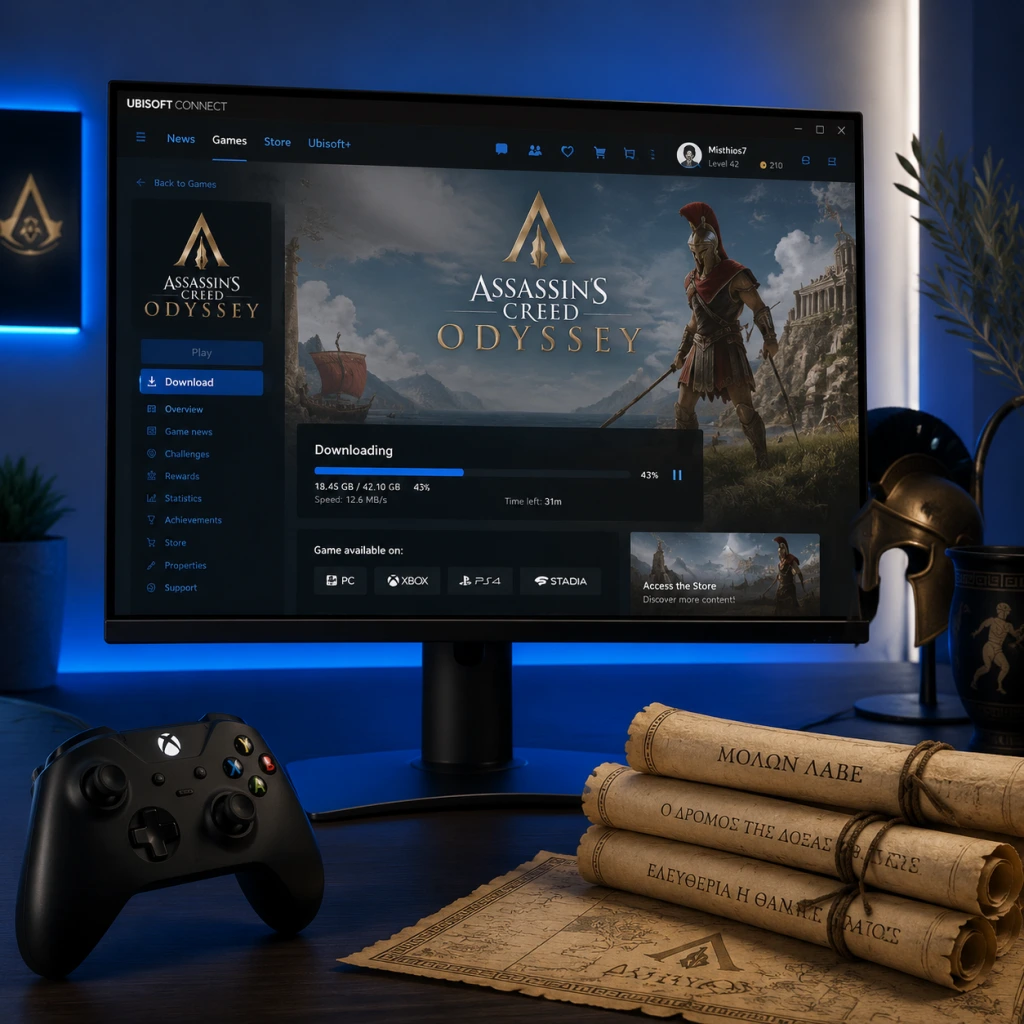
Download & Installation
Assassin's Creed Odyssey: Complete Download & Installation Guide
This guide covers all legitimate ways to download and install Assassin's Creed Odyssey across supported platforms. Follow the steps carefully to ensure a smooth installation and avoid common pitfalls.
---
Platform Overview
| Platform | Store / Source | Availability |
|---|---|---|
| PC | Steam, Epic Games Store, Ubisoft Connect (Uplay) | Full game |
| PlayStation 4 | PlayStation Store, physical disc | PS4 native; backward compatible on PS5 |
| PlayStation 5 | PlayStation Store (PS4 version via backwards compatibility) | Runs via BC |
| Xbox One | Microsoft Store, physical disc | Full game |
| Xbox Series X | S | Microsoft Store (optimized via backward compatibility + FPS Boost) |
| Nintendo Switch | Cloud streaming only (Japan exclusive via Ubisoft Connect) | Limited regions |
| Mobile | Not available | N/A |
System Requirements (PC)
Minimum Requirements (1080p, Low Settings, 30 FPS)
- OS: Windows 7 SP1, Windows 8.1, Windows 10 (64-bit)
- CPU: AMD FX-6300 @ 3.8 GHz or Intel Core i5-2400 @ 3.1 GHz (or better)
- RAM: 8 GB
- GPU: AMD Radeon R9 285 (2GB VRAM) or NVIDIA GeForce GTX 660 (2GB VRAM)
- DirectX: DirectX 11
- Storage: 46 GB available space (HDD recommended; SSD for faster loads)
- Sound: DirectX 9.0c compatible sound card
- OS: Windows 10 (64-bit)
- CPU: AMD FX-8350 @ 4.0 GHz or Intel Core i7-3770 @ 3.5 GHz
- RAM: 8 GB
- GPU: AMD Radeon R9 290 (4GB VRAM) or NVIDIA GeForce GTX 970 (4GB VRAM)
- DirectX: DirectX 11
- Storage: 46 GB SSD
- Sound: DirectX 9.0c compatible sound card
- Ubisoft Connect Account: Mandatory for all PC versions (Steam, Epic, Uplay) and optional for consoles (for cloud saves, achievements).
- Console Accounts: PlayStation Network (PSN) for PlayStation, Xbox Live for Xbox, Nintendo Account for Switch.
- Cross-platform save: Not supported. Saves are locked to the platform.
Recommended Requirements (1080p, High Settings, 30+ FPS)
> Note: For higher resolutions or frame rates (1440p/4K), you will need significantly more powerful hardware (e.g., RTX 2060 or RX 5700 XT and 16 GB RAM).
---
Step-by-Step Installation by Platform
PC – Steam
1. Install Steam Client: Download from [store.steampowered.com](https://store.steampowered.com) and log in (or create an account).
2. Purchase & Add to Library: Search for "Assassin's Creed Odyssey" → buy or redeem a key → click "Add to Library."
3. Install: Go to your Library → find the game → click "Install." Choose your installation path (ensure 46 GB free space).
4. Download & Play: Steam will download the game. After completion, click "Play." It will also install Ubisoft Connect launcher if not present.
PC – Epic Games Store
1. Install Epic Games Launcher: Download from [store.epicgames.com](https://store.epicgames.com) → install and log in.
2. Purchase & Library: Find "Assassin's Creed Odyssey" → buy or add free copy (if owned) → click "Get" or "Buy" → confirm.
3. Install: Go to Library → click game → "Install" → choose location (46 GB free).
4. Launch: After download, click "Launch." The game will start via Ubisoft Connect (installed automatically).
PC – Ubisoft Connect (Uplay)
1. Install Ubisoft Connect: Download from [ubisoftconnect.com](https://ubisoftconnect.com) → install and log in.
2. Redeem Key / Purchase: If you have a retail key, go to "Activate a product" → enter key. Or buy directly in the Store.
3. Install: Go to Games tab → find Odyssey → click "Download" → choose install folder (46 GB).
4. Play: Once download finishes, click "Play." No additional launcher needed.
PlayStation 4/5
1. Physical Disc: Insert disc → follow on-screen prompts to install. Ensure at least 46 GB free. Accept updates if prompted.
2. Digital (PlayStation Store): On PS4 or PS5 (via backward compatible) → go to PlayStation Store → search "Assassin's Creed Odyssey" → purchase → download from library.
3. Installation: The game installs automatically. On PS5, play the PS4 version; no native PS5 version exists.
4. Launch: After installation, start from the home screen.
Xbox One / Series X|S
1. Physical Disc: Insert disc → install from dashboard. Downloads may be required for updates.
2. Digital (Microsoft Store): From console → Microsoft Store → search → buy → select "Install to" (choose internal or external storage).
3. Storage: 46 GB required. On Series X|S, the game runs via backward compatibility with possible FPS Boost (enable in compatibility settings).
4. Launch: After download, launch from My Games & Apps.
Nintendo Switch (Cloud Streaming – Japan only)
1. Prerequisites: Stable high-speed internet (minimum 30 Mbps). Nintendo Switch Online membership required.
2. Region & Account: Must have a Japanese Nintendo eShop account (region set to Japan). Use a Japanese payment method or buy a digital code.
3. Download: Switch to Japanese eShop → search "Assassin's Creed Odyssey" → purchase → download the cloud streaming client (small app).
4. Play: Launch the app → stream the game. Note: Requires persistent internet connection; performance depends on your connection.
---
Account Requirements
---
First Launch Setup
1. Language & Region Settings: The game will detect your system language. You can change it in Options > Audio/Subtitle.
2. Graphics Options (PC): On first launch, the game offers a benchmark/auto-detect. Let it run for optimal settings. Adjust manually if needed.
3. Control Preferences: Customize keyboard/mouse or controller layout in Options > Controls.
4. Ubisoft Connect Overlay: If on PC, sign in to unlock achievements and cloud saves. You can disable overlay by pressing Shift+F2 and settings.
5. Difficulty Selection: Choose from Easy, Normal, Hard, or Nightmare. You can change later.
6. Story Mode vs. Exploration Mode: Select guided or exploration mode (no map markers).
---
Common Installation Errors & Fixes
| Error | Platform | Cause | Solution |
|---|---|---|---|
| "Insufficient Disk Space" | All | Not enough free space (46 GB required) | Free up space; check drive for temporary files. For PC, ensure OS drive also has space for updates. |
| "Game failed to install" | PC (Steam/Epic) | Corrupted download file | Verify game files: Steam → Properties → Local Files → Verify integrity. Epic → Options → Verify. |
| "Ubisoft Connect not installed" | PC | Missing launcher | Manually download and install Ubisoft Connect from ubisoftconnect.com. |
| "Can't launch – Xbox Live error" | Xbox | Account or service issue | Check Xbox Live status; sign out and back in. |
| "Network connection required" (Switch) | Switch | Cloud streaming | Ensure internet is stable; reboot router. |
| "Application error 0xc0000005" | PC | Memory or driver issue | Update GPU drivers; run as administrator; disable antivirus temporarily. |
| "Stuck at 99% download" | All | Background updater blocking | Restart launcher; pause and resume download. |
| "Access denied" / store registration | All | Region lock | Verify your account region matches store region (especially for Switch Japan). |
General Troubleshooting Steps
- Restart your device/console.
- Check for system updates (Windows, console firmware).
- On PC: Disable overlay programs (Discord, Steam Overlay) temporarily.
- Reboot router if downloads are slow.
- Reinstall the launcher (Steam, Epic, Uplay).
- Assassin's Creed Odyssey does not support cross-platform multiplayer or cooperative play; it is a single-player game.
- The game size is approximately 46 GB (may vary slightly with updates). Ensure you have at least 50 GB free to accommodate future patches.
- Voice languages: English, French, Italian, German, Spanish, Portuguese (Brazilian), Polish, Russian, Arabic, Japanese, Korean, Simplified Chinese, Traditional Chinese. Text languages vary.
- For optimal performance on PC, keep GPU drivers updated (NVIDIA GeForce Experience or AMD Adrenalin).
- If you encounter persistent crashes, disable third-party overlays and reduce graphics settings to High (not Ultra).
---
Post-Installation Verification
1. Check Version Number: From main menu → Settings → About. Ensure it is the latest (usually 1.5.x or later).
2. Run Benchmark (PC): Settings → Graphics → Benchmark. Compare results with expected performance.
3. Save Game: Start a new game or load a cloud save. Verify save function works (manual save in the pause menu).
4. Achievements: Check if Ubisoft Connect (or platform) achievements pop correctly (e.g., "Welcome to Greece").
5. Audio & Controls: Test sound, subtitles, controller input (if applicable).
6. Update: If the game does not launch or shows outdated content, manually check for updates (platform launcher → check for updates).
---
Final Notes
---
Guide last updated: October 2023. Game versions and store policies may change. Always refer to official support pages.