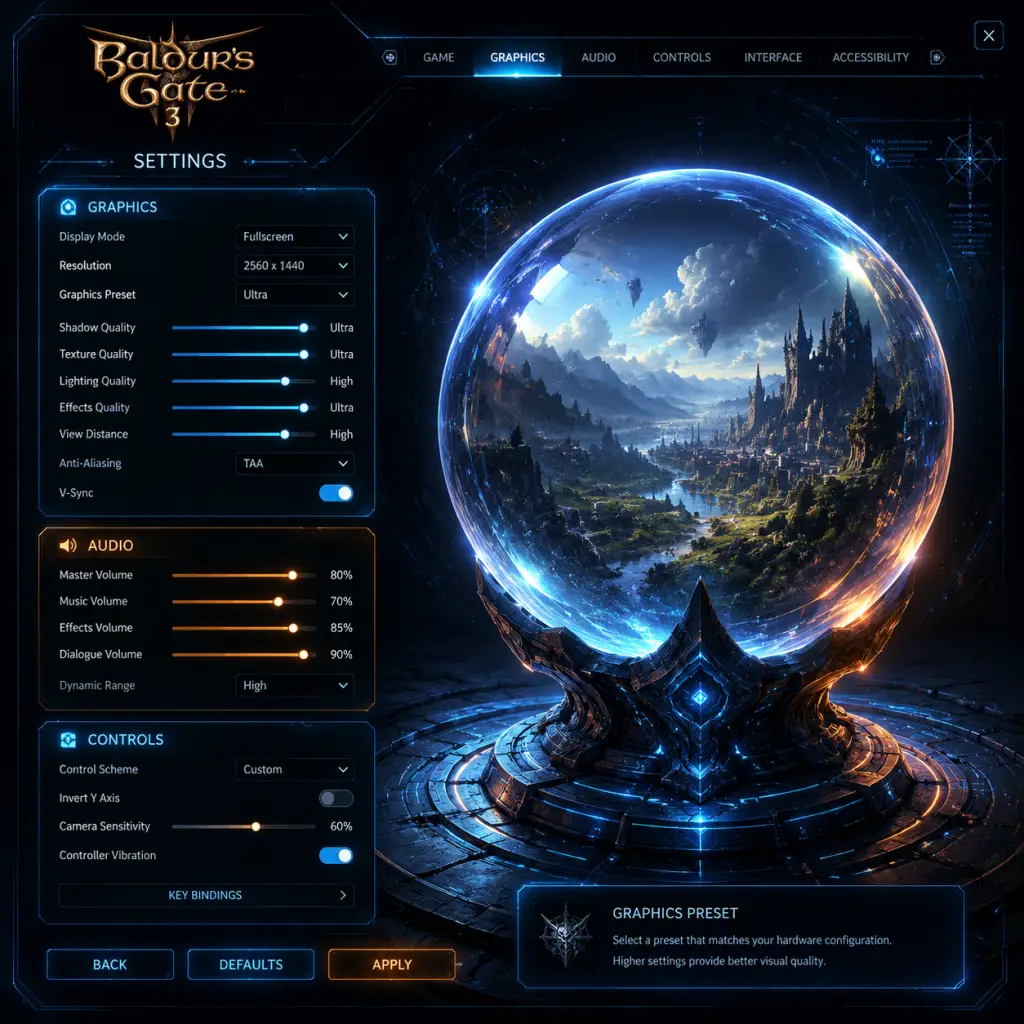
Game Settings
Overview
The settings menu in Baldur's Gate 3 is extensive, offering deep customization for visuals, audio, controls, accessibility, and gameplay. Properly configuring these options is essential for an optimal experience – whether you aim for silky-smooth performance on a mid-range PC, maximum fidelity on a high-end rig, or a comfortable playthrough on console. This guide breaks down every settings category, highlights easy-to-miss pitfalls, and provides recommended configurations for different hardware levels.
---
Graphics Settings
Graphics settings are the most impactful on both performance and visual quality. BG3 uses Larian's Divinity Engine 4.0, supporting both Vulkan and DirectX 11 renderers. Vulkan is generally recommended for better performance and stability, but if you encounter crashes, switch to DX11.
Display
| Setting | Recommended Value | Notes |
|---|---|---|
| Display Mode | Fullscreen | Borderless windowed can cause input lag; exclusive fullscreen yields best performance. |
| Resolution | Native monitor resolution | Match your monitor’s native res. |
| Refresh Rate | Max monitor refresh (e.g., 144 Hz) | Uncapped frame rate; monitor’s max is preferred. |
| V-Sync | Off (or use GPU driver) | On can cap FPS to monitor refresh; off reduces input lag. |
| Frame Rate Cap | 60 or 90 FPS (optional) | Locks FPS to reduce power draw / heat. Leave uncapped for best responsiveness. |
Quality Presets & Advanced
The Quality Presets (Low, Medium, High, Ultra) are a good starting point:
- Low: 60 FPS on Low-end hardware (e.g., GTX 1060, RX 580).
- Medium: Stable 60 FPS on Mid-range (RTX 2060, RX 5600 XT).
- High: Great visuals on High-end (RTX 3070, RX 6800) – target 1440p.
- Ultra: Maximum eye candy on RTX 4080/4090 or equivalent – expect 4K 30-60 FPS.
- Shadow Quality – High to Ultra cost significant performance. Set to High (not Ultra) for minimal visual loss.
- Volumetric Clouds & Fog – Very demanding. Medium is a good balance.
- Ambient Occlusion – HBAO+ is attractive but costly. SSAO is lighter. Turn off for low-end PCs.
- Anti-Aliasing – TAA (Temporal AA) is sharp, but can cause blur. DLSS / FSR (see below) often replace it.
- DLSS / FSR / XeSS – Upscaling tech:
- Texture Quality – Impacts VRAM. On 6GB+ cards use High; on 4GB cards use Medium. Ultra can cause stutter on 8GB cards in busy areas.
- Model Quality – Controls polygon detail. High is fine for most; drop to Medium only on very weak GPUs.
- Anisotropic Filtering – 8x or 16x has minimal performance cost. Leave at 16x.
Key adjustments for performance vs. quality:
- NVIDIA GPUs: Enable DLSS Quality or Balanced to boost FPS with minimal quality loss.
- AMD / Intel GPUs: Use FSR 2.2 (or XeSS for Intel Arc). Quality mode is recommended.
- Lower settings (Performance, Ultra Performance) save FPS but soften image.
Special attention: The DirectX vs Vulkan option is found before launching the game (launcher). Inside settings, only the API indicator is visible. If you crash often, try the other API.
---
Audio Settings
| Setting | Recommended | Notes |
|---|---|---|
| Master Volume | 80-100% | Adjust to taste. |
| Music Volume | 70% | BG3’s soundtrack is atmospheric; no need to overpower dialogue. |
| SFX Volume | 80% | Combat sounds, spells, footsteps. |
| Voice Volume | 100% | Essential for story; keep high. |
| Ambient Volume | 70% | Environmental sounds (wind, water). |
| Cinematic Volume | 100% | For cutscenes. |
| Narrator Volume | Same as Voice | The narrator is a key character. |
| 3D Audio | On (if supported) | Enhances spatial awareness. Disable if you experience echo or distortion. |
| Audio Output | Speakers / Headphones | Choose the correct device; headphones may enable virtual surround. |
---
Controls Settings
Keyboard & Mouse
- Key Bindings: Fully customizable. Rebind camera rotation (default: Middle Mouse Button) to something comfortable.
- Camera Controls: Mouse sensitivity and camera scroll speed. Default is fine, but adjust if camera feels sluggish.
- Left Click vs Right Click: Left selects/actions; right opens context menu. Can be swapped in accessibility if needed.
- Multiselect / Grouping: Ctrl+Click to select multiple characters. Learn these shortcuts for efficient inventory management.
- Controller Layout: Choose between Default (most intuitive) and Alternative (swaps some button functions).
- Stick Sensitivity: Adjust if movement feels floaty. Default is usually good.
- Vibration: Toggle on/off.
- Radial Menu: Customize slots for quick items/spells. Very important – assign your most used skills.
Controller (Xbox / PlayStation)
Special attention: The controller UI changes drastically from keyboard. If you switch controllers mid-game, restart the game to avoid input conflicts.
---
Accessibility Settings
BG3 is praised for its robust accessibility options.
| Setting | Description | Recommended |
|---|---|---|
| Subtitle Size | Small, Medium, Large | Large for readability. |
| Subtitle Background | On (black box) or Off | On improves legibility. |
| Speaker Names | Show character names in subtitles | On |
| Colorblind Mode | Protanopia, Deuteranopia, Tritanopia | Choose as needed. |
| High Contrast Mode | Increases UI contrast | Helpful for low vision. |
| Screen Shake Intensity | 0% to 100% | 0% if sensitive to motion. |
| Camera Bobbing | On/Off | Off for motion sickness. |
| Auto-Rotate Camera | On/Off | Off if you prefer manual control. |
| Tooltips Delay | Normal, Long, Very Long | Extend duration if you read slowly. |
| Narration Speed | Slow, Normal, Fast | Choose according to preference. |
| Simplify Visual Effects | Reduces particle effects | Can help with performance and sensory overload. |
---
Language Settings
- Text Language: Choose from 11+ languages (English, French, German, Spanish, etc.). This changes all in-game text.
- Audio Language: Separate from text. Only a few languages have full voice acting (English, French, German, Spanish, etc.). Changing audio language requires a restart.
- Subtitles: Can be forced on even when audio matches your language.
Note: Language settings are applied after restart. If you’re using the Steam version, you can also set language in Steam properties, but in-game settings override.
---
Network Settings
Only applicable for multiplayer sessions (co-op or PvP).
| Setting | Description | Recommended |
|---|---|---|
| Network Type | Direct Connection or Larian Account | Direct is simpler for LAN; Larian account for online friends. |
| Server Region | Auto or manual | Use Auto unless you know a specific region. |
| Voice Chat | Push-to-Talk or Open Mic | Push-to-Talk to avoid background noise. |
| Cross-Platform Play | On/Off | Enable to play with friends on different platforms (PC, PS5, Xbox). Requires Larian account. |
| Show Connection Quality | Toggle network indicator | On to diagnose lag. |
---
Gameplay Settings
These affect how the game plays, not just visuals or audio.
| Setting | Description | Recommended |
|---|---|---|
| Difficulty | Explorer (easy), Balanced, Tactician (hard) | Newcomers: Balanced; veterans: Tactician. |
| Enemy Aggression | Default or Aggressive (enemies more proactive) | Leave on Default. |
| Show Hit Chance | Always, Conditional, Never | Always for clarity (default). |
| Turn-Based Mode | Always or Out of Combat | Always is safest; some prefer out-of-combat only for exploration. |
| AutoSave Frequency | Every Short Rest, Every 10 min (default), etc. | Every Short Rest or Every 10 min to avoid major loss. |
| QuickSave / QuickLoad | Works instantly; no settings needed | Be aware QuickSave overwrites previous. |
| Auto-Pause Options | On enemy sight, on trap detection, on level up, etc. | Enable all for new players to avoid surprises. |
| Subtitles in Cutscenes | Same as accessibility | On. |
| Camera Distance | Default is close; can be zoomed out manually | No slider – use mouse wheel or right stick. |
| Auto Loot | Toggle to automatically pick up items from clicked containers | Useful to reduce micro-management. |
---
Recommended Settings by Hardware Tier
| Tier | Example GPU | Resolution Target | Key Settings |
|---|---|---|---|
| Low | GTX 1060 / RX 580 | 1080p 30-60 FPS | Preset Low, FSR Performance (if needed), Shadows Low, Volumetrics Low, Ambient Occlusion Off, Texture Quality Medium |
| Mid | RTX 2060 / RX 5700 | 1080p 60 FPS or 1440p 30 FPS | Preset High, DLSS/FSR Quality, Shadows High, Volumetrics Medium, Ambient Occlusion HBAO+ (on/off), Texture Quality High |
| High | RTX 3070 / RX 6800 | 1440p 60 FPS or 4K 30-45 FPS | Preset Ultra, DLSS/FSR Quality, Shadows High, Volumetrics High, Ambient Occlusion HBAO+, Texture Quality Ultra |
| Ultra | RTX 4090 / RX 7900 XTX | 4K 60 FPS | Preset Ultra, DLSS Quality/Balanced, Shadows Ultra, Volumetrics Ultra, Ambient Occlusion HBAO+, Texture Quality Ultra |
---
Easy-to-Misconfigure Settings & Attention Points
1. API Selection (Vulkan vs DX11) : The launcher is the only place to change this. If you experience crashes (especially on AMD GPUs), switch to DX11. For NVIDIA, Vulkan is usually better.
2. Gamma/Brightness Calibration: The in-game calibration tool can appear too dark if not adjusted. Set so that the barely visible logo is just distinguishable – if you see nothing in dark areas, increase gamma slightly.
3. Controller Hotplugging: If you connect a controller after launching the game with keyboard, the game may not recognize it properly. Restart the game after connecting/disconnecting.
4. DLSS/FSR Quality Impact: Using these on Low preset with “Performance” mode can cause blurriness. Always use at least Quality or Balanced.
5. Autosave Overwrite: QuickSave and QuickLoad are convenient but autosaves stack up. Regularly use manual saves to keep important moments.
6. Cross-Platform Saves: If playing across PC and console, ensure cloud saves are enabled on both platforms and that you have a Larian account. Transfer may take a minute.
7. Gameplay Difficulty Changes Mid-Game: You can switch difficulty at any time (except between Tactician and higher in some patches). Use this if you find a section too tough.
8. Subtitle Delay: Some players report subtitles appearing late. Ensure your audio language and text language match to reduce sync issues.