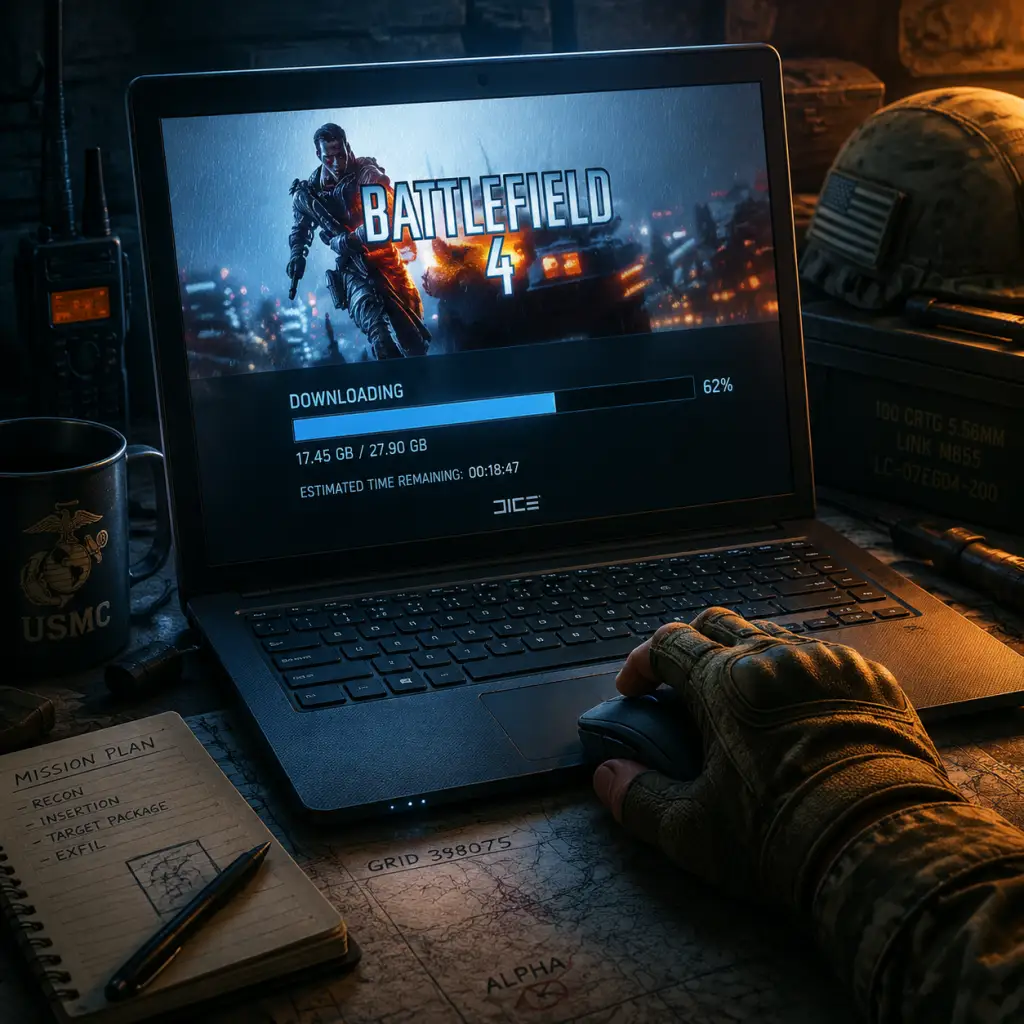
Download & Installation
Battlefield 4: Complete Download & Installation Guide
Battlefield 4 is a first-person shooter developed by DICE and published by Electronic Arts. It is available on PC, PlayStation 3, PlayStation 4, PlayStation 5 (via backward compatibility), Xbox 360, Xbox One, and Xbox Series X|S. There is no native mobile or Nintendo Switch version. This guide covers legitimate download sources and step-by-step installation for all platforms.
---
1. Official Download Sources
| Platform | Store / Service | Notes |
|---|---|---|
| PC | EA app (formerly Origin) | Primary store; supports all DLC and multiplayer. |
| PC | Steam | Available since June 2020; requires EA account. |
| PC | Epic Games Store | Not officially available on Epic. |
| PlayStation 3 | PlayStation Store (PS3) | Digital download only; PS3 store still accessible. |
| PlayStation 4 | PlayStation Store | Plays on PS5 via backward compatibility. |
| PlayStation 5 | PlayStation Store | PS4 version playable; no native PS5 version. |
| Xbox 360 | Xbox Games Store | Digital download; also via disc. |
| Xbox One | Microsoft Store (Xbox One) | Digital and disc; backward compatible on Xbox Series X |
| **Xbox Series X\ | S** | Microsoft Store |
---
2. System Requirements (PC)
#### Minimum Requirements
- OS: Windows Vista SP2 32-bit (with KB971512 update)
- CPU: AMD Athlon X2 2.8 GHz or Intel Core 2 Duo 2.4 GHz
- RAM: 4 GB
- GPU: AMD Radeon HD 3870 or NVIDIA GeForce 8800 GT with 512 MB VRAM
- DirectX: 10
- Storage: 30 GB free space
- Network: Broadband connection
- Sound: DirectX-compatible
- OS: Windows 8 64-bit (Windows 10/11 recommended for best compatibility)
- CPU: AMD FX-8350 or Intel Core i5-3570K
- RAM: 8 GB
- GPU: AMD Radeon HD 7870 or NVIDIA GeForce GTX 660 with 3 GB VRAM
- DirectX: 11
- Storage: 30 GB free space (SSD recommended)
- Network: Broadband connection
- PC (vanilla): ~30 GB for base game. Premium Edition with all expansions (China Rising, Second Assault, Naval Strike, Dragon's Teeth, Final Stand, plus community maps) requires ~70 GB after updates.
- PlayStation 3: ~11 GB (base) — game installs to HDD.
- PlayStation 4 / PS5: ~40-50 GB (with patches).
- Xbox 360: ~7.5 GB (installs from disc or download).
- Xbox One / Series X|S: ~45-50 GB (includes all updates).
- PC (EA app or Steam): EA account (free) required. Steam version also needs EA account linked.
- PlayStation: PSN account (free for multiplayer, PS Plus required for online play).
- Xbox: Xbox Live account (Xbox Game Pass Core/Ultimate required for online multiplayer on Xbox One/Series).
- PS3: Purchase from PlayStation Store on console or via web. Download/install directly to system HDD.
- Xbox 360: Purchase from Xbox Games Store or insert disc. Disc-based games require full installation to HDD (optional for Xbox 360). Follow on-screen prompts.
- Note: Online multiplayer services for PS3 and Xbox 360 still function but player counts are low.
#### Recommended Requirements
---
3. Storage Space Details
Note: Additional free space (10-20%) is needed during installation for temporary files.
---
4. Account Requirements
---
5. Step-by-Step Installation per Platform
#### 5.1 PC via EA App (Origin legacy)
1. Create or sign in to an EA account at [ea.com](https://www.ea.com).
2. Download and install the EA app from the official site.
3. Launch EA app, log in.
4. Go to Store → search "Battlefield 4".
5. Select your edition (Standard or Premium). Purchase if not owned.
6. Click Download or Install. The app will place the game in your library.
7. Choose installation directory (default: `C:\Program Files\EA Games\`).
8. Wait for download (~30 GB). Ensure uninterrupted internet.
9. After download, the game will install and apply any necessary patches automatically.
10. Launch from EA app library.
#### 5.2 PC via Steam
1. Ensure you have Steam installed and an account.
2. Open Steam → Store → search "Battlefield 4".
3. Add to cart, purchase.
4. In your Library, select Battlefield 4 → click Install.
5. Choose install location (SSD recommended).
6. Steam will download via its content servers.
7. Upon first launch, Steam will prompt you to link your EA account. Follow the on-screen browser window to sign in or create an EA account.
8. After linking, the game launches (with EA app overlay running behind the scenes).
#### 5.3 PlayStation 4 / PS5 (digital)
1. From PS4/PS5 home screen, go to PlayStation Store.
2. Search “Battlefield 4”.
3. Select your edition (Premium recommended for best value) → Download.
4. The console will download the game in the background. Downloads can be viewed from Notifications.
5. Once installed (check Library → Purchased), launch the game.
6. On first launch, the game will prompt for installation of multiplayer and single-player files (optional).
7. Sign in with your PSN account; link EA account if prompted (for online features).
#### 5.4 Xbox One / Xbox Series X|S (digital)
1. Press Xbox button → Microsoft Store.
2. Search “Battlefield 4”.
3. Purchase or select Install if already owned.
4. The game will download to your internal or external drive.
5. After installation, launch from My games & apps.
6. Sign in to Xbox Live; game will prompt for EA account linking.
7. Install updates if prompted (usually automatic).
#### 5.5 Older Consoles (PS3 / Xbox 360)
---
6. First Launch Setup
After installation, the first launch typically involves:
1. EA Account Linking (if not done during installation).
2. Language Selection (game supports English, French, German, Italian, Spanish, Japanese, etc.).
3. Display Calibration — adjust brightness/screen boundaries.
4. Graphics/Performance Settings (PC only): Set resolution, quality presets, VSync, field of view, etc. Recommended to run the built-in benchmark to tweak settings.
5. Controller Configuration (console/PC): Sensitivity, button layout.
6. Update Prompt — ensure you have the latest patch (typically automatic on all platforms).
7. Multiplayer Tutorial — optional, but recommended for new players.
On PC, you may also see a PunkBuster installation prompt (anti-cheat). Allow it to install.
---
7. Common Installation Errors and Fixes
| Error / Issue | Platform | Cause | Fix |
|---|---|---|---|
| Error: "The installation is incomplete" | PC (EA app) | Corrupted download or insufficient disk space | Reinstall EA app, clear cache (restart app and delete `ProgramData\Electronic Arts\EA Desktop\Cache`), or run as administrator. |
| Error: "DirectX runtime error" | PC | Missing Visual C++ or DirectX redistributables | Install latest DirectX from Microsoft and Visual C++ 2015-2022 Redistributable. Repair EA app. |
| Error: "Origin is already running" | PC (Steam/EA app conflict) | Both EA app and Origin installed | Close both; uninstall Origin if using EA app. For Steam users, allow EA app overlay. |
| Error: "PunkBuster has encountered a problem" | PC | Outdated PunkBuster | Download and run `pbsvc.exe` from Even Balance website to reinstall PunkBuster services. |
| Error: "Failed to connect to EA servers" | All | Firewall/antivirus blocking or server down | Add `bf4.exe` and EA app to firewall exceptions. Check server status on EA Help. |
| Error: "The game failed to load. The license has expired" | Xbox One/Series | License sync issue | Go to Settings → Account → Licenses → Refresh. Perform a power cycle. |
| Error: "CE-30005-8" | PS4 | Corrupted installation | Delete game and reinstall. Check for system software update. Rebuild database in Safe Mode. |
| Error: "EULA not accepted" | PC | Pop-up behind window | Press Alt+Tab to accept license agreement. |
| Game crashes on launch | PC | Outdated graphics drivers or incompatible mods | Update GPU drivers (NVIDIA/AMD). Disable any overlays (Discord, NVIDIA GeForce Experience). Verify game files via EA app or Steam. |
- Run as Administrator (PC): Right-click shortcut → Properties → Compatibility → Run this program as administrator.
- Disable Antivirus Temporarily during download/installation.
- Use Wired Connection for stable download.
- Check Game Version: In the main menu, look at the lower-left corner for patch version (e.g., 1.0.0.x). Latest patch as of 2025 is usually included.
- Test Single-Player: Launch the campaign mission "Baku". If it loads without issues, installation is successful.
- Test Multiplayer: Quick join any server via Server Browser. Ensure you can connect and see other players.
- Verify File Integrity (PC):
- Check Storage: Ensure free space remains for future updates (at least 20 GB).
- Update GPU Drivers for best performance.
- Premium Edition includes all DLC maps, weapons, and vehicles. If you already own standard, consider Premium membership (in-game purchase) for access to all expansions.
- Cross-play is not supported. PC and console players are separated.
- Cloud Saves are automatic on Steam and EA app for PC, and PSN/Xbox for consoles.
- Mods are not officially supported. Third-party tools like BF4DB are for server management only.
---
8. Post-Installation Verification
After installing, verify the game is ready to play:
- EA App: Library → Battlefield 4 → Manage → Repair.
- Steam: Library → right-click Battlefield 4 → Properties → Local Files → Verify integrity of game files.
---
9. Additional Tips
---
Summary Table
| Platform | Storefront | Account Needed | Storage | Multiplayer Required Subscription |
|---|---|---|---|---|
| PC (EA app) | EA app | EA account | ~70 GB | None |
| PC (Steam) | Steam | EA + Steam | ~70 GB | None |
| PS4/PS5 | PS Store | PSN | ~50 GB | PS Plus (for online) |
| Xbox One/Series | MS Store | Xbox Live | ~50 GB | Game Pass Core/Ultimate |
| PS3 | PS Store (PS3) | PSN | ~11 GB | None (online free) |
| Xbox 360 | Xbox Games Store | Xbox Live | ~7.5 GB | Xbox Live Gold (now Core) |
Enjoy Battlefield 4 – still one of the most immersive military shooters with destructible environments and large-scale battles!