Game Settings
Battlefield 4: Comprehensive Game Settings Guide
This guide covers every adjustable setting in Battlefield 4, with optimization recommendations for different hardware tiers and platform-specific quirks. Settings are grouped into seven categories: Graphics, Audio, Controls, Accessibility, Language, Network, and Gameplay. Special attention is given to commonly misconfigured options and settings that impact performance or competitive advantage.
---
1. Graphics Settings
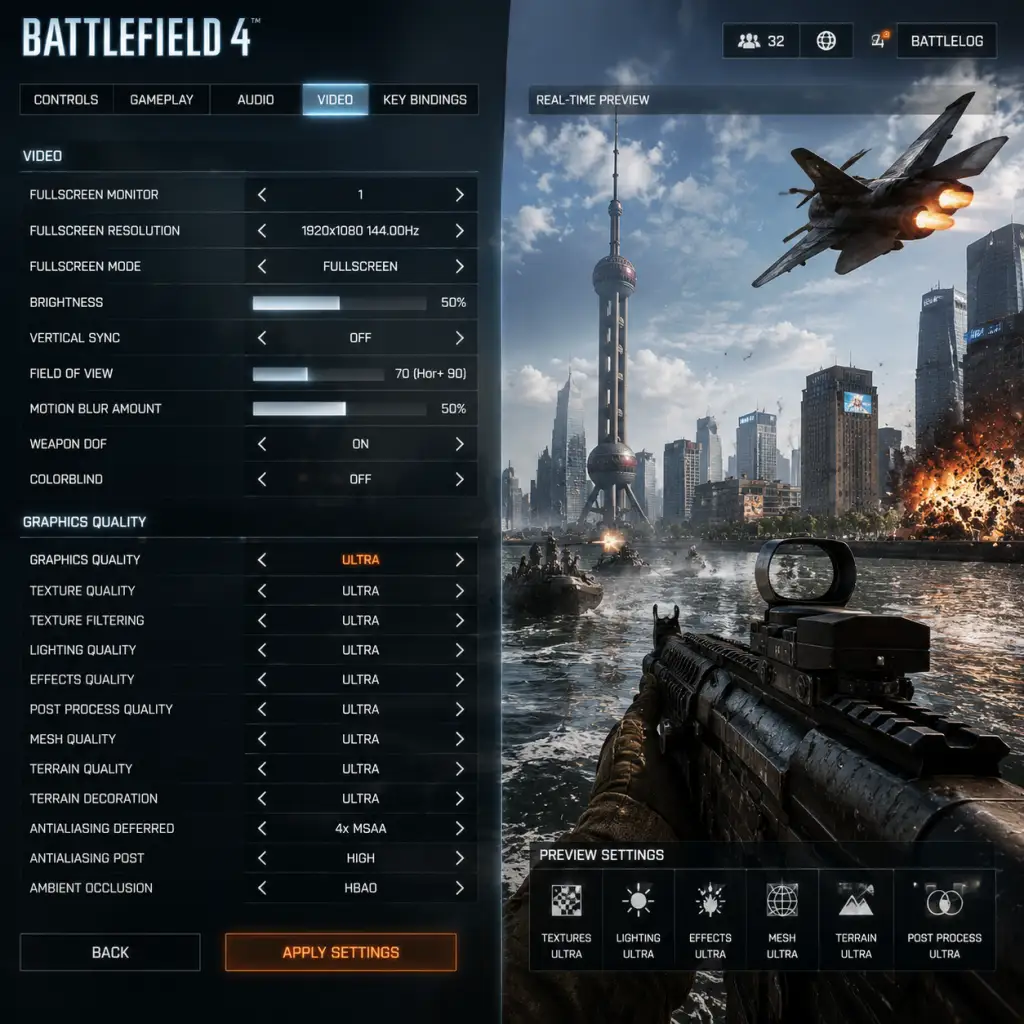
Graphics settings heavily affect performance and visual quality. Battlefield 4 scales well from low-end PCs to high-end rigs. On consoles, presets are fixed but some options exist (e.g., FOV, motion blur).
#### PC Graphics Options (Advanced)
| Setting | Low-End (e.g., GTX 750 Ti / i3-4130) | Mid-Range (e.g., GTX 1060 / Ryzen 5 2600) | High-End (e.g., RTX 3080 / i7-10700K) | Notes |
|---|---|---|---|---|
| Resolution | 1600x900 or 1280x720 | 1920x1080 | 2560x1440 or 4K | Match monitor native res; lower for FPS boost. |
| Field of View (FOV) | 70-75 | 80-90 | 90-100 | Higher FOV increases peripheral vision but reduces target size. Misconfiguration trap: On low-end PCs, high FOV drops FPS due to more objects on screen. Console players have a slider but capped at ~80. |
| Brightness | Adjust until the center symbol is barely visible in calibration screen | Same | Same | Critical for seeing in dark corners. Too low = death from shadows. |
| Graphics Quality | Custom – see individual settings below | Auto High or custom | Ultra (may adjust AA) | Misconfiguration: Many players set "Ultra" on low-end hardware, causing stutter. |
| Texture Quality | Low | Medium | Ultra | VRAM dependent. Low uses less GPU memory. |
| Texture Filtering | 2x Anisotropic | 8x | 16x | Small performance impact; 8x recommended for most. |
| Lighting Quality | Low | Medium | High | Affects shadows and dynamic lights. High can drop FPS in firefights. |
| Effect Quality | Low | Medium | High | Controls particle effects (explosions, smoke). Low makes smoke less dense – actually a competitive advantage! |
| Post Processing Quality | Low | Medium | High | Includes bloom, motion blur, and ambient occlusion. Motion blur should be OFF for clarity. |
| Mesh Quality | Low | High | Ultra | Crucial for spotting enemies. High mesh renders distant objects with more polygons – enemies appear sharper at range. Set to High even on low-end if possible. |
| Terrain Quality | Low | Medium | Ultra | Affects ground detail. Low makes terrain simpler, helping spot prone enemies. |
| Terrain Decoration | Low | Medium | Ultra | Grass and bushes. Low reduces foliage, making campers easier to see. Another competitive trick. |
| Anti-Aliasing (AA) | Off or FXAA | 2x MSAA | 4x MSAA or Off (if using high res) | MSAA is costly. FXAA is cheap but blurs edges. Consider turning AA off at 1440p+. |
| Ambient Occlusion | Off | SSAO | HBAO | Adds depth shadows. Slight performance hit. |
| Motion Blur | OFF | OFF | OFF | Always disable. No benefit, reduces clarity. |
| VSync | Off | Off | Off (unless screen tearing bothers you) | Enables input lag. Only enable to cap FPS at monitor refresh if you can't use external limiter. |
| Resolution Scale | 100% | 100% | 100% (can supersample if GPU has headroom) | Above 100% downsamples for smoother image but hits FPS hard. |
- Mesh Quality – many players leave it on Low to save FPS, but this makes enemies hard to see beyond 50m. Set to High or Ultra regardless of system if you can maintain 60 FPS.
- Post Processing Quality – the "Motion Blur" sub-setting is separate. Always turn motion blur OFF.
- Effect Quality – could be set to Low for competitive play as smoke and fire become less opaque.
- Field of View (FOV): Available on PS4, PS5, Xbox One, Xbox Series (not PS3, Xbox 360). Default is ~55 vertical. Recommended: increase to 70-75 (depending on comfort). Warning: higher FOV reduces aim assist effectiveness and makes distant targets smaller. Test in a quiet server.
- Brightness: Use calibration in menu.
- Colorblind Options: See Accessibility section.
#### Console Graphics Settings
Consoles have very limited options. Key adjustments:
---
2. Audio Settings
Audio is critical for situational awareness. Footsteps, vehicle engines, and gunfire direction can save your life.
| Setting | Recommended Value | Explanation |
|---|---|---|
| Master Volume | 70-80% | Prevents ear fatigue; adjust for environment. |
| Music Volume | 0% | Battlefield 4’s OST is epic but masks footsteps. Misconfiguration: many leave it on, missing enemy sounds. |
| SFX Volume | 100% | Primary – gunshots, explosions, footsteps. |
| Voice Over Volume | 100% (English or native) | Commander and squad callouts. |
| Dialogue Volume | 100% | Single-player and MP announcer. |
| Vehicle Speaker (War Tapes) | Off or War Tapes | War Tapes makes explosions more intense but muddies directional audio. Competitive setting: Off for clearer positional cues. |
| Headphone/Speaker Mode | Headphones if using cans, Cinematic for speakers | Headphone mode adds spatial audio simulation. Misconfiguration: using speakers with headphone mode results in hollow sound. |
| Audio Language | English (if not changed) | Keep consistent with subtitles if needed. |
- War Tapes is enabled by default on some platforms. It compresses audio to sound "epic" but removes subtle directional cues. Turn it off.
- Headphone mode is not just for headphones – it’s a DSP that works with any output. If you have a proper surround system, use speaker mode.
---
3. Controls Settings
Customize binds for faster reactions. Default controls are decent but suboptimal for advanced techniques (e.g., crouch-sliding, dolphin diving).
#### PC Keybinds (Critical adjustments)
| Action | Default | Recommended | Reason |
|---|---|---|---|
| Crouch (toggle) | Left Ctrl | Side mouse button or C | Frees left hand for movement. Binding to mouse thumb allows instant stance changes. |
| Prone | Z | Same | Keep if comfortable; avoid binding to a hard-to-reach key. |
| Melee | F | Mouse button 4 or V | Quick melee takes you out of ADS; use a convenient button. |
| Gadget 1 / 2 | 3 / 4 | Thumb buttons if available | Minimizes finger stretch. |
| Spot | Q | Mouse wheel click | Spotting consistently improves team play; mouse click is faster than keyboard. |
| Interact | E | E or a thumb button | Reviving, repairing, etc. Keep easily accessible. |
| Toggle Sprint | Shift | Toggle ON in options | Allows tapping shift once to sprint; reduces fatigue. |
| Pistol swap | 2 | 2 | Leave default; practice quick draw. |
| Setting | Recommendation |
|---|---|
| DPI | 400-800 (most competitive players) |
| In-Game Sensitivity | 4-8 (at 400 DPI); 2-4 (at 800 DPI) |
| ADS Sensitivity Multiplier | 0.75-1.0 |
| Uniform Soldier Aiming | Enabled |
| Mouse Smoothing | OFF |
| Raw Mouse Input | On |
| Setting | Recommendation |
|---|---|
| Sensitivity (X/Y) | 50-70 (adjust up slowly) |
| Aim Assist | On (default) – but can be off for manual feel |
| Stick Deadzone | Small (5-10%) |
| Button Layout | Veteran (flips triggers/bumpers) or Bumper Jumper for jump while aiming |
| Invert Y | Personal preference |
- Uniform Soldier Aiming – pivotal for building consistent aim. Without it, each zoom level has different sensitivity, ruining flick shots.
- ADS Sensitivity Multiplier – too high causes overcompensation. Start at 0.8 and fine-tune.
- Toggle vs Hold for Zoom – Toggle is easier for scoping stationary; Hold gives faster reactions for quick peeks. Some toggle accidentally; test both.
---
4. Accessibility Settings
Battlefield 4 offers basic accessibility features. Make sure to configure them before jumping into combat.
| Setting | Option | Description |
|---|---|---|
| Colorblind Mode | Off, Protanopia, Deuteranopia, Tritanopia | Changes team colors (blue/orange) for color-deficient players. Misconfiguration: Players with normal vision sometimes enable this to get high-contrast colors – it doesn't harm but may look odd. |
| Subtitles | On/Off | Displays spoken dialogue text. Useful for hearing-impaired or non-native speakers. |
| Closed Captions | On/Off | Adds sound descriptions (e.g., "explosion in distance"). |
| Crosshair Color | White, Red, Green, Blue, Yellow | Override to a color that stands out against the environment. Avoid red in firefights (too common). Yellow or green works well. |
| Crosshair Scale/Thickness | Adjustable | Larger crosshair helps visibility; thin may be lost in bright areas. |
| Hit Marker Color | Same as crosshair options | Change to same or different – ensure contrast. |
| Controller Vibration | On/Off | Some players turn off for precision; vibration can mask fine aim adjustments. |
- Colorblind Mode can actually benefit non-colorblind players by making the minimap and team markers more distinct. Experiment.
- Subtitles: In multiplayer, subtitles for commander commands can be distracting. Disable unless needed.
---
5. Language Settings
Battlefield 4 supports multiple languages for text, voice, and audio. These settings are separate and can be mixed.
| Setting | Options | Recommendation |
|---|---|---|
| Game Language | Full list (English, French, German, etc.) | Set to your preference; changes all interface and subtitles. |
| Audio Language | Same list | Often matches game language by default. For non-native speakers, set dialogue to English if you understand it – it’s clearer. |
| Subtitle Language | Per language | Independent of audio. Handy for playing with foreign audio but reading native text. |
| Text Chat Language Filter | On/Off | Filters offensive words in chat. Off if you want unfiltered communication. |
- Audio Language does not affect vehicle or weapon sounds, only spoken lines. If you want to keep the original English voice acting while having menus in your native language, set Audio to English and Game Language to your own.
- On console, language is usually tied to system language. To change, you may need to switch console region or reinstall the game. Check store page for supported languages.
---
6. Network Settings
Network settings directly impact latency, packet loss, and rubberbanding. Most are found in the multiplayer menu under "Options > Gameplay" or a dedicated "Network" tab (PC only).
#### PC Network Options
| Setting | Recommended | Explanation |
|---|---|---|
| Network Smoothing Factor | 0% (Zero) | This is the most debated setting. It controls client-side interpolation for other players. At 0%, you see the most recent data with minimal delay – enemies appear exactly where they are, but you may see more jitter if your internet is unstable. At higher values (50-100%), movement appears smoothed but you shoot where they were. Optimal: 0% for wired high-speed connections; 20-30% if you experience lag compensation issues. Misconfiguration: Many players leave at 100% (default) and wonder why their shots miss – because the enemy model is ahead of actual position. |
| Graphics Quality for Network (unrelated) | Not relevant | Separated. |
| Bandwidth Limiter | Unlimited (or 1Mbps+ if on capped) | Forces game to cap data usage; set to max available. |
| Port Forwarding / UPnP | Ensure UDP ports 3657, 3658, 3659, 14000-14009 for PC | Required for stable connections. Enable UPnP on router or forward manually. Special: If experiencing constant disconnects, try setting static IP and forwarding. |
Consoles lack in-game network settings. You can:
- Check NAT type in system network settings (Open = best).
- Use wired Ethernet instead of Wi-Fi.
- Close background apps that use bandwidth.
- Network Smoothing Factor (PC only) – set to 0% for the lowest latency. However, if you see other players teleporting or you die behind cover, increase to 10-20% incrementally until stable.
- Packet Loss can be monitored via the in-game performance overlay (toggle with ~ and `perfOverlay.DrawGraph 1`). Aim for less than 1% loss.
Special Attention:
---
7. Gameplay Settings
These settings affect how the game plays, from minimap to crosshair customization.
#### Multiplayer Gameplay Settings
| Setting | Options | Recommendation | Explanation |
|---|---|---|---|
| Minimap Zoom Level | 50m, 75m, 100m (default 50) | 100m | Larger view helps spot distant enemies and vehicles. |
| Minimap Rotation | Normal (rotates) / Fixed | Normal | Rotating minimap is easier for orienting. Fixed may be better for top-down map readers. |
| Minimap Size | Small / Big | Big (if HUD space permits) | Larger minimap gives more info at a glance. |
| Crosshair Type | Several shapes (circle, cross, dot, etc.) | Circle or Dot | Circle gives good spread indication; dot for precision. |
| Crosshair Scale | 1 to 5 | 2-3 | Not too large to block view, not too small to lose. |
| Crosshair Color | White, Red, Green, Blue, Yellow | Yellow or Blue | Contrasts well with most environments. |
| Weapon Crosshair | On/Off | On | Shows hip-fire spread. Only turn off for immersion. |
| Underbarrel Aim (e.g., CLAW) | On/Off | On | Prevents accidental underbarrel activation. |
| Auto-Sprint | Off (default) | Off | Manual sprint gives better control; accidental auto-sprint can alert enemies. |
| Auto-Repair on Vehicles | On | Off | If you tap repair, auto stops after a bit; manual repair is more reliable. |
| Vehicle Camera Shake | Off | Off | Reduces disorientation in tanks and helis. |
- Difficulty: Easy, Normal, Hard. Hard reduces enemy health and increases damage taken.
- Quick Time Event (QTE) Timer: On/Off – disable for less frustration.
- Minimap Zoom to 100m is one of the first adjustments new players miss. It gives a massive advantage in spotting enemy movements and vehicle positions.
- Auto-Sprint default is off; many players press Shift and hold it. That's fine, but if you toggle sprint, be cautious of accidentally hitting shift while aiming.
- Vehicle Camera Shake off is a must for pilots and drivers; the default shake can make aiming while moving impossible.
- PS3 / Xbox 360: Limited settings; graphics are locked, no FOV slider, no network smoothing. Focus on brightness, audio, and controls.
- PS4 / Xbox One: FOV slider available, but on Xbox One S/X you may need to lower resolution scale in system settings (if present) for 60 FPS. Check console video modes (e.g., 1080p vs 720p).
- PS5 / Xbox Series X|S (Backward Compatibility): The game runs at 60 FPS with boosted resolution. FOV slider works. No adaptive triggers or haptics. Settings carry over from PS4/Xbox One version.
- PC: Allows unlimited customization. Use `.cfg` files to fine-tune beyond menu options if desired (e.g., `renderer.drawFps 1`).
Special Attention:
---
Platform-Specific Notes
---
Summary: First Things to Change
Before your first multiplayer match, apply these changes immediately:
1. Graphics: Disable Motion Blur, set Mesh Quality to High, Effect Quality to Low (competitive edge).
2. Audio: Turn Music Volume to 0%, disable War Tapes, set Speaker/Headphone mode correctly.
3. Controls: Enable Uniform Soldier Aiming, adjust ADS sensitivity to 0.8, set sprint to toggle (if desired), rebind spot to mouse wheel click.
4. Accessibility: Set Crosshair Color to Yellow, enable Colorblind Mode if beneficial, adjust subtitles if needed.
5. Network (PC): Set Network Smoothing Factor to 0%, ensure port forwarding is correct.
6. Gameplay: Increase Minimap Zoom to 100m, disable Vehicle Camera Shake, turn off Auto-Sprint.
These adjustments will give you a immediate competitive advantage and a smoother experience. Revisit settings after several play sessions to fine-tune based on personal preference and hardware performance.