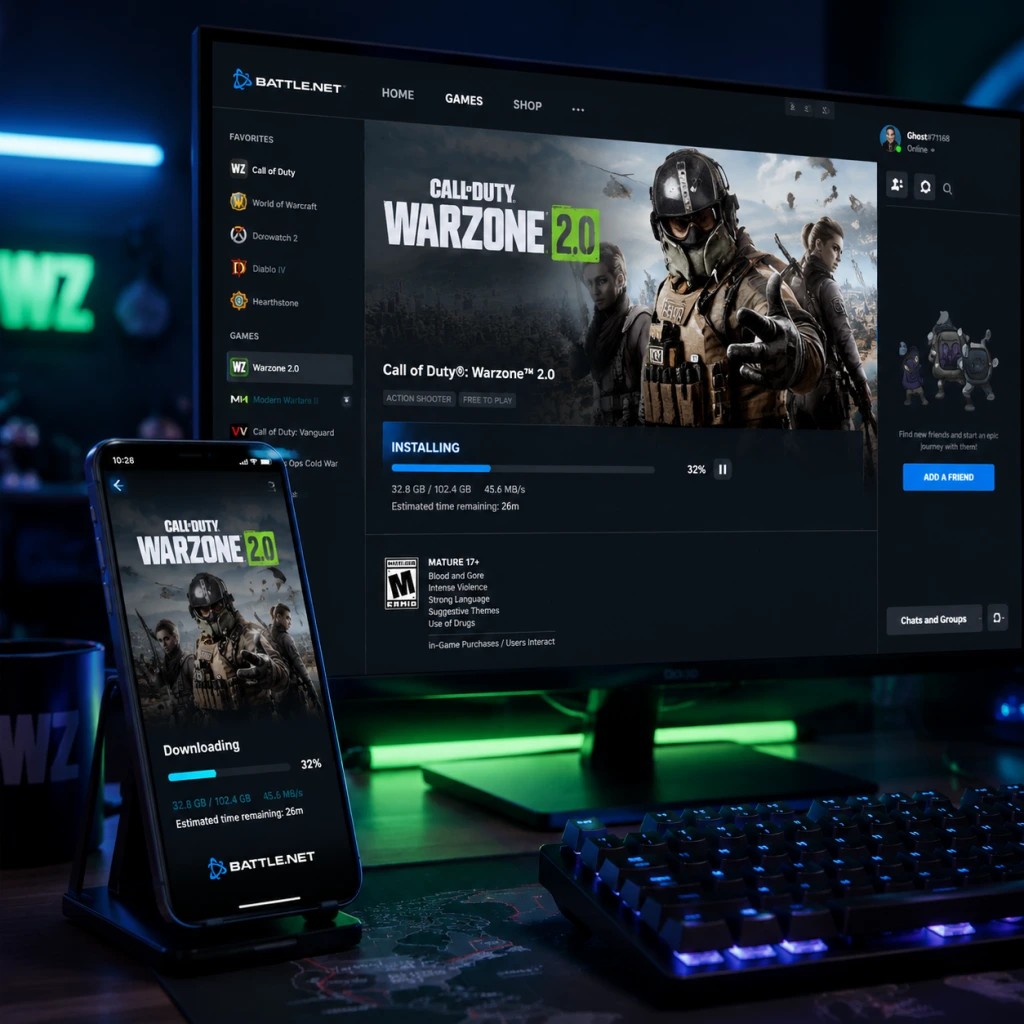
Download & Installation
Overview
Call of Duty: Warzone (currently Warzone 2.0) is a free-to-play battle royale game developed by Infinity Ward, Raven Software, and Treyarch. It is available on PC (via Battle.net and Steam), PlayStation 4, PlayStation 5, Xbox One, and Xbox Series X|S. Note that there is no native Nintendo Switch version, and the mobile version (Warzone Mobile) is a separate title. This guide covers the main Warzone experience.
Platform Availability
| Platform | Store / Source | Notes |
|---|---|---|
| PC (Windows) | Battle.net (Blizzard), Steam | Both require the Call of Duty HQ launcher (free). The game is shared across both stores, but you must choose one. |
| PlayStation 4/5 | PlayStation Store | PS5 version offers enhanced graphics and DualSense features. |
| Xbox One / Series X | S | Microsoft Store |
| Nintendo Switch | Not available | No official version. |
| Mobile | App Store / Google Play (separate app: Warzone Mobile) | Not covered in this guide. |
System Requirements (PC)
Minimum Requirements (Targeting 30 FPS at 720p)
- OS: Windows 10 64-bit (latest update)
- CPU: Intel Core i3-6100 / AMD Ryzen 3 1200
- RAM: 8 GB (DDR4)
- GPU: NVIDIA GeForce GTX 960 / AMD Radeon RX 470
- VRAM: 2 GB
- Storage: SSD with 125 GB free space (HDD not recommended)
- Internet: Broadband connection
- OS: Windows 10/11 64-bit (latest update)
- CPU: Intel Core i5-6600K / AMD Ryzen 5 1600X
- RAM: 12 GB
- GPU: NVIDIA GeForce GTX 1060 (6GB) / AMD Radeon RX 580
- VRAM: 6 GB
- Storage: SSD with 125 GB free space
- Internet: Broadband connection
- OS: Windows 10/11 64-bit
- CPU: Intel Core i7-8700K / AMD Ryzen 7 2700X
- RAM: 16 GB
- GPU: NVIDIA GeForce RTX 3070 / AMD Radeon RX 6800 XT
- VRAM: 8 GB+
- Storage: NVMe SSD with 125 GB free space
- Internet: Broadband connection
- Creating an account: Go to [activision.com](https://www.activision.com), click "Sign Up", and follow the instructions. You’ll need an email address and a unique username.
- Linking accounts (optional): You can link your PlayStation, Xbox, Steam, or Battle.net account to your Activision ID. This allows cross‑progression (but not cross‑platform purchases).
- Crossplay: Enabled by default. You can disable it in settings if desired.
- On PC, go to Settings > Graphics and set Display Mode to Fullscreen, enable NVIDIA Reflex Low Latency if supported, and adjust Render Resolution to your monitor’s native.
- On console, ensure your TV is set to Game Mode for low input lag.
- Download and install any required texture packs (optional for higher quality).
Recommended Requirements (Targeting 60 FPS at 1080p)
Ultra / 4K Requirements (Targeting 60+ FPS at 4K)
Important: Storage space can exceed 150 GB after updates. An SSD is strongly recommended to avoid texture pop-in and long load times.
Step-by-Step Installation
PC – Battle.net
1. Create or log in to your Blizzard Battle.net account at [battle.net](https://www.battle.net).
2. Download the Battle.net desktop app from the website and install it.
3. Launch the Battle.net app and log in.
4. Click on the "All Games" tab or the Call of Duty section on the left sidebar.
5. Find "Call of Duty: Warzone" (or "Call of Duty HQ" – both lead to the same client). Click the "Install" button.
6. Choose installation location (ensure at least 150 GB free on an SSD). Click "Start Install".
7. Wait for the download to complete. The launcher will download the base game plus any required packs (Multiplayer, Campaign optional – only Warzone is mandatory for battle royale).
8. Once installed, the "Play" button becomes active. Click it to launch Call of Duty HQ.
PC – Steam
1. Install the Steam client from [steampowered.com](https://store.steampowered.com) and log in.
2. Open the Steam store and search for "Call of Duty: Warzone" (or navigate to the Free to Play section).
3. Click the "Play Game" or "Add to Library" button.
4. In your Library, select Call of Duty: Warzone, then click "Install".
5. Choose installation directory (again, SSD with 150 GB free).
6. The download will begin. Steam will download the Warzone content as part of the Call of Duty HQ package.
7. After installation, click "Play" to launch.
Note: Steam and Battle.net versions are separate licenses; you cannot share progress across stores unless you link your Activision account, which is automatically done when you log into COD HQ. However, you only need to install on one store.
PlayStation 4 & 5
1. Turn on your console and sign in to your PlayStation Network account.
2. Go to the PlayStation Store (on the main menu or via the icon).
3. Search for "Call of Duty: Warzone".
4. Select the game and choose "Download" (it is free).
5. Wait for the download and installation. On PS5, you can choose between PS4 and PS5 versions – select the PS5 version for better performance.
6. Once installed, the game appears on your home screen. Launch it.
Storage: Warzone requires approximately 110 GB on PS4 and 95 GB on PS5 (may vary with updates).
Xbox One / Xbox Series X|S
1. Sign in to your Microsoft account on your Xbox.
2. Open the Microsoft Store (the store icon on the dashboard).
3. Search for "Call of Duty: Warzone".
4. Click "Get" or "Install" (it's free).
5. Choose a storage device if prompted (internal or external). An SSD (internal or expansion card) on Xbox Series is highly recommended.
6. The download begins. On Xbox Series, Smart Delivery automatically installs the optimized version.
7. Launch the game from the home screen once installation finishes.
Storage: Approximately 110 GB on Xbox One, 95 GB on Series X|S.
Account Setup
All platforms require an Activision account to play Warzone. During first launch, you will be prompted to sign in or create one.
First Launch Configuration
After the initial download and account sign‑in, the game will:
1. Download shaders (this may take 10–20 minutes and can cause temporary stutter – do not interrupt).
2. Present a terms of service and privacy policy – accept to continue.
3. Prompt for settings: Graphics (PC), audio, controller vs. mouse/keyboard, etc. You can adjust later.
4. Enter the main menu: You’ll see the Call of Duty HQ (the launcher). Select Warzone from the playlist to start.
5. Optional: If you own Modern Warfare II/III or Black Ops Cold War, the HQ will let you launch those as well. For Warzone only, just ignore the other tiles.
Recommendations for first launch:
Common Installation Errors and Fixes
| Error | Cause | Solution |
|---|---|---|
| Download stuck at 0% | Corrupted cache or network issue | Restart the launcher (Battle.net/Steam/Store). On Battle.net, go to Settings > Downloads and clear cache. On Steam, verify integrity of game files (Library > right‑click > Properties > Local Files > Verify integrity). |
| "Installation would require more space" | Not enough free storage | Free up space or install on a different drive. Warzone requires a minimum of 125 GB, but 150 GB is safer. |
| "Dev Error 6036" (or similar) | Outdated graphics drivers or corrupted shader cache | Update GPU drivers. Delete the shader cache folder: on PC, go to `Documents/Call of Duty/players` and remove `shaders` folder. Restart the game. |
| Game crashes on launch | Conflicting background software or missing DLLs | Disable overlays (Discord, GeForce Experience, Xbox Game Bar). Reinstall Microsoft Visual C++ Redistributables and DirectX. |
| "Account not authorized" | Server issues or region lock | Wait a few minutes and retry. Ensure your Activision account is fully verified. |
| Slow download speed on console | Server congestion or network throttle | Pause the download and resume. Use a wired connection. Try restarting the console in Power Saving mode. |
| Xbox/PS cannot find Warzone in store | Store region misconfiguration | Check that your console region matches your account region. Search for "Call of Duty" rather than full name. |
Post-Installation Verification
After installation completes, do the following to confirm everything is working:
1. Launch the game and wait for the shader optimization to finish (PC) or for the menu to load (console).
2. Check for updates: The launcher will often download a small patch. Let it complete.
3. Verify file integrity (PC only):
- Battle.net: Click the gear icon next to the Play button > Scan and Repair > Start Scan.
- Steam: Right‑click Call of Duty: Warzone in Library > Properties > Local Files > Verify integrity of game files.
4. Test the tutorials: The game offers a training mode or the ability to jump into a match. Play a few minutes to ensure no graphical glitches or crashes.
5. Monitor performance: Use in‑game FPS counter (PC) or console performance metrics to ensure you meet your target.
6. Clear any leftover installation files: On PC, delete the installer files (e.g., the Battle.net or Steam installer) to free up space.
If you encounter any persistent issues, check the official [Call of Duty Support](https://support.activision.com) or community forums for the latest patches and known issues.