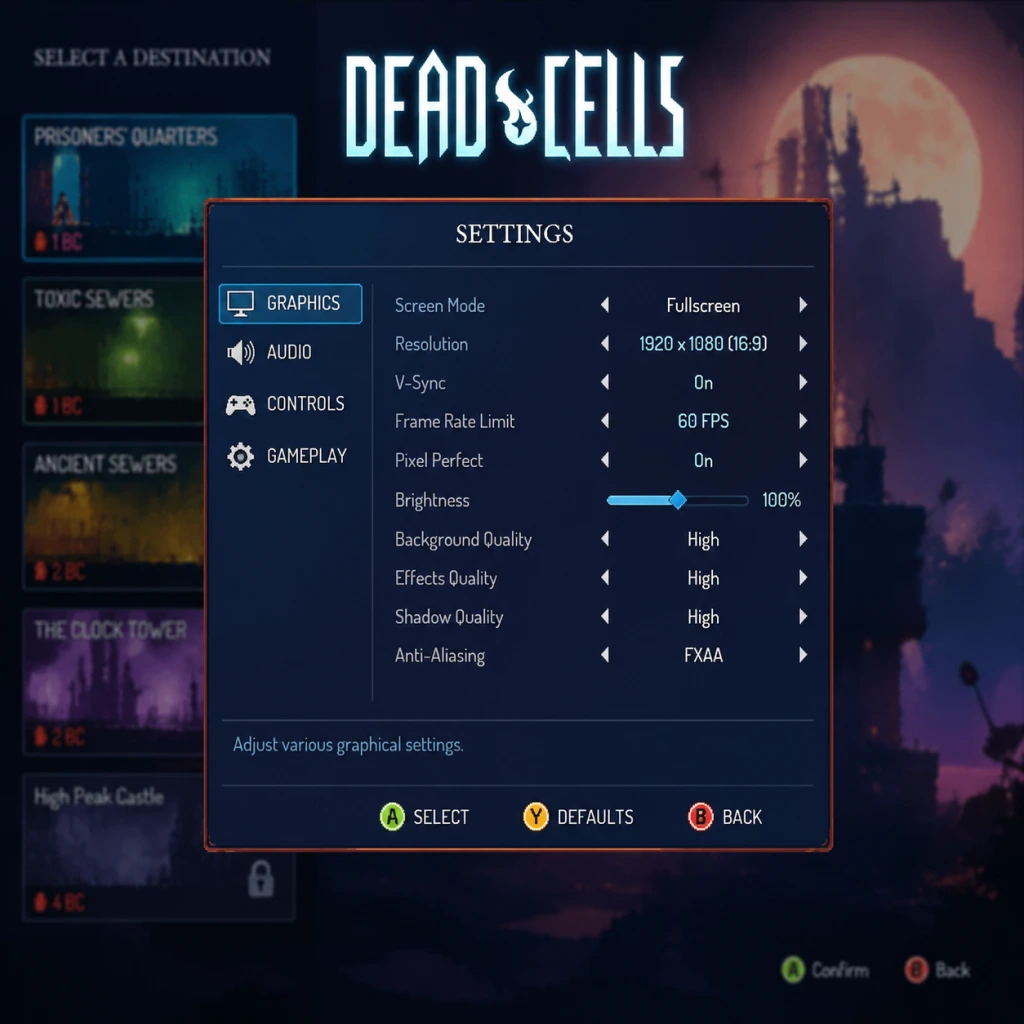
Game Settings
Dead Cells: Complete Game Settings Guide
This guide covers every setting category in Dead Cells and provides recommended configurations for different hardware levels. Proper tuning can significantly improve performance, responsiveness, and visual clarity without sacrificing the game's intended atmosphere. We'll highlight settings that are easy to misconfigure and explain special attention points during setup.
---
1. Graphics Settings
Dead Cells features a vibrant pixel-art style that scales well across hardware, but certain options can impact performance on low-end systems.
| Setting | Low-End (30 FPS target) | Mid-Range (60 FPS target) | High-End (60+ FPS, max quality) |
|---|---|---|---|
| Resolution | 720p or 900p | 1080p | 1440p or 4K |
| Display Mode | Fullscreen (exclusive) | Fullscreen (exclusive) | Fullscreen (borderless for multi-monitor) |
| VSync | Off | Off (or adaptive) | Off (use G-Sync/FreeSync) |
| Frame Limit | 30 | 60 | 120 or monitor max |
| Anti-Aliasing | None | FXAA or SMAA | SMAA |
| Texture Quality | Low | High | Very High |
| Shadow Quality | Low | Medium | High |
| Post-Processing | Off | On (except Depth of Field) | On |
| Ambient Occlusion | Off | Low | High |
- PC (Steam, GOG, Epic): All graphical settings are available. Use borderless windowed if you frequently Alt+Tab.
- Consoles (PS4, PS5, Xbox One, Series X/S, Switch): Settings are limited. Switch users should disable motion blur and reduce resolution scaling in handheld mode to maintain 60 FPS.
- Mobile (iOS, Android): Adjust quality preset to 'Medium' or 'High' based on device capability. Disable '60 FPS' on older devices to reduce heat and battery drain.
- VSync: Enabling VSync introduces input lag, which is problematic in a fast-paced game like Dead Cells. Disable it and instead enable a frame cap matching your monitor's refresh rate for smoother input.
- Anti-Aliasing: Dead Cells' pixel art can look blurry with heavy anti-aliasing. SMAA preserves detail better than FXAA. On low-end systems, keep it off.
- Post-Processing: Depth of Field blurs the background; many players prefer it off for clearer peripheral vision during combat.
#### Special Attention Points
---
2. Audio Settings
| Setting | Recommended Value | Notes |
|---|---|---|
| Master Volume | 80% | Adjust to taste |
| Music Volume | 70% | Music sets atmosphere; don't drown out SFX |
| SFX Volume | 100% | Critical for hearing enemy attacks and item pickups |
| Voice Volume | 100% | Only used in boss cutscenes; keep high |
| UI Volume | 60% | Menu sounds; lower if annoying |
| Audio Output | Stereo | 5.1/7.1 not needed; game uses stereo cues |
| Subtitles | On | Helps catch dialogue during combat |
- Special Attention: The game uses audio cues for traps (e.g., spinner warning) and enemy flanking. Keep SFX volume high and use headphones for the best spatial awareness.
- Move: WASD (or Arrow Keys)
- Jump: Space
- Roll/Dodge: Shift
- Attack: Left Mouse Button
- Interact: E
- Use Skill 1: Q
- Use Skill 2: R
- Potion: 1
- Map: Tab
- Dodge Roll: Remap to Right Mouse Button for quick access without removing your movement fingers from WASD. Alternative: C or X.
- Quick Weapon Swap: Assign to mouse wheel up/down or a side mouse button.
- Jump: Keep Space, but consider using a controller for better dodge-roll timing.
---
3. Controls Settings
Dead Cells supports keyboard & mouse, controllers, and touch (mobile). Proper configuration can greatly improve your dodging, parrying, and combo execution.
#### Default Controls (PC)
#### Recommended Adjustments
#### Controller Setup
| Button | Default (Xbox) | Recommended |
|---|---|---|
| Dodge | B | Left Bumper (LB) – keeps thumbs on sticks |
| Jump | A | A (default fine) |
| Attack | X / Y | Right Bumper (RB) for faster taps |
| Interact | Y | X (less accidental activation) |
| Potion | D-Pad Down | D-Pad Down (unchanged) |
- Special Attention: On controller, binding dodge to LB/L1 removes the need to take your thumb off the right stick for rolling, improving aiming (if using a bow).
- Mobile: Enable 'Virtual Buttons' and customize size/position for your hand span. Disable 'Button Transparency' to avoid mis-taps.
- Turn off 'Auto-Aim' (in Gameplay) to retain full control.
- Lower 'Camera Sensitivity' to 50% for smoother scrolling when exploring.
- Enable 'Hold to Sprint' instead of toggle for precise movement near platforms.
#### Keyboard & Mouse Precision Tips
---
4. Accessibility Settings
Dead Cells includes several options to accommodate different needs.
| Setting | Recommendation |
|---|---|
| Colorblind Mode | Protanopia, Deuteranopia, or Tritanopia – choose based on your deficiency. Affects enemy health bars and item rarity colors. |
| Subtitles | On – important for boss lore and tutorial hints. |
| Large Cursor | On – helps track the pointer in chaotic fights. |
| Camera Shake | Reduce to 50% or 0% – high shake can disorient. |
| Screen Flash | Reduce to 25% or 0% – mitigates seizure risk. |
| Auto-Interact | Off – prevents accidental picks when near items. |
| Unlimited Rolls | Off (unless mobility issues) – keeps game balance. |
| Time Limit | Off – removes pressure for new players. |
- Special Attention: The 'Screen Flash' setting is often overlooked but critical for photosensitive epilepsy. Set it to 0% if you experience any discomfort.
- Text Language: Available in English, French, German, Spanish, Portuguese, Russian, Japanese, Korean, Chinese (Simplified/Traditional), and more.
- Voice Language: Only English and French (for boss voices).
- Special Attention: Changing the language restarts the game. Player-created mods may break if text strings mismatch; revert to English for mod compatibility.
---
5. Language Settings
---
6. Network Settings
Dead Cells is a single-player game with optional online features.
| Setting | Recommendation |
|---|---|
| Online Connection | On – required for daily challenges and leaderboards. |
| Anonymous Data | Off – privacy preference. |
| Cross-Save | Enable if playing on multiple platforms (PC & mobile) via cloud saves. |
- Special Attention: Disable online connection on Steam Deck to save battery and avoid background updates.
---
7. Gameplay Settings
These affect how the game behaves and plays.
| Setting | Default | Recommended | Reason |
|---|---|---|---|
| Auto-Aim | On | Off | Gives full control over aim direction for bows and spells. |
| Aim Assist | On | Off | Same as above; use manual aim for precision. |
| Weapon Display | Small | Large | Easier to see weapon stats at a glance. |
| Health Bar Style | Simple | Detailed | Shows exact HP numbers and percentages. |
| Minimap | Off | On (hold to show) | Helps navigation without constant distraction. |
| Damage Numbers | On | On | Essential for evaluating weapon DPS. |
| Critical Hit Flash | On | On | Visual feedback for criticals. |
| Blood Effects | On | On | Adds to game's feel; no performance impact. |
| Edit Mode (Training Room) | N/A | Use | Practice parries and combos. |
- Special Attention: Disable 'Auto-Aim' if you use controllers, as it can pull your crosshair toward targets you don't intend to hit. For mouse users, it's less intrusive but still recommended off.
- Resolution: 720p
- Texture Quality: Low
- Shadows: Off
- Anti-Aliasing: None
- VSync: Off, Frame Limit 30
- Post-Processing: Off
- Resolution: 1080p
- Texture Quality: High
- Shadows: Medium
- Anti-Aliasing: SMAA
- VSync: Off, Frame Limit 60
- Post-Processing: On (except Depth of Field)
- Resolution: 1440p or 4K
- Texture Quality: Very High
- Shadows: High
- Anti-Aliasing: SMAA
- VSync: Off (use G-Sync/FreeSync), Frame Limit = monitor refresh rate
- Post-Processing: All On
---
8. Recommended Presets by Hardware Tier
Low-End (e.g., Intel HD Graphics, 4GB RAM, low-power laptop)
Mid-Range (e.g., GTX 1050, RX 570, 8GB RAM)
High-End (e.g., RTX 3060+, 16GB RAM)
---
9. Common Misconfigurations & Quick Fixes
| Mistake | Symptom | Fix |
|---|---|---|
| VSync On | Input lag, delayed dodges | Turn VSync Off, cap FPS via driver or in-game |
| Auto-Aim On | Bows shooting wrong direction | Set Auto-Aim to Off in Gameplay |
| Windowed Mode | Poor performance, tearing | Change Display Mode to Fullscreen (exclusive) |
| High Shadow Quality on low-end | Stuttering during boss fights | Set Shadow Quality to Low |
| Controller dodge on A/B | Difficulty aiming while rolling | Remap dodge to Left Bumper |
| Screen Flash 100% | Eye strain, possible seizures | Reduce to 0% |
10. Saving Configuration
- PC: Settings are saved in `%AppData%\DeadCells\userdata_{steamID}` (Steam) or `Documents\DeadCells` (GOG/Epic). Back up this folder before major patches.
- Consoles/Mobile: Settings save automatically to cloud (if enabled).
For any persistent issues, verify game files via Steam (Properties > Local Files > Verify Integrity) or delete the settings file and let the game regenerate default options.
---
By dialing in these settings, you'll ensure Dead Cells runs smoothly and responds exactly to your inputs. Revisit this guide when updating hardware or reinstalling the game for optimal configuration.