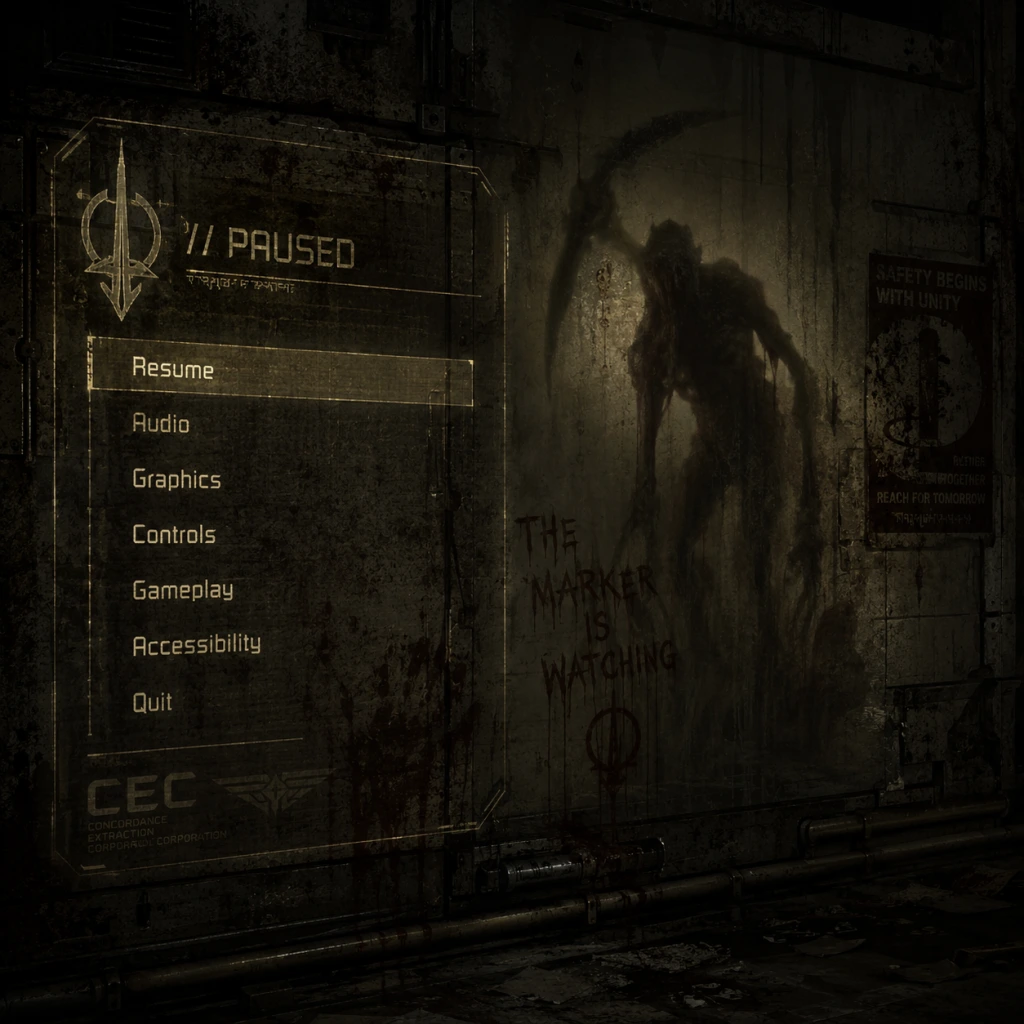
Game Settings
Overview
Properly configuring your settings in Dead Space (2023 Remake) is essential for both performance and immersion. This guide covers every settings category—graphics, audio, controls, accessibility, language, network, and gameplay—and provides optimized presets for different hardware tiers. We also highlight commonly misconfigured options and special attention points to ensure the best possible experience.
---
Graphics Settings
Key Options & Recommendations
| Setting | Description | Recommendation |
|---|---|---|
| Resolution | Native monitor resolution. | Set to your monitor’s native resolution. For lower-end PCs, use 1080p or 1440p. |
| V-Sync | Synchronizes frame rate with monitor refresh rate. | Turn On if you notice screen tearing; Off reduces input lag (use with G-Sync/FreeSync). |
| Anti-Aliasing | Reduces jagged edges. Options: TAA, FXAA, SMAA. | TAA (best quality), FXAA for performance. |
| Texture Quality | Detail of surface textures. | High/Ultra for VRAM ≥ 4GB; Medium for 2-3GB. |
| Shadow Quality | Shadow resolution and draw distance. | High (balanced) or Medium (performance). |
| Ambient Occlusion | Adds realistic shading in crevices. SSAO, HBAO+, RTXAO. | HBAO+ (good balance), RTXAO for ray tracing GPUs. |
| Volumetric Lighting | Simulates light rays and fog. | Medium/High; Low/Off for performance gains. |
| Motion Blur | Blurs image during camera movement. | Off (many players prefer clarity; can cause dizziness). |
| Depth of Field | Blurs distant/close objects for cinematic effect. | Off (improves clarity, especially in combat). |
| Ray Tracing | Adds realistic reflections, shadows, and lighting. | Off on mid-range GPUs; On (Low/Medium) on RTX 3060+ or RX 6700+. |
| Field of View (FOV) | Horizontal viewing angle. Default 45° (narrow). | Increase to 65°–75° for comfort; wider angles may introduce fisheye distortion. |
| HDR | High Dynamic Range for brighter whites and deeper blacks. | Enable if your monitor/TV supports HDR; calibrate brightness. |
Easy to Misconfigure
- Field of View (FOV): The default is quite narrow (45°), which can cause eye strain or motion sickness. Most players should increase it to 65°–75°. However, very high FOV can distort the image and make distant enemies harder to spot.
- Motion Blur & Depth of Field: Both are enabled by default for cinematic effect but often reduce clarity during fast movement. Turning them off is a common optimization for competitive play and personal comfort.
- V-Sync: If you have a G-Sync or FreeSync monitor, disable V-Sync and cap your frame rate to just below your monitor’s refresh rate (e.g., 141 FPS for 144Hz) to avoid input lag.
- Ray Tracing: Even on high-end GPUs, enabling ray tracing can halve your frame rate. Use the “RT Low” preset if you want some reflections without sacrificing too much performance.
---
Audio Settings
| Setting | Description | Recommendation |
|---|---|---|
| Master Volume | Overall volume level. | 70–80% as a starting point; adjust per preference. |
| SFX Volume | Sound effects (weapons, footsteps, necromorphs). | Keep at 100% for immersion. |
| Dialogue Volume | Voice lines of Isaac and crew. | 100% (critical for story). |
| Music Volume | Background music. | 80% – music sets tension but shouldn’t overwhelm audio cues. |
| 3D Audio / Spatial Sound | Options: Off, Windows Sonic, Dolby Atmos, DTS Headphone:X. | Windows Sonic (free, good for headphones) or Dolby Atmos (paid, best surround). |
| Audio Output Device | Select speakers or headphones. | “Headphones” mode for earphones; “Speakers” for TV/monitor speakers. |
| Dynamic Range | Compression for loud/quiet sounds. | “Wide” for full dynamic range (headphones); “Medium” for speakers. |
Special Attention
- Use Headphones if possible: Dead Space relies heavily on directional audio for enemy awareness. Spatial sound enhances this dramatically.
- Dialogue Volume should never be lower than SFX – story beats and environmental audio are equally important.
---
Controls Settings
| Category | Option | Recommendation |
|---|---|---|
| Controller / Keyboard | Aim Assist | Medium (removes some stickiness) or Low (if you prefer manual aim). |
| Invert Look | Off (unless you’re used to flight sims). | |
| Sensitivity | Start at 5/10 for look and ads; adjust up or down. | |
| Dead Zone | 0.10–0.15 to avoid drift while maintaining responsiveness. | |
| Vibration | On (adds immersion) or Off (competitive). | |
| Keyboard Mapping | Crouch | Default Ctrl (recommended) or rebind to a side mouse button for ease. |
| Interact | Default E (fine). | |
| Stasis | Default Q – easy to reach. | |
| Kinesis | Default F – accessible. | |
| Reload | Default R – standard. | |
| Quick Weapon Switch | Number keys 1-4. |
Easy to Misconfigure
- Aim Assist Strength: If set to High, the aim will magnetize to limbs excessively, making precision shots difficult. Low or Medium is recommended for experienced players.
- Controller Dead Zone: Too low (<0.05) can cause stick drift; too high (>0.20) makes aiming sluggish. Test in a safe area.
- Key Bindings for Stasis/Kinesis: If you rebind these to hard-to-reach keys, you may fumble during combat. Keep them on Q and F or thumb buttons.
---
Accessibility Settings
| Setting | Description | Recommendation |
|---|---|---|
| Subtitle Size | Small, Medium, Large. | Large for readability from a distance. |
| Subtitle Background | Solid box, semi-transparent, or none. | Semi-transparent (doesn’t block screen). |
| Colorblind Mode | Protanopia, Deuteranopia, Tritanopia. | Enable if needed; changes reticle and UI colors. |
| Camera Shake | Intensity of screen shake. | Reduce to 50% or Off if motion-sensitive. |
| HUD Opacity | Percent of HUD transparency. | 100% (always visible) or 70% (fades away). |
| Screen Reader | Narrates menu options for visually impaired. | On/Off. |
| Auto-Aim | Full auto-aim for low motor skills. | On/Off (separate from aim assist). |
Special Attention
- Camera Shake is set to 100% by default and can disorient some players. Reducing it helps comfort without losing immersion.
- Auto-Aim is a separate toggle that automatically locks onto targets; use it only if manual aiming is too challenging.
- Text Language: Choose between available localizations (English, French, German, etc.).
- Audio Language: Most versions include English and sometimes Japanese/German. Changing audio language does not affect subtitles.
- Note: Language settings are saved per profile. If you encounter missing translations, ensure your platform is set to the correct region.
- Cloud Saves: Enabled by default if you use Steam/EA App. Keep them on to prevent loss of progress.
- Automatic Updates: On – ensures you have the latest patches. Off for limited bandwidth.
- Telemetry: You may disable data collection in the Privacy settings menu.
---
Language Settings
---
Network Settings
Dead Space is a purely single-player game with no online multiplayer. The only network-related options are:
No latency, matchmaking, or server settings exist.
---
Gameplay Settings
| Setting | Description | Recommendation |
|---|---|---|
| Difficulty | Story, Medium, Hard, Impossible. | Medium for first playthrough; Hard for challenge; Impossible after completing once. |
| Aim Assist | Separate from controller aim assist; affects mouse as well. | Medium (balanced) or Low (more manual). |
| Auto-Reload | Automatically reloads when magazine empties. | On (convenient) – but note you cannot interupt with weapon switch. |
| Quick Select | Hold weapon wheel or tap keys for immediate switch. | Tap keys (like 1-4) – faster in combat. |
| HUD Layout | Classic (corner) or Modern (centered). | Personal preference; Classic saves screen space. |
| Reticle Type | Circular crosshair or dot. | Dot for accurate aiming; crosshair for larger target area. |
Special Attention
- Auto-Reload is on by default. If you prefer manually reloading to maintain ammo control, turn it off. However, Isaac will not auto-reload when the weapon is stored – only when the clip is empty.
- Reticle Type – The default crosshair can obscure small limbs. Switching to a simple dot may improve precision.
---
Recommended Settings by Hardware Level
| Component | Low-End (GTX 1060 / RX 580) | Mid-Range (RTX 2060 / RX 5600 XT) | High-End (RTX 3070 / RX 6800) | Ultra+RT (RTX 4080 / RX 7900 XT) |
|---|---|---|---|---|
| Resolution | 1080p | 1440p | 1440p or 4K | 4K |
| Preset | Low + manual tweaks | Custom Medium/High | High | Ultra + RT Low |
| Texture Quality | Medium | High | Ultra | Ultra |
| Shadow Quality | Low | Medium | High | High |
| Ambient Occlusion | Off | SSAO | HBAO+ | HBAO+ or RTXAO |
| Volumetric Lighting | Off | Low | Medium | High |
| Anti-Aliasing | FXAA | TAA | TAA | TAA |
| Motion Blur | Off | Off | Off | Off |
| Depth of Field | Off | Off | Off | Off |
| Ray Tracing | N/A | N/A | Off | RT Low (Reflections) |
| FOV | 70 | 70 | 70 | 70 |
| Target FPS | 30–45 | 60 | 60+ | 60+ |
- Lower-end GPUs may need to cap FPS at 30 for consistent performance, or use FSR 2.0 (if available via mods or game update).
- For 4K on high-end, reduce shadows/volumetrics to High if frame rate dips below 60.
- First Launch: Always run the game’s built-in benchmark (if available) to test stability before tweaking. Adjust resolution and preset first, then fine-tune per-setting.
- HDR Calibration: If you enable HDR, use the in-game calibration tool (brightness/contrast slider) – incorrect values can wash out dark areas essential for horror.
- Audio for Horror: Use headphones with spatial sound. The Ishimura’s ambient noises and necromorph footstep cues are critical for survival.
- Save Profile: The game may reset settings after updates. Backup your config file (e.g., `%USERPROFILE%\Documents\My Games\Dead Space (2023)`) periodically.
- Performance Over Quality: In Dead Space, frame drops during combat can be fatal. Prioritize a stable 60 FPS over Ultra textures.
---
Easy to Misconfigure Settings Checklist
1. FOV – Change from default 45° to 65-75°.
2. Motion Blur & Depth of Field – Turn Off for clarity.
3. V-Sync – Disable if using adaptive sync; enable only for tearing issues.
4. Aim Assist – Set to Medium or Low; High can be detrimental.
5. Controller Dead Zone – Set to 0.10-0.15 to avoid drift.
6. Auto-Reload – Decide early (on/off) based on playstyle.
7. Camera Shake – Reduce to 50% if sensitive.
8. Ray Tracing – Only on powerful GPUs; start with RT Low.
---
Special Attention Points During Setup
---
This concludes the comprehensive settings guide for Dead Space. Use the hardware recommendations as a starting point and adjust based on your performance goals and personal comfort. Good luck surviving the Ishimura, Isaac.