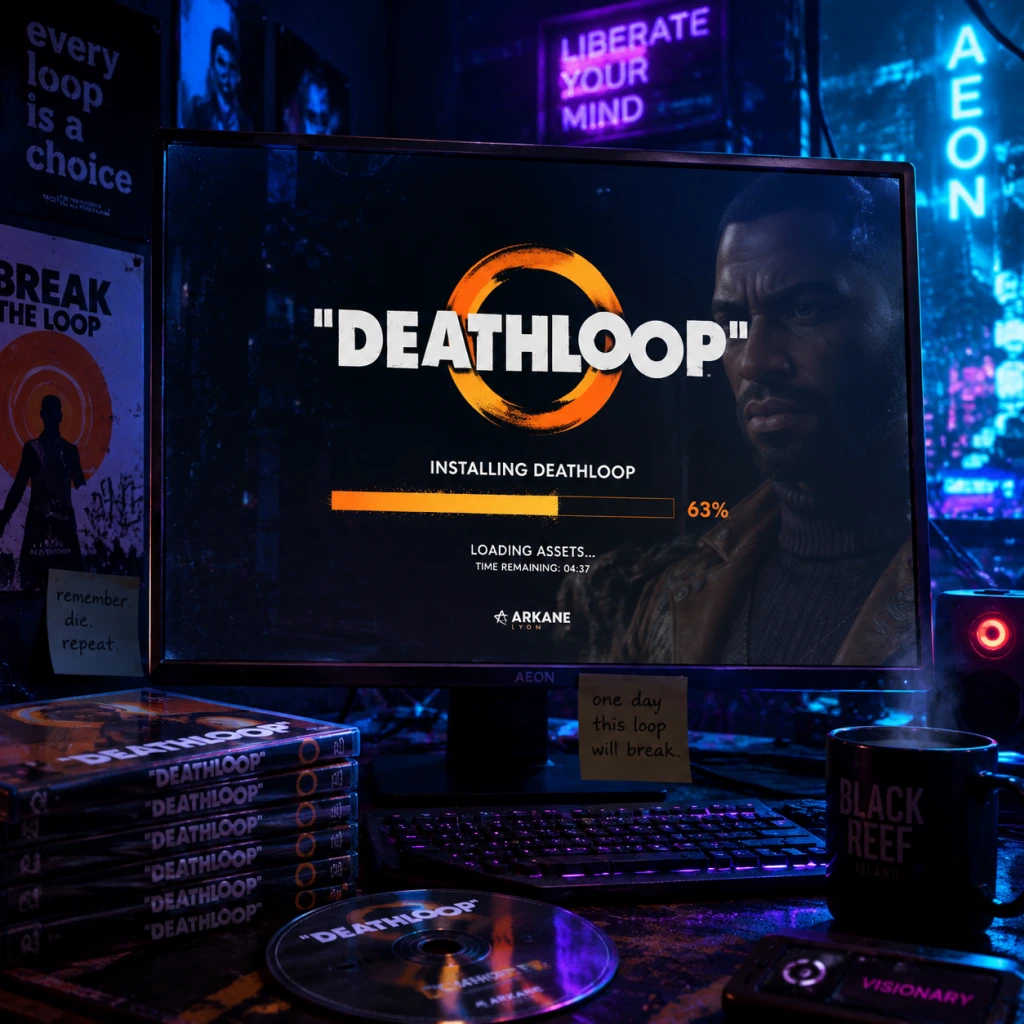
Download & Installation
Overview
Deathloop is an immersive first-person shooter developed by Arkane Studios and published by Bethesda Softworks. It is available on PC (Steam, Epic Games Store), PlayStation 5, and Xbox Series X|S. This guide provides step-by-step instructions for downloading and installing the game on each platform, along with system requirements, troubleshooting tips, and post-installation verification.
---
Platform Availability & Legal Sources
- PC: Steam (store.steampowered.com), Epic Games Store (store.epicgames.com), and Microsoft Store (for Game Pass PC – requires a subscription).
- PlayStation 5: PlayStation Store (digital) or physical disc. The game is a console exclusive (timed) for PS5.
- Xbox Series X|S: Microsoft Store (digital) or physical disc. Included in Xbox Game Pass (Ultimate, Console, PC).
- Nintendo Switch / Mobile: Not available. Do not download from unofficial sources.
- OS: Windows 10 (64-bit, version 1909 or newer)
- CPU: Intel Core i5-8400 @ 2.8 GHz or AMD Ryzen 5 1600
- RAM: 12 GB
- GPU: NVIDIA GeForce GTX 1060 (6 GB) or AMD Radeon RX 580 (8 GB)
- DirectX: Version 12
- Storage: 40 GB (SSD strongly recommended)
- Additional: Broadband internet connection (for first-time activation and updates)
- OS: Windows 10 (64-bit, version 1909 or newer) or Windows 11
- CPU: Intel Core i7-9700K @ 3.6 GHz or AMD Ryzen 7 3700X
- RAM: 16 GB
- GPU: NVIDIA GeForce RTX 3060 (12 GB) or AMD Radeon RX 6700 XT (12 GB)
- DirectX: Version 12
- Storage: 40 GB SSD
- Steam: Steam account
- Epic Games Store: Epic Games account
- PlayStation 5: PlayStation Network (PSN) account
- Xbox Series X|S: Microsoft account (Xbox Live / Game Pass)
- Game Pass (PC or Console): Active Game Pass subscription (Ultimate, PC, or Console)
- PC: Open the Xbox app (comes with Windows 10/11). Sign in with your Microsoft account (Game Pass subscription active). Search Deathloop, click Install, choose the folder. The app uses the same files as the Microsoft Store version.
- Console: As above, but from My Games & Apps > Game Pass.
- Stuck on "Preparing" or Download Stops: Restart the platform launcher (Steam/Epic/Xbox app). Clear download cache: In Steam: Settings > Downloads > Clear Download Cache. Epic: Settings > Troubleshooting > Verify Game Files.
- Error "Insufficient Disk Space": Even if you think you have space, Windows may reserve space for restore points. Free up at least 40 GB. Run Disk Cleanup.
- Installation Hangs at 99% / Disk Write Error: Run the launcher as Administrator. Temporarily disable antivirus (Windows Defender real-time protection). Verify game files after installation.
- Missing DLL / DLL Errors: Install the latest Visual C++ Redistributables from Microsoft and DirectX runtime. The game requires VC++ 2019 and DirectX 12.
- Game Crashes on Launch: Update graphics drivers from NVIDIA or AMD. Disable overlays (Steam overlay, Discord, GeForce Experience). Run the game in windowed mode to troubleshoot.
- Game Pass PC Error 0x80073D02: Run the Windows Store Apps Troubleshooter. Reset the Microsoft Store cache: `wsreset.exe` in Command Prompt as admin.
- PS5: Download Stuck: Restart the console (Hold power button until fully off, then reboot). Ensure you have enough free space (under Settings > Storage). Try rebuilding database (Safe Mode option 5).
- Xbox: Installation Stopped / Error: Go to Settings > System > Console info > Reset > Reset and keep my games & apps. Or cancel and restart the download. Check if the game needs an update.
- Disc Read Error (Both): Clean the disc with a soft cloth. Disc scratches may cause installation failure; consider digital switch.
- Game Saves: Located on PC at `%LOCALAPPDATA%\Deathloop\Saved\SaveGames` (Steam) or similar for Epic. Back up manually if needed.
- Mod Support: Deathloop does not officially support mods. Modding may affect multiplayer and is not recommended.
- Uninstall: On PC, use the launcher's uninstall option. On console, delete from storage settings.
- Re-download: If issues persist, uninstall and reinstall. Ensure you have a stable internet connection and enough free space.
---
System Requirements (PC)
Minimum Requirements (for 1080p / Low settings / 30 FPS)
Recommended Requirements (for 1080p / High settings / 60 FPS)
Important: The game heavily relies on fast storage to stream open-world areas. An SSD is highly recommended. Ray tracing requires a compatible GPU (RTX 2000 series or higher, AMD RX 6000 series or higher) and may impact performance.
---
Account Requirements
For all platforms, you need a user account to purchase and download the game.
No additional Bethesda.net account is required for standard play, but you may need one for certain online features or cloud saves (optional).
---
Download & Installation Steps by Platform
PC (Steam)
1. Install Steam: Go to [store.steampowered.com](https://store.steampowered.com) and download the Steam client. Install and log in.
2. Search for Deathloop: In the Store, search "Deathloop" and select the game page.
3. Purchase (if not owned): Click "Add to Cart" and complete the purchase. If you already own it (e.g., via a key), click "Activate a Product on Steam" from the Games menu.
4. Initiate Download: On the game library page, click "Install". Choose the installation directory (ensure at least 40 GB free).
5. Wait for Download: The client will download and decrypt the game files. This may take 1–2 hours depending on internet speed.
6. Optional: Install on SSD: During installation, you can change the folder. Arkane recommends installing on an SSD for optimal performance.
PC (Epic Games Store)
1. Install Epic Games Launcher: Go to [epicgames.com](https://www.epicgames.com) and download the launcher. Install and log in.
2. Get Deathloop: In the Store, search for Deathloop. If you have a free copy or purchased, it will be in your library. Otherwise, buy it.
3. Start Download: Click the game tile in your Library, then click "Install". Select the installation path (SSD recommended).
4. Download & Verify: The launcher downloads the game. It may take a while. After download, it will automatically verify files.
5. Play: Click "Launch".
PlayStation 5 (Digital)
1. Power on PS5 and sign in to your PSN account.
2. Go to PlayStation Store: Navigate to the Store from the home screen.
3. Search: Use the search function to find "Deathloop".
4. Purchase or Download: If you own it (from purchase or PS Plus), click "Download". The game will start downloading. You can view progress from the Downloads/Uploads section.
5. Wait for Completion: The PS5 SSD ensures fast download and installation. You can play after the initial portion downloads (around 20%) for the “PlayGO” feature.
6. Disc Version: Insert the disc; the console will automatically install. You may still need to download a patch.
Xbox Series X|S (Digital)
1. Sign in to your Microsoft account on the Xbox console.
2. Open Microsoft Store (or Game Pass app if subscribing).
3. Search: Find Deathloop. If you have Game Pass, it will show as “Install” without additional cost. Otherwise, purchase.
4. Click Install: Choose your installation drive (internal SSD or expansion card). The game is optimized for Xbox Series X|S and requires the internal SSD for full performance.
5. Download: The game will download and install. You can play a portion after the initial download (Smart Delivery ensures the correct version).
6. Disc Version: Insert the disc, and the console will install. Ensure you have the Xbox Series X|S compatible disc (Xbox One version is not compatible).
Xbox Game Pass (PC or Console):
---
First Launch Setup
1. Display Settings: On first launch, the game will auto-detect your hardware and set graphics defaults. You can adjust resolution, refresh rate, HDR (if supported), and graphics quality in the Options menu.
2. DLSS / FSR: On PC, you can enable NVIDIA DLSS (if compatible) or AMD FSR to improve performance. This is found in Graphics > Upscaling.
3. Controller or M&K: The game fully supports controller (Xbox, PlayStation) and mouse/keyboard. Plug in before launching.
4. Save Sync: Steam, Epic, Xbox, and PSN automatically sync cloud saves. Ensure cloud save is enabled in your platform settings.
5. Language: Choose your language in the settings; voice language may be separate from text.
6. Online Features: Deathloop has optional online invasions (Julianna). You can toggle online mode in the game settings or play offline. Requires internet for initial activation and leaderboards.
---
Common Installation Errors & Fixes
PC Errors
Console Errors
---
Post-Installation Verification
After installation, verify that the game is correctly installed:
1. Platform Check: In your library, see if the game icon appears and shows "Play" instead of "Install".
2. File Size: On PC, navigate to the game folder (e.g., `C:\Program Files (x86)\Steam\steamapps\common\Deathloop`). Right-click folder > Properties > Size should be approximately 40 GB.
3. Verify Integrity (PC):
- Steam: Right-click Deathloop in Library > Properties > Installed Files > Verify Integrity of Game Files.
- Epic: In Library, click the three dots next to Deathloop > Manage > Verify Files.
- Xbox app: In game page > [...] > Manage > Files > Verify and Repair.
4. Launch the Game: Double-click or hit Play. The first load may take a bit. If you get intro logos and the main menu, installation is successful.
5. Check for Updates: After initial install, the launcher may have a patch. Apply it before playing.
6. Performance Check: If you observe stuttering or low FPS, adjust settings. On PC, monitor temps and usage via Task Manager or MSI Afterburner.
---
Additional Tips
By following this guide, you will have Deathloop installed correctly and ready to play. Enjoy looping through Blackreef!