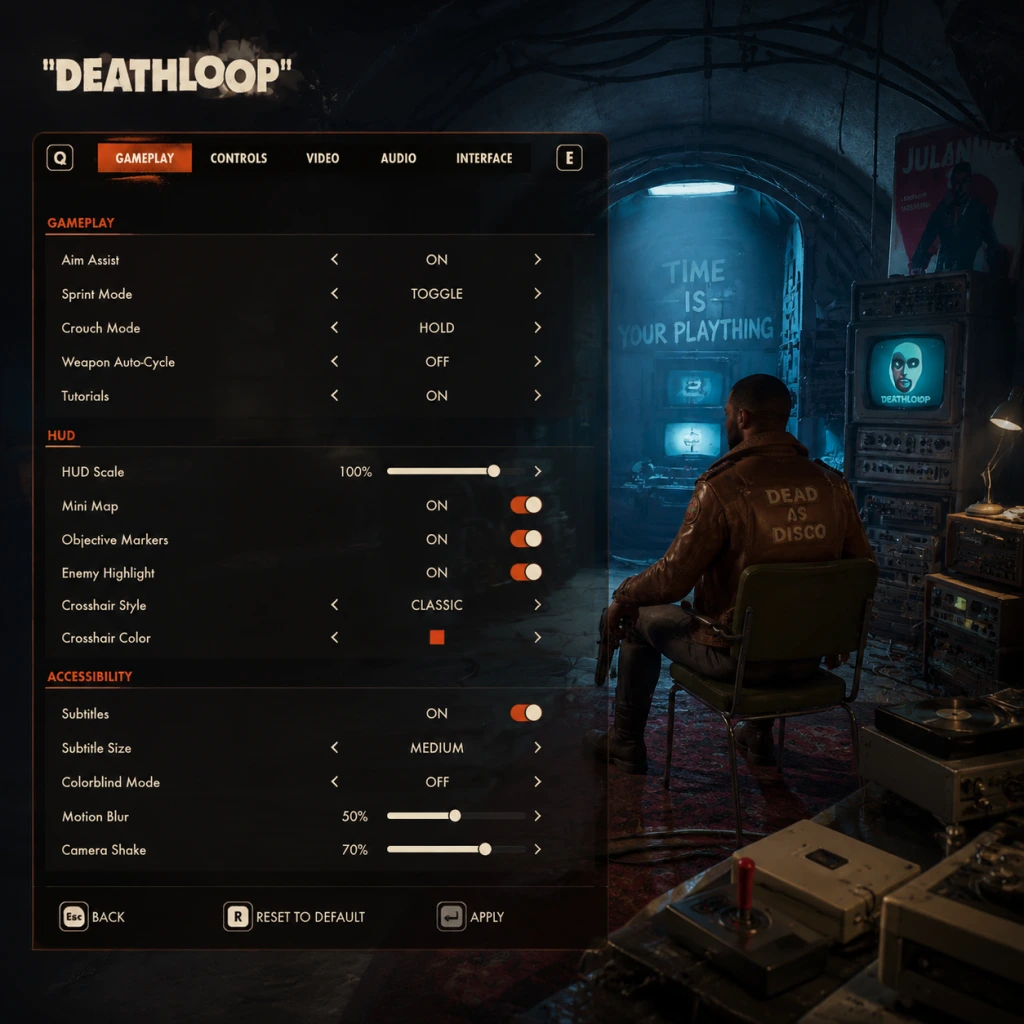
Game Settings
Overview
Deathloop offers a comprehensive settings menu across its platforms (PC, PlayStation 5, Xbox Series X|S). Proper configuration can drastically improve performance, visual fidelity, and playability. This guide covers every settings category—graphics, audio, controls, accessibility, language, network, and gameplay—with recommended options for different hardware levels. Pay special attention to potentially misconfigured settings (e.g., auto-resolution scaling, mouse acceleration) and setup pitfalls unique to Deathloop.
---
Graphics Settings
Display Modes (PC)
- Fullscreen (Recommended): Best performance, lowest input lag.
- Borderless Windowed: Useful for alt-tabbing, but may incur slight performance loss.
- Windowed: Lowest performance; use only for troubleshooting.
- Resolution: Set to your monitor’s native resolution. For 1440p, use 2560×1440; for 4K, use 3840×2160.
- Render Scale: Adjusts internal resolution. Use 100% for native quality. Below 100% improves performance (e.g., 70% for low-end PCs).
- Upscaling Methods:
Resolution & Scaling
- FSR (AMD cards): Use Quality preset; avoid Ultra Performance (degraded image).
- Temporal Upsampling: Alternative upscaler, slightly less sharp than DLSS/FSR.
Advanced Graphics Options
Use this table for recommended settings per hardware tier:
| Setting | Low-End (GTX 1060, RX 580) | Mid-Range (RTX 2060, RX 6600) | High-End (RTX 3080, RX 6800 XT) | Ultra (RTX 4090, Extreme) |
|---|---|---|---|---|
| Overall Quality Preset | Low | Medium | High | Ultra |
| Texture Quality | Medium (2GB VRAM) | High (4GB VRAM) | Ultra (6GB+ VRAM) | Ultra |
| Model Detail | Low | Medium | High | High |
| Shadow Quality | Low | Medium | High | Ultra |
| Ambient Occlusion | Off | SSAO | HBAO+ | HBAO+ |
| Post Processing | Low | Medium | High | High |
| Reflections | Off | Screen Space (Medium) | Screen Space (High) | Ray Traced (High) |
| Volumetric Lighting | Low | Medium | High | Ultra |
| Anti-Aliasing | TAA Low | TAA Medium | TAA High | TAA High + FXAA |
| Ray Tracing | Off | Off | On (Reflections only) | On (Full) |
| DLSS/FSR | Off (or FSR Performance) | DLSS/FSR Balanced | DLSS/FSR Quality | DLSS/FSR Quality |
| Motion Blur | Off | Off | Off or Low | Off |
| Depth of Field | Off | Off | On | On |
| FOV | 80-90 | 90-100 | 100-110 | 100-110 |
Easy-to-Misconfigure Settings
- Auto Resolution Scaling: Enabled by default on PC, but often sets render scale too low. Disable it and set manually.
- V-Sync: Turn Off for lower input lag (use an in-game or driver-level frame cap instead). On PS5/Xbox, match to display refresh rate.
- HDR: Enable only if your monitor/TV supports true HDR (10-bit, high nits). Improper calibration can wash out colors. Use system HDR calibration first.
- Master Volume: 70-80% (adjust based on speakers/headphones).
- SFX Volume: 100% – crucial for hearing enemy footsteps and weapon sounds.
- Dialogue Volume: 90-100% – Deathloop’s voice lines (Colt, Julianna, Visionaries) are key to understanding the story.
- Music Volume: 60-80% – music is atmospheric but can mask important audio cues.
- Ambient Volume: 80-100% – environment sounds help with immersion and detection.
- Sound Device: Select your default output (speakers/headphones).
- Audio Output Mode:
- Dynamic Range:
- Subtitles: Enable if you want to read dialogue during combat.
- Audio Lag: If sound is out of sync, check your display’s audio processing mode (Game mode vs Movie mode). On PC, ensure audio output sample rate matches system setting (48000 Hz recommended).
- Keyboard & Mouse or Controller. Deathloop supports simultaneous input – you can seamlessly switch.
- Sensitivity: Adjust mouse DPI and in-game sensitivity to achieve 35-50 cm/360 for precise aiming (set in `Controls > Mouse`).
- Aiming Sensitivity (Scoped): Reduce to 0.5-0.7 of hip-fire sensitivity for consistency.
- Mouse Smoothing: Disable – this causes input lag and inconsistency.
- Mouse Acceleration: Off – always off for raw input. (Easy to misconfigure: Xbox Game Bar or Razer Synapse can inject acceleration; check those.)
- Invert Y: Personal preference; default off.
- Vibration: On (offers haptic feedback for weapons and environmental interactions).
- Trigger Effect: On PS5, adaptive triggers for resistance when firing (immersion). On Xbox, impulse triggers similar effect.
- Look Sensitivity: Start at 50%; adjust by ±5% increments.
- Aim Assist: On – helps with target acquisition, especially for controller users.
- Toggle vs Hold for Aim: Many prefer ‘Hold’ for snappier aiming.
- Vertical Sensitivity: Often set too low or too high. Ensure vertical sensitivity matches horizontal (use same value).
- Key Bindings for Abilities: Shift is default for sprint; consider rebinding to something like Left Alt for easier access during combat (e.g., hold shift to sprint, but you may accidentally toggle).
- Quick Melee: Default ‘V’ on PC – rebind to a mouse thumb button if available.
- Colorblind Modes: Three options (Protanopia, Deuteranopia, Tritanopia). Affects UI colors (minimap icons, enemy indicators). Enable if needed.
- UI Scale: Increase to 150% for better readability on large monitors/TVs.
- Crosshair Visibility: Change color (white, red, green, blue) to contrast against environments.
- Camera Shake: Disable for motion sickness prevention.
- Subtitle Size: Normal or Large.
- Subtitle Background: Adding a dark background improves readability.
- Mono Audio: Enable if one ear is impaired (combines left/right channels).
- Difficulty: Deathloop has three difficulty levels – Easy, Normal, Hard. Recommend Normal for first playthrough. Easy reduces enemy awareness and damage.
- Always Show Objectives: On – keeps quest markers visible.
- Minimap Rotation: Set to ‘Compass Mode’ (objective relative) or ‘Rotating Map’ (north fixed).
- Auto-Climb: On – Colt automatically vaults over low obstacles. Prevents frustration.
- Aim Down Sights (ADS) Sensitivity: Separate from hip-fire sensitivity, but not heavily advertised. Set a comfortable value (e.g., 0.7x).
- Response Curve (Controller): Linear vs Exponential. Linear is more direct, Exponential has a smoother acceleration. Try both in the tutorial.
- Text Language: Choose from supported languages (EN, FR, DE, ES, IT, JP, KO, PL, PT-BR, RU, ZH-CN, ZH-TW).
- Audio Language: Usually defaults to English voice acting. Some versions may include Japanese or French dubs.
- Voice Overrides: If you want English voices with translated subtitles, set text language to desired language and keep audio language as English.
- Note: On Steam, language is set via properties; in-game settings may be limited. Change via Steam client if options are grayed out.
- Invasion Mode: Controls whether other players can invade your game as Julianna. Options:
- Crossplay: Between PC, PS5, and Xbox – toggle on/off. Note: Crossplay is enabled by default; disable if you experience matchmaking delays.
- Streamer Mode: Hides player names to avoid stream sniping. Enable if streaming.
- Network Connection: Ensure wired connection for stable invasions. Wi-Fi may cause desync.
- Matchmaking Region: Select closest region for lower latency. (Set in console network settings, not in-game.)
- Frame Rate Cap: Set to match your monitor’s refresh rate (e.g., 60, 120, 144). Uncapped can cause jitter in online play.
- Invasion Lag: If Julianna teleports or desyncs, reduce graphics settings, enable V-Sync, or switch to offline mode temporarily.
- Respawn at Same Location (on death): Off – when off, you respawn at earlier checkpoint; on resets you to start of the level. Beginners may prefer ‘On’ to maintain progress.
- Auto-Equip Items: On – automatically equips the best weapon/trinket from inventory when picking up. Saves time.
- Quick Slot Cycling: Set to ‘All Weapons’ or ‘Favorite Only’. Prevents cycling through junk items.
- Always Show Reprises: Shows remaining lives on HUD. On for clarity.
- HUD Size: Scale from 50% to 150%. Default 100%. Increase if you play at high resolution.
- Minimap Size: Small, Medium, Large. Choose Medium for balance.
- Damage Numbers: On – helpful for gauging weapon effectiveness.
- Enemy Awareness Indicator: ‘Directional’ (shows enemy direction) or ‘Radial’ (proximity ring). Directional is more precise.
- Manual Saving: PC only – use F5 (quick save) and F9 (quick load). Important: Deathloop’s auto-save overwrites frequently; manual saves are temporary (per session). Don’t rely on them for permanent progression.
- Difficulty Sliders (advanced): After unlocking some powers, you can adjust damage multipliers in Gameplay Options. Only recommended for experienced players.
- Graphics Preset: Low
- Resolution Scale: 70%
- Upscaling: FSR Performance (if AMD) or Off
- Shadows/Reflections: Minimal
- Ray Tracing: Off
- V-Sync: Off
- Motion Blur: Off
- FOV: 80
- Graphics Preset: Medium
- Resolution Scale: 100%
- Upscaling: DLSS/FSR Balanced
- Shadows: Medium, Ambient Occlusion SSAO
- Ray Tracing: Off
- V-Sync: Off (cap frames via driver or in-game to 120)
- FOV: 90
- Graphics Preset: High
- Resolution Scale: 100%
- Upscaling: DLSS/FSR Quality (4K) or Off (1440p)
- Ambient Occlusion: HBAO+
- Reflections: Screen Space High (or Ray Traced Reflections if VRAM >8GB)
- Ray Tracing: RT Reflections only
- Motion Blur/Depth of Field: Off (competitive) or On (cinematic)
- FOV: 100-110
- Graphics Preset: Ultra
- Resolution Scale: 100%
- Upscaling: DLSS/FSR Quality or Balanced
- Ray Tracing: Full (Reflections + Ambient Occlusion)
- All other settings maxed
- FOV: 110
---
Audio Settings
Master & Volume Levels
Audio Output & Features
- Stereo – best for headphones.
- 7.1/5.1 Surround – for home theater setups.
- Headsets: Low (compresses dynamic range, reduces loudness spikes).
- Speakers: High (more natural, but explosions can be loud).
Common Pitfall
---
Controls Settings
Input Method (PC)
Keyboard & Mouse Customization
Controller (PS5/Xbox/PC)
Common Misconfigurations
---
Accessibility Settings
Deathloop includes several features to aid different playstyles and needs.
Visual Accessibility
Audio Accessibility
Gameplay Accessibility
Special Attention Points
---
Language Settings
---
Network Settings
Multiplayer & Online Features (Always On DRM?)
- Online: Enables player invasions (default; may cause lags if connection is poor).
- Friends Only: Only friends can invade.
- Offline: AI-controlled Julianna only.
Bandwidth & Connectivity
Common Issue
---
Gameplay Settings
Essential Toggles
HUD Customization
Save & Difficulty
---
Recommended Settings Presets by Hardware
Low-End (60fps target at 1080p)
Mid-Range (60fps at 1440p or 90-120fps at 1080p)
High-End (120+ fps at 1440p or 60fps at 4K)
Ultra (60fps with full RT at 4K, or >120fps at 1440p)
---
Final Tips & Special Attention Points
1. Save Settings Before Changing Resolution: On PC, change resolution first then apply other graphics. Sometimes the game forgets after switching modes – restart if needed.
2. Disable Auto-Resolution Scaling: This is often overlooked and tanks performance on mid-range PCs.
3. Mouse Input: Ensure Windows mouse pointer speed is set to 6/11 (default) and ‘Enhance pointer precision’ is Off. In-game, disable mouse smoothing and acceleration.
4. Controller Users: On PC, if using a DualSense, wired connection enables haptic feedback and adaptive triggers; wireless loses those features.
5. Stuttering Issues: If you experience stutter, try limiting VRAM usage (reduce texture quality) and disable ray tracing. Also, update GPU drivers.
6. HDR Calibration: Use the in-game calibration tool (in Graphics menu) to adjust luminance and paper white. A good starting point: 800 nits for SDR-to-HDR conversion, 1000+ for native HDR displays.
7. Network: If invasions are laggy, lower graphics settings to reduce CPU overhead, which helps with online responsiveness.
By following this guide, you can tailor Deathloop to run smoothly on your hardware while preserving the game’s unique visual style and tight gameplay. Adjust settings gradually and test in the opening beach area (low stress) before diving into full missions.