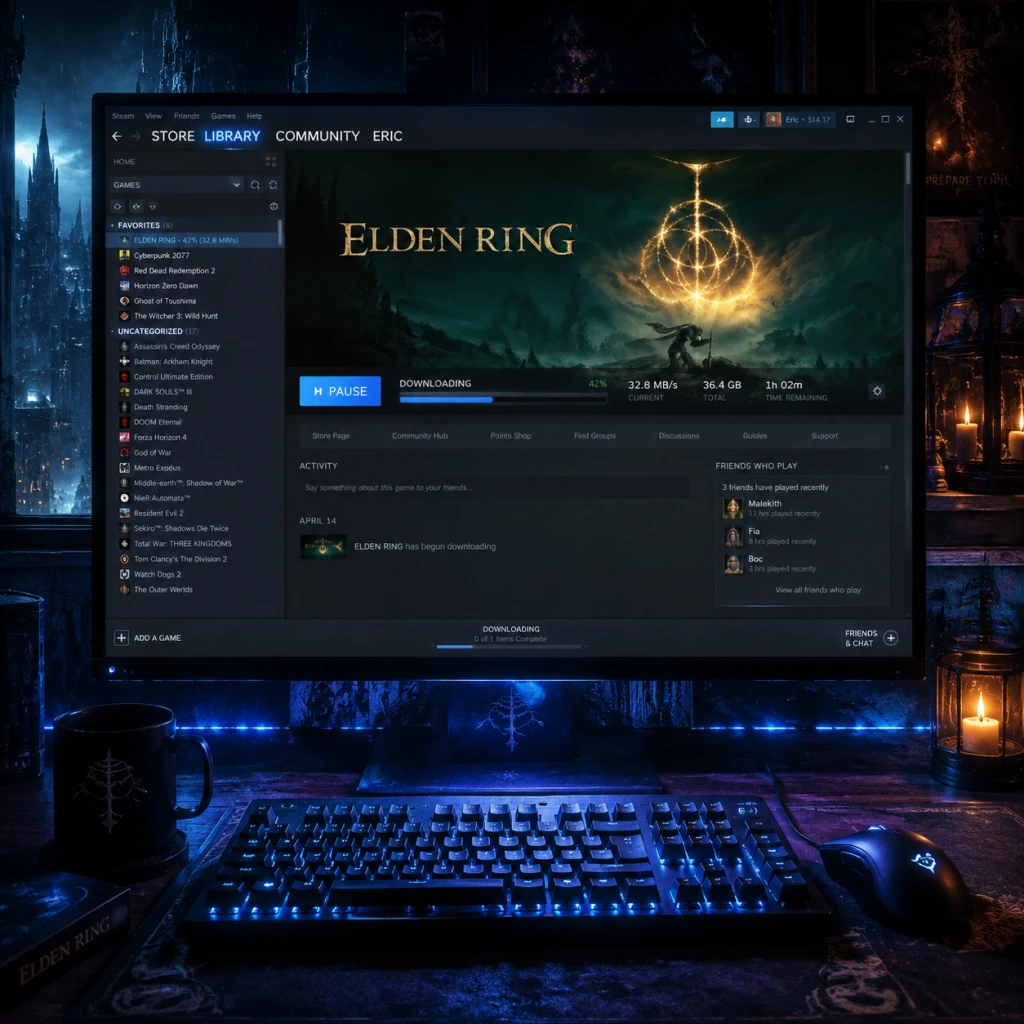
Download & Installation
Download & Installation Guide for Elden Ring
This guide covers official ways to download and install Elden Ring on all supported platforms: PC (Steam), PlayStation 4 & 5, and Xbox One & Series X|S. The game is not available on Nintendo Switch, mobile platforms, or the Epic Games Store. All methods below are legitimate and provided by the publisher (Bandai Namco Entertainment) or platform holders.
---
1. System Requirements (PC Only)
Elden Ring is a demanding open-world title. Ensure your PC meets at least the minimum specs to run the game.
| Component | Minimum (720p / Low) | Recommended (1080p / High) |
|---|---|---|
| OS | Windows 10 64-bit (ver. 1909 or newer) | Windows 10 64-bit (ver. 1909 or newer) / Windows 11 |
| CPU | Intel Core i5-8400 or AMD Ryzen 3 3300X | Intel Core i7-8700K or AMD Ryzen 5 3600X |
| GPU | NVIDIA GeForce GTX 1060 3GB or AMD Radeon RX 580 4GB | NVIDIA GeForce GTX 1070 8GB or AMD Radeon RX Vega 56 8GB |
| RAM | 12 GB | 16 GB |
| Storage | 60 GB available space (SSD recommended) | 60 GB available space on SSD |
| DirectX | Version 12 | Version 12 |
---
2. Account Requirements
- PC (Steam): A free Steam account. No subscription required for single-player, but online features (co-op, PvP) require a free Steam account. No additional pay‑to‑play subscription.
- PlayStation 4 & 5: A PlayStation Network (PSN) account. Online multiplayer requires a PlayStation Plus subscription (Essential tier or higher).
- Xbox One & Series X|S: A Microsoft account. Online multiplayer requires Xbox Game Pass Core (formerly Xbox Live Gold) or a Game Pass Ultimate subscription.
---
3. Download & Installation – Step by Step
#### 3.1 PC (Steam)
1. Install Steam if not already present: Download the Steam client from [store.steampowered.com](https://store.steampowered.com) and install it.
2. Log in to your Steam account (create one if needed – free).
3. Purchase Elden Ring – either via the Steam store page or a legitimate key from authorized retailers (e.g., Humble Bundle, Fanatical). Avoid grey-market resellers.
4. Navigate to your Library – the game will appear under “Games” after purchase.
5. Click “Install” – choose a destination drive with at least 60 GB free. An SSD is highly recommended.
6. Wait for download – Steam will download and decrypt the files. The game is approximately 48–52 GB compressed, then expands to 60 GB.
7. Launch the game – once installed, click “Play”.
> Optional: After installation, right‑click the game in Library → Properties → Installed Files → “Verify integrity of game files…” to ensure no corruption.
#### 3.2 PlayStation 4 & 5
1. Connect your console to the internet and sign in to your PSN account.
2. Purchase Elden Ring – either from the PlayStation Store (digital) or insert a physical disc (downloads update patches).
3. For digital: Go to Library → Purchased → find Elden Ring → Start download. The PS5 version requires ~50 GB; the PS4 version ~40 GB.
4. For disc: Insert the disc → installation begins automatically. If not, highlight the game tile on the home screen and press “Options” → “Check for Update” to download the latest patch (typically 10–15 GB).
5. Wait for installation – the game will show a progress bar. On PS5 you can also choose “Download PS4 Version” (if you bought the cross‑gen bundle) – be careful to select the correct one for your console.
6. Launch – once complete, the game icon will be active.
> Note: The PS5 version takes advantage of the console’s SSD and DualSense features. The PS4 version runs via backward compatibility on PS5 but without the enhanced features.
#### 3.3 Xbox One & Series X|S
1. Connect your console to the internet and sign in to your Microsoft account.
2. Purchase Elden Ring – from the Microsoft Store (digital) or insert a physical disc.
3. For digital: Go to My games & apps → Full library → Owned games → select Elden Ring → “Install to” (choose internal or external storage).
4. For disc: Insert the disc → installation begins. You must have storage space for the game (≈50 GB for Series X|S, ≈45 GB for Xbox One) plus any pending updates.
5. Update – if a day‑one patch is available, it will download automatically. You can also manually check: highlight the game → press Menu button → “Manage game and add‑ons” → “Updates”.
6. Launch – the game will appear on your home screen when ready.
> Smart Delivery: Xbox One users who later upgrade to Series X|S will automatically receive the enhanced version free of charge. Ensure you are signed in with the same Microsoft account.
---
4. Storage Space & Installation Sizes
| Platform | Installation Size (approx.) | Notes |
|---|---|---|
| PC | 60 GB (SSD recommended) | Compressed download + unpack |
| PS5 | 50 GB | Includes all patches |
| PS4 | 40 GB (plus patches ~10 GB) | Physical disc users need extra space for patches |
| Xbox S/X | 50 GB | Series X |
| Xbox One | 45 GB | Includes HDR texture pack |
---
5. First Launch Setup
1. Language selection – choose on‑screen text and voice‑over language (supports English, French, German, Italian, Spanish, Japanese, Korean, Simplified/Traditional Chinese, etc.).
2. Online connectivity – on PC, the game will prompt you to confirm online access to enable messages, phantoms, and invasions. You can disable it via “Play Offline” in the menu at any time.
3. Settings adjustments – recommended before starting:
- Graphics (PC): Set resolution to native monitor, VSync On, Texture Quality High (if GPU > 4 GB VRAM), Anti‑aliasing Low or Off for performance. Tweak shadows and volumetric clouds based on your GPU.
- Controls: Standard layout. You can remap buttons in the System → Controls menu.
- Difficulty: Elden Ring uses no difficulty slider; prepare to learn the combat.
4. Start a new game – character creation begins after the title screen.
---
6. Common Installation Errors & Fixes
| Error/Issue | Platform | Cause / Fix |
|---|---|---|
| “Not enough disk space” | All | Free up space (uninstall unused games, delete temporary files). On PC, ensure drive has > 60 GB. |
| “Disk write error” / “Corrupt files” | PC | Verify game files via Steam → Properties → Installed Files → Verify. Also run `chkdsk` on the drive. |
| Game crashes on launch | PC | Update GPU drivers, disable overlays (Discord, Nvidia GeForce Experience), run as admin. |
| Stuck on “Preparing to launch” | PC | Restart Steam, clear download cache (Steam → Settings → Downloads → Clear Download Cache). |
| “Unable to connect to server” | All | Check internet connection. On PC, disable Windows Firewall temporarily or add Elden Ring to exceptions. On consoles, test network settings. |
| Install stuck at 99% | PS4/PS5 | Pause and resume download, or restart console. If using disc, check for scratches. |
| Xbox slow download | Xbox | Pause other downloads, ensure console is set to “Instant‑On” (to download in background). |
| “Corrupted data” on PlayStation | PS4/PS5 | Delete the game and reinstall. If using disc, clean it and try again. |
- Restart the platform (PC, console) completely.
- Ensure the latest system software/firmware is installed.
- Disable any antivirus or firewall temporarily for PC installations.
---
7. Post‑Installation Verification
After installation, confirm the game runs correctly by:
1. Launching the game – you should see the Bandai Namco / FromSoftware logo, then a title screen with “Press Any Button / Start”.
2. Check the version number (usually shown in the main menu or system tab) – update to the latest patch (v1.12 as of writing).
3. Test basic controls – move the character, attack, and open the menu. If everything responds without lag or error, installation is successful.
4. Online check – if you intend to play online, enter a “Bloodstain” or messages area to verify connections. A “Online session established” message will appear.
5. Save file creation – after character creation, the game auto‑saves. Verify by checking the save data location:
- PC: `%appdata%\EldenRing\[steam_id]\`
- PS4/PS5: Settings → Storage → Saved Data on system storage
- Xbox: My games & apps → Manage → Saved Data
If the game runs without errors and you can access the tutorial area, you are ready to explore the Lands Between!
---
Last updated: October 2024. Always refer to the official Bandai Namco support page for the latest patches and known issues.