Game Settings
Game Settings Guide for Escape from Tarkov
Overview
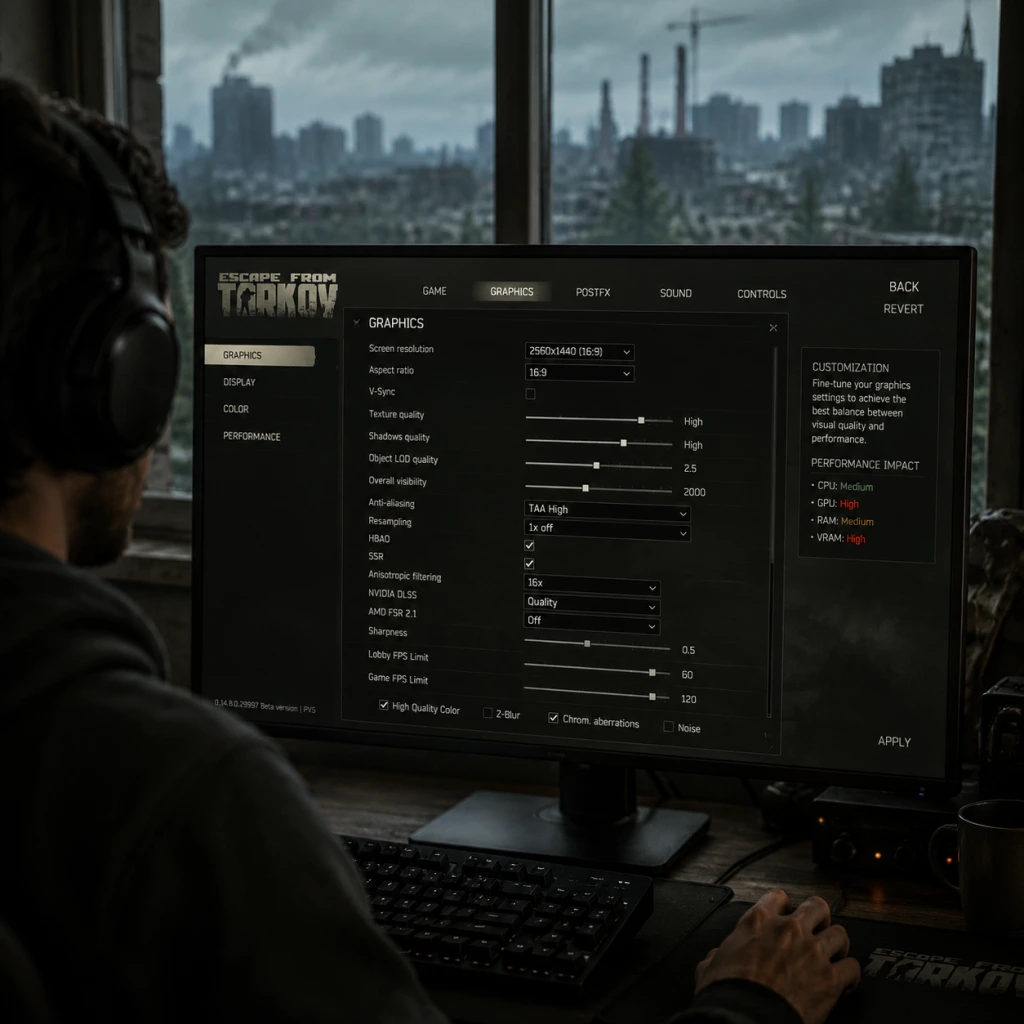
Escape from Tarkov’s settings menu is deep and can drastically affect both performance and gameplay. Many options are easy to misunderstand, leading to poor visuals or lost advantages. This guide covers every category—graphics, audio, controls, accessibility, language, network, and gameplay—with recommended values for low, mid, and high-end systems, plus common pitfalls.
Graphics Settings
Key Principle: Tarkov is CPU-bound, especially on Streets of Tarkov and Lighthouse. Lowering CPU-intensive settings (e.g., shadow distance, LOD) often helps more than lowering resolution.
#### Overall Quality Preset (Quick Start)
- Low-End (e.g., GTX 1060, Ryzen 5 1600, 8GB RAM): Set to Low or Medium. Then manually tweak below.
- Mid-End (e.g., RTX 2070, Ryzen 3700X, 16GB RAM): Medium or High.
- High-End (e.g., RTX 3080, i7-12700K, 32GB RAM): High or Ultra (but disable SSR for competitive clarity).
#### Detailed Graphics Settings
| Setting | Low-End Recommendation | Mid-End Recommendation | High-End Recommendation | Notes |
|---|---|---|---|---|
| Texture Quality | Medium | High | High / Ultra | GPU VRAM dependent: 4GB → Medium, 8GB+ → High, 12GB+ → Ultra. |
| Shadow Quality | Low (crisper edges, better FPS) | Medium | High | High shadows soften but cost FPS; low makes enemies stand out in dark areas. |
| Object LOD Quality | 1.5 | 2.0 | 2.5 | LOD controls detail at distance. Lower = better FPS, but distant objects disappear. |
| Overall Visibility | 1500 | 1500 | 2000 | Higher = see farther, but heavy FPS hit. Streets map: keep at 1000–1500 even on high-end. |
| Grass Shadows | OFF | OFF | OFF | Major performance eater. OFF improves FPS and visibility of prone enemies. |
| SSR (Screen Space Reflections) | OFF | OFF | OFF | Creates distracting flicker and kills FPS. Almost never needed. |
| SSAO (Screen Space Ambient Occlusion) | OFF | OFF | Low or Medium | Adds depth but costs FPS. Low is fine. |
| Antialiasing (FXAA) | OFF | OFF or Low | TAA High (if FPS permits) | FXAA blurs edges; TAA creates ghosting. Many competitive players turn AA off for clarity. |
| Resampling | OFF (1x off) | OFF | OFF | Forces resolution scaling; always leave 1x off unless you need downsampling for screenshots. |
| HBAO | OFF | OFF | OFF | Very heavy, minimal visual gain. |
| NVIDIA Reflex Low Latency | ON + Boost | ON | ON | Reduces input lag, barely costs FPS. Always enable. |
| DLSS | N/A (none) | Balance or Performance | Quality or Balanced | Supported on RTX cards. For high-end, use Quality; mid-end use Performance to boost FPS. |
| FSR | Ultra Performance | Performance | Quality | For AMD cards or any GPU without DLSS. Ultra Performance is very blurry but huge FPS boost. |
| Sharpening (Optional) | 0.5 | 0.5 | 0.0 | If using TAA or upscaling, add sharpening (Nvidia Control Panel or in-game slider). |
Audio Settings
Crucial for situational awareness – footsteps, gunshots, and loot sounds are key.
- Binaural Audio: OFF initially. While realistic, it can be confusing and cause echo/distance inaccuracies. Many competitive players turn it off for clearer directional cues. Test both ON and OFF.
- Stealth Audio: ON – makes walking quiet; necessary for sneaking.
- Head Related Transfer Function (HRTF): If using stereo headphones, ON improves directional sound. If using virtual surround (e.g., Dolby Atmos), keep OFF to avoid double-processing.
- Master Volume: ~70% to avoid ear pain from sudden shots.
- Effects Volume: 100% – footsteps and gunshots are effects.
- Music Volume: 0% – music only masks important sounds.
- Voice Volume: 100% – for Scav voicelines and teammate comms.
- Lean – rebind to Mouse 4/5 (side buttons) for easy peeking.
- Check Chamber – unbind or rebind to a key you rarely press (default L-Ctrl+alt+L? Actually check). Prevent accidental weapon inspection during firefights.
- Discard (delete key) – keep accessible but far from movement keys (e.g., Delete).
- Mumble (in-game VoIP) – set to a comfortable button (e.g., V).
- General Sensitivity: 0.30 – 0.50 (400 DPI). Lower = better aim but need larger mousepad. Pro players often use 0.25–0.40 at 400 DPI.
- ADS Sensitivity Multiplier: 0.25 – 0.40 – reduces sensitivity when aiming down sights.
- Scoped Sensitivity: Adjust per scope (1x, 4x, etc.) so that long-range scopes don’t feel sluggish.
- Aim (ADS): Toggle is common, but hold can be more responsive if you have precise finger control.
- Sprint: Toggle is default; many prefer hold for instant stop. Experiment.
- Crouch/Prone: Toggle recommended to avoid accidental stance switching.
- Crosshair Color: Change from white (default) to a bright color (cyan, orange) to see it against snowy backgrounds like Woods.
- HUD Scale: Set to 0.8 or 0.9 if you have small monitor or want less screen clutter.
- FOV: Default is 50 (vertical). Values between 58–65 are common. Higher FOV = wider view but targets appear smaller. Never go below 50 (motion sickness) or above 70 (fish-eye effect). 60 is a good balance.
- Subtitles: Enable for Scav voicelines and quest dialogue (limited use, but helps understand audio cues).
- Colorblind Modes: Three presets (Protanopia, Deuteranopia, Tritanopia) – useful if you struggle differentiating loot rarities (green/blue/purple items).
- Interface Language: Choose your system language. Changes persist after restart.
- Subtitles Language: Independent selection – set to English for clarity if Russian is not your native language.
- Text Language: Same as interface.
- Internet Connection: Wired Ethernet strongly recommended over Wi-Fi. Tarkov desyncs and lag peaks are common with wireless.
- In-Game Ping Limit: Set to 200 (maximum) to avoid being kicked from lobbies with variable ping. Lower limits (e.g., 100) will cause frequent disconnects if you play on distant servers.
- Reconnect Timeout: Default (30 seconds) is fine.
- Region Selection: In the launcher, manually select the server region closest to you with the lowest ping. Avoid selecting all regions to prevent joining high-ping raids.
- Auto-Equip Items: OFF. prevents accidental equip when spam-clicking bodies.
- Auto-Fold Stock: OFF unless you like folding/unfolding stock automatically (lowers recoil but reduces accuracy when unfolding).
- Auto-Open Doors: ON (you will run through doors quickly).
- Throw Grenade Over Arm / Under Arm: Set to distinct keys (e.g., G for over, Z for under) to avoid wrong-throw deaths.
- Fast Throw Key: Default is double-tap G – many rebind to a single key (e.g., T) for faster grenade deployment.
- Weapon Reload Mode: Tactical (retain magazine if partially used) vs Combat (drop mag). Most players use Tactical to preserve expensive magazines. Change via bindings.
- Inspect Weapon: Unbind or rebind to a rarely-used key – accidentally pressing this during a firefight gets you killed.
- Interact vs Search: Separate keys? Default is same key (F) – you can differentiate by holding vs tapping. Many use F for interact and Middle Mouse for quick search.
Special Attention: In Tarkov, audio occlusion (sound through walls) is poor. A player on the other side of a thin wall may sound like they are right next to you. Always rely on visual confirmation too.
Controls Settings
#### Key Bindings
Tarkov has many actions bound by default; you will want to customize:
#### Mouse Sensitivity
#### Hold vs Toggle
Common Mistake: Not disabling the "Auto-Equip Items" option in controls – causes pain when accidentally picking up gear. Set Auto-Equip Items to OFF.
Accessibility Settings
Escape from Tarkov has limited built-in accessibility options. However, the following are vital:
Special Attention: Tarkov has no separate “ADS FOV” setting; weapon optics actually zoom differently depending on FOV. A higher FOV makes scopes appear less magnified but gives better peripheral vision.
Language Settings
Note: Changing language does not affect game audio (Scavs always speak Russian). It only changes UI text and subtitles.
Network Settings
Important: Tarkov runs on Battlestate Games’ servers. You cannot change network code, but you can adjust bandwidth limits.
Common Issue: "Network connection lost" during loading – often caused by ISP routing. Use a VPN like Mudfish or ExitLag to stabilize connection to Tarkov servers (especially for non-EU/NA players).
Gameplay Settings
Important for fairness and comfort
Special Attention: The "Slilent" walk (Ctrl+W) is mislabeled in controls? Actually it’s a bug – the game calls it “Slilent” (typo). It’s bound to “Walk (toggle)” by default. Enable it on a thumb mouse button for quick stealth movement.
Special Attention Points – Easy to Misconfigure
1. Grass Shadows – If ON, tanks FPS and hides prone enemies in grass. OFF gives a performance and competitiveness boost.
2. Overall Visibility – Setting above 2000 on Streets or Lighthouse will cause micro-stutters even on high-end PCs. Stay at 1500 or lower.
3. Antialiasing – Many players keep it OFF for sharper image, but TAA reduces visual noise at long distances. Experiment in offline raids.
4. Binaural Audio – It’s turned ON by default after a patch, causing audio disorientation. Many competitive players turn it OFF.
5. Auto-Equip Items – Default ON leads to accidental gear swaps when looting dead players. Turn OFF immediately.
6. Ping Limit – If set too low, you will be kicked from raids. Set to 200.
7. FOV – Changing FOV affects the perceived speed of movement and weapon sway. Don’t copy other players blindly; adjust to your comfort.
Conclusion
Optimizing settings in Escape from Tarkov is a continuous process. Start with the recommendations above, then fine-tune in offline raids with AI. Remember: FPS over eye candy – a consistent 60-100 FPS is far more valuable than ultra shadows. Regularly check for settings resets after game updates (common bug). Stick to these guidelines, and you’ll eliminate many technical headaches.