Game Settings
Introduction
The Settings menu in Ghost of Tsushima is accessible from the main menu or while paused (Options button). It is organized into tabs: Graphics, Audio, Controls, Accessibility, Language, Network, and Gameplay. Below is a comprehensive breakdown of every setting, with platform-specific notes for PS4, PS5, and PC. Special attention is given to settings that are easy to misconfigure and to recommended presets for different hardware levels.
---
Graphics Settings
Display & Resolution
- Display Mode (PS4/PS5): Favor Performance (60 FPS) or Favor Resolution (30 FPS, higher native resolution). On PS5 Director’s Cut, you get 3 options: Resolution (2160p/30), Performance (1800p/60), Balanced (1440p/60 with ray-traced shadows? Actually PS5 version has 2 modes: Resolution 2160p@30fps and Performance 1800p@60fps. Balanced was added later? For consistency: PS5 offers Resolution, Performance, and Balanced (1440p@60fps). - On PC: Fullscreen, Borderless Windowed, Windowed. Recommendation: Use Exclusive Fullscreen for best performance.
- Resolution (PC): Set to native monitor resolution (e.g., 1920x1080, 2560x1440). Ultrawide (21:9) is supported.
- Upscaling (PC): NVIDIA DLSS, AMD FSR, Intel XeSS, or Native. Choose DLSS Quality for best image quality-to-performance ratio on compatible Nvidia GPUs.
- V-Sync (PC): Off (let G-Sync/FreeSync handle it), On, or Adaptive. Recommendation: Off if using adaptive sync; On if you see tearing.
- Framerate Limit (PC): 30, 60, 120, 144, Unlimited. Set to match your monitor refresh rate. Misconfiguration risk: Setting to Unlimited while V-Sync off can cause tearing and unnecessary GPU heat.
- Monitor Selection (PC): Choose correct display if multi-monitor.
- Overall Quality: Low, Medium, High, Very High, Custom. The presets adjust all sub-settings. Recommendation: Start with Medium for 6GB VRAM, High for 8GB+, Very High for 12GB+.
- Texture Quality: Impacts VRAM usage. Low (2GB), Medium (4GB), High (6GB), Very High (8GB+). Misconfiguration risk: Setting Too High for your VRAM causes stuttering and pop-in.
- Shadow Quality: Low to Very High. Affects shadow resolution and draw distance. Performance hit: Medium is good on lower specs.
- Model Detail: LOD complexity. High impact on CPU and GPU.
- Ambient Occlusion: SSAO, HBAO+, Off. HBAO+ is higher quality but costs ~5-10% FPS.
- Reflections: Static, Screen Space, Ray Traced (if supported). Ray traced reflections are very demanding; only for high-end PC.
- Volumetric Fog: Off, Low, Medium, High. Heavy on GPU.
- Depth of Field: On/Off. Minimal performance impact.
- Motion Blur: On/Off. Tip: Turn off if sensitive to motion sickness.
- Grass & Vegetation Quality: Affects foliage density. Medium gives good balance.
- Water Quality: Affects reflections and fluid simulation.
- Terrain Quality: Affects tessellation and texture on ground.
- Sharpen: On/Off. Can look artificial; keep off if using DLSS/FSR.
- Film Grain & Chromatic Aberration: Turn off for cleaner image, especially on PC.
Graphics Quality Presets (PC)
Hardware-Specific Recommendations
| Hardware Level | Platform | Preset | Settings Adjustments | Expected Performance |
|---|---|---|---|---|
| Low-End (GTX 1060, 16GB RAM) | PC | Medium | Textures: Medium, Shadows: Low, Ambient Occlusion: SSAO, Reflections: Static | 1080p@60 FPS (with occasional dips) |
| Mid-Range (RTX 3060, 16GB RAM) | PC | High | Textures: High, Shadows: High, Ambient Occlusion: HBAO+, DLSS Quality | 1440p@60 FPS |
| High-End (RTX 4080, 32GB RAM) | PC | Very High | Ray Traced Reflections: On, DLSS turned off or Quality, Volumetric Fog: High | 4K@60 FPS |
| PS4 Base | PS4 | Resolution Mode (30 FPS) | No custom options; only two modes. | 1080p@30 FPS |
| PS4 Pro | PS4 Pro | Balanced (40 FPS) or Resolution (30 FPS) | Choose Favor Performance for 60 FPS at 1080p. | 1800p checkerboard/30 or 1080p/60 |
| PS5 | PS5 | Performance | Use Favor Performance for 60 FPS at 1800p (improved with Director’s Cut). | 4K@60 FPS via upscaling |
---
Audio Settings
- Master Volume: Overall volume. Range 0-10.
- Music Volume: Controls background score.
- SFX Volume: Sound effects (combat, footsteps, etc.).
- Voice Volume: Dialogues and cinematics.
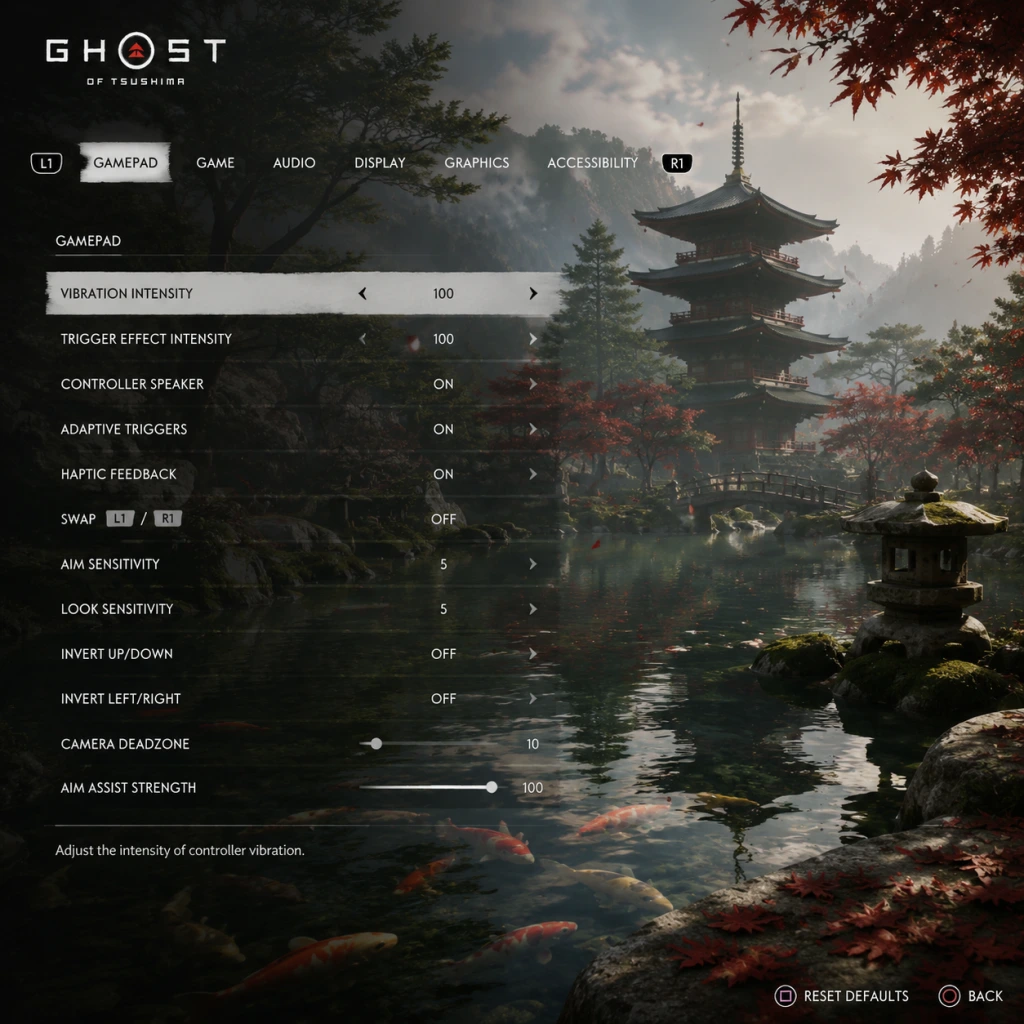
- Controller Speaker Volume (PS4/PS5): Controls output from DualShock 4/DualSense speaker. Tip: Lower if it feels tinny or too loud in quiet scenes.
- DualSense Features (PS5/PC): Vibration Intensity (off, weak, strong), Trigger Effect Intensity (off, weak, strong). Special attention: Too high trigger resistance can fatigue fingers during combat; recommend “Weak” for long sessions.
- 3D Audio (PS5/PC): Supports Tempest 3D Audio on PS5 and spatial audio on PC. Enable for better position of enemies and wind sounds.
- Sound Mode (PS4/PS5): Stereo, Virtual Surround, 5.1, 7.1. Set to your actual speaker/headphone configuration. Using Virtual Surround on stereo headphones can cause muffling; use Stereo for headphones.
- Subtitles: On/Off. Also see Accessibility section.
- Subtitle Background: Light/Dark. Helps readability.
- Custom Button Mapping: Only available on PS4/PS5 via system-level accessibility. PC version allows full remapping via the game’s menus.
- Preset Layouts: Classic (default) and Alternate (swaps light/heavy attack and parry/dodge on face buttons). Tip: Classic is intuitive; Alternate may help if you tend to jam buttons.
- Lock-On: Toggle (press R3 to lock on/off) or Hold (hold R3 to lock). Misconfiguration: Toggle can cause accidental lock loss; Hold gives better control but tires thumb.
- Aim Assist: On (soft lock for ranged weapons) or Off. Keep On for convenience.
- Auto-Sheathe Weapon: After combat ends, Jin automatically sheathes after a few seconds. Set to Off if you want to keep katana drawn for photo mode or subsequent fights.
- Invert Y-Axis: On/Off for camera and aiming. Check this if you come from flight sims; rare need.
- Vibration: On/Off. Can be turned off in Audio menu as well.
- Camera Sensitivity: Slider X and Y. Default 5/10. Increase for quicker turns.
- Trigger Deadzone (PC): Adjust to prevent accidental Nocks (bow pull).
- Quick-Select Gadgets: Double-tap up on D-pad to cycle through equippable items. Tip: Customize which gadgets appear first in the menu (R1 from pause).
- High Contrast Mode: Changes color palette for visibility. On makes enemies glow red, allies blue, world more distinct. Misconfiguration: Turning this on permanently can wash out the artistic visuals; use only if needed.
- Large Subtitles: Increases subtitle text size.
- Speaker Labels: Shows character names next to dialogue.
- Screen Reader: Available on PS5 for menu navigation.
- Controller Buttons: Text overlay for button prompts (on/off).
- Difficulty Options: Also in Gameplay—separate accessibility difficulty presets (Low Intensity Combat) that slow enemy aggression and reduce damage. Not recommended for experienced players but invaluable for those with motor impairments.
- Checkpoint Auto-Save Frequency: Can’t be changed, but you can manually save anytime.
- Photo Mode: Accessible via pause menu. Not a setting but useful to know.
- Voice Language: Japanese, English, or Other (depending on region). Special attention: The game’s original vision includes authentic Japanese lip-sync; switching to English audio causes mismatched lip movements. Recommendation: Play with Japanese voice with English subtitles for full immersion.
- Text Language: Choose from supported languages (English, French, German, Spanish, etc.). Note: Changing text language does not affect voice.
- Subtitles: On/Off, plus choice of displaying always or during dialogue only.
- Menu Text Size: Not adjustable in-game; rely on TV/monitor settings.
- Online Features: Ghost of Tsushima is single-player with no multiplayer, but has Legends Mode (co-op mode) available from the main menu. In the Network tab, you can toggle Enable Online Features on/off. Turning off disables Legends and any leaderboards or ghost data (player death spots from others). Recommendation: Keep On for Legends access; no performance impact during single-player.
- Cross-Platform Play: Legends supports cross-play between PS4 and PS5 (and PC? Actually PC Legends is separate; no cross-play with console). Set cross-play to On to match with other platforms.
- Ghost Data Sharing: Off (others’ death spots not shown in world), On (show). No gameplay effect except atmosphere.
- Voice Chat: For Legends only; can be set to Push to Talk (PC) or Open Mic.
- Difficulty: Easy, Normal, Hard, Lethal.
- Combat Mode: In dialogue options, you can enable Low Intensity Combat (under accessibility). This slows enemy speed and reduces damage. Alternative to difficulty changes.
- HUD Mode: Normal (all elements), Minimal (only important icons), Off (full immersion). Tip: Use Minimal to reduce clutter without losing crucial info.
- Compass: On/Off. The wind directs you to objectives; compass is optional. Special attention: The Guiding Wind is the primary navigation tool; compass may spoil exploration. Many players disable the compass entirely.
- Health Bar Display: Always, In Combat Only, Off. Set to In Combat Only for cleaner screen.
- Quest Tracker: Always, On Foot Only, Off.
- Subtitle Display: Always, Only Dialogs, Never.
- Visible Vision Cone (on minimap?): Not present; instead, stealth indicators show enemy awareness (a white/yellow/red icon). No setting to disable this.
- Photo Mode Controls: Can be accessed via pause, but no special settings beyond button mapping.
- Camera Auto-Adjustment: Under Controls, not gameplay—already covered.
- Auto-Equip Gear: When picking up new items, Jin auto-equips them. This cannot be turned off, but you can manually revert via inventory.
- Riding Speed: On horse, you can gallop (tap R2) or auto-follow roads by holding R1 (while guiding wind is active). No setting to change speed.
---
Controls Settings
Button Mapping
Combat Controls
Quick Menu Shortcuts
---
Accessibility Settings
Ghost of Tsushima has a robust Accessibility section under Gameplay Options (PS4/PS5) and separate PC options.
Platform Notes: On PC, many accessibility features come from the OS (Windows Ease of Access) or third-party software; the game itself has limited accessibility options compared to console.
---
Language Settings
---
Network Settings
---
Gameplay Settings
Difficulty
- Easy: Enemies deal less damage, Jin regenerates health quickly. Great for story focus.
- Normal: Balanced.
- Hard: Enemies are aggressive, have more health, and parry windows are tighter.
- Lethal: Jin and enemies die in 1-2 hits (both sides). Warning: Lethal is unforgiving; stray arrows kill instantly. Aimed at expert players seeking realism.
HUD & Compass
Camera & Photo Mode
Additional Tips
---
Special Attention Points During Setup
1. Language Mismatch: Many players accidentally choose English voices but then feel disconnected. Double-check the Voice Language setting before starting the game.
2. VRAM Oversight (PC): Ignoring the VRAM warning when applying Very High textures leads to micro-stutters. Always consult the VRAM usage bar.
3. 3D Audio on Headphones: Setting Sound Mode to 5.1 or 7.1 on stereo headphones ruins spatial sound. Use Stereo or the dedicated 3D Audio setting if available.
4. Controller Speaker (PS5): The DualSense speaker can be distractingly loud during dialogues. Lower Controller Speaker Volume to 2-3.
5. Trigger Effects: On PS5, the adaptive triggers provide tension when drawing a bow. If you find it tiring, set Trigger Effect Intensity to Weak or Off.
6. Compass vs Guiding Wind: Disabling the compass forces you to rely on the visual wind and bird calls, which is the intended immersive experience. Consider turning it off.
7. Accessibility High Contrast Mode: While very helpful for visibility, it desaturates the world. Use only if medically necessary.
8. PC Inverted Y-Axis: If you play with controller, Invert Y-Axis for camera can be confusing if you’re used to mouse inverted; check default.
9. Framerate Limit vs V-Sync: On PC, setting an unlimited framerate with V-Sync off can cause screen tearing. Use a limit at your monitor’s refresh rate.
10. Difficulty Lethal: Do not select Lethal unless you are prepared for die-and-retry mechanics; it changes combat fundamentally. Save before switching.
---
Summary of Recommended Configurations
| Aspect | PS5 (Recommended) | PC (Mid-Range) | PC (Low-End) |
|---|---|---|---|
| Display Mode / Preset | Performance | High, DLSS Quality | Medium |
| Resolution | 4K via upscaling | 1440p | 1080p |
| Audio | 3D Audio On, Stereo | Same | Same |
| Voice | Japanese + English subs | Same | Same |
| Difficulty | Normal or Hard | Normal | Easy |
| HUD | Minimal | Minimal | Minimal |
| Controls | Default, Trigger Weak | Custom if needed | Default |