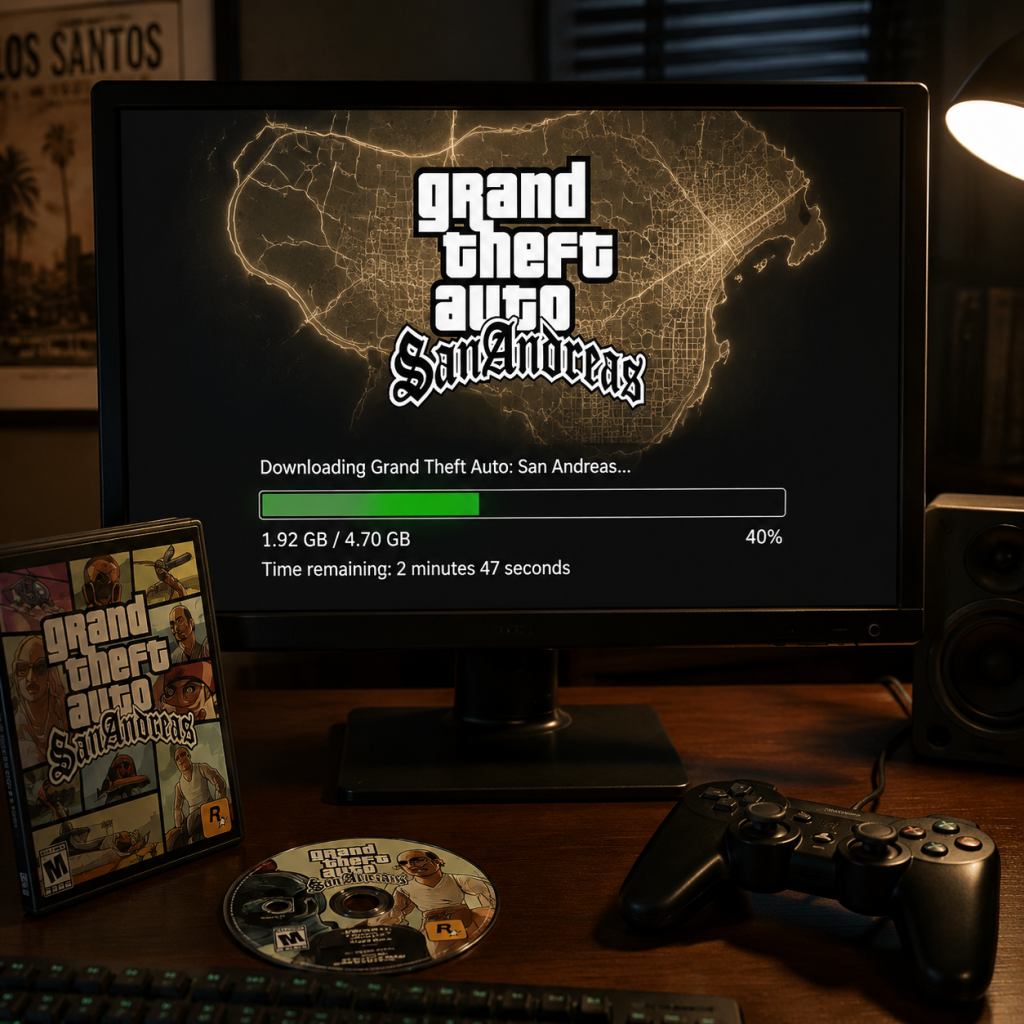
Download & Installation
Grand Theft Auto: San Andreas – Complete Download & Installation Guide
This guide covers all official ways to download and install GTA: San Andreas on PC, PlayStation, Xbox, Nintendo Switch, and mobile devices. Follow platform-specific steps carefully to avoid common issues.
---
1. Platform-Specific Download & Installation
PC (Steam / Epic Games Store / Rockstar Games Launcher)
Official Sources:
- Steam – [store.steampowered.com](https://store.steampowered.com/app/12120/Grand_Theft_Auto_San_Andreas/)
- Epic Games Store – [store.epicgames.com](https://store.epicgames.com/en-US/p/grand-theft-auto-san-andreas)
- Rockstar Games Launcher – [socialclub.rockstargames.com](https://socialclub.rockstargames.com/activate) (requires Rockstar Social Club account)
Step-by-Step Installation:
1. Account Setup:
- Steam: Create/Log in to a Steam account.
- Epic: Create/Log in to an Epic Games account.
- Rockstar: Create a Rockstar Social Club account.
2. Purchase & Download:
- Buy the game on your chosen store.
- Install the respective launcher (Steam, Epic Games Launcher, or Rockstar Games Launcher).
- Locate GTA: San Andreas in your library and click Install.
3. Installation Options:
- Choose a destination folder (ensure enough space).
- Let the launcher download and install (typically 4–5 GB).
4. First Launch:
- Click Play in the launcher.
- The game may prompt you to log into Rockstar Social Club (required for cloud saves on Rockstar/Steam versions).
- On first launch, configure graphics, controls, audio, and display settings before starting a new game.
System Requirements (PC):
| Component | Minimum | Recommended |
|---|---|---|
| OS | Windows 2000/XP (32-bit) | Windows 7/8/10 (64-bit) |
| CPU | 1 GHz Pentium III or AMD Athlon | 2.4 GHz Pentium 4 or AMD Athlon XP 3200+ |
| RAM | 256 MB | 1 GB |
| GPU | 64 MB DirectX 9 compatible (e.g., GeForce 3) | 256 MB DirectX 9 compatible (e.g., GeForce 6600) |
| DirectX | 9.0c | 9.0c |
| Storage | 4 GB | 4 GB |
---
PlayStation 4 / PlayStation 5
Official Source: PlayStation Store (PS4 & PS5 via backward compatibility).
Step-by-Step Installation:
1. Account: Ensure you have a PSN account with PlayStation Plus (not required for purchase).
2. Purchase:
- From the PS Store on console or web, search “Grand Theft Auto: San Andreas” (Classic Edition).
- Buy (usually $14.99) or download if already owned via PS Plus Classics or previous purchase.
3. Download:
- On PS4: Game appears in Library > Purchased. Select Download.
- On PS5: Same process; game runs via PS5’s backward compatibility.
4. Install: The system automatically installs after download (approx. 3–4 GB).
5. First Launch:
- Launch the game. It will prompt you to configure brightness and control layout (classic or modern).
- Accept the license and start.
---
Xbox One / Xbox Series X|S
Official Source: Microsoft Store on Xbox.
Step-by-Step Installation:
1. Account: Sign in to your Xbox Live / Microsoft account. Xbox Game Pass Ultimate or Core not required for purchase.
2. Purchase:
- Go to Store > Search “Grand Theft Auto San Andreas – The Definitive Edition” (the original Classic is also available as “GTA: San Andreas” for backward compatibility).
- Buy the version you want (Classic ~$14.99, Definitive Edition ~$29.99).
3. Download:
- After purchase, select Install on the confirmation screen.
- Choose console or external storage.
4. Install: Download size ~3.5 GB (Classic) or ~8 GB (Definitive).
5. First Launch:
- Start the game. On Xbox Series X|S, you may get a Auto HDR/FPS Boost prompt (can be enabled in game compatibility settings).
- Adjust settings as needed.
---
Nintendo Switch
Official Source: Nintendo eShop.
Step-by-Step Installation:
1. Account: Nintendo Account with Nintendo Switch Online not required.
2. Purchase:
- Open eShop > Search “Grand Theft Auto: San Andreas – The Definitive Edition”.
- Purchase (typically $29.99) or download if owned via previous purchase.
3. Download & Install:
- Select Download. Game installs automatically (approx. 7 GB).
- Ensure sufficient space on internal storage or SD card.
4. First Launch:
- Launch from Home menu. Accept prompts. Configure control scheme (default uses Switch layout).
- No cloud saves unless you have Nintendo Switch Online + save data cloud.
---
Mobile (iOS & Android)
Official Source:
- iOS: App Store – “Grand Theft Auto: San Andreas” by Rockstar Games
- Android: Google Play Store – same title. Important: The classic mobile version was removed in 2023 and replaced by a Netflix Games version (for subscribers) on both platforms. As of 2025, the only legitimate way to play on mobile is via Netflix Games.
Step-by-Step Installation (Netflix Games):
1. Prerequisites:
- An active Netflix subscription (any plan).
- A device running iOS 15+ or Android 8.0+.
2. Download:
- On iOS: Open App Store > Search “Grand Theft Auto: San Andreas Netflix” > Install.
- On Android: Open Google Play > Search the same > Install.
3. Install: The game is ~2.5 GB. Wait for download and installation.
4. First Launch:
- Open the game. It will ask you to sign in to your Netflix account.
- After verification, you can play with touch or optional controller (MFi/Bluetooth).
- Configure sensitivity, voice chat, etc.
---
2. System Requirements (All Platforms)
| Platform | Minimum Storage | Recommended RAM | Notes |
|---|---|---|---|
| PC (Classic) | 4 GB | 1 GB RAM | DirectX 9.0c |
| PC (Definitive Edition) | 8 GB | 8 GB RAM | DirectX 12 (Windows 10+) |
| PlayStation 4/5 | 4 GB | – | PS4 Pro enhances resolution |
| Xbox One/Series X | S | 4 GB (Classic) / 8 GB (Definitive) | – |
| Nintendo Switch | 6 GB (Definitive) | – | Handheld mode at 30fps |
| Mobile (Netflix) | 2.5 GB | iOS 15+/Android 8+ | Requires Netflix subscription |
3. Account Requirements
- PC (Steam): Steam account + optional Rockstar Social Club (for cloud saves).
- PC (Epic): Epic Games account + optional Rockstar Social Club.
- PC (Rockstar): Rockstar Social Club account (mandatory).
- PlayStation: PSN account (PS Plus not required).
- Xbox: Microsoft account (Live Gold not required for single-player).
- Nintendo Switch: Nintendo account (Online not required).
- Mobile (Netflix): Active Netflix subscription and account.
- PC Classic: ~4 GB free after download (larger during installation).
- PC Definitive Edition: ~8 GB.
- PlayStation Classic: 3.5–4 GB.
- Xbox Classic: 3.5–4 GB.
- Nintendo Switch Definitive: 6–7 GB.
- Mobile: 2.5–3 GB.
- Error: “Application failed to initialize” (0xc0000142)
- Black screen on startup
- Low FPS stutter on modern hardware
- “Rockstar Social Club is offline” error
- Installation stuck at 99%
- Error CE-30035-1 (corrupted data)
- Download paused/failed
- Error 0x80070422 (install blocked)
- “This game takes too long to start”
- Error 2005-0003 (corrupted download)
- Game crashes after intro
- “Netflix sign-in loop”
- No audio / crackling
- [ ] Game launches without errors.
- [ ] Main menu appears with all options (New Game, Load, Options, etc.).
- [ ] No visual glitches or missing textures (especially in Definitive Edition).
- [ ] Controls respond correctly (keyboard, controller, touch).
- [ ] Audio plays (music, voice, SFX).
- [ ] Save/Load functionality works – start a new game, save quickly, reload.
- [ ] (PC) Frame rate is stable; adjust settings if needed.
- [ ] (Consoles) Cloud saves sync (if online).
- [ ] (Mobile) Netflix account verified.
---
4. Storage Space
Always leave at least 10% extra space for updates/save files.
---
5. First Launch Setup & Configuration
General Steps (All Platforms)
1. Language/Region: Select your preferred language.
2. Brightness/Calibration: Adjust to see in-game darkness.
3. Controls:
- PC: Choose keyboard+mouse or controller. Bind keys in Options.
- Consoles: Choose Classic (original PS2/Xbox) or Modern (updated) control scheme.
- Mobile: Touch or controller. Customize buttons.
4. Graphics (PC only):
- Set resolution, frame limit (30/60), anti-aliasing, draw distance, etc.
- For Classic version: Enable frame limiter (30fps) for stability.
- For Definitive Edition: Adjust quality presets (Low/Medium/High).
5. Audio: Adjust master volume, music, SFX.
6. Save Game: Create a save slot. Cloud saves may sync automatically after exiting.
---
6. Common Installation Errors & Fixes
PC
- Install DirectX 9.0c (included in game folder `_CommonRedist/DirectX`).
- Run the game as administrator.
- Add `-dx9` or `-windowed` to launch options in Steam/Epic.
- Update GPU drivers.
- Enable frame limiter (30fps) in game options.
- Apply community patches (e.g., SilentPatch for Classic version).
- Check your internet connection.
- Temporarily disable VPN/firewall.
- Restart the launcher.
- Clear download cache in Steam/Epic/Rockstar launcher.
- Restart PC and launcher.
PlayStation
- Delete the game and re-download.
- Rebuild database (Safe Mode > Rebuild Database).
- Ensure enough free space.
- Check PSN server status.
Xbox
- Go to Settings > System > Storage > Clear local saved games.
- Check network connectivity.
- Hard reset console (hold power button 10 sec).
Nintendo Switch
- Archive and re-download from eShop.
- Check for system update.
- Ensure enough free storage (minimum 10% extra).
Mobile
- Ensure Netflix app is updated.
- Reinstall game after clearing cache.
- Restart device.
- Disable Bluetooth if connected to audio device.
---
7. Post-Installation Verification
After installation, do a quick checklist:
If any issue persists, refer to the error fixes in §6 or visit the official Rockstar Support: [support.rockstargames.com](https://support.rockstargames.com/).
---
This guide covers all official download methods as of 2025. Unofficial mods or emulation are not included. Enjoy the streets of San Andreas!