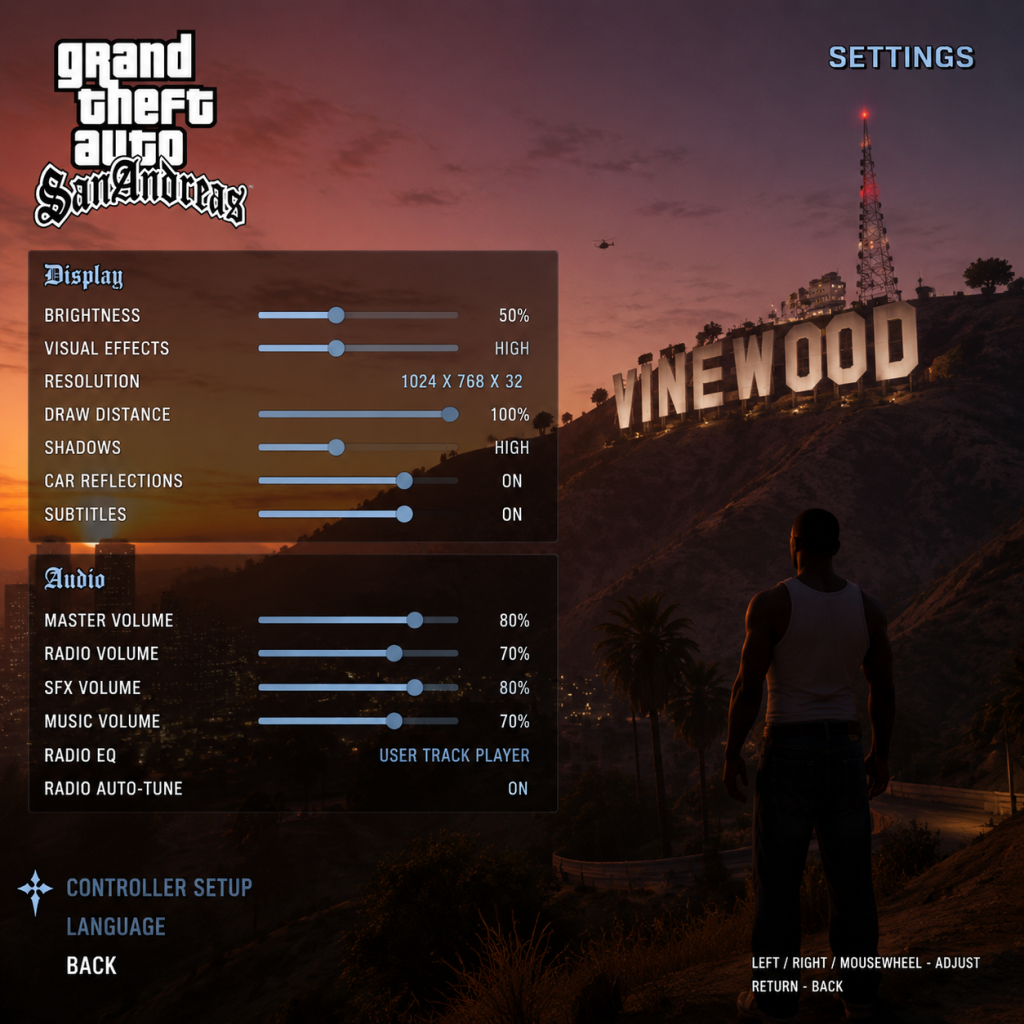
Game Settings
Grand Theft Auto: San Andreas – Game Settings Guide
This guide covers every settings category in Grand Theft Auto: San Andreas, including the original PC release and the Definitive Edition (if applicable). It explains each option, recommends optimal configurations for various hardware tiers (Low, Mid, High, Ultra), and highlights settings that are easy to misconfigure. Follow this guide to fine-tune your experience for performance, visual quality, or a balanced mix.
---
1. Graphics Settings
Graphics settings have the biggest impact on performance and visuals. GTA: San Andreas (original) is fairly lightweight by modern standards, but the Definitive Edition uses the Unreal Engine and requires more power.
1.1 Resolution & Display
- Resolution: Set to your monitor’s native resolution (e.g., 1920×1080, 2560×1440). Lower for performance.
- Refresh Rate: Match your monitor’s maximum refresh rate (60 Hz, 144 Hz, etc.). If you encounter screen tearing, enable VSync.
- Fullscreen vs Windowed: Exclusive Fullscreen offers best performance; Windowed Borderless is good for alt-tabbing.
- Aspect Ratio: Choose 16:9 (widescreen) or 4:3 (original). Use 16:9 for modern monitors.
- Texture Quality: Low (32-bit) / High (64-bit). High looks sharper but uses more VRAM. For 512 MB VRAM or less, choose Low.
- Render Quality: Very Low / Low / Medium / High. Affects overall object quality. Medium is a good balance.
- Draw Distance: Slider from 0 to 100%. Impacts how far objects, cars, and buildings render. For performance, keep below 50%. High values (70%+) cause FPS drops in dense areas like Los Santos.
- Anti-Aliasing: Off / 2x / 4x / 8x (MSAA). Reduces jagged edges. 2x improves visuals with minor performance hit. Higher values consume VRAM.
- Anisotropic Filtering: Off / 2x / 4x / 8x / 16x. Sharper textures at an angle. 4x is negligible performance cost; 16x for best quality.
- Shadows: Off / Low / Medium / High. High shadows render detailed car and character shadows. Low can cause flickering. Medium recommended.
- Reflection Quality: Low / Medium / High. Affects reflections on cars and water. Medium is fine.
- Water Quality: Low / Medium / High. High water looks translucent but can tank FPS near beaches. Low is safe.
- Particles: Low / Medium / High. Controls smoke, fire, and explosion effects. High looks nice but may cause slowdowns during fights.
- Frame Limiter: Off / On (30 FPS cap) / On (60 FPS cap). Important: If you have a high refresh monitor, choose Off and use an external cap (e.g., RTSS). The in-game limiter introduces input lag – a common misconfiguration.
- VSync: On / Off. Prevents screen tearing. Enable if tearing occurs; otherwise Off for lower input lag.
- Resolution Scale: 50%–100%+. Lowering improves performance drastically.
- Texture Quality: Low / Medium / High / Ultra. High requires ~2 GB VRAM.
- Shadow Quality: Low / Medium / High. High casts realistic shadows.
- Post-Processing: Off / Low / Medium / High. Includes bloom, motion blur. Disable for clarity.
- Anti-Aliasing: TAA (Temporal Anti-Aliasing) on/off. TAA smears slightly but removes jaggies. Off for sharper image.
- View Distance: Slider. 40–60% recommended for balance.
- Grass Density: Low / Medium / High. High density in countrysides cripples FPS on low-end.
- Ambient Occlusion: Off / Low / High. Adds depth to objects. Off on low-end.
- Original PC: 1280×720, Texture Low, Draw Distance 30%, Shadows Low, Anti-Aliasing Off, Frame Limiter 30 FPS.
- Definitive Edition: 720p Resolution Scale 50%, Texture Low, Shadows Low, Grass Low, View Distance 30%, Post-Processing Off.
- Original PC: 1920×1080, Texture High, Draw Distance 60%, Shadows Medium, Anti-Aliasing 2x, Anisotropic 4x.
- Definitive Edition: 1080p Resolution Scale 100%, Texture High, Shadows High, Grass Medium, View Distance 60%, TAA On.
- Original PC: 1440p+ 60+ FPS, Texture High, Draw Distance 100%, Shadows High, Anti-Aliasing 4x, Anisotropic 16x.
- Definitive Edition: 1440p or 4K, Texture Ultra, Shadows Ultra, Grass High, View Distance 80%, TAA On, Ambient Occlusion High.
- Master Volume: Overall loudness. Set to 80-100% and adjust speakers/headphones.
- SFX Volume: Effects like gunshots, explosions, car engines. Keep high (80-100%).
- Music Volume: Radio, background music. 50-70% so it doesn’t overpower SFX.
- Voice Volume: Dialogue, cutscenes, radio chatter. 70-100% for story clarity.
- Skip Track Key: Default on PC is `N` (next station) or `B` (previous). Rebind if needed.
- Auto-Select Station: Off if you prefer manual control.
- Sound Device: Choose your playback device (speakers/headphones).
- Surround Sound: Typically Stereo or Headphones. 5.1/7.1 if supported.
- Disable All Sound: Only for troubleshooting.
- Audio Language: Choose English (or other available languages). This changes character voices and radio.
- Menu Language: Separate from audio; can be set independently.
- Bindings: Remap any action (e.g., Sprint, Crouch, Vehicle Enter/Exit). Many players rebind `Sprint` to Space (default is Shift) and `Jump` to Mouse Wheel Up.
- Mouse Sensitivity: Slider (1-100). Start at 50 and adjust. Higher for quick camera turns.
- Invert Mouse (Look): On/Off. Recommended Off.
- Mouse Acceleration: This is a critical setting. In the original PC version, mouse acceleration is enabled by default, causing inconsistent aiming. Disable mouse acceleration in the game’s `.ini` file (see Advanced) or use a third-party tool to force raw input. Without disabling it, aiming feels floaty.
- Supported Controllers: Xbox 360/One/Series, PlayStation 4/5 (via Steam Input or DS4Windows), Nintendo Switch Pro (Steam Input).
- Aim Sensitivity: Separate slider for aiming down sights. Lower (~30) for precision, higher (~70) for speed.
- Look Sensitivity: Same as mouse sensitivity for controller.
- Vibration: On/Off. Turning off saves battery and may improve control.
- Dead Zone: If stick drifts, increase dead zone (default ~0.25).
- Inversion: Invert look axis for piloting or general view.
- Standard (default): Left stick steer, RT accelerate, LT brake/reverse.
- Classic (GTA III style): Left stick steer, `A` accelerate, `X` reverse. Choose based on preference.
- Helicopter Controls: Pitch/Roll sensitivity. Higher for faster response.
- Camera Mode: High (behind car) or Low (bumper view). High is standard.
- Auto-Center Camera: On/Off. When off, camera stays in last position; useful for driving.
- Enable Subtitles: On (shown for cutscenes and dialogue).
- Subtitle Background: Opaque / Semi-Transparent / None. Semi-transparent helps readability without blocking view.
- Subtitle Size: Small / Medium / Large. Large is easier to read on TVs.
- Definitive Edition only: Options for Deuteranopia, Protanopia, Tritanopia. Adjust HUD elements (radar, weapon icons) to more distinguishable colors.
- Aim Assist (Controller): Full / Partial / Off. Full makes aiming sticky – useful for newcomers but trivializes gunfights. For a challenge, set to Off.
- Auto-Aim (PC with controller): Same setting.
- Lock-On Range: Short / Medium / Long. Affects how far auto-aim locks onto targets.
- Original PC has no difficulty slider.
- Definitive Edition: No explicit difficulty; difficulty is influenced by Aim Assist and health pickup availability (not toggleable).
- Choose from available languages (English, French, Italian, German, Spanish, etc.). Affects menus, subtitles, and written hints.
- In original PC, this can be changed to any language available in your install (English usually).
- Definitive Edition: Audio is English-only; subtitles can be in another language.
- Social Club Login: Required for cloud saves and achievements. Always log in.
- Allow Cloud Saves: On – syncs your progress across systems.
- Check for Updates: Automatic on most platforms. Ensure internet connection for patches.
- Online Features: None in base game. Multiplayer mods (SA-MP, MTA) have their own network settings outside this guide.
- Radar: On / Off / Blinking (missions only). Keep On for navigation.
- Weapon Icon: On / Off. Shows current weapon. Useful to leave On.
- Money Display: On / Off.
- Time Display: On / Off.
- Health & Armor Bar: Always visible.
- Camera Vibration: On/Off. Simulates explosions. Off for stability.
- Look Behind Key: Default `C` (hold). Useful to check for pursuing cops.
- Choose a default radio station (e.g., Radio Los Santos, K-DST). Otherwise, radio stays at last tuned station per vehicle.
- Reset to Default: Resets all settings. Use if you experience glitches.
- Save Settings: Always manually save after changes (original PC) – or rely on auto-save (Definitive Edition).
- Test Settings in a Safe Environment: Start a new game or load a save in a quiet spot (e.g., Grove Street) and tweak settings until performance and visuals satisfy you.
- Use Benchmark or Observation: The game has no built-in benchmark. Drive through densely populated areas (Los Santos downtown, Las Venturas strip) to check FPS.
- Keep a Backup: After perfecting settings, back up the configuration file (`gta_sa.set` on PC) so you can restore if corrupted.
1.2 Texture & Rendering Quality (Original PC)
1.3 Advanced Graphics (Original PC)
1.4 Graphics Settings (Definitive Edition – Unreal Engine)
1.5 Hardware Tier Recommendations
#### Low-End (e.g., Intel HD Graphics, 4-8 GB RAM, No dedicated GPU)
#### Mid-Range (e.g., GTX 1050 / RX 570, 16 GB RAM)
#### High-End (e.g., RTX 3060+ / RX 6700+, 16+ GB RAM)
---
2. Audio Settings
Good audio balance enhances immersion and helps you hear footsteps, gunshots, and police sirens.
2.1 Volume Controls
2.2 Radio Settings
2.3 Sound Output
2.4 Language Settings (Original PC)
Special Note: On PC, the original game may have different audio versions (e.g., unmodified vs. censored). The Definitive Edition offers multiple subtitle languages but audio remains English (unless region-specific).
---
3. Controls Settings
Customize keyboard, mouse, and controller bindings to your preference.
3.1 Keyboard & Mouse (PC)
3.2 Controller Support
3.3 Driving Controls
3.4 Camera Settings
---
4. Accessibility Settings
While GTA: San Andreas (original) has limited accessibility options, the Definitive Edition adds some.
4.1 Subtitles
4.2 Colorblind Modes
4.3 Aim Assist
4.4 Difficulty Options
Special Note: Misconfigured auto-aim can ruin the game’s challenge. If you want a skill-based experience, turn Aim Assist to Off in Controls settings (Definitive Edition) or never use the lock-on key (original PC).
---
5. Language Settings
Customize text and audio language separately.
5.1 Interface Language
5.2 Audio Language
Important: If you switch audio language in the original PC version, radio stations also change language (e.g., some stations become spoken in that language). Revert to English if you want the authentic San Andreas radio experience.
---
6. Network Settings
GTA: San Andreas does not have official multiplayer. The network settings are minimal.
6.1 Social Club (Definitive Edition)
6.2 Updates & Connectivity
Note: Users with modded versions may need to disable internet connectivity to avoid launcher conflicts.
---
7. Gameplay Settings
Adjust HUD, camera, and gameplay preferences.
7.1 HUD Configuration
7.2 Camera & Look
7.3 Vehicle Default Radio
7.4 Quick Configurations
---
8. Settings Easy to Misconfigure – Special Attention Points
1. Mouse Acceleration (PC): As mentioned, this is almost always on by default and makes aiming sluggish. To disable it in the original game, open `gta_sa.set` in `Documents\GTA San Andreas User Files\` and set `MPCONFIG` lines to `0`. Alternatively, use a mod like SilentPatch that removes mouse acceleration.
2. Frame Limiter (PC Original): The in-game limiter caps FPS at 30 or 60 but adds noticeable input lag. Leave it Off and cap FPS externally via graphics driver (e.g., NVIDIA Control Panel or Radeon Chill) for smoother input.
3. Draw Distance too High: Setting Draw Distance to maximum on original PC causes massive stuttering in areas like the Las Venturas strip. Keep at 50-70% unless you have a powerful GPU (e.g., GTX 1070+).
4. Auto-Aim (Controller): Some players accidentally enable Auto-Aim when they prefer manual aiming. Double-check under Controls -> Aim Assist and set to Off if you want skill-based combat.
5. Audio Language Change: Changing audio language in original PC also changes radio station voices. If you suddenly hear non-English DJs, revert to English audio.
6. Fullscreen vs Borderless: On multi-monitor setups, Borderless can cause micro-stuttering. Use Exclusive Fullscreen for best performance.
7. VSync + Frame Limiter Combo: Using both VSync and the in-game frame limiter can cause weird frame pacing. Disable one of them.
---
9. Final Recommendations
By following this guide, you’ll avoid common pitfalls and get the best possible experience from Grand Theft Auto: San Andreas, whether you’re playing for nostalgia or modding it to modern standards.